
1. Product Overview
The EARISE Vigorowl T60 is a portable karaoke machine featuring a dual-speaker system, Bluetooth connectivity, and support for various audio inputs. It includes a wired microphone for karaoke and public address functions.

Image 1.1: EARISE Vigorowl T60 Portable Karaoke Machine with included wired microphone.
Package Contents
- 1 x T60 PA Speaker
- 1 x Wired Microphone
- 1 x USB Charging Cable (Adapter not included)
- 1 x User Manual (this document)
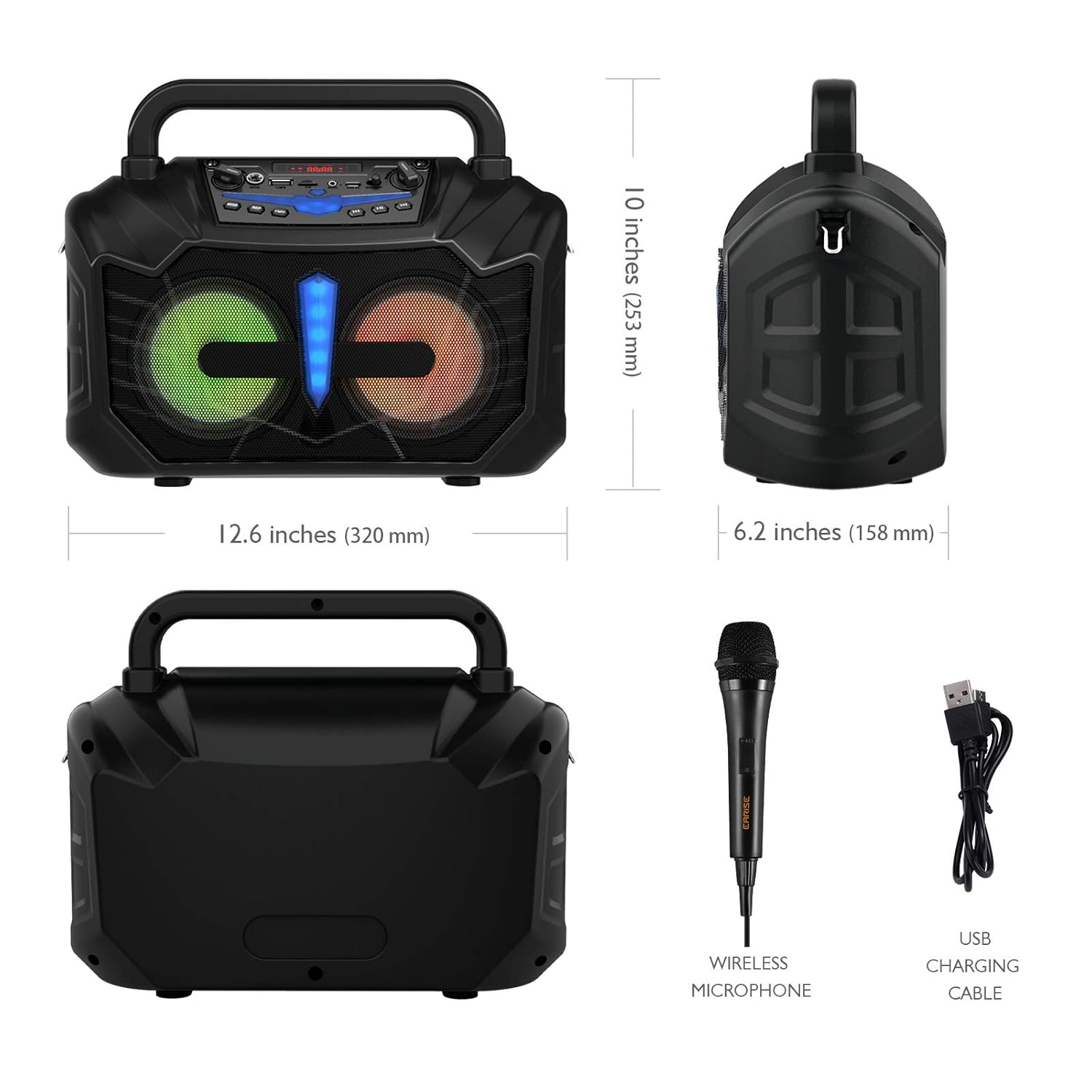
Image 1.2: The EARISE Vigorowl T60 package includes the main speaker unit, a wired microphone, and a USB charging cable.
Control Panel and Ports

Image 1.3: Detailed view of the T60 control panel, indicating various buttons, knobs, and ports.
- Mic Volume Control
- 1/4" Mic In Jack
- USB Flash Drive Slot
- TF Card Slot
- Display Screen
- AUX In Jack
- USB 5V Charging Port
- Power On/Off Switch
- Master Volume Control
- Mode Button
- Repeat Button
- Light On/Off Button
- Previous Track Button
- Play/Pause Button
- Next Track Button
2. Setup
Charging the Device
- Locate the USB 5V Charging Port (7) on the control panel.
- Connect the provided USB charging cable to the port.
- Connect the other end of the USB cable to a compatible USB power adapter (not included) or a computer USB port.
- The display screen (5) will indicate charging status. A full charge typically takes several hours.
Note: Ensure the power adapter provides 5V output for safe charging.
Powering On/Off
- To power on, slide the Power On/Off Switch (8) to the 'ON' position. The display screen will illuminate.
- To power off, slide the Power On/Off Switch (8) to the 'OFF' position.
Connecting the Wired Microphone
- Locate the 1/4" Mic In Jack (2) on the control panel.
- Insert the plug of the wired microphone firmly into the Mic In Jack.
- Adjust the microphone volume using the Mic Volume Control (1).

Image 2.1: The included wired microphone features a 10ft cable for flexible use.
3. Operating Instructions
Adjusting Volume
- Master Volume: Use the Master Volume Control (9) to adjust the overall sound output of the speaker.
- Microphone Volume: Use the Mic Volume Control (1) to adjust the volume of the connected microphone independently.

Image 3.1: Separate controls for microphone and master volume allow for precise audio mixing.
Selecting Input Mode
Press the Mode Button (10) repeatedly to cycle through available input modes: Bluetooth, USB, TF Card, AUX, and FM Radio.
Bluetooth Connection
- Power on the T60. The speaker will automatically enter Bluetooth pairing mode, indicated by a flashing Bluetooth icon on the display screen (5).
- On your mobile device (smartphone, tablet, etc.), enable Bluetooth and search for available devices.
- Select "EARISE T60" from the list of devices.
- Once connected, the Bluetooth icon on the display screen will stop flashing, and a confirmation tone may sound.
- You can now play audio from your device through the T60 speaker.

Image 3.2: Easily connect your smartphone or other Bluetooth-enabled devices to the T60.
USB/TF Card Playback
- Insert a USB flash drive into the USB Flash Drive Slot (3) or a TF (micro SD) card into the TF Card Slot (4).
- The speaker will automatically switch to USB or TF card mode and begin playing audio files. If not, press the Mode Button (10) to select the correct mode.
- Use the Previous Track (13), Play/Pause (14), and Next Track (15) buttons to control playback.
- Press the Repeat Button (11) to cycle through repeat modes (e.g., repeat one, repeat all).
AUX Input
- Connect an audio device (e.g., PC, MP3 player) to the AUX In Jack (6) using a 3.5mm audio cable (not included).
- Press the Mode Button (10) until "AUX" is displayed on the screen.
- Audio from the connected device will now play through the T60.
Light Effects
- Press the Light On/Off Button (12) to toggle the speaker's LED lights on or off.

Image 3.3: The T60 features dynamic LED lights that can be turned on or off.
4. Maintenance
Cleaning
- Ensure the device is powered off and unplugged before cleaning.
- Use a soft, dry cloth to wipe the exterior surfaces.
- Do not use abrasive cleaners, waxes, or solvents.
Battery Care
- To prolong battery life, avoid fully discharging the battery frequently.
- Charge the device regularly, even if not in use for extended periods.
- Store the device in a cool, dry place away from direct sunlight and extreme temperatures.
Storage
- When storing the device for a long time, ensure it is fully charged and then power it off.
- Keep the device in its original packaging or a protective case to prevent dust and damage.
5. Troubleshooting
| Problem | Possible Cause | Solution |
|---|---|---|
| Device does not power on | Battery is depleted Power switch is off | Charge the device Slide the Power On/Off Switch (8) to 'ON' |
| No sound output | Master volume too low Incorrect input mode selected Source device volume too low | Increase Master Volume Control (9) Press Mode Button (10) to select correct input Increase volume on connected device |
| Bluetooth connection fails | Device not in pairing mode Bluetooth disabled on source device Too far from source device | Ensure T60 is in Bluetooth mode Enable Bluetooth on your device Move source device closer to T60 (within 10 meters) |
| Microphone not working | Microphone not properly connected Mic volume too low | Ensure microphone is fully inserted into 1/4" Mic In Jack (2) Increase Mic Volume Control (1) |
6. Specifications
| Feature | Specification |
|---|---|
| Peak Power Output | 30W |
| R.Frequency | 90Hz-20KHz |
| Li-ion Battery | 3.7V / 2400mAh |
| Drive Unit | 4" 3Ω*2 |
| S/N Ratio | ≥60dB |
| DC Input | USB 5V |
| Power Supply | AC 100-240V |
| Dimensions (L x W x H) | 320 x 158 x 253mm (12.6" x 6.2" x 10") |
| Item Weight | 2.34 kg |
| Material | Acrylonitrile Butadiene Styrene (ABS) |
| Connectivity Technology | AUX, Bluetooth, USB |
| Compatible Devices | iPhone, smartphone, tablet, PC |
7. Warranty and Support
The EARISE Vigorowl T60 Portable Karaoke Machine comes with a standard manufacturer's warranty. For specific warranty terms, duration, and to register your product, please refer to the warranty card included in your package or visit the official EARISE website.
For technical support, troubleshooting assistance beyond this manual, or service inquiries, please contact EARISE customer support through their official channels. Contact information can typically be found on the product packaging or the brand's website.