
MIPRO MA-101G/ACT-58H
MIPRO MA-101G/ACT-58H Personal Wireless PA System User Manual
Model: MA-101G/ACT-58H
Introduction
The MIPRO MA-101G/ACT-58H is an ultra-compact and lightweight personal wireless PA system designed for small crowds. It offers a range of features in an easy-to-use package, suitable for various public address applications such as presentations, guided tours, and small outdoor events. This manual provides essential information for the proper setup, operation, and maintenance of your PA system.
Product Overview
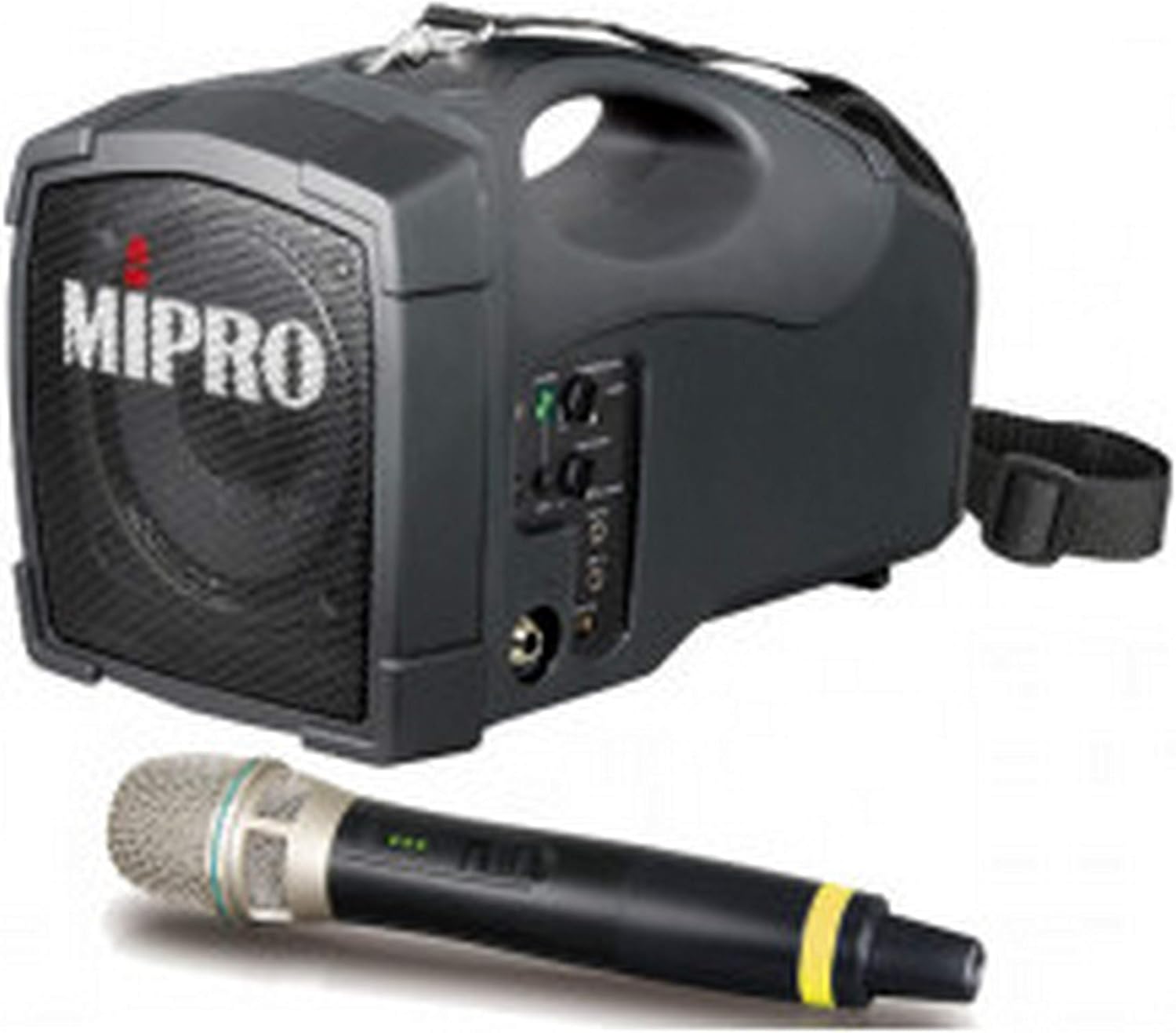
This image displays the MIPRO MA-101G/ACT-58H Personal Wireless PA System, a compact black unit with a speaker grille on the front, control knobs on the side, and a carrying handle on top. A black wireless microphone with a silver grille and a yellow band near the base is shown in the foreground.
Setup
Unpacking
Carefully remove all components from the packaging. Verify that all listed items are present and undamaged. Retain the packaging for future storage or transport.
Powering the Unit
The MA-101G/ACT-58H is designed for portability and is battery-powered. Before initial use, ensure the internal battery is fully charged. Connect the provided power adapter to the DC input port on the unit and then to a standard power outlet. The charging indicator light will illuminate during charging and typically change color or turn off when fully charged.
Microphone Pairing (ACT-58H)
For the ACT-58H wireless microphone, specific pairing instructions are usually provided with the microphone itself. Generally, this involves activating a pairing mode on the PA system (often indicated by a flashing light) and then initiating the pairing function on the microphone. Once successfully paired, the microphone's signal will be received by the PA system.
Operating
Power On/Off
Locate the power switch on the unit. Press and hold the switch for a few seconds to power the system on or off. An indicator light will confirm the power status (e.g., solid green for on).
Volume Control
Adjust the master volume knob to control the overall audio output level of the PA system. If available, individual input volume controls can be used for fine-tuning the balance between different audio sources.
Connecting Audio Sources
- Wireless Microphone: Ensure the ACT-58H microphone is paired and powered on. Speak into the microphone to test the audio output through the PA system.
- USB Connectivity: If supported by the system's firmware, connect a USB device to the USB port for audio playback. Refer to the system's display or indicators for navigation and control.
- Bluetooth Connectivity: Activate Bluetooth on your external device (e.g., smartphone, tablet). Put the MA-101G/ACT-58H into Bluetooth pairing mode (consult the unit's specific button or indicator for this function). On your device, select 'MIPRO MA-101G' from the list of available Bluetooth devices to connect. Once connected, audio from your device will play through the PA system.
Mounting Options
The MA-101G/ACT-58H is versatile in its placement. It can be easily carried using its padded shoulder strap or built-in handle. Additionally, it can be mounted on a standard microphone stand for elevated sound projection, despite being listed as a tabletop mounting type.
Maintenance
Cleaning
Wipe the exterior surfaces of the unit with a soft, dry cloth. Do not use liquid cleaners, abrasive chemicals, or solvents, as these can damage the finish or internal components. Keep the speaker grille free of dust and debris to ensure clear sound output.
Battery Care
For optimal battery longevity, fully charge the unit before extended periods of non-use. If storing the PA system for several months, it is recommended to recharge the battery every 3-6 months to prevent deep discharge, which can reduce battery life.
Storage
Store the PA system in a cool, dry place, away from direct sunlight, excessive heat, or extreme cold. Protect the unit from physical impact and moisture.
Troubleshooting Common Issues
| Problem | Possible Cause | Solution |
|---|---|---|
| No Sound Output | Unit not powered on; Volume too low; Input source not connected or active. | Check power switch and battery charge. Ensure master volume is turned up. Verify input source (microphone, Bluetooth, USB) is properly connected and active. |
| Wireless Microphone Not Working | Microphone not paired; Microphone battery low; Microphone out of range. | Re-pair the microphone with the PA system according to its instructions. Replace or charge microphone batteries. Ensure microphone is within operating range of the PA system. |
| Bluetooth Connection Fails | PA system not in pairing mode; External device not in pairing mode; Devices too far apart; Interference. | Ensure both the PA system and your external device are in Bluetooth pairing mode. Move devices closer to each other. Try restarting Bluetooth on both devices. Avoid sources of strong electromagnetic interference. |
| Distorted Audio | Volume too high; Input signal too strong; Damaged cable or component. | Reduce the master volume or the volume of the specific input source. Check the audio source for distortion before it reaches the PA system. Inspect cables for damage. |
Technical Specifications
| Feature | Detail |
|---|---|
| Brand | MIPRO |
| Model | MA-101G/ACT-58H |
| Power Source | Battery Powered |
| Output Wattage | 50 Watts |
| Number of Channels | 10 |
| Connectivity Technology | Bluetooth, USB |
| Connector Type | USB |
| Color | Black |
| Compatible Devices | Smartphone |
| Mounting Type | Tabletop (also compatible with microphone stands) |
| Item Weight | 7 pounds |
| UPC | 680652971561 |
| Manufacturer | MiPro |
| Date First Available | August 6, 2024 |
Warranty and Support
Product Warranty
For detailed information regarding the product warranty, including coverage period and terms, please refer to the warranty card or documentation included with your MA-101G/ACT-58H PA system. You may also visit the official MIPRO website for the most current warranty policies, as terms and conditions may vary by region.
Customer Support
If you encounter any issues not covered in this manual, require technical assistance, or have questions about your product, please contact MIPRO customer support. You can typically find contact information (phone, email, or support portal) on the official MIPRO website. When contacting support, please have your purchase receipt and the product serial number ready for faster service.
Ask a question about this manual
Ask about setup, troubleshooting, compatibility, parts, safety, or missing instructions. Manuals+ will review the question and use this page’s manual context to help answer it.