
GODOX GM55
Contents
Godox GM55 5.5" 4K HDMI Touchscreen On-Camera Monitor User Manual
Model: GM55
1. Introduction
The Godox GM55 is a versatile 5.5-inch 4K HDMI touchscreen on-camera monitor designed to enhance your video production workflow. It provides a clear and accurate display for previewing footage, checking exposure, focus, and other critical parameters during shooting. This manual provides detailed instructions for the proper setup, operation, and maintenance of your GM55 monitor.
2. Safety Information
Please read and understand the following safety precautions before using the Godox GM55 monitor:
- Do not disassemble or modify the product. If repairs are needed, contact authorized service personnel.
- Keep the product dry. Do not handle with wet hands or expose to water or rain.
- Do not use the product in the presence of flammable gases or liquids.
- Do not leave the product in direct sunlight or in high-temperature environments.
- Use only specified power sources and accessories.
- Clean the screen with a soft, dry cloth. Avoid harsh chemicals.
3. Package Contents
Verify that all items are present in your package:
- Godox GM55 On-Camera Monitor
- Mini HDMI to HDMI Cable
- Micro HDMI to HDMI Cable
- Cold Shoe Mount
- Cleaning Cloth
- Instruction Manual
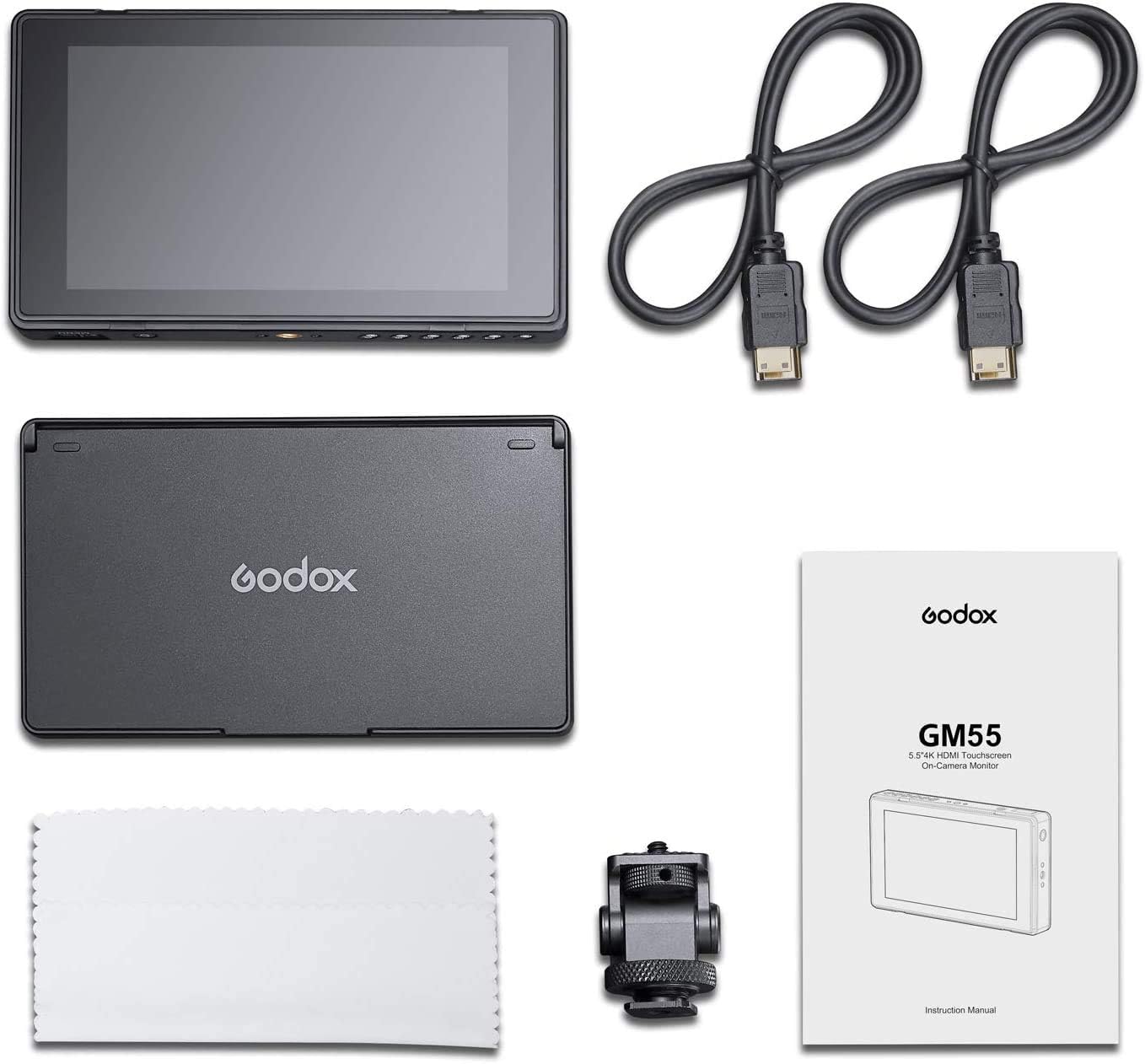
4. Product Overview
4.1. Monitor Ports and Controls


The GM55 features a 5.5-inch IPS touchscreen display. Key ports and controls include:
- Power Button: Located on the side, used to turn the monitor on/off.
- DC IN Port: For external power supply (7-24V).
- DC OUT Port: Provides power to compatible cameras or accessories (max. 8V/1.5A).
- HDMI IN Port: Connects to your camera's HDMI output.
- HDMI OUT Port: For connecting to an external display or wireless transmitter.
- 3.5mm Earphone Jack: For audio monitoring.
- SD Card Slot: For importing 3D LUT files.
- Battery Plate: Compatible with F550/F750/F970 series lithium batteries.
5. Initial Setup
5.1. Powering the Monitor
The GM55 can be powered by either an external DC power source or a compatible lithium battery.
- Battery Power: Insert a fully charged F550, F750, or F970 series lithium battery into the battery plate on the back of the monitor.
- DC Power: Connect a DC power adapter (7-24V, not included) to the DC IN port.
5.2. Mounting the Monitor
Attach the GM55 to your camera rig using the included cold shoe mount or other compatible mounting accessories.
- Secure the cold shoe mount to your camera's hot shoe or a cage.
- Attach the monitor to the cold shoe mount's screw.
- Adjust the monitor's angle for optimal viewing.

5.3. Connecting to a Camera
Use the provided HDMI cables to connect your camera to the GM55 monitor.
- Connect one end of the HDMI cable to your camera's HDMI output port.
- Connect the other end of the HDMI cable to the HDMI IN port on the GM55 monitor.
- Ensure both devices are powered on and set to output/receive HDMI signals correctly.

6. Operation Guide
6.1. Basic Controls and Menu Navigation
The GM55 features an intuitive touchscreen interface for navigation and settings adjustment. Physical buttons are also available for quick access to functions.
- Touchscreen: Tap, swipe, and pinch to navigate menus, adjust settings, and zoom.
- Shortcut Buttons: Customizable buttons allow for quick access to frequently used functions.
- Menu Button: Access the main menu for comprehensive settings.
6.2. Advanced Features
6.2.1. 3D LUT Import
The GM55 supports importing up to 25 custom 3D LUTs (Look Up Tables) via an SD card. This allows you to apply various creative looks or convert log footage to Rec.709 for accurate monitoring.
- Save your .cube LUT files to an SD card.
- Insert the SD card into the monitor's SD card slot.
- Navigate to the LUT menu to import and apply your desired LUTs.

6.2.2. 4K HDMI Output
The monitor features a 4K HDMI output, enabling real-time monitoring on a larger external screen or through a wireless transmitter. This is beneficial for collaborative monitoring by directors and cinematographers.
- Connect an HDMI cable from the GM55's HDMI OUT port to your external display or wireless transmitter.
- Ensure the external device is configured to receive the HDMI signal.

6.2.3. Camera Control Function
The GM55 can control compatible cameras through its pop-out control menu or customizable shortcut buttons, streamlining your shooting process.
- Ensure your camera is compatible with the GM55's control features.
- Access the camera control menu on the monitor's touchscreen.
- Configure shortcut buttons for quick access to camera functions.

6.2.4. Accurate Color Reproduction (REC.709)
With REC.709 color calibration, the GM55 ensures natural and accurate color representation, providing a reliable reference for assessing shooting quality.

6.2.5. IPS Touchscreen with Expansive Viewing Angle
The IPS touchscreen offers a wide 160°/160° viewing angle, ensuring consistent and accurate colors even when viewed from various positions.

7. Care and Maintenance
- Cleaning: Use the provided cleaning cloth or a soft, lint-free cloth to gently wipe the screen and body. Do not use liquid cleaners or abrasive materials.
- Storage: When not in use, store the monitor in a dry, cool place, away from direct sunlight and extreme temperatures.
- Battery Care: If using batteries, remove them during long periods of inactivity to prevent leakage.
- Handling: Avoid dropping or subjecting the monitor to strong impacts.
8. Troubleshooting
| Issue | Possible Cause | Solution |
|---|---|---|
| Monitor does not power on | Low or dead battery; DC power not connected or faulty. | Charge or replace battery; check DC power connection and adapter. |
| No video signal | HDMI cable loose or faulty; camera not outputting signal; incorrect input selected. | Check HDMI cable connection; ensure camera HDMI output is active; verify monitor input settings. |
| Touchscreen unresponsive | Temporary software glitch; screen dirty. | Restart the monitor; clean the screen with a soft cloth. |
| Image appears distorted or incorrect colors | Incorrect color settings; faulty HDMI cable; LUT applied incorrectly. | Reset color settings; try a different HDMI cable; check LUT application. |
9. Technical Specifications
| Feature | Specification |
|---|---|
| Model | GM55 |
| Screen | 5.5" IPS Touch Screen |
| Screen Ratio | 16:9 |
| Resolution | 1920x1080 (FHD 1080p) |
| Power Consumption | ≤7W |
| Material | PC Plastic |
| Contrast Ratio | 1000:1 |
| Color Depth | 8bit |
| Brightness | 410nit±10% |
| Visual Angle | 160°H/160°V |
| Audio Output | 3.5mm Earphone dual-channel output |
| SD Card Slot | Supports .cube files (17/32/33/64/65 cube) |
| Power Source Input | DC 7-24V |
| Fake Battery Output | DC 8V/1.5A (max) |
| Battery Compatibility | F550/F750/F970 lithium battery |
| Working Temperature | -10°C~50°C |
| Dimensions (with hood) | 154x90.4x34.3mm (6.06 x 3.56 x 1.35 inches) |
| Net Weight (with hood) | 318g (0.7 lbs) |
10. Warranty and Support
For warranty information, technical support, or service inquiries, please refer to the warranty card included with your product or visit the official Godox website. Keep your purchase receipt as proof of purchase for warranty claims.
Ask a question about this manual
Ask about setup, troubleshooting, compatibility, parts, safety, or missing instructions. Manuals+ will review the question and use this page’s manual context to help answer it.