
NETVIP 1200Mbps WiFi Extender
Contents
NETVIP 1200Mbps WiFi Extender User Manual
Model: 1200Mbps WiFi Extender
1. Introduction
Thank you for choosing the NETVIP 1200Mbps WiFi Extender. This manual provides detailed instructions for setting up, operating, maintaining, and troubleshooting your device. Please read this manual carefully before use to ensure proper functionality and optimal performance.
2. Product Overview
The NETVIP 1200Mbps WiFi Extender is designed to expand your existing Wi-Fi coverage, eliminate dead zones, and provide a stronger, more reliable wireless signal. Featuring dual-band technology (2.4GHz and 5GHz) and four external antennas, it supports data transfer rates up to 1200Mbps, making it suitable for streaming, gaming, and general internet use. It also includes Fast Ethernet ports for wired connections.
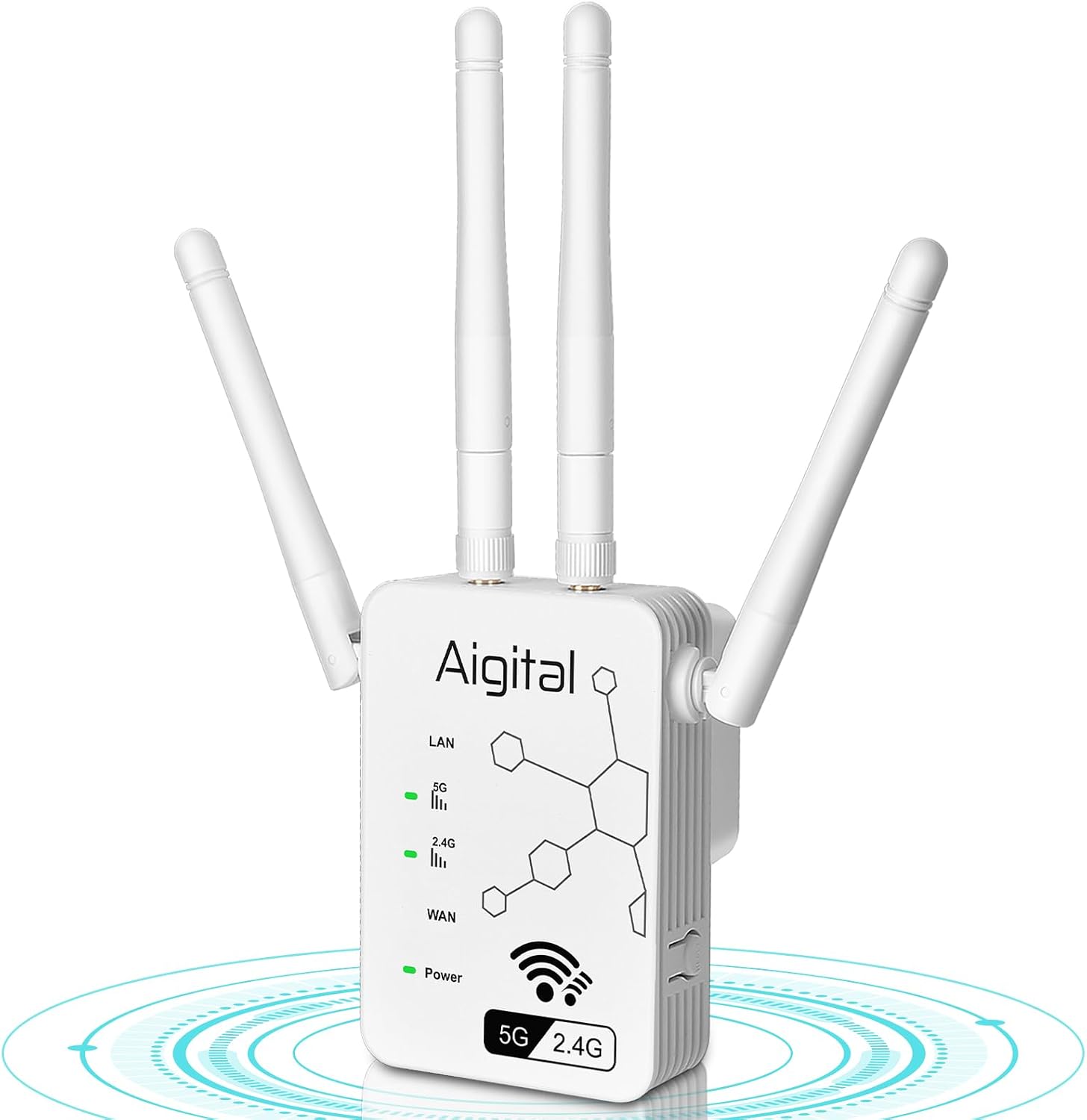
This image displays the NETVIP 1200Mbps WiFi Extender, a white rectangular device featuring four external adjustable antennas. The front panel includes LED indicators for LAN, 5G, 2.4G, WAN, and Power, along with a stylized WiFi signal icon and '5G 2.4G' text. The side of the device shows ventilation slots and ports.
3. Setup Guide
Follow these steps to set up your NETVIP WiFi Extender:
- Power On: Plug the extender into an electrical outlet near your main router. Wait for the Power LED indicator to light up.
- Connect to Extender: On your computer or mobile device, connect to the extender's default Wi-Fi network (e.g., "NETVIP_EXT"). No password is required initially.
- Access Web Interface: Open a web browser and enter the default IP address or domain name (usually found on a sticker on the device or in a quick start guide) into the address bar. This will open the setup wizard.
- Select Operation Mode:
- Repeater Mode: Extends your existing Wi-Fi network. Select your home Wi-Fi network from the list and enter its password. The extender will then broadcast an extended network with a similar name (e.g., "YourNetwork_EXT").
- AP Mode (Access Point Mode): Converts a wired internet connection into a wireless network. Connect an Ethernet cable from your router to the extender's LAN/WAN port. The extender will then create a new Wi-Fi network.
- Configure Settings: Follow the on-screen prompts to set a new Wi-Fi name (SSID) and password for the extended network. It is recommended to use a strong, unique password.
- Relocate Extender: Once configured, unplug the extender and move it to a location halfway between your router and the Wi-Fi dead zone. Ensure the signal strength indicator (if available) shows a good connection to your main router.
- Connect Devices: Connect your devices to the new extended Wi-Fi network.
4. Operating Instructions
After successful setup, the extender operates automatically. Here are key operational aspects:
- LED Indicators: Monitor the LED lights on the front panel to understand the device's status:
- Power: Indicates if the device is powered on.
- 2.4G/5G: Indicates activity on the respective Wi-Fi bands.
- LAN/WAN: Indicates activity on the Ethernet port.
- Optimal Placement: For best performance, place the extender in a location where it receives a strong signal from your main router and can effectively broadcast to the desired area. Avoid placing it near large metal objects, microwave ovens, or other devices that may cause interference.
- Wired Connections: Use the Ethernet ports to connect wired devices such as gaming consoles, smart TVs, or desktop computers for a stable and fast connection.
5. Maintenance
To ensure the longevity and optimal performance of your NETVIP WiFi Extender, consider the following maintenance tips:
- Keep Clean: Regularly wipe the device with a soft, dry cloth to prevent dust buildup, which can affect ventilation.
- Ventilation: Ensure the extender is placed in a well-ventilated area. Do not cover the ventilation slots.
- Firmware Updates: Periodically check the NETVIP official website for firmware updates. Updating the firmware can improve performance, add new features, and fix bugs.
- Power Cycle: If you experience intermittent connectivity issues, try power cycling the device by unplugging it for 10 seconds and then plugging it back in.
6. Troubleshooting
If you encounter issues with your NETVIP WiFi Extender, refer to the following common problems and solutions:
- No Internet Connection After Setup:
- Ensure the extender is within range of your main router and receiving a strong signal.
- Verify that the Wi-Fi password entered during setup for your main router is correct.
- Try power cycling both your main router and the extender.
- If in Repeater Mode, ensure your main router has an active internet connection.
- Weak Signal or Slow Speed:
- Relocate the extender closer to your main router, ensuring it's still halfway to the desired coverage area.
- Minimize physical obstructions (walls, large furniture) between the extender and your devices.
- Check for interference from other electronic devices.
- Ensure your main router is providing adequate speed.
- Cannot Access Setup Page:
- Ensure your device is connected to the extender's Wi-Fi network (not your main router's).
- Clear your browser's cache and cookies, or try a different browser.
- Verify the correct IP address or domain name for the setup page.
- Reset the extender to factory defaults (usually via a small reset button) and try setup again.
- Frequent Disconnections:
- Check for firmware updates for the extender.
- Ensure the extender is not overheating.
- Consider changing the Wi-Fi channel on your main router to avoid congestion.
7. Specifications
| Brand | NETVIP |
| Data Transfer Rate | 1200 Megabits Per Second |
| Frequency Band Class | Dual-Band (2.4GHz & 5GHz) |
| Special Feature | Dual Band |
| Connector Type | RJ45 (Ethernet), Wi-Fi |
| Compatible Devices | Gaming Console, Personal Computer, Smart Television |
| Range | Up to 2500 square feet |
8. Warranty and Support
For warranty information and technical support, please refer to the documentation included with your purchase or visit the official NETVIP website. You may also contact NETVIP customer service directly for assistance with product setup, troubleshooting, or any other inquiries.
NETVIP Store Link: Visit the NETVIP Store on Amazon
Documents and downloads
Ask a question about this manual
Ask about setup, troubleshooting, compatibility, parts, safety, or missing instructions. Manuals+ will review the question and use this page’s manual context to help answer it.