
1. Introduction
This manual provides detailed instructions for the setup, operation, and maintenance of your Aula SC200 Wireless Gaming Mouse. Please read this guide thoroughly to ensure optimal performance and longevity of your device. The Aula SC200 offers versatile connectivity options, adjustable sensitivity, and a comfortable ergonomic design for an enhanced user experience.
2. Package Contents
- Aula SC200 Wireless Gaming Mouse
- USB 2.4GHz Receiver
- USB Charging Cable
- User Manual
3. Product Overview
Familiarize yourself with the various components and controls of your Aula SC200 mouse.

Image: Front and bottom view of the Aula SC200 mouse, highlighting the scroll wheel, forward/backward buttons, DPI switch button, and the OFF/ON/Light switch on the bottom.
- Left/Right Click Buttons: Standard mouse functions.
- Scroll Wheel: For vertical scrolling and middle-click functionality.
- Forward/Backward Buttons: Located on the side, typically used for navigation in web browsers or applications.
- DPI Switch Button: Adjusts the mouse sensitivity (DPI).
- Mode Switch Button: Located on the bottom, used to cycle between 2.4GHz wireless, Bluetooth 3.0, and Bluetooth 5.0 modes.
- Power/Light Switch: Located on the bottom, controls power and LED lighting.
- USB Receiver Storage: A compartment on the bottom of the mouse to store the 2.4GHz USB receiver.
4. Setup
4.1 Charging the Mouse
The Aula SC200 mouse features a built-in 800mAh rechargeable lithium battery. Before first use, or when the battery indicator shows low power, charge the mouse using the provided USB cable.

Image: An exploded view illustrating the 800mAh rechargeable battery integrated within the Aula SC200 mouse.
- Connect the small end of the USB charging cable to the charging port on the front of the mouse.
- Connect the standard USB end of the cable to a USB port on your computer.
- The mouse can be used while charging. A full charge typically takes approximately 2 hours.
Important Note on Charging:
- Always connect the mouse-cable to your computer for charging.
- Do not use a mobile phone charger or fast charger to charge the mouse, as this may negatively affect the mouse's lifespan and battery health.

Image: The Aula SC200 mouse being charged via USB, illustrating its long standby time (180 days), work time (250 hours), and full charge time (2 hours).
4.2 Connecting via 2.4GHz Wireless
This mode uses the included USB receiver for a stable wireless connection.
- Locate the USB 2.4GHz receiver stored in the compartment on the bottom of the mouse.
- Plug the USB receiver into an available USB port on your computer.
- Turn on the mouse using the power switch on the bottom.
- Press the mode switch button on the bottom of the mouse until the indicator light shows 2.4G mode (usually a specific color or blinking pattern).
- Your computer should automatically detect and install the necessary drivers. The mouse is ready for use.

Image: The white Aula SC200 mouse positioned next to its 2.4GHz USB receiver, emphasizing its multi-mode wireless functionality.
4.3 Connecting via Bluetooth (BT3.0 & BT5.0)
The Aula SC200 supports two Bluetooth modes, allowing connection to up to two Bluetooth-enabled devices simultaneously, in addition to the 2.4GHz connection.
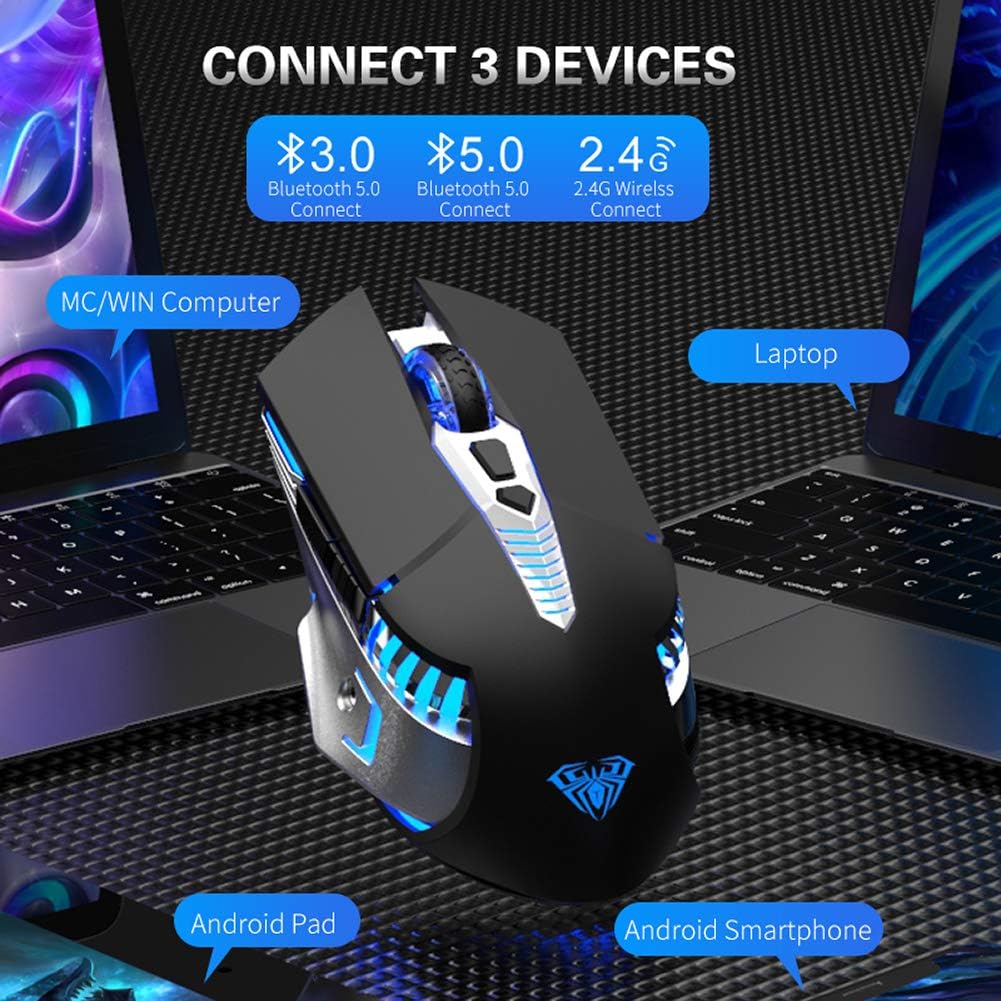
Image: A visual representation of the Aula SC200 mouse's ability to connect to three devices concurrently using Bluetooth 3.0, Bluetooth 5.0, and 2.4GHz wireless modes.
- Turn on the mouse using the power switch on the bottom.
- Press the mode switch button on the bottom of the mouse to select either Bluetooth 3.0 or Bluetooth 5.0 mode. The indicator light will change to reflect the selected Bluetooth channel.
- On your device (computer, laptop, tablet, smartphone), go to Bluetooth settings and enable Bluetooth.
- Search for new devices. The mouse should appear as "AULA SC200" or similar.
- Select the mouse to pair. Once paired, the indicator light on the mouse will stabilize.
- Repeat these steps for a second Bluetooth device if desired, selecting the other Bluetooth mode (BT3.0 or BT5.0) on the mouse.
4.4 Switching Between Connected Devices
To switch between the 2.4GHz wireless connection and the two Bluetooth connections, simply press the mode switch button on the bottom of the mouse. Each press will cycle through the available modes (2.4G → BT3.0 → BT5.0).
5. Operating Instructions
5.1 DPI Adjustment
The Aula SC200 mouse offers three adjustable DPI (Dots Per Inch) levels to suit various tasks, from precise work to fast-paced gaming. The available DPI settings are 800, 1200, and 1600.
- To change the DPI, press the DPI switch button located on the top of the mouse, behind the scroll wheel.
- Each press will cycle through the DPI settings. The mouse's LED lighting may briefly change or flash to indicate the current DPI level.
5.2 LED Lighting Control
The mouse features 7-color automatic breathing LED lights, providing a dynamic visual effect. These lights are integrated into the mouse's design and contribute to its aesthetic.

Image: The Aula SC200 mouse showcasing its seven-color breathing LED lighting, cycling through various hues including red, yellow, light blue, blue, green, purple, and white.
- The LED lighting can be controlled via the power/light switch on the bottom of the mouse.
- Refer to the product overview diagram for the exact position of this switch.
5.3 Side Buttons Functionality
The side buttons on the Aula SC200 mouse are typically configured for 'Forward' and 'Backward' navigation in web browsers and file explorers. Their functionality may be customized through operating system settings or third-party mouse software, if available.
6. Maintenance
6.1 Cleaning
To maintain the appearance and functionality of your mouse:
- Use a soft, dry, lint-free cloth to wipe the surface of the mouse.
- For stubborn dirt, slightly dampen the cloth with water or a mild cleaning solution, then wipe dry immediately.
- Avoid using harsh chemicals, abrasive cleaners, or solvents, as these can damage the mouse's finish.
- Keep the optical sensor on the bottom of the mouse clean and free from dust or debris for accurate tracking.
6.2 Battery Care
To prolong the life of the built-in rechargeable battery:
- Avoid fully discharging the battery frequently.
- Charge the mouse using only the provided USB cable connected to a computer's USB port.
- Do not use mobile phone chargers or fast chargers.
- If storing the mouse for an extended period, charge it to about 50% and store it in a cool, dry place.
7. Troubleshooting
If you encounter issues with your Aula SC200 mouse, refer to the following common solutions:
- Mouse not responding:
- Ensure the mouse is powered on.
- Check battery level and charge if necessary.
- Verify the correct connection mode (2.4GHz, BT3.0, or BT5.0) is selected on the mouse and your device.
- For 2.4GHz, ensure the USB receiver is securely plugged into a working USB port. Try a different USB port.
- For Bluetooth, ensure Bluetooth is enabled on your device and the mouse is paired. Try unpairing and re-pairing.
- Cursor movement is erratic or imprecise:
- Clean the optical sensor on the bottom of the mouse.
- Ensure you are using the mouse on a suitable surface (not highly reflective or transparent).
- Adjust the DPI setting using the DPI switch button.
- LED lights not working:
- Check the power/light switch on the bottom of the mouse.
- Ensure the mouse has sufficient battery charge.
- Cannot connect to Bluetooth:
- Ensure the mouse is in the correct Bluetooth pairing mode (BT3.0 or BT5.0).
- Make sure your device's Bluetooth is enabled and discoverable.
- Remove any previous pairings of the mouse from your device's Bluetooth list and try pairing again.
8. Specifications
| Feature | Description |
|---|---|
| Model Name | SC200 |
| Brand | Aula |
| Connectivity Technology | 2.4GHz Wireless, Bluetooth 3.0, Bluetooth 5.0 (Tri-Mode) |
| Movement Detection | Optical |
| DPI Levels | 800, 1200, 1600 |
| Button Quantity | 6 (Left, Right, Scroll Wheel, DPI, Forward, Backward) |
| Battery Type | Built-in 800mAh Lithium Battery |
| Charging Port | USB |
| LED Lighting | 7-Color Automatic Breathing LED |
| Product Dimensions | 13 x 7.2 x 4.3 cm |
| Weight | 200 g |
| Hand Orientation | Right |
| Compatible Devices | PC, Mac, Laptop, Notebook, Desktop, Windows, Android Tablet, Smartphone |
9. Warranty and Support
Warranty information for the Aula SC200 Wireless Gaming Mouse is typically provided at the point of purchase or included with the product packaging. Please retain your proof of purchase for warranty claims.
For technical support, troubleshooting assistance beyond this manual, or inquiries regarding warranty services, please contact the manufacturer or your retailer directly. Refer to the contact information provided on the product packaging or the official Aula website.


