
Hommie ID706
Hommie Stylus Pen User Manual
Model: ID706
Product Overview
The Hommie Stylus Pen ID706 is designed for Apple iPad models from 2018 to 2023, offering advanced features such as palm rejection, tilt detection, and magnetic attachment. It provides a natural writing and drawing experience, enhancing productivity and creativity on your iPad.

Image: The Hommie Stylus Pen, shown in white, with two additional replacement tips. The pen features a sleek design and is ready for use.
Package Contents
- Hommie Stylus Pen (Model ID706)
- USB Charging Cable
- Replacement Pen Tips (2 included)
- User Manual
Specifications
| Feature | Detail |
|---|---|
| Model Number | ID706 |
| Color | Pearl White |
| Material | Space-grade aluminum |
| Weight | 13g |
| Dimensions (L x W x H) | 16.2 x 1 x 1 cm |
| Battery Type | Lithium-polymer |
| Palm Rejection | Supported |
| Tilt Detection | Supported |
| Magnetic Attachment | Supported (for compatible iPad models) |

Image: A visual representation of the Hommie Stylus Pen's key specifications including model, color, material, weight, and dimensions, emphasizing its comfortable grip.
Compatibility
The Hommie Stylus Pen is compatible with specific iPad models. Please verify your iPad model number before use.
Full Compatibility (with Magnetic Attachment Support):
- iPad Pro 11-inch (1st, 2nd, 3rd, 4th Generation)
- iPad Pro 12.9-inch (3rd, 4th, 5th, 6th Generation)
- iPad Air (4th, 5th Generation)
- iPad Mini (6th Generation)
Compatibility (without Magnetic Attachment Support):
- iPad (6th, 7th, 8th, 9th, 10th Generation)
- iPad Air (3rd Generation)
- iPad Mini (5th Generation)
Important Note:
- This stylus is NOT compatible with mobile phones, Android devices, Microsoft devices, iPad Pro 12.9" (1st/2nd Gen), iPad Pro 10.5", iPad Pro 9.7", or iPads released prior to 2018 (including 2017 models).

Image: A visual guide illustrating the compatible iPad models and their corresponding model numbers for the Hommie Stylus Pen, indicating which models support magnetic charging.
Setup and First Use
- Charging the Stylus: Before first use, fully charge the stylus using the provided USB charging cable. Connect the cable to the stylus's charging port and a USB power source. The LED indicators will show charging status.
- Power On/Off: Double-tap the top of the stylus to power it on or off. The LED indicators will light up when the stylus is on.
- Pairing (No Bluetooth Required): This stylus does not require Bluetooth pairing. Simply power it on, and it will be ready to use with compatible iPad models.
- Disable Apple Pencil: If you have previously paired an Apple Pencil with your iPad, ensure it is disconnected or disabled in your iPad's Bluetooth settings to prevent interference. Go to iPad Settings > Bluetooth, find "Apple Pencil" and tap the "i" icon, then select "Forget This Device".

Image: A close-up of the Hommie Stylus Pen showing its LED battery indicators and illustrating the double-tap gesture for powering the device on and off.
Operating Instructions
Palm Rejection
The stylus features palm rejection technology, allowing you to rest your hand naturally on the iPad screen while writing or drawing without creating unintended marks.

Image: An illustration demonstrating the palm rejection feature, where a hand rests on the iPad screen while the stylus is in use, without affecting the drawing.
Tilt Detection
The stylus supports tilt detection, allowing you to vary line thickness and shading by tilting the pen, similar to a traditional pencil. This feature is ideal for artistic applications.

Image: A graphic illustrating the intelligent tilt technology of the stylus, showing how different angles of the pen create varying line widths and shading effects on the screen.
Magnetic Attachment
For compatible iPad models (iPad Pro 11-inch, iPad Pro 12.9-inch, iPad Air 4/5, iPad Mini 6), the stylus can magnetically attach to the side of the iPad for convenient storage and charging (if the iPad model supports magnetic charging).
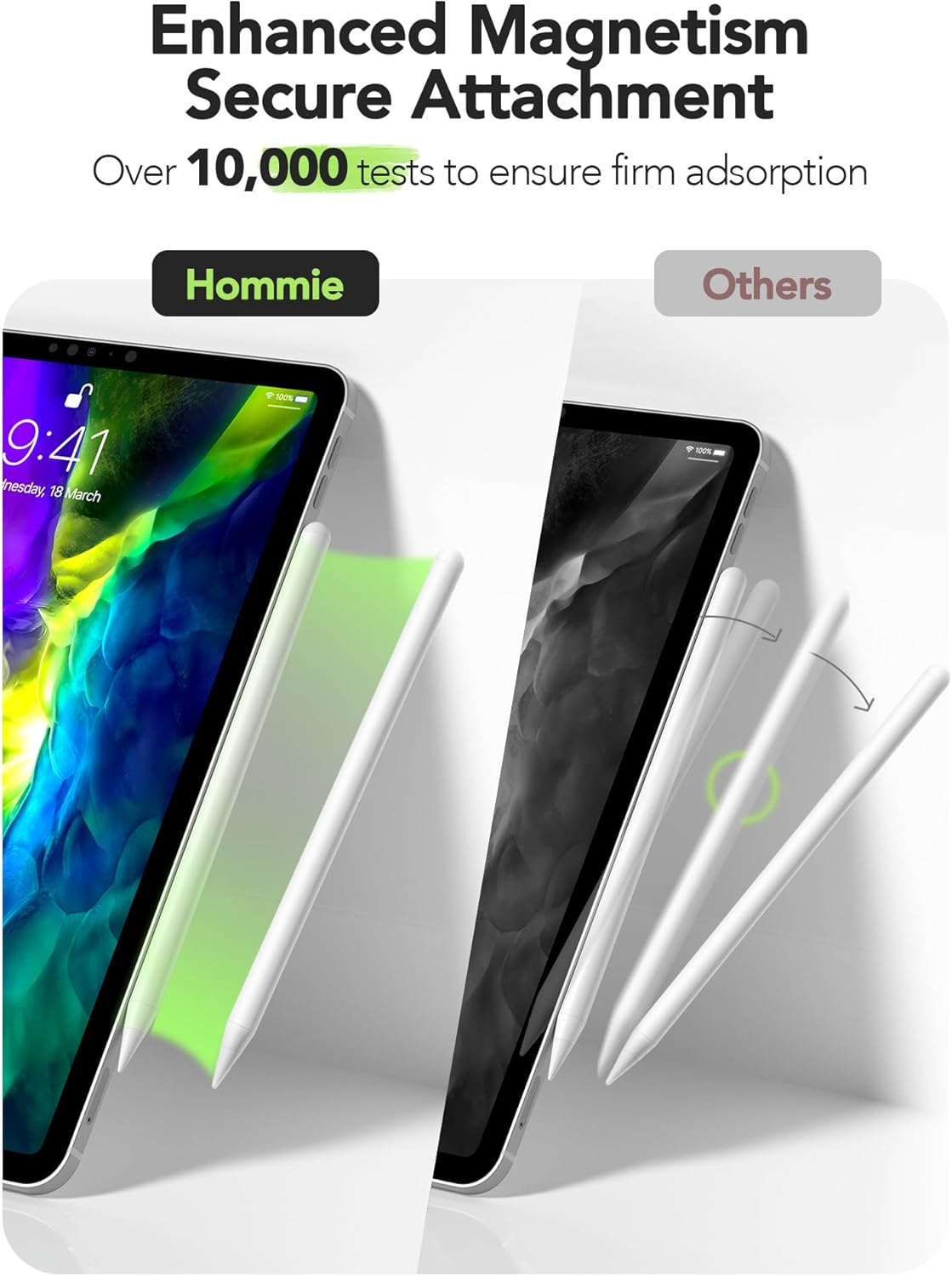
Image: A comparison showing the Hommie Stylus Pen securely attached magnetically to an iPad, contrasting with other styluses that may not attach as firmly.
General Usage Features
- Scribble Support: Utilize the Scribble feature in iPadOS to convert handwriting to text directly.
- Slide Screenshot Function: Easily capture screenshots by swiping the stylus from the corner of the screen.
- Draw Standard Shapes: Draw perfect geometric shapes by pausing briefly after drawing a shape.

Image: A collage demonstrating various functions of the Hommie Stylus Pen, including support for Scribble, the ability to slide for screenshots, and drawing standard shapes.
App Compatibility
The Hommie Stylus Pen works with most writing and drawing software available on the iPad. This includes popular applications for note-taking, sketching, and digital art.

Image: A visual representation of the stylus's compatibility with various popular drawing and writing applications, highlighting its broad software support.
Maintenance
- Cleaning: Wipe the stylus body with a soft, dry cloth. Do not use abrasive cleaners or solvents.
- Tip Replacement: If the pen tip wears down or becomes damaged, gently unscrew the old tip and screw on a new replacement tip. Two replacement tips are included in the package.
- Storage: Store the stylus in a cool, dry place away from direct sunlight and extreme temperatures. For compatible iPads, use the magnetic attachment for secure storage.
- Battery Life: The stylus features a long-lasting battery. Recharge when the battery indicator shows low power.

Image: A close-up view of the stylus tip, highlighting its 1.0mm ultra-fine design and illustrating the process of replacing the pen tip.
Troubleshooting
- Stylus not responding:
- Ensure the stylus is powered on (double-tap the top).
- Check battery level and charge if necessary.
- Confirm your iPad model is compatible with the stylus.
- If you have an Apple Pencil, ensure it is disconnected or "forgotten" in your iPad's Bluetooth settings.
- Restart your iPad.
- Palm rejection not working:
- Ensure the stylus is powered on.
- Verify your iPad model supports palm rejection with third-party styluses.
- Check if any specific app settings are interfering with palm rejection.
- Magnetic attachment not working:
- Confirm your iPad model is one of the compatible models that support magnetic attachment (iPad Pro 11-inch, iPad Pro 12.9-inch, iPad Air 4/5, iPad Mini 6).
- Ensure the stylus is aligned correctly with the magnetic strip on your iPad.
Warranty and Support
Hommie provides a standard warranty for this product. For detailed warranty information, please refer to the warranty card included in your product packaging or visit the official Hommie website.
For technical support, troubleshooting assistance, or inquiries about replacement parts, please contact Hommie customer service through the contact information provided on the official website or your purchase platform.
Please retain your proof of purchase for warranty claims.
Related documentsID706


Ask a question about this manual
Ask about setup, troubleshooting, compatibility, parts, safety, or missing instructions. Manuals+ will review the question and use this page’s manual context to help answer it.