
Newmen GM610
Newmen GM610 60% Wireless Mechanical Keyboard User Manual
Model: GM610 | Brand: Newmen
1. Introduction
Thank you for choosing the Newmen GM610 60% Wireless Mechanical Keyboard. This compact and versatile keyboard is designed for both gaming and office use, offering multiple connectivity options, customizable RGB backlighting, and hot-swappable switches. This manual provides detailed instructions to help you set up, operate, and maintain your keyboard for optimal performance.
2. Package Contents
Please verify that all items listed below are included in your package:
- 1 x Newmen GM610 Gaming Keyboard
- 1 x USB-C Cable
- 4 x Replaceable Switches (Red Switch)
- 1 x 2.4G Receiver
- 1 x 2-in-1 Keycap and Switch Puller
- 1 x User Manual

Image: Newmen GM610 Package Contents
3. Product Overview
The Newmen GM610 is a 60% mechanical keyboard featuring a compact 61-key layout with N-key rollover for anti-ghosting. It supports multiple connection modes and offers extensive customization options.
- 60% Layout: Ultra-compact design saving desktop space.
- Multi-mode Connectivity: Supports wired (USB-C), Bluetooth 3.0/5.0, and 2.4G wireless connections.
- RGB Backlighting: Features 19 RGB backlit effects with adjustable brightness and speed.
- Hot-Swappable Switches: Compatible with 3-pin Outemu switches, allowing for easy switch replacement without soldering.
- Programmable: Supports macro recording and customization via dedicated software.
- Wide Compatibility: Works with PC, Windows, Mac, Laptop, and Android systems.

Image: Newmen GM610 Keyboard Front View

Image: Compact Design and Dimensions
4. Setup
Before first use, it is recommended to fully charge the keyboard using the provided USB-C cable.
4.1. Wired Connection
Connect the USB-C end of the cable to the keyboard and the USB-A end to your computer's USB port. The keyboard will be automatically recognized and ready for use.
4.2. 2.4G Wireless Connection
- Locate the 2.4G USB receiver in the package.
- Plug the 2.4G receiver into an available USB port on your computer.
- Ensure the keyboard's mode switch (usually on the back or side) is set to 2.4G wireless mode.
- The keyboard should connect automatically.
4.3. Bluetooth Connection
The GM610 keyboard supports connecting up to three different Bluetooth devices.
- Ensure the keyboard's mode switch is set to Bluetooth mode.
- To enter pairing mode for a specific Bluetooth channel (BT1, BT2, BT3), press and hold Fn + Q (for BT1), Fn + W (for BT2), or Fn + E (for BT3) for 3-5 seconds until the corresponding key (Q, W, or E) blinks rapidly.
- On your device (PC, laptop, tablet, smartphone), open Bluetooth settings and search for new devices.
- Select "Newmen GM610" from the list of available devices to pair.
- Once paired, the blinking light will become solid, indicating a successful connection.
- To switch between paired Bluetooth devices, simply press Fn + Q, Fn + W, or Fn + E briefly.

Image: Easy Connectivity Options

Image: Wired and Wireless Connection Ports
5. Operating Instructions
5.1. RGB Backlight Control
The GM610 keyboard offers 19 different RGB backlit effects. You can customize the lighting to your preference:
- Change Effect: Press Fn + \| to cycle through 19 different RGB lighting effects.
- Adjust Brightness: Press Fn + ]} to increase brightness and Fn + [{ to decrease brightness (4 levels).
- Adjust Speed: Press Fn + ;: to increase speed and Fn + '" to decrease speed (5 levels).
- Turn On/Off Backlight: Press Fn + Enter to toggle the backlight on or off.

Image: 19 RGB Backlit Effects
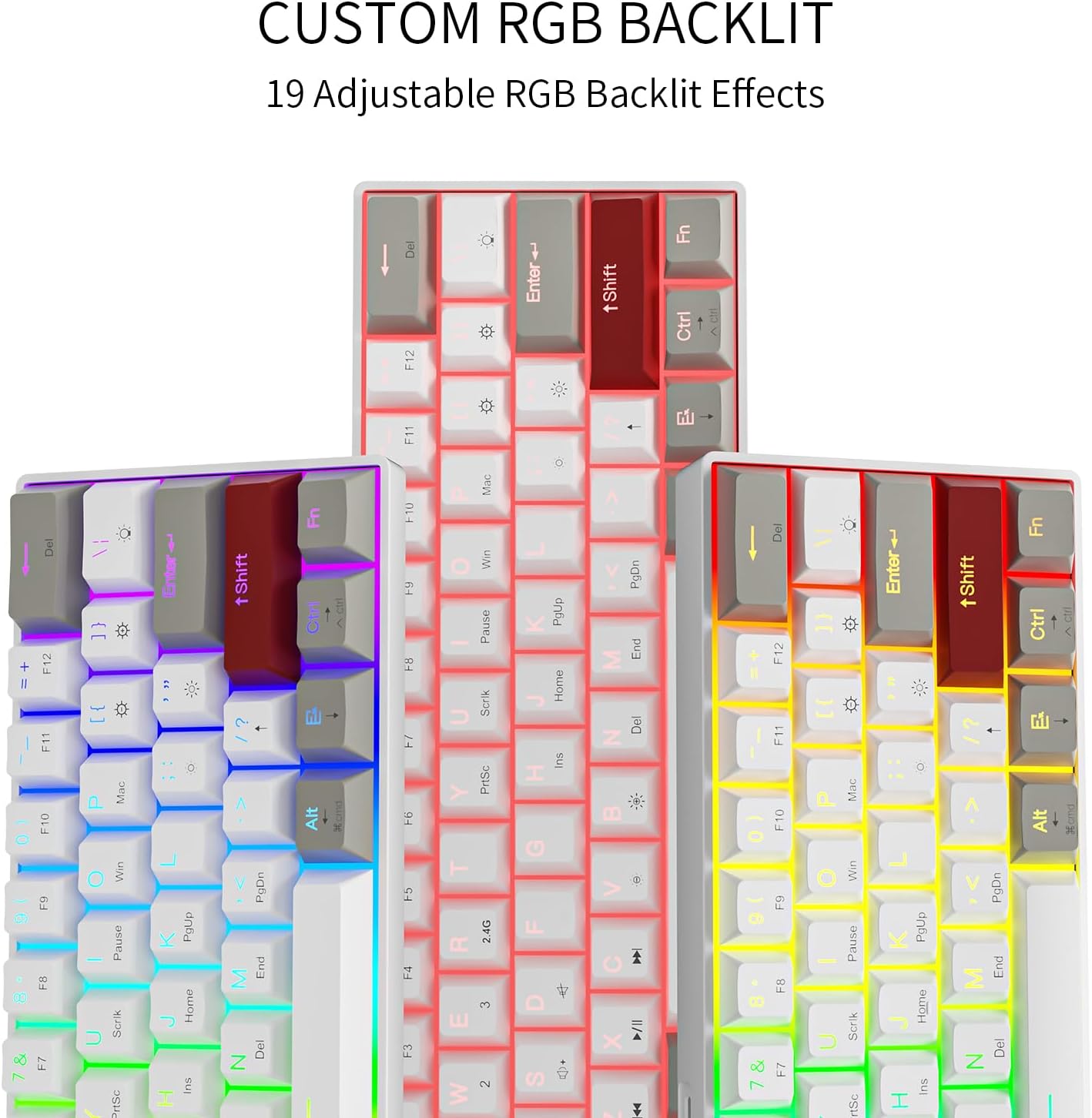
Image: Custom RGB Backlit Options
5.2. Macro Recording & Programmability
The GM610 keyboard supports macro recording and key remapping through its dedicated software. This allows you to assign complex commands or customize key functions.
- Software Download: Visit bit.ly/38Tm367 to download the official software.
- Mac Remapping Instructions: For Mac users, specific remapping instructions are available at bit.ly/3sOX7XZ.

Image: Customization Software Interface
5.3. Function Key Combinations
Due to its compact 60% layout, many functions are accessed via the Fn key:
- Fn + 1/2/3: Switch between Bluetooth devices (BT1, BT2, BT3).
- Fn + R: Reset Bluetooth connection (useful for troubleshooting blinking lights).
- Fn + Win: Lock/Unlock Windows key.
- Fn + A: Switch to Mac layout.
- Fn + S: Switch to Windows layout.
- Fn + Y/U/I/O/P: Media control keys (Play/Pause, Stop, Previous, Next, Mute).
- Fn + J/K/L: Volume control (Volume Down, Volume Up, Mute).
- Fn + Arrow Keys: Use as directional arrows (Up, Down, Left, Right).
- Fn + Backspace: Delete key.
- Fn + Enter: Toggle backlight.
6. Hot-Swappable Switches
The Newmen GM610 features hot-swappable sockets, allowing you to easily change mechanical switches without soldering. This keyboard is compatible with 3-pin Outemu switches.
6.1. Replacing Switches
- Using the provided 2-in-1 keycap and switch puller, gently remove the keycap from the switch you wish to replace.
- Insert the switch puller's prongs into the two small clips on the top and bottom of the switch.
- Squeeze the prongs firmly to compress the clips and gently pull the switch straight up to remove it from the PCB.
- Align the pins of the new switch with the holes on the PCB. Ensure the pins are straight to avoid bending.
- Gently push the new switch straight down until it clicks into place. Do not force it.
- Re-attach the keycap.

Image: Hot-Swappable Mechanical Keyboard
7. Maintenance
7.1. Cleaning the Keyboard
- Disconnect the keyboard from your device before cleaning.
- Use a can of compressed air to remove dust and debris from between the keycaps.
- For surface cleaning, wipe the keycaps and frame with a soft, slightly damp, lint-free cloth. Avoid excessive moisture.
- Do not use harsh chemicals or abrasive materials.
7.2. Battery Care
- Charge the keyboard regularly to maintain battery health.
- Avoid fully discharging the battery frequently.
- If storing the keyboard for an extended period, charge it to about 50% before storage.
8. Troubleshooting
| Issue | Possible Cause | Solution |
|---|---|---|
| Keyboard not connecting wirelessly. | Incorrect mode, low battery, pairing issue, receiver not plugged in. | Ensure correct mode (2.4G/Bluetooth) is selected. Charge the keyboard. Re-pair Bluetooth or re-insert 2.4G receiver. |
| Keys not responding or input lag. | Low battery, loose switch, interference, software issue. | Charge the keyboard. Check if switches are properly seated. Reduce wireless interference. Try wired connection. Restart device. |
| RGB backlight not working or stuck. | Backlight turned off, software glitch. | Press Fn + Enter to toggle backlight. Restart keyboard. Check software settings. |
| Blinking green light on Q, W, or E keys. | Bluetooth connection issue. | Press and hold Fn + R for 1 second to reset the Bluetooth connection. |
| Cannot use Shift + Arrow keys. | Fn key changes Shift function. | This is a design limitation of the compact layout. Consider using the software to remap keys if possible for specific needs. |
9. Specifications
| Feature | Detail |
|---|---|
| Model Number | GM610 |
| Product Dimensions | 11 x 4 x 1 inches (11"L x 4"W x 1"H) |
| Item Weight | 2 pounds |
| Connectivity Technology | Bluetooth (3.0 & 5.0), USB-C (Wired), 2.4G Wireless |
| Keyboard Description | Mechanical |
| Switch Type | Red Switch (Hot-swappable, 3-pin Outemu compatible) |
| Key Layout | 61-key, 60% layout, N-key rollover |
| Backlighting | RGB (19 effects, adjustable brightness/speed) |
| Compatible Devices | Laptop, PC, Smartphone, Tablet |
| Batteries | 1 Lithium Polymer battery (included) |
10. Warranty and Support
Newmen products are designed for reliability and performance. For specific warranty details, please refer to the warranty card included with your product or contact Newmen customer support.
For software downloads, firmware updates, and additional support resources, please visit the official Newmen website or the links provided in this manual.
Related documentsGM610


Ask a question about this manual
Ask about setup, troubleshooting, compatibility, parts, safety, or missing instructions. Manuals+ will review the question and use this page’s manual context to help answer it.