
ORICO TCM2 Blue
ORICO M.2 NVMe SSD Enclosure Instruction Manual
Model: TCM2 Blue
Brand: ORICO
Introduction
The ORICO M.2 NVMe SSD Enclosure provides a high-speed, external storage solution for M.2 NVMe solid-state drives. Designed for ease of use and efficient data transfer, this enclosure supports various M.2 NVMe SSD sizes and offers robust heat dissipation to ensure stable performance. Its transparent design allows for a clear view of the internal components.
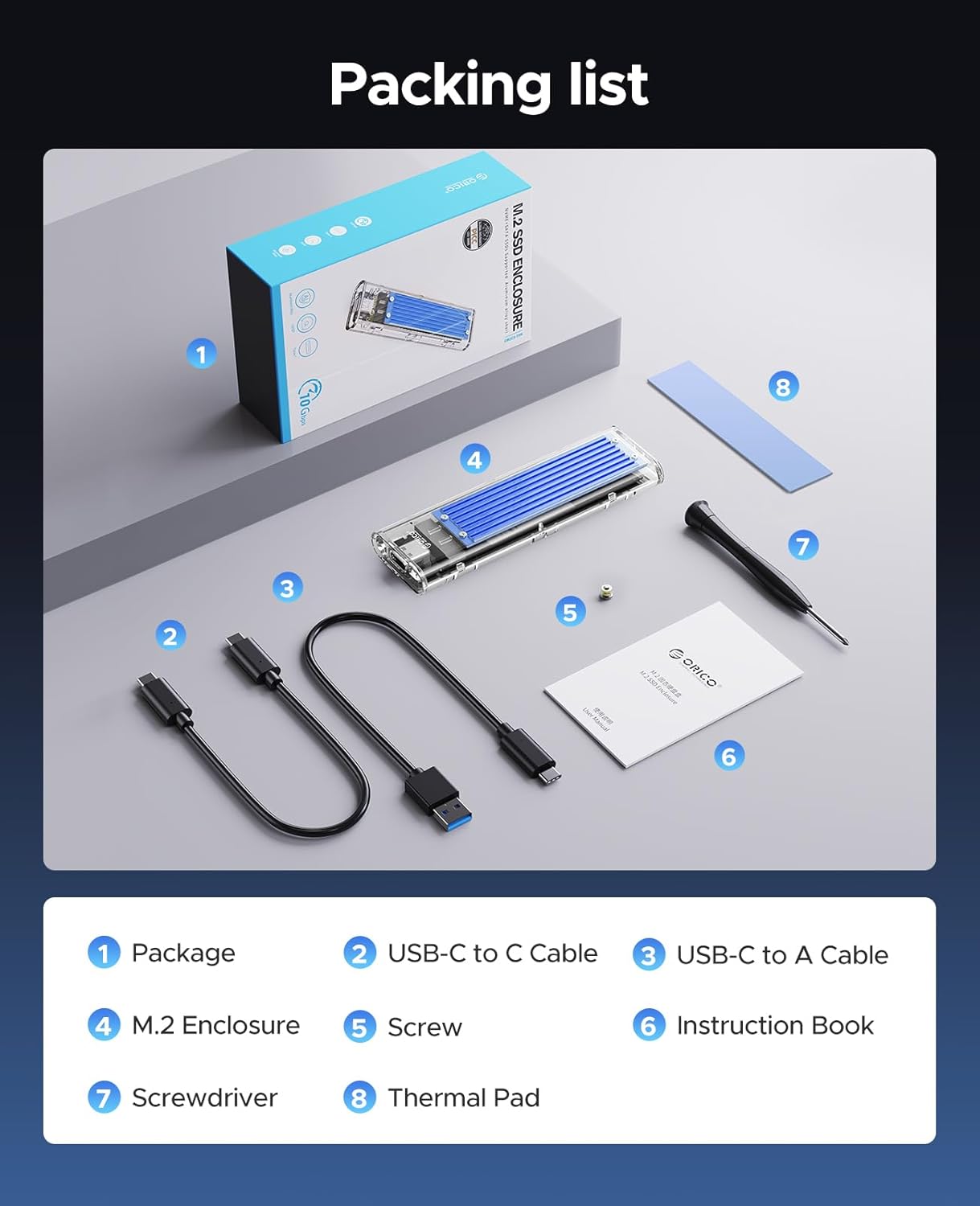
What's in the Box
- M.2 Enclosure
- USB-C to C Cable
- USB-C to A Cable
- Screw
- Instruction Book
- Screwdriver
- Thermal Pad

Specifications
| Feature | Detail |
|---|---|
| Brand | ORICO |
| Model Number | Blue (TCM2) |
| Material | Metal, Plastic |
| Product Dimensions | 4.25 x 1.34 x 0.45 inches |
| Item Weight | 3.2 ounces (0.09 Kilograms) |
| Data Transfer Rate | 10 Gigabits Per Second (USB 3.2 Gen 2) |
| Compatible Devices | Laptop, PC, USB-C Phones/Tablets |
| Supported SSD Type | M.2 M-Key NVMe/PCIe SSD |
| Supported SSD Form Factors | 2230, 2242, 2260, 2280 |
| Max Memory Storage Capacity | 4 TB (as per product spec, though 8TB is mentioned in A+ content) |
| Hardware Interface | USB |
Setup Guide
Installation Steps
- Open the Enclosure: Gently push the top cover of the enclosure upwards to slide it open.
- Insert SSD: Carefully insert your M.2 NVMe SSD diagonally into the M-Key slot.
- Secure SSD: Use the provided screwdriver to secure the SSD with the small screw into the designated mounting hole.
- Close Enclosure: Slide the top cover back downwards until it clicks securely into place.
Compatibility
This enclosure is designed exclusively for M.2 M-Key NVMe/PCIe SSDs. It supports various form factors including 2230, 2242, 2260, and 2280. Important: SSDs with integrated heatsinks or SATA M.2 SSDs are not supported by this enclosure.

Installation Video Guide
Video 1: Official ORICO TCM2 10Gbps NVMe SSD Enclosure overview and installation demonstration. This video provides a visual guide to the product's features and the SSD installation process.
Operating Instructions
Connecting the Enclosure
The ORICO M.2 NVMe SSD Enclosure offers versatile connectivity with two types of USB cables included:
- USB-C to USB-C Cable: Provides ultra-fast 10 Gbps (USB 3.2 Gen 2) data transfer speeds, ideal for modern laptops, desktops, and USB-C enabled smartphones/tablets.
- USB-C to USB-A Cable: Offers 5 Gbps (USB 3.0) data transfer speeds, suitable for connecting to older PCs or devices with standard USB-A ports.
Simply connect the appropriate cable from the enclosure's USB-C port to your host device. The enclosure supports plug-and-play functionality across Windows, macOS, and Linux operating systems.

High-Speed Data Transfer
Experience rapid data transfer with speeds up to 10 Gbps. This allows for transferring large files, such as 1GB, in a matter of seconds, significantly improving workflow efficiency for tasks like video editing, gaming, and large backups.
Intelligent Auto-Sleep Mode
The enclosure features an intelligent sleep function that activates after 10 minutes of inactivity. This conserves power, reduces wear on the SSD, and extends its overall lifespan.

Maintenance
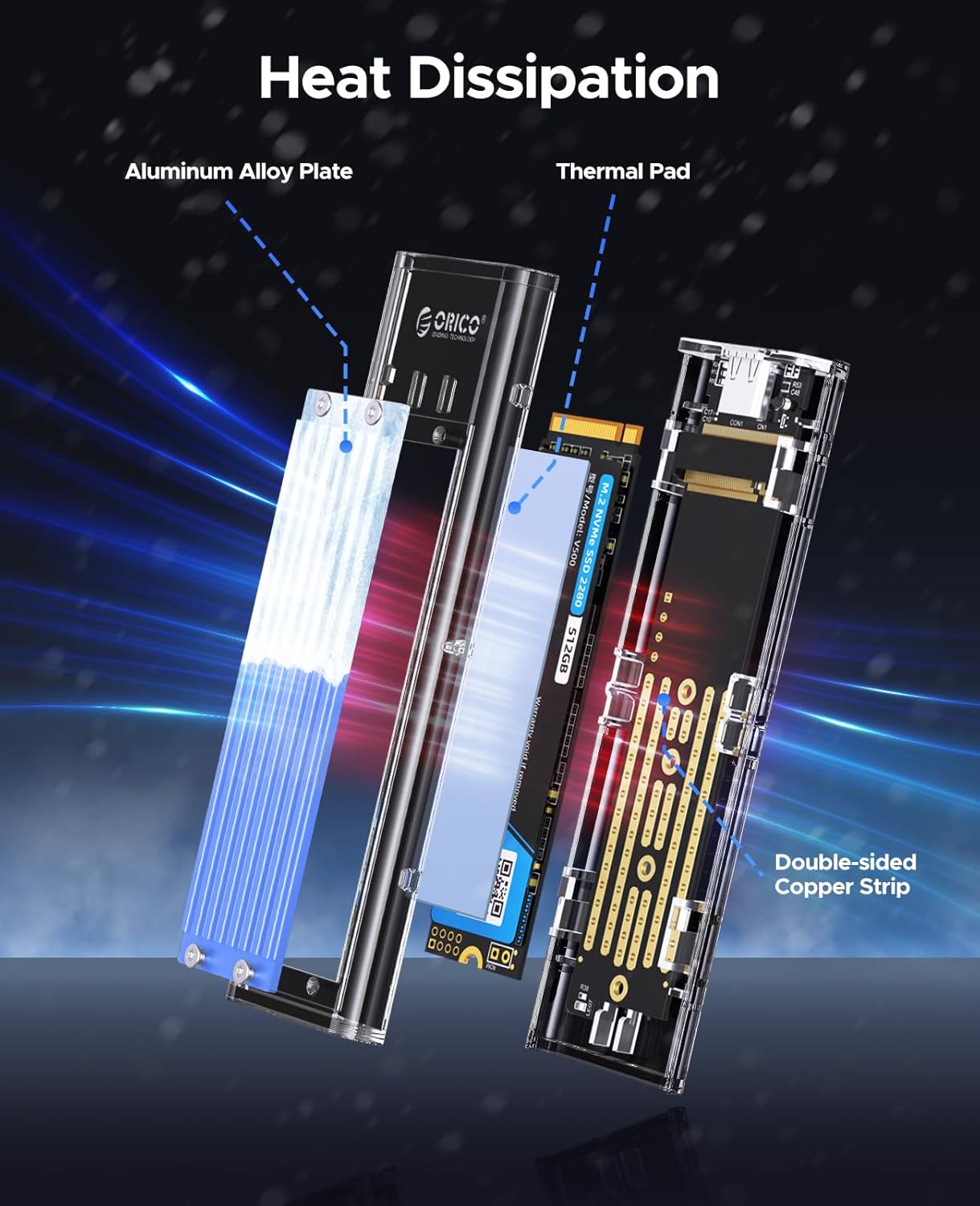
Efficient Heat Dissipation
To ensure stable and reliable performance, especially during intensive data operations, the ORICO M.2 NVMe SSD Enclosure incorporates a triple heat dissipation system:
- Aluminum Alloy Plate: Provides a large surface area for heat transfer.
- Thermal Pad: Facilitates efficient heat transfer from the SSD to the aluminum plate. An updated, larger silicone thermal pad is included for better contact and performance.
- Double-sided Copper Strip: Further aids in heat conduction away from critical components.
This comprehensive design helps to keep the SSD cool, preventing thermal throttling and extending the drive's operational life.

Troubleshooting
- SSD Not Detected:
Ensure the M.2 NVMe SSD is correctly seated and fully inserted into the M-Key slot. Verify that the SSD is an M-Key NVMe/PCIe type and not a SATA SSD or one with an integrated heatsink, as these are not compatible. Try connecting the enclosure to a different USB port or a different computer to rule out port or system issues. - Slow Transfer Speeds:
Confirm that your host device (computer, laptop, phone) supports USB 3.2 Gen 2 (10 Gbps) or higher for maximum performance. Using a USB 2.0 port or older USB/Thunderbolt versions will result in significantly lower speeds. Ensure you are using the appropriate cable (USB-C to USB-C for 10Gbps, USB-C to USB-A for 5Gbps). Check if the UASP (USB Attached SCSI Protocol) and TRIM protocols are enabled on your operating system for optimal performance. - Frequent Disconnections or Overheating:
While the enclosure has robust heat dissipation, prolonged heavy use, especially with high-performance SSDs, can generate heat. Ensure adequate airflow around the enclosure and avoid placing it on heat-retaining surfaces. If connected to a device (e.g., some Mac Mini models) that may not provide sufficient power, try connecting the enclosure through a powered USB hub to ensure stable power delivery. - Physical Damage:
Inspect the enclosure and cables for any visible signs of damage. Do not attempt to use the product if it appears damaged.
Warranty and Support
For detailed warranty information, technical support, and service inquiries, please refer to the official ORICO website or contact ORICO customer service directly. It is recommended to retain your purchase receipt as proof of purchase for any warranty claims.
Additional protection plans, such as data recovery services, may be available through your retailer. Please inquire at the point of purchase for more details on these optional services.
Related documentsTCM2 Blue


Ask a question about this manual
Ask about setup, troubleshooting, compatibility, parts, safety, or missing instructions. Manuals+ will review the question and use this page’s manual context to help answer it.