
Introduction
The HUE HD Pro is a flexible USB document camera and classroom visualizer designed for a wide range of applications, including education, remote work, and video conferencing. This manual provides essential information for setting up, operating, and maintaining your device, ensuring optimal performance and longevity.
Key Features
- Full HD 1080p Streaming: Delivers high-definition video output for clear visuals.
- Built-in LED Lights and Microphone: Integrated lighting ensures well-lit subjects, while the noise-reduction microphone captures clear audio.
- Flexible Gooseneck Design: Allows for 360° rotation and easy adjustment to capture various angles and subjects.
- Wide-Angle Manual Focus Lens: Ideal for capturing A3, US letter, or A4 pages and demonstrations without constant adjustment. Features a focal range of 1cm to infinity.
- Plug & Play Compatibility: Works seamlessly with native camera apps on Windows, Chrome OS, macOS, and Linux.
- Multi-Purpose Functionality: Suitable for video conferencing, homeschooling, online tutoring, remote monitoring, creating instructional videos, animation, gaming, and live demonstrations.
- HUE Intuition Software (Optional): Included software for Windows and macOS enables image capture, annotation, video recording with sound, and live feed manipulation.

Figure 1: HUE HD Pro Document Camera highlighting its key features.

Figure 2: Diverse applications of the HUE HD Pro Document Camera.
Setup
1. Unboxing
Carefully remove all components from the packaging. The box should contain the HUE HD Pro camera with its flexible neck, a weighted base, a USB cable, and a user guide. A software CD for HUE Intuition may also be included or available for download.

Figure 3: HUE HD Pro camera and its included accessories.
2. Connecting the Camera
- Insert the flexible neck of the camera into the USB port on the weighted base.
- Connect the provided USB cable from the base to an available USB port on your computer (Windows, macOS, or Chromebook).
- Alternatively, the flexible neck can be plugged directly into a computer's USB port for portable use without the base.
3. Software Installation (Optional)
The HUE HD Pro is a Plug & Play device and will work with most native camera applications on your operating system (e.g., Camera app on Windows, Photo Booth on macOS). For enhanced features like image annotation, advanced video recording, and live feed manipulation, install the HUE Intuition software. Refer to the included user guide or the HUE website for download and installation instructions.
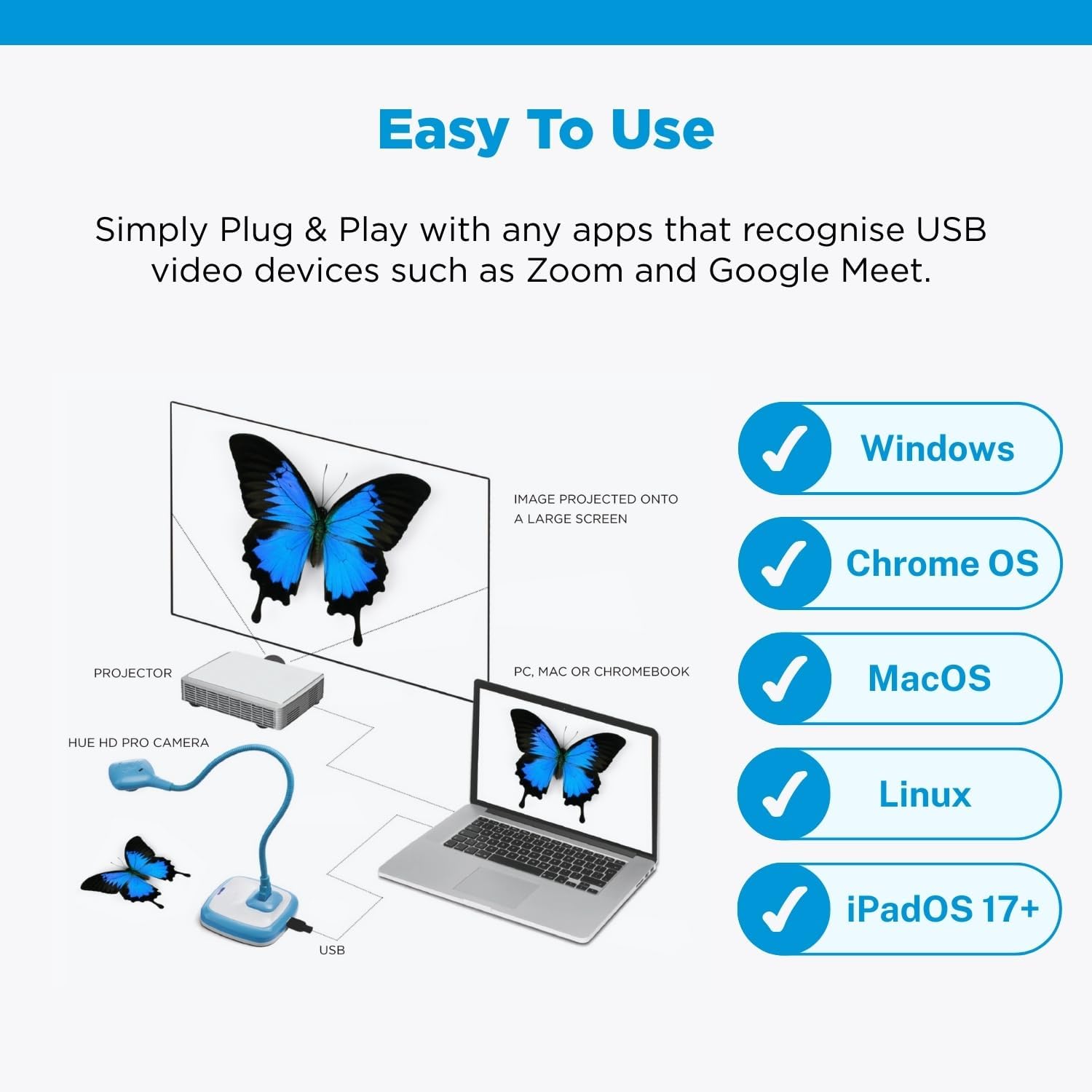
Figure 4: Connecting the HUE HD Pro camera to a computer and its broad compatibility.
Operating Instructions
1. Power On/Off and LED Lights
- The camera powers on automatically when connected to a powered USB port. A blue indicator light on the base will illuminate.
- The camera head features built-in LED lights. These can typically be controlled via a touch-sensitive button on the camera head or through the HUE Intuition software.
2. Document Camera Mode
- Position the flexible neck to point the camera lens downwards towards your document or object.
- Open your preferred camera application (e.g., HUE Intuition, Zoom, Google Meet, native OS camera app).
- Adjust the manual focus ring on the camera lens until the image on your screen is clear.
- Use the flexible neck to adjust the height and angle for the desired field of view (up to A3 size).
3. Webcam Mode
For use as a webcam during video calls or conferencing, position the camera head to face you. Ensure your video conferencing software is configured to use the 'HUE HD Pro camera' as the video input device.
4. HUE Intuition Software Usage
The HUE Intuition software provides advanced control over your camera:
- Capture Images: Click the 'Image Capture' button to take still photos of your subject.
- Record Video: Use the 'Video' or 'Record Video with Sound' function to record live footage.
- Annotate: Utilize the drawing tools to highlight, draw, or add text directly onto the live feed or captured images.
- Flip/Mirror: If the image appears inverted or mirrored, use the flip or mirror options within the software to correct the orientation.

Figure 5: Adjusting the flexible neck and manual focus ring.
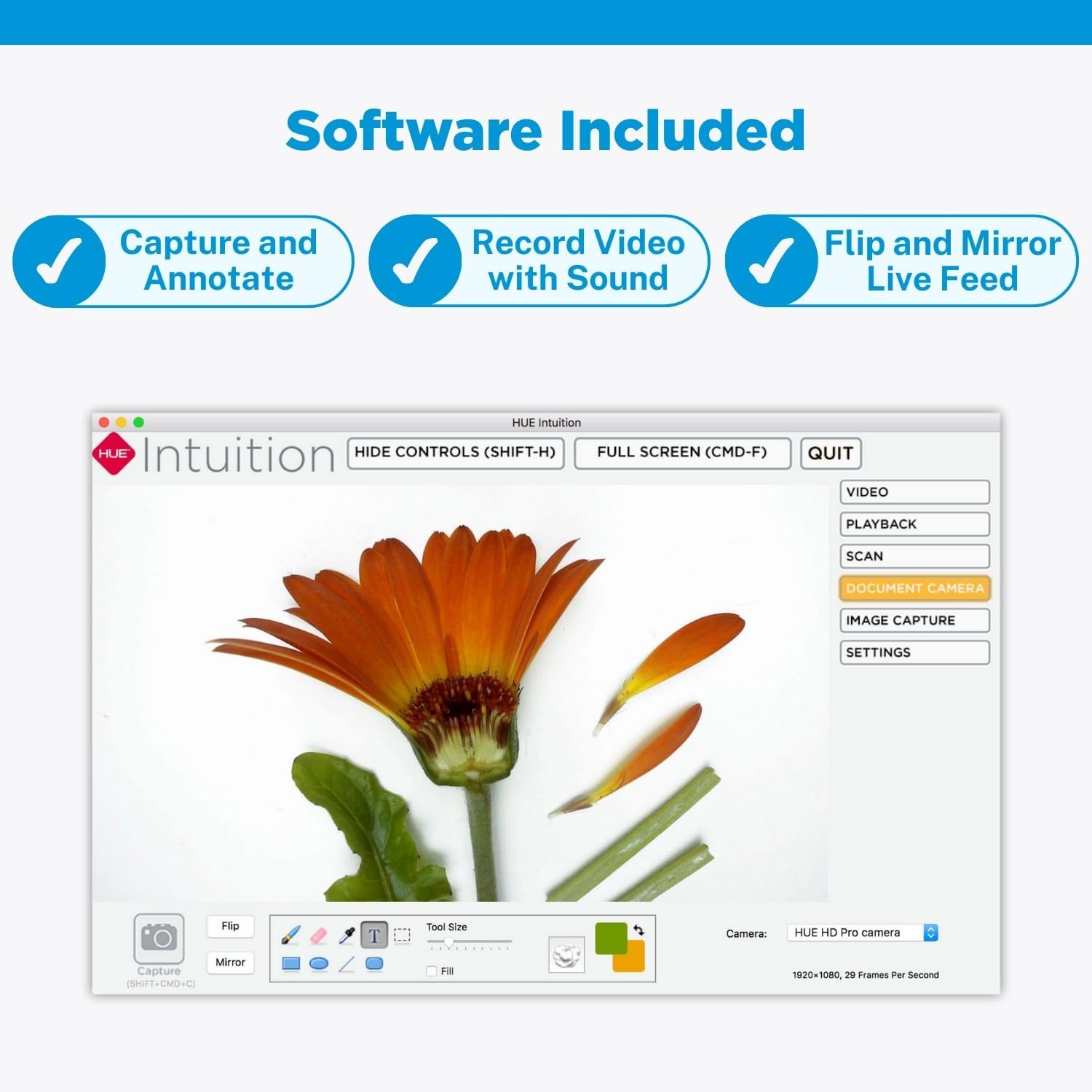
Figure 6: HUE Intuition software interface for advanced camera control.
5. Official Product Video
Video 1: Official introduction to the HUE HD Pro camera, showcasing its features and various applications in an educational setting.
Maintenance
- Cleaning: Use a soft, dry cloth to clean the camera lens and body. Avoid using abrasive cleaners or solvents.
- Storage: When not in use, store the camera in a cool, dry place away from direct sunlight and extreme temperatures.
- Handling: While the flexible neck is durable, avoid excessive force or sharp bends to prevent damage.
Troubleshooting
| Problem | Possible Cause | Solution |
|---|---|---|
| No image or camera not detected | Loose USB connection, incorrect camera selection in software, driver issue. | Ensure USB cable is securely connected. Select 'HUE HD Pro camera' in your application settings. Restart your computer. |
| Blurry or out-of-focus image | Manual focus not adjusted, insufficient lighting. | Rotate the manual focus ring on the camera lens until the image is clear. Turn on the built-in LED lights or add external lighting. |
| Image is upside down or mirrored | Default camera orientation. | Use the 'Flip' or 'Mirror' functions within the HUE Intuition software or your camera application. |
| Low frame rate or laggy video | High resolution setting, computer performance, USB bandwidth. | Lower the video resolution in your camera application settings. Close other demanding applications. Ensure you are using a USB 2.0 or higher port. |
Specifications
| Feature | Detail |
|---|---|
| Model Name | HUE HD Pro camera |
| Item Model Number | PX0001 |
| Video Capture Resolution | 1080p |
| Photo Sensor Technology | CMOS |
| Connectivity Technology | USB |
| Maximum Aperture | 2.4 f |
| Special Feature | USB, color, real-time |
| Item Weight | 1.3 pounds |
| Product Dimensions | 6.06 x 2.17 x 10.08 inches |
Warranty and Support
The HUE HD Pro camera comes with a 3-year manufacturer's warranty. For technical assistance, troubleshooting, or warranty claims, please contact HUE customer support. Detailed contact information can be found in your product's user guide or on the official HUE website.


