
Introduction
Thank you for choosing the KXT Stylus Pen. This manual provides essential information for the proper setup, operation, and maintenance of your stylus. Please read it carefully to ensure optimal performance and longevity of your device.
Compatibility
The KXT Stylus Pen is compatible with Apple iPad models released in 2018 or later. Ensure your iPad's iOS system is updated to iOS 12.2 or above for full functionality. If your iPad was previously paired with an Apple Pencil, please turn off Bluetooth on your iPad before using the KXT Stylus Pen.
Compatible iPad Models:
- iPad Pro 12.9" (3rd, 4th, 5th, 6th Generation)
- iPad Pro 11" (1st, 2nd, 3rd, 4th Generation)
- iPad Air (3rd, 4th, 5th, 6th Generation)
- iPad (6th, 7th, 8th, 9th, 10th Generation)
- iPad Mini (5th, 6th Generation)
- iPad Pro 13" (M4)

Image: Detailed compatibility chart for KXT Stylus Pen, listing various iPad models and their supported generations.
Product Features
- Tilt Sensitivity: The stylus supports tilt functionality, allowing for varied line thickness and shading when sketching or drawing, mimicking a real pencil.
- Palm Rejection: Rest your palm comfortably on the iPad screen while writing or drawing without causing unintended marks or interactions.
- Pixel-Perfect Tip: Equipped with a 2mm fine tip for precise and smooth input, ensuring no lag and accurate response on the iPad screen.
- Magnetic Adsorption: The stylus can magnetically attach to the side of compatible iPads for convenient storage and accessibility.
- Instant Use: No Bluetooth pairing or wireless connection is required. Simply click to turn on and start using.
- Long Battery Life: Provides up to 10 hours of continuous use on a single charge.
Setup
- Initial Charge: Before first use, fully charge the stylus. Connect the included USB-C cable to the charging port on the stylus and to a power source. A full charge takes approximately 1 hour.
- Power On: Press the power button located on the side of the stylus. A small indicator light will illuminate, indicating the stylus is active.
- iPad Preparation: Ensure your iPad's iOS is updated to version 12.2 or higher. If you have previously used an Apple Pencil, go to your iPad's Settings > Bluetooth and turn off Bluetooth to prevent interference.

Image: Detail of the power button on the KXT Stylus Pen.
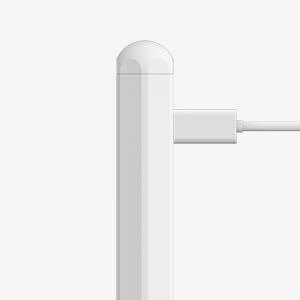
Image: The USB-C charging port on the KXT Stylus Pen.
Operating Instructions
Basic Usage
- Once powered on, the stylus is ready for immediate use. Simply touch the tip to your iPad screen to navigate, write, or draw.
- To turn off the stylus, press the power button again.

Image: The KXT Stylus Pen, highlighting its instant-on functionality without Bluetooth.
Palm Rejection
When writing or drawing, you can comfortably rest your hand on the iPad screen. The stylus's palm rejection technology will ignore your hand, allowing only the stylus input to be registered.

Image: User demonstrating palm rejection feature while drawing on an iPad with the stylus.
Tilt Sensitivity
For artistic applications, tilt the stylus to create different line weights and shading effects. The stylus detects the angle at which it is held, providing a more natural drawing experience.

Image: Visual representation of tilt sensitivity, showing how different angles produce varied brush strokes.
Magnetic Attachment
Attach the stylus magnetically to the side of your compatible iPad for secure and convenient storage. Note that this feature is for storage only and does not support wireless charging.

Image: The KXT Stylus Pen attached magnetically to an iPad.
Maintenance
Cleaning
- Wipe the stylus body with a soft, dry cloth.
- Do not use harsh chemicals or abrasive materials, as they may damage the finish.
Tip Replacement
If the stylus tip becomes worn or damaged, it can be replaced. Gently twist the old tip counter-clockwise to remove it, then screw on a new tip clockwise until secure.
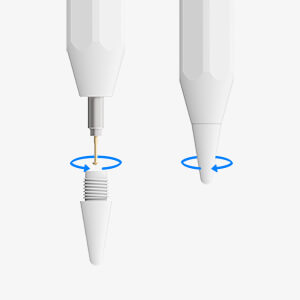
Image: Instructions for replacing the stylus tip.
Storage
Store the stylus in a cool, dry place away from direct sunlight and extreme temperatures. Utilize the magnetic attachment feature on your iPad for secure storage when not in use.
Troubleshooting
- Stylus not responding:
- Ensure the stylus is charged and powered on.
- Check iPad compatibility and iOS version.
- If you previously used an Apple Pencil, ensure Bluetooth is turned off on your iPad.
- Restart your iPad.
- Inaccurate or inconsistent input:
- Check if the stylus tip is securely attached and not worn. Replace if necessary.
- Ensure your iPad screen is clean and free of debris.
- Magnetic attachment not working:
- Ensure your iPad model supports magnetic attachment for styluses.
- Check for any obstructions between the stylus and the iPad's magnetic strip.
Specifications
| Model Number | 2S |
| Brand | KXT |
| Material | Aluminum |
| Compatible Devices | iPad 10/iPad 9/iPad 8/iPad 7/iPad 6, iPad Air 3/iPad Air 4/iPad Air 5/iPad Air 6(M2), iPad Mini 5/iPad Mini 6, iPad Pro 11 inch/iPad Pro 12.9 inch /iPad Pro 13" M4 |
| Battery Type | Lithium-ion polymer |
| Charging Time | Approx. 1 hour |
| Usage Time | Up to 10 hours |
| UPC | 762027249540 |
| Country of Origin | China |
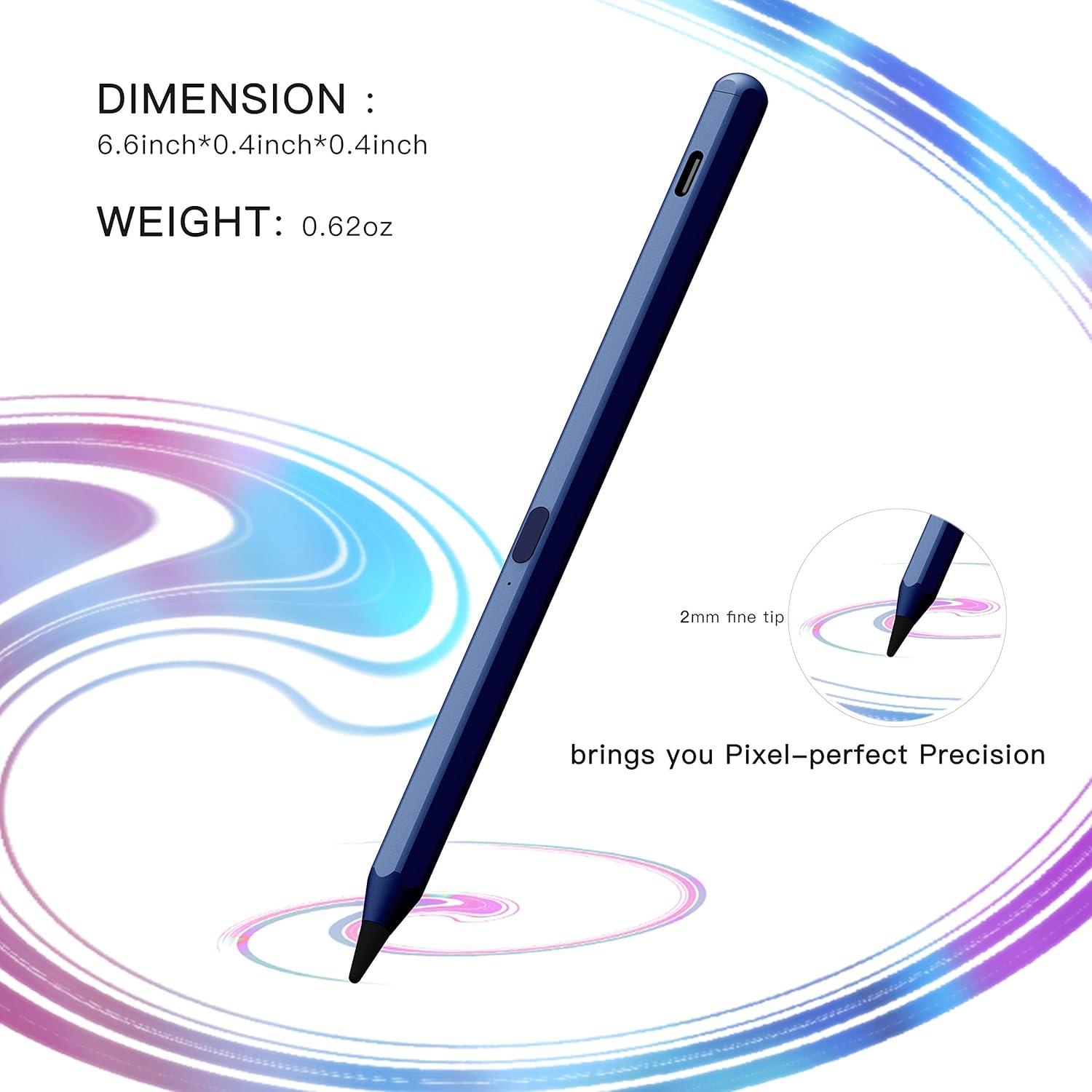
Image: Stylus dimensions and 2mm fine tip detail.
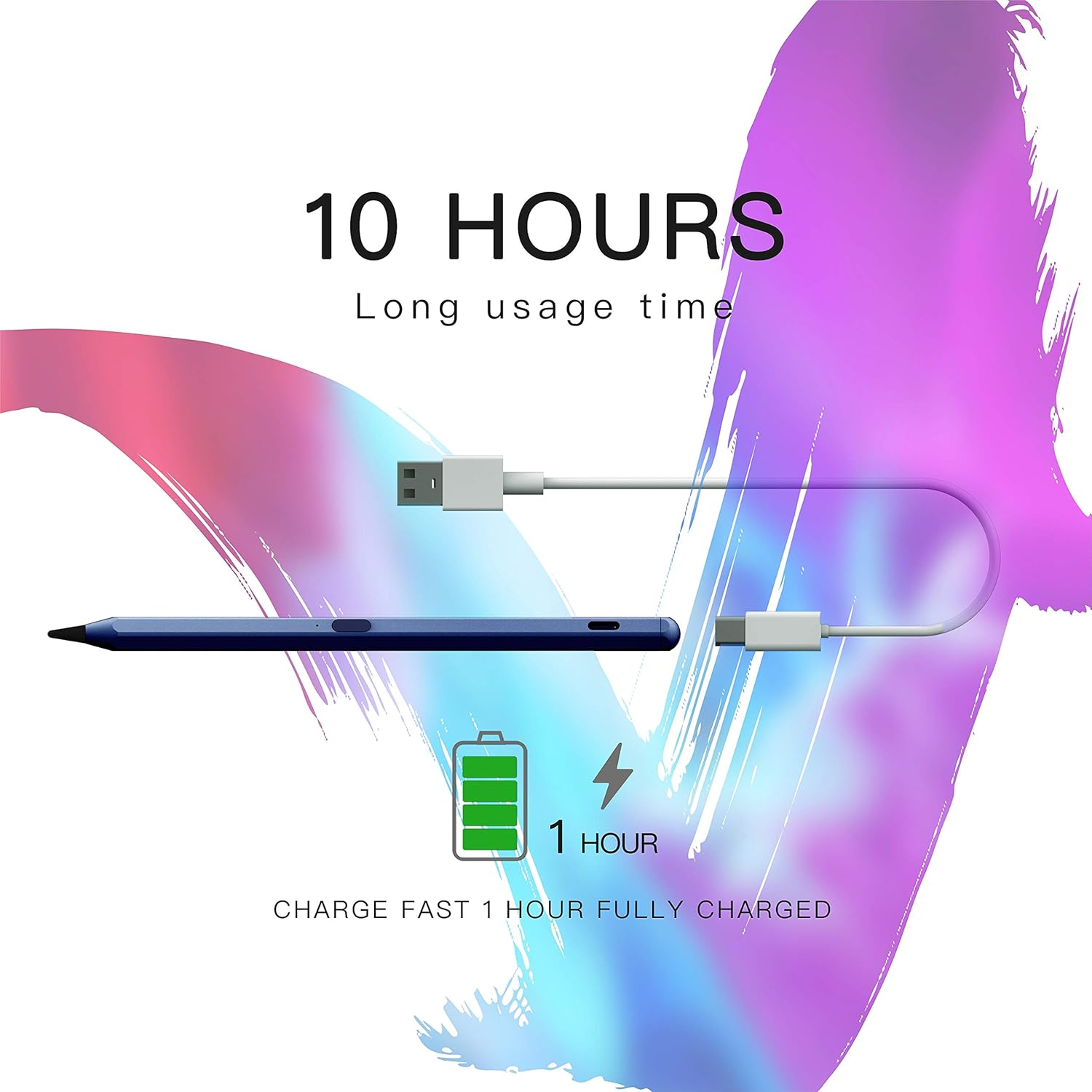
Image: Charging time and battery life illustration.
Warranty and Support
Specific warranty information is not provided in the product details. For warranty claims or technical support, please contact the manufacturer, KXT, directly through their official website or the retailer where the product was purchased. Please retain your proof of purchase for any warranty-related inquiries.
