
1. Introduction
This manual provides essential information for the installation, operation, maintenance, and troubleshooting of your MAXSUN GeForce RTX 2060 iCraft 6GB graphics card. Please read this manual thoroughly before installing and using the product to ensure proper functionality and safety.
2. Safety Information
- Always disconnect power from your computer before installing or removing any components.
- Wear an anti-static wrist strap or frequently touch a grounded metal object to prevent electrostatic discharge (ESD) damage to components.
- Handle the graphics card by its edges to avoid touching sensitive components.
- Ensure adequate ventilation within your computer case to prevent overheating.
- Do not attempt to repair the graphics card yourself. Refer to qualified service personnel.
3. Package Contents
Verify that your package contains the following items:
- 1 x MAXSUN GeForce RTX 2060 iCraft 6GB Graphics Card
If any items are missing or damaged, please contact your retailer.
4. Product Overview
The MAXSUN GeForce RTX 2060 iCraft 6GB graphics card is designed for gaming PCs, featuring NVIDIA's Turing GPU architecture, 6GB GDDR6 memory, and a 192-bit memory interface. It includes a triple-fan cooling system and RGB lighting.

Figure 4.1: Front view of the MAXSUN GeForce RTX 2060 iCraft 6GB graphics card, showing the three cooling fans and RGB lighting elements.

Figure 4.2: Angled view of the graphics card, highlighting its robust design and cooling solution.

Figure 4.3: Rear view of the graphics card, showcasing the alloy backplate designed for structural integrity and heat dissipation.

Figure 4.4: Display output ports on the graphics card, including DisplayPort (DP), HDMI, and DVI connectors.
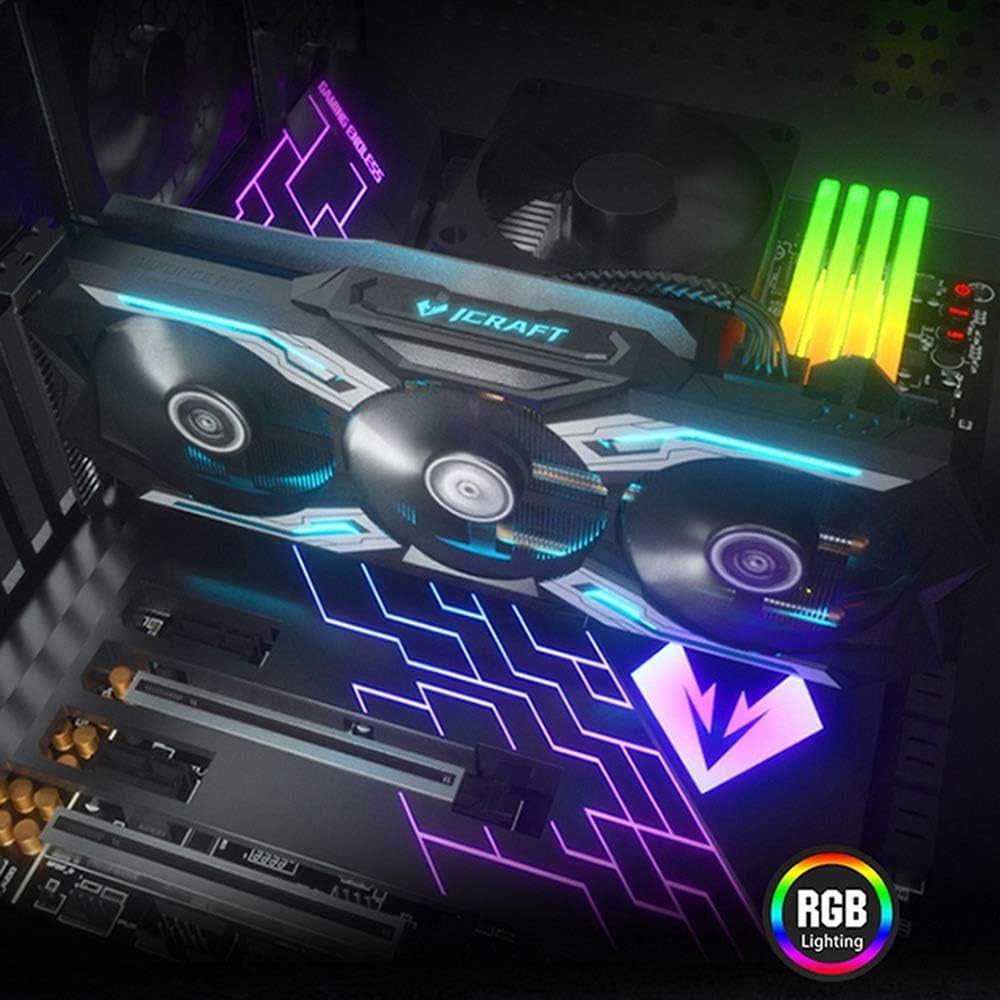
Figure 4.5: The graphics card installed in a PC case, demonstrating its integrated RGB lighting.
Key Features:
- Turing GPU Architecture: Provides enhanced performance for real-time ray tracing and AI capabilities.
- iCraft Series RGB Lighting: Features auto RGB lighting for aesthetic customization within your PC build.
- Triple Fan Cooling: Equipped with 3 MAXSUN Blade II hydro-mechanics low noise fans for efficient heat dissipation.
- Alloy Backplate & Radiator: Includes an alloy backplate and a high-end fin technology radiator with 5 heat pipes for improved thermal performance.
- Performance: Boost Clock up to 1680 MHz, 6GB GDDR6 memory, 192-bit memory interface.
5. Setup and Installation
5.1 Pre-Installation
- Power Off: Turn off your computer and disconnect the power cable from the wall outlet.
- Open Case: Open your computer case to access the motherboard and PCIe slots.
- Static Protection: Ground yourself by touching a metal part of the computer chassis or wearing an anti-static wrist strap to prevent ESD.
- Remove Old Card (if applicable): If replacing an existing graphics card, carefully remove it by unscrewing its bracket and releasing the PCIe retention clip.
5.2 Physical Installation
- Locate PCIe Slot: Identify an available PCIe x16 slot on your motherboard. This is typically the topmost long slot.
- Insert Graphics Card: Align the graphics card with the PCIe slot and press down firmly until it is securely seated. The PCIe retention clip should click into place.
- Secure Card: Secure the graphics card to the computer case with screws.
- Connect Power: Connect the required PCIe power cables from your power supply to the graphics card. This model typically requires one 8-pin PCIe power connector. Ensure all connections are firm.
- Close Case: Close your computer case and reconnect the power cable.
5.3 Driver Installation
- Power On: Connect your monitor to one of the graphics card's output ports (HDMI, DisplayPort, or DVI) and power on your computer.
- Download Drivers: Navigate to the official NVIDIA website (www.nvidia.com/drivers) to download the latest drivers for the GeForce RTX 2060.
- Install Drivers: Run the downloaded driver installer and follow the on-screen instructions. A restart may be required after installation.
Video 5.1: An official video demonstrating the MAXSUN Nvidia Geforce RTX 2060 iCraft 6GB graphics card, showcasing its design and features. This video provides a visual overview of the product.
6. Operating Instructions
6.1 Connecting Displays
Connect your monitor(s) to the available display output ports on the graphics card (HDMI, DisplayPort, DVI). The card supports multiple displays simultaneously. Ensure your display cables are securely connected.
6.2 RGB Lighting
The MAXSUN iCraft series graphics card features automatic RGB lighting. The lighting effects are pre-programmed and activate upon system power-on. Please note that dedicated software for controlling the RGB lighting is not typically provided for this model, and it may not be compatible with third-party motherboard RGB software.
7. Maintenance
7.1 Cleaning
- Frequency: Clean your graphics card periodically, especially if you notice dust accumulation on the fans or heatsink.
- Procedure: Disconnect power from your PC. Use compressed air to gently blow dust out of the heatsink fins and fan blades. Hold the fan blades in place while blowing to prevent over-spinning and potential damage.
- Avoid: Do not use liquid cleaners or abrasive materials on the graphics card.
7.2 Fan Maintenance
The Blade II hydro-mechanics fans are designed for durability. If you notice unusual fan noise or reduced cooling performance, ensure there are no obstructions to the fan blades. Do not attempt to lubricate or disassemble the fans.
8. Troubleshooting
8.1 No Display Output
- Ensure the monitor cable is securely connected to both the graphics card and the monitor.
- Verify that the graphics card is fully seated in the PCIe slot and that all power connectors are properly attached.
- Check if your monitor is set to the correct input source.
- Try a different display cable or monitor if possible.
8.2 Performance Issues or Crashes
- Ensure you have the latest NVIDIA drivers installed.
- Monitor your GPU temperatures using third-party software. High temperatures can lead to throttling or instability. Ensure proper case airflow.
- Verify your power supply unit (PSU) meets the minimum wattage requirements for your system, including the graphics card.
- Check for any conflicting software or background applications that might be consuming system resources.
8.3 Fan Noise
- Ensure no cables or obstructions are interfering with the fan blades.
- Clean any dust accumulation from the fans and heatsink.
- Fan speed will increase under load to maintain optimal temperatures. This is normal operation.
9. Specifications
| Feature | Specification |
|---|---|
| Graphics Coprocessor | NVIDIA GeForce RTX 2060 |
| Brand | maxsun |
| Graphics RAM Size | 6 GB GDDR6 |
| Video Output Interface | DVI, DisplayPort, HDMI |
| Graphics Processor Manufacturer | NVIDIA |
| Product Dimensions | 12.05 x 4.92 x 1.61 inches |
| Item Weight | 3.19 pounds |
| Model Number | NVIDIA Geforce RTX 2060 iCraft 6G |
10. Warranty and Support
For warranty information and technical support, please refer to the documentation provided with your purchase or visit the official MAXSUN website. Keep your proof of purchase for warranty claims.