
1. Introduction
The TourBox NEO is a versatile, wired editing controller designed to enhance productivity for creative professionals and enthusiasts on macOS and Windows platforms. It offers intuitive, one-handed control for various creative software applications, streamlining workflows in digital painting, photo editing, video editing, and color grading.
Key features include 11 customizable buttons and 3 knobs, auto-switching between multiple software applications, and an ergonomic design for comfortable use during extended creative sessions. The device is engineered for stable, zero-latency performance, providing precise control over brush parameters, image adjustments, and timeline navigation.

Figure 1: TourBox NEO highlighting its key features and ergonomic design.
Video 1: An overview of why artists choose TourBox for instinctive creation.
2. What's in the Box
Upon unboxing your TourBox NEO, please ensure all the following items are present:
- TourBox NEO (Device)
- USB Cable
- Quick Start Guide
- TourBoxConsole Software (downloadable)

Figure 2: The complete package contents of the TourBox NEO.
3. Setup
The TourBox NEO is a wired device designed for plug-and-play functionality with macOS and Windows. Follow these steps to set up your device:
- Connect the USB Cable: Use the provided USB-C to USB-C cable. The cable features a straight end and a 90-degree bend. Either end can be connected to the USB-C port on the side of your TourBox NEO.
- Connect to Computer: Plug the other end of the USB cable into an available USB port on your Mac or PC.
- Install TourBoxConsole Software: Download and install the TourBoxConsole software from the official TourBox website. This software is essential for customizing the device's functions and managing presets.
- Launch Software: Once installed, launch the TourBoxConsole application. The software should automatically detect your connected TourBox NEO device.
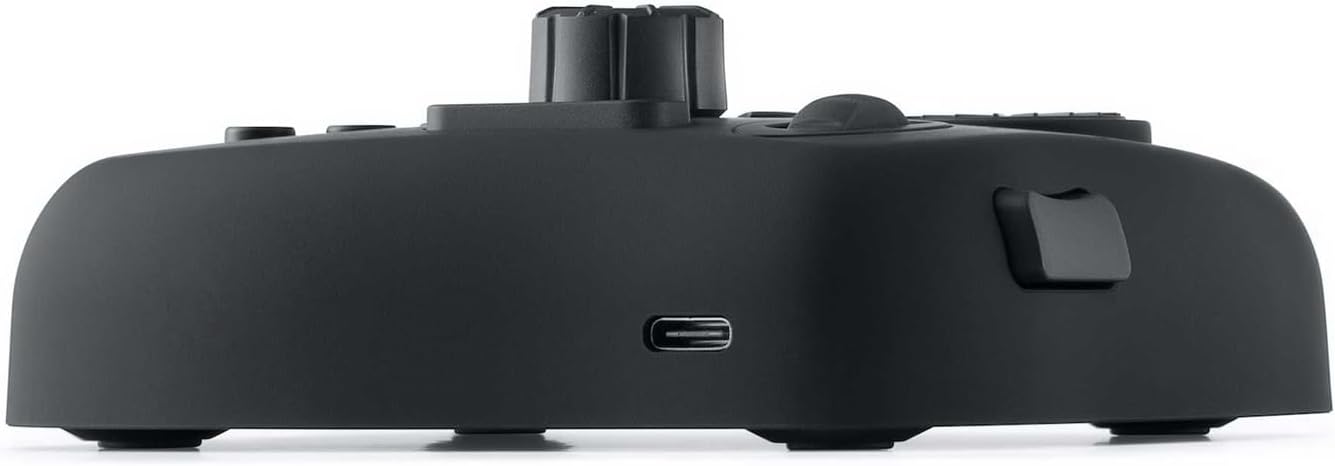
Figure 3: Connecting the TourBox NEO to your computer via USB-C cable.
Figure 4: The USB-C port on the TourBox NEO.
4. Operating Instructions
The TourBox NEO is designed for intuitive, one-handed control across various creative applications. Its buttons, dials, and scroll wheel are fully customizable via the TourBoxConsole software.
4.1 Customizing Controls
The TourBoxConsole software allows you to assign specific functions, keyboard shortcuts, or macros to each button and dial. It also supports auto-switching presets based on the active application.

Figure 5: Customizing controls within the TourBox Console software.
4.2 Software Compatibility
The TourBox NEO is compatible with a wide range of creative software, including but not limited to:
- Adobe Photoshop
- Adobe Lightroom
- Capture One
- Adobe Premiere Pro
- Final Cut Pro
- DaVinci Resolve
- Clip Studio Paint
- SAI
- Camera Raw
- AutoCAD
- Blender

Figure 6: TourBox NEO's extensive software compatibility.
4.3 Usage Examples
The TourBox NEO excels in various creative tasks:
- Video Editing: Navigate timelines, mark in/out points, perform quick cuts, and adjust parameters with precision using the dials and scroll wheel.
- Photo Editing & Color Grading: Control image selection, color adjustments (e.g., exposure, contrast, hue), and apply filters. The unique button layout allows for one-handed operation.
- Digital Painting: Manage brush parameters like size, flow, opacity, and hardness. Easily rotate, zoom, and move the canvas.
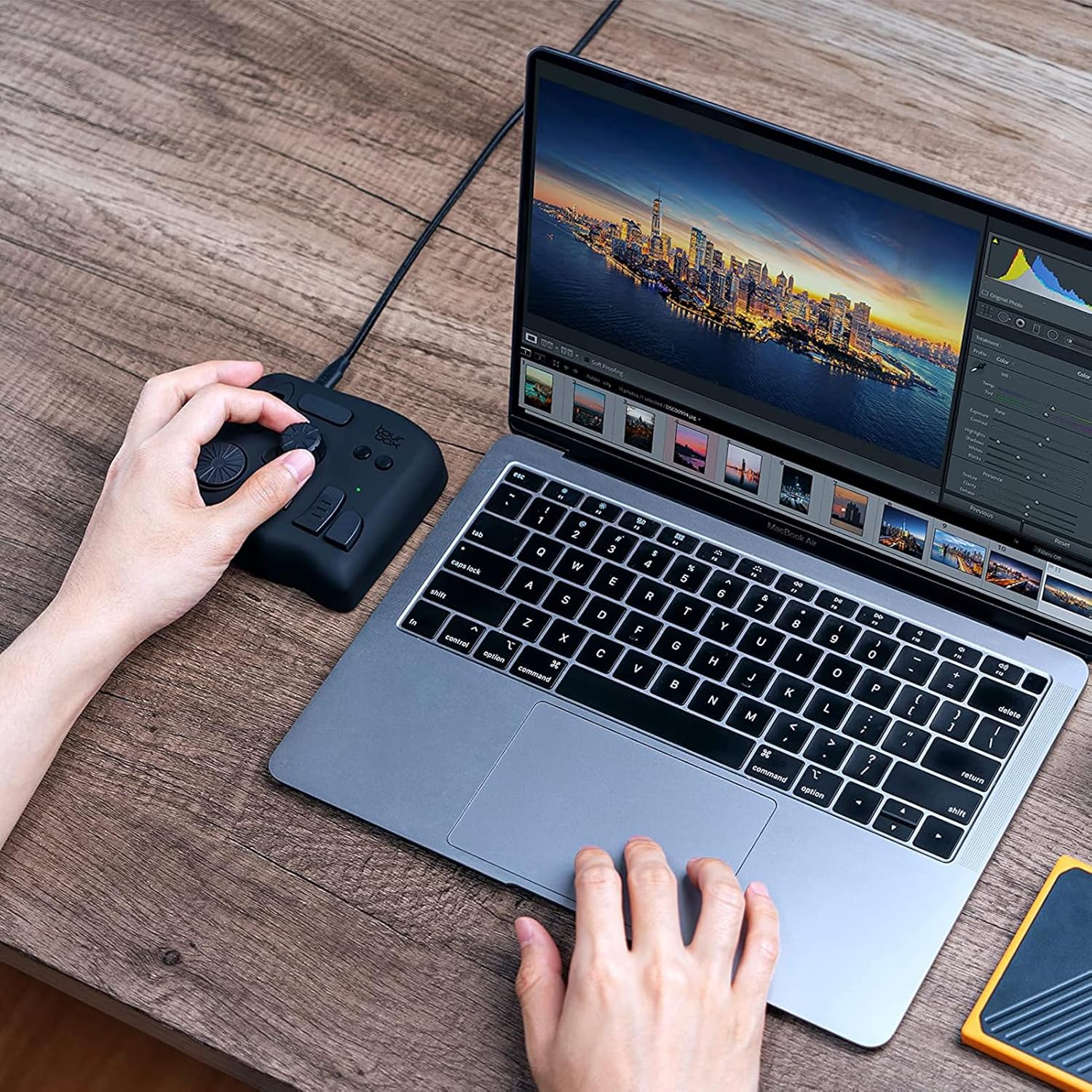
Figure 7: Diverse applications of the TourBox NEO in creative workflows.
Video 2: Demonstrating TourBox NEO's integration with DaVinci Resolve for efficient video editing and color grading.
Video 3: Showcasing TourBox Lite (similar to NEO) for illustration workflows, emphasizing ease of creation.
Video 4: Tutorial on how TourBox enables true full-screen grading in Lightroom Classic.
Video 5: A guide on using TourBox for Premiere Pro, demonstrating efficient editing techniques.
Video 6: An instructional video on TourMenu, a feature for integrating most-used functions.
5. Maintenance
To ensure the longevity and optimal performance of your TourBox NEO, follow these simple maintenance guidelines:
- Cleaning: Use a soft, dry cloth to wipe the surface of the device. Avoid using harsh chemicals or abrasive materials, as these may damage the finish.
- Storage: When not in use, store the device in a clean, dry place away from direct sunlight and extreme temperatures.
- Cable Care: Avoid bending or twisting the USB cable excessively to prevent internal damage.
6. Troubleshooting
If you encounter issues with your TourBox NEO, please refer to the following common troubleshooting steps:
- Device Not Recognized:
- Ensure the USB cable is securely connected to both the TourBox NEO and your computer.
- Try connecting to a different USB port on your computer.
- Restart your computer and the TourBoxConsole software.
- Verify that the TourBoxConsole software is installed and up to date.
- Functions Not Working in Software:
- Check the TourBoxConsole software to ensure the correct preset for your active application is selected or auto-switched.
- Verify that the assigned functions/shortcuts are correctly configured within the TourBoxConsole.
- Ensure there are no conflicting keyboard shortcuts within your creative software.
- Lag or Delayed Response:
- As a wired device, the TourBox NEO is designed for zero-latency. If you experience lag, ensure your computer meets the minimum system requirements for your creative software and that no other background processes are consuming excessive resources.
- Try a different USB port or cable.
7. Specifications
| Model Name | NEO |
| Product Dimensions | 6.69 x 1.57 x 5.51 inches |
| Item Weight | 13.1 ounces |
| Connectivity Technology | USB |
| Operating System | Windows, macOS |
| Manufacturer | TourBox Tech Inc. |
| Item Model Number | TourBox NEO AMTBG_H_L_N |
| ASIN | B08HCV1JGB |
8. Warranty and Support
Your TourBox NEO device is backed by comprehensive support and warranty:
- Warranty: A 12-month warranty covers manufacturing defects from the date of purchase.
- Returns/Replacements: A 30-day refund/replacement policy is available for eligible purchases.
- Technical Support: Lifetime technical support is provided by TourBox Tech Inc.
For further assistance, please visit the official TourBox website or contact TourBox Tech Inc. customer service directly.

Figure 8: TourBox Tech Inc. Logo.