
MOKiN MOUC3303
MOKiN USB C Docking Station User Manual
Model: MOUC3303
Introduction
The MOKiN USB C Docking Station is a versatile 12-in-1 multiport adapter designed to expand the connectivity of your USB-C enabled laptop. It allows for multiple monitor setups, high-speed data transfer, stable network connection, and power delivery, transforming your laptop into a powerful workstation. This manual provides detailed instructions for setup, operation, and troubleshooting to ensure optimal performance.
Key Features
- 12-in-1 Connectivity: Converts a single USB-C port into 2x 4K 60Hz HDMI, 1x DisplayPort, 2x USB 3.0, 2x USB 2.0, 100W Power Delivery, Gigabit Ethernet (1000Mbps), SD/TF card slots, and a 3.5mm Audio Jack.
- Advanced Chip Technology: Ensures stable performance, efficient temperature control, and expanded work opportunities without requiring drivers or software.
- Vivid 4K Video Output: Supports 4K Ultra HD @ 60Hz or Full HD 1080p @ 60Hz video with 3D effect via HDMI and DisplayPort. Both HDMI/DP ports can be used simultaneously.
- Triple Display Support (Windows): Enables triple display setups for Windows laptops in both SST (Single Stream Transport) and MST (Multi-Stream Transport) modes.
- High-Speed Data Transfer: Two USB 3.0 ports offer 5Gbps transfer speeds, while two USB 2.0 ports are ideal for connecting keyboards and mice without lag.
- Gigabit Ethernet: Provides a stable and fast wired network connection at 10/100/1000Mbps.
- Power Delivery: Supports up to 100W Power Delivery to charge your laptop while using the hub.
- Wide Compatibility: Compatible with a broad range of USB-C enabled laptops from brands like Dell, Lenovo, HP, Microsoft Surface, and Apple (Mac OS supports mirror mode only).

Figure 1: Overview of the 12-in-1 MOKiN USB C Hub ports. This diagram highlights the various integrated ports including USB C PD, HDMI 4K 60Hz, SD/TF card slots, USB 2.0 (x2), USB 3.0 (x2), DisplayPort 60Hz, RJ45 Ethernet, and a 3.5mm Audio port.
Package Contents
- MOKiN USB C Docking Station (Model: MOUC3303)
- User Manual
Specifications
| Feature | Detail |
|---|---|
| Product Dimensions | 7.09 x 3.58 x 0.71 inches |
| Item Weight | 4.2 ounces |
| Model Number | MOUC3303 |
| Hardware Interface | 3.5mm Audio, DisplayPort, Ethernet, HDMI, USB 2.0, USB 3.0 |
| HDMI Output | Up to 4K@60Hz |
| DisplayPort Output | Up to 4K@60Hz |
| USB 3.0 Transfer Speed | Up to 5Gbps |
| USB 2.0 Transfer Speed | Up to 480Mbps |
| Ethernet Speed | 10/100/1000Mbps |
| Power Delivery | Up to 100W |
| SD/TF Card Reader | Supports SD, SDHC, SDXC, Micro SD, Micro SDHC, Micro SDXC, MMC |
| Compatible Systems | Windows 10, 8, 7, Vista, XP, Mac OS X 10.6 or later, Linux 2.6.14 or Later |
Compatibility
The MOKiN USB C Docking Station is designed for broad compatibility with USB-C enabled laptops that support Power Delivery, DisplayPort Alt Mode, and data transfer. Please verify your laptop's USB-C port capabilities before use.
Supported Devices (Partial List):
- Dell: XPS 15 (9550, 9560), XPS 13 (9350, 9360, 9370, 9380), XPS 12 2-in-1 9250, Precision 5510, Latitude series (5290 2-in-1, 5285, 5480, 7280, E7470, 5590, 5510)
- Lenovo: Yoga 900/910, X1 Yoga (2nd Gen), 13' Lenovo 720, c740-14il, Yoga C740, Legion Y740, Yoga 920, Ideapad 5, Ideapad Slim 7, 2020 IdeaPad 5 15 with Ryzen 4800u, Thinkpad T590, T480, Thinkbook 14s, Think Pad L590, E15, X1 Carbon
- HP: Spectre X2, X360, Elite×2 1012, Elitebook Folio G1, ZBook 15 G3, Elitebook 840 g6, Chromebook, Notebook 15-dy1036nr, ENVY x360 13-ay0000, Pavilion Intel Core 13, Envy x360 model m6-aq105dx, Envy 17t (2020)
- ASUS: 13'' Zenbook UX330UA
- Microsoft Surface: Surface Book 2, Surface Go, Surface Laptop 3
- Apple: MacBook Pro 2020/2019/2018/2017/2016, MacBook Air 2020/2019/2018/2017, iPad Pro 2018/2020, Macbook Retina 12" Laptop 2015/2016, iMac, iMac Pro 2019/2018/2017 (Note: Mac OS systems only support mirror mode for external displays, not triple display.)
Incompatible Devices (Partial List):
- HP: 14s-be102TX, Probook 650 G2, Probook 455 G4, Pavilion-14 bf116tx, 14-ce1004TX 14, Elitebook 820 G3, Pavilion 15 ck009, EliteBook 745 G4, Pavilion Power Laptop 15-cb, Probook 430 G5, EliteBook 828 G4, Pavilion 15-cs3000, Pavillion Laptop Model 15-cs1014-ng, probook g3, bs049dx
- Lenovo: IdeaPad 3 (17") Intel, Flex 5 14 (AMD), IdeaPad Flex 5 15 (Intel) 2-in-1, ThinkPad 11e Yoga Gen 6 (11") 2-in-1
- Dell: Inspiron 15 3000, Inspiron 11 3000 2-in-1, Inspiron 17 3000
- Samsung: Galaxy A20/A20E/A50/A70/A80/S6/S7/J6/J7/M20/M30, Galaxy Tab A/10.1/10.5/S3
- LG: Google Nexus 5X/6P, Stylist/G6, V30, k10/k20
- Other: Oneplus 2/3/3T/5T/6T, All Motorola phones, GoPro, Amazon Fire Tablet, Surface Dock 2, Acer Aspire A717-72G, A515-44-R1DM, A515-54, Predator Helios 300 PH315-52-754M, Microsoft Surface Pro 6, Huawei MediaPad M5 Lite
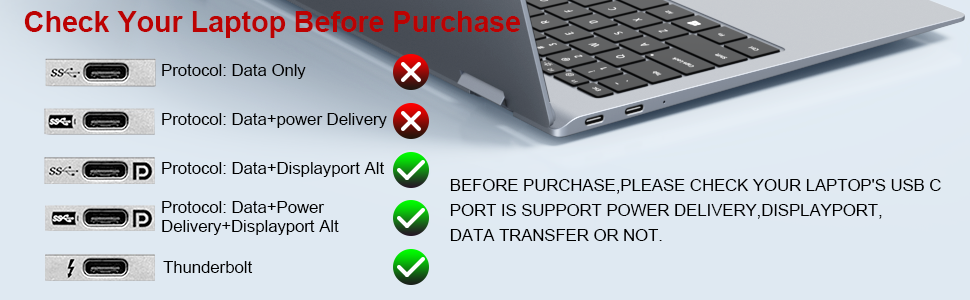
Figure 2: Important: Check your laptop's USB-C port before purchase to ensure it supports Power Delivery, DisplayPort Alt Mode, and data transfer.
Setup Instructions
- Connect to Laptop: Plug the USB-C cable from the MOKiN Docking Station into an available USB-C port on your laptop. Ensure your laptop's USB-C port supports video output (DisplayPort Alt Mode) and Power Delivery for full functionality.
- Connect Power Adapter (Optional but Recommended): For stable operation and laptop charging, connect your laptop's original USB-C power adapter (or a compatible PD charger) to the USB-C PD input port on the docking station. This port supports up to 100W Power Delivery.
- Connect External Displays:
- For HDMI monitors, connect HDMI cables from your monitors to the HDMI ports on the docking station.
- For DisplayPort monitors, connect a DisplayPort cable from your monitor to the DP port on the docking station.
Note: For optimal performance, use high-quality HDMI/DP cables.
- Connect Peripherals: Plug your USB devices (keyboard, mouse, external hard drives, USB flash drives, etc.) into the available USB 3.0 or USB 2.0 ports.
- Connect Ethernet Cable: For a wired network connection, plug an Ethernet cable into the RJ45 Gigabit Ethernet port.
- Connect Audio Devices: If desired, connect headphones, speakers, or a microphone to the 3.5mm audio jack.
- System Recognition: Your operating system should automatically detect and configure the connected devices. No additional drivers are typically required.
Operating Instructions
Display Modes
The MOKiN Docking Station supports various display configurations depending on your operating system and laptop's capabilities.
Windows Operating System:
Windows laptops typically support Mirror Mode, Extend Mode, and Triple Display configurations.
- Mirror Mode: All connected external displays show the same content as your laptop screen.
- Extend Mode: Each connected external display can show different content, extending your desktop workspace.
- Triple Display: Connect up to three external monitors (2x HDMI, 1x DisplayPort) to create an expansive multi-monitor setup. The specific resolution and refresh rate may vary based on your laptop's graphics card (e.g., AMD Graphic DP1.4 or Intel Graphics DP1.2).

Figure 3: Windows Triple Display Configurations. This image demonstrates various extended desktop setups possible with Windows, utilizing the HDMI and DisplayPort outputs.
Mac OS Operating System:
Mac OS systems support Mirror Mode and Extend Mode, but external monitors will mirror each other, not provide independent extended displays beyond the laptop screen itself.
- Mirror Mode: All connected external displays will show the same content as your MacBook's screen.
- Extend Mode: While you can extend your desktop from your MacBook to the docking station, all external monitors connected to the docking station will display the same extended content. They will not function as independent extended displays.

Figure 4: Mac OS Display Mode. This image shows how Mac OS handles external displays, typically mirroring the laptop screen or extending to a mirrored set of external displays.

Figure 5: Display Mode Comparison. This visual guide illustrates the differences in display capabilities between Mac OS (Mirror/Extend with mirrored external screens) and Windows (Mirror/Extend/Triple Display) when using the docking station.
Maintenance and Care
- Keep the docking station away from water, fire, and corrosive liquids.
- Avoid dropping or subjecting the device to strong impacts.
- Clean the device with a soft, dry cloth. Do not use abrasive cleaners or solvents.
- Store the docking station in a cool, dry place when not in use.
- Ensure proper ventilation around the device during operation to prevent overheating.
Troubleshooting
| Issue | Possible Cause / Solution |
|---|---|
| No display on external monitor(s) |
|
| Laptop not charging via docking station |
|
| USB devices not recognized or unstable |
|
| Ethernet connection issues |
|
| 4K resolution not achieved on monitors |
|
| Mac OS external monitors are mirrored, not extended independently |
|
Warranty and Support
MOKiN is committed to providing quality products and excellent customer service. For any inquiries or assistance, our professional team offers 24-hour customer online service.
Please contact MOKiN customer support through the retailer's platform or visit the official MOKiN website for further assistance and warranty information.
Note: Keep your purchase receipt for warranty claims.
Related documentsMOUC3303


Ask a question about this manual
Ask about setup, troubleshooting, compatibility, parts, safety, or missing instructions. Manuals+ will review the question and use this page’s manual context to help answer it.