
1. Introduction
The Audizio Turin Internet Radio Adapter is a compact and elegant device designed to integrate with your existing audio system. It allows you to access a vast array of internet radio stations and stream music wirelessly via Bluetooth. This manual provides detailed instructions for setup, operation, and maintenance to ensure optimal performance.
Key Features:
- Access to over 26,000 internet radio stations worldwide.
- Integrated Wi-Fi and LAN (RJ45 Ethernet) connectivity.
- Bluetooth receiver for audio streaming from smart devices.
- 2.4-inch TFT color display for clear navigation.
- Dimmer function, sleep timer, and dual alarm clock.
- 99 preset memory slots for favorite stations.
- UPnP and DLNA compatible streaming.
- 3.5mm AUX line output for connection to external audio systems.
- Includes a fully functional remote control.
Note: This device does not have built-in speakers and requires connection to an external audio system.
2. Product Overview
Familiarize yourself with the components of your Audizio Turin adapter.

Figure 2.1: Audizio Turin adapter, remote control, power adapter, and audio cable.
2.1 Front Panel

Figure 2.2: Front view of the Audizio Turin adapter, highlighting the 2.4-inch TFT color display.
- 2.4-inch TFT Color Display: Shows menu options, station information, time, and other relevant data.
2.2 Rear Panel

Figure 2.3: Rear view of the Audizio Turin adapter, showing all connection ports and the power switch.
- Audio Out (3.5mm Jack): Connects to your external stereo system or active speakers.
- DC 5V Input: For connecting the provided power adapter.
- LAN (RJ45) Port: For wired internet connection.
- ON/OFF Switch: Main power switch for the unit.
3. Setup
Follow these steps to set up your Audizio Turin adapter.
3.1 Unpacking
Carefully remove all components from the packaging. Ensure the following items are present:
- Audizio Turin Internet Radio Adapter
- Remote Control
- Power Adapter (5V)
- 3.5mm to RCA Audio Cable
- User Manual (this document)
3.2 Power Connection
- Connect the small end of the provided 5V power adapter to the DC 5V Input port on the rear of the Audizio Turin adapter.
- Plug the other end of the power adapter into a standard wall power outlet.
- Flip the ON/OFF Switch on the rear panel to the 'ON' position. The display should illuminate.
3.3 Audio Connection
Connect the Audizio Turin adapter to your external audio system (e.g., stereo amplifier, active speakers) using the supplied audio cable.
- Connect one end of the 3.5mm to RCA audio cable to the Audio Out (3.5mm Jack) on the rear of the Turin adapter.
- Connect the RCA (red and white) ends of the cable to an available audio input (e.g., AUX IN, LINE IN) on your stereo system or active speakers.
- Ensure your stereo system is powered on and the correct input source is selected.
3.4 Network Connection (Wi-Fi or LAN)
The Audizio Turin requires an internet connection to access internet radio stations.
3.4.1 Wi-Fi Connection
- Once powered on, the unit will guide you through the initial setup. Select your preferred language.
- Navigate to the Network settings menu on the display.
- Select Wireless Network. The adapter will scan for available Wi-Fi networks.
- Choose your home Wi-Fi network from the list.
- Enter your Wi-Fi password using the remote control or the navigation buttons on the unit. Confirm your selection.
- The adapter will attempt to connect. Once successful, a Wi-Fi icon will appear on the display.
3.4.2 LAN (Wired) Connection
- Connect an Ethernet cable (not supplied) from your internet router to the LAN (RJ45) Port on the rear of the Turin adapter.
- The unit will automatically detect the wired connection. No further configuration is typically required for a standard network setup.
4. Operating Instructions
Learn how to use the various functions of your Audizio Turin adapter.
4.1 Internet Radio
Access thousands of radio stations from around the globe.
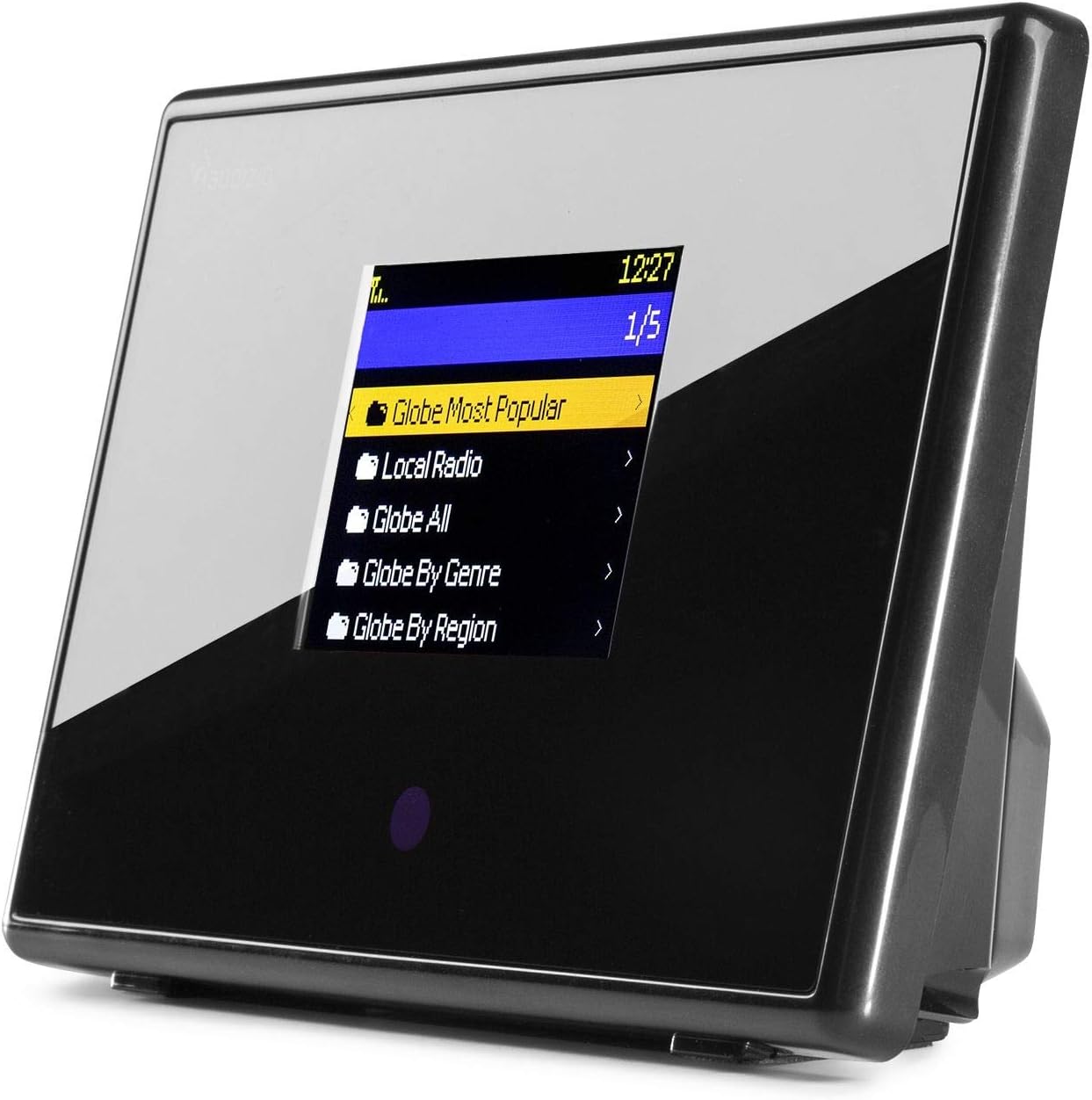
Figure 4.1: Display showing categories for browsing internet radio stations.
- From the main menu, select Internet Radio.
- You can browse stations by categories such as:
- Globe Most Popular: Top-rated stations worldwide.
- Local Radio: Stations from your region.
- Globe All: Comprehensive list of all stations.
- Globe By Genre: Stations categorized by music genre.
- Globe By Region: Stations organized by geographical location.
- Use the navigation buttons on the unit or the remote control to scroll through lists and select a station.
- To save a station as a preset, refer to the remote control instructions for the 'Preset' function. The unit supports up to 99 preset memory slots.
4.2 Bluetooth Streaming
Stream audio wirelessly from your smartphone, tablet, or other Bluetooth-enabled devices.
- From the main menu, select Bluetooth. The unit will enter pairing mode.
- On your smart device, enable Bluetooth and search for available devices.
- Select "Audizio Turin" from the list of found devices to pair.
- Once connected, any audio played on your smart device will be streamed through the Audizio Turin adapter to your connected stereo system.
4.3 Sleep Timer and Dual Alarm
The Audizio Turin features a sleep timer and two independent alarm clocks.
- Sleep Timer: Set a duration after which the unit will automatically turn off, allowing you to fall asleep to music.
- Dual Alarm: Configure two separate alarms with customizable times and sound sources (e.g., a specific internet radio station).
Refer to the on-screen menu and remote control for detailed settings of these functions.
4.4 Remote Control
The included remote control provides full functionality for operating the Audizio Turin adapter.
Figure 4.2: The remote control for the Audizio Turin adapter.
Buttons typically include:
- Power ON/OFF
- Volume Up/Down
- Navigation (Up, Down, Left, Right, OK)
- Mode Selection (Internet Radio, Bluetooth)
- Preset Recall/Save
- Mute
- Info (display station/track information)
- EQ (Equalizer presets)
5. Maintenance
Proper care ensures the longevity and optimal performance of your Audizio Turin adapter.
- Cleaning: Use a soft, dry cloth to clean the unit. Do not use liquid cleaners, aerosols, or abrasive materials, as these can damage the finish or internal components.
- Placement: Place the unit on a stable, flat surface. Avoid direct sunlight, excessive heat (e.g., near radiators), high humidity, or dusty environments. Ensure adequate ventilation around the unit.
- Power Disconnection: Disconnect the power adapter from the wall outlet during lightning storms or when the unit will be left unused for extended periods.
6. Troubleshooting
If you encounter issues with your Audizio Turin adapter, consult this section before seeking professional assistance.
6.1 No Power
- Ensure the power adapter is securely connected to both the unit's DC 5V input and a working wall outlet.
- Verify that the ON/OFF switch on the rear panel is in the 'ON' position.
- Test the power outlet with another device to confirm it is functional.
6.2 No Sound Output
- Check that the 3.5mm audio cable is securely connected from the Turin adapter's Audio Out to your stereo system's input.
- Ensure your stereo system is powered on and the correct input source (e.g., AUX, Line In) is selected.
- Adjust the volume levels on both the Audizio Turin adapter and your connected stereo system.
- Confirm that the Turin adapter is not muted.
6.3 Cannot Connect to Wi-Fi / Internet Radio Buffering
- Verify that your Wi-Fi network is active and broadcasting.
- Double-check the Wi-Fi password entered during setup. Passwords are case-sensitive.
- Ensure the adapter is within good range of your Wi-Fi router. Obstacles can weaken the signal.
- Restart your Wi-Fi router and the Audizio Turin adapter.
- If using a wired connection, ensure the Ethernet cable is securely connected to both the adapter's LAN port and your router.
- Check your internet service provider for any outages.
6.4 Bluetooth Pairing Issues
- Ensure the Audizio Turin adapter is in Bluetooth mode.
- Make sure Bluetooth is enabled on your smart device and it is in discoverable mode.
- Move your smart device closer to the Turin adapter.
- If previously paired, try unpairing the device from your smart device's Bluetooth settings and then re-pairing.
7. Specifications
| Brand | Audizio |
| Model Number | Turin |
| Playback Options | Bluetooth streaming, Internet Radio |
| Output | 3.5mm jack |
| Power Supply | 100-240V AC, 50/60Hz (via 5V adapter) |
| Dimensions (L x W x H) | 136 x 39 x 92 mm |
| Weight | 0.25 kg |
| Connectivity | Bluetooth, 802.11b/g/n Wireless, RJ45 Ethernet |
| Special Features | Integrated Clock, Dimmer, Sleep Timer, Dual Alarm, UPnP/DLNA streaming |
| Manufacturer | Tronios BV |
8. Warranty and Support
For warranty information, technical support, or service inquiries, please refer to the documentation provided with your purchase or visit the official Audizio website. Keep your proof of purchase for warranty claims.