
Introduction
The Sengled Smart Wi-Fi A19 Multicolor LED Light Bulb offers advanced lighting control for your home. This smart bulb connects directly to your 2.4GHz Wi-Fi network, eliminating the need for a separate hub. It is compatible with voice assistants like Google Assistant, allowing you to manage your lighting with simple voice commands. Adjust brightness, change colors, and set schedules to create the perfect ambiance for any occasion.
This manual provides detailed instructions for setting up, operating, and maintaining your Sengled Smart Wi-Fi LED Light Bulb.
Product Overview

Image: Sengled Smart Wi-Fi A19 Multicolor LED Light Bulb, showing its standard A19 shape and E26 base.
- Voice Control: Control your smart bulbs using Google Assistant voice commands.
- Schedule Feature: Set up schedules and timers for automatic on/off, dimming, and color changes.
- Remote Control: Manage your lights from anywhere using the Sengled Home App.
- No Hub Required: Connects directly to your home's 2.4GHz Wi-Fi network.
- Wake Up and Sleep Mode: Program lights to gradually brighten or dim for natural wake-up and sleep cycles.
- Multicolor and Tunable White: Choose from 16 million colors and white temperatures (2000K to 6500K).
Setup Instructions
- Download the Sengled Home App: Search for "Sengled Home" in your smartphone's app store (iOS or Android) and install it.
- Register an Account: Open the app and follow the on-screen instructions to create a new account or log in if you already have one.
- Install the Bulb: Screw the Sengled Smart Wi-Fi LED Light Bulb into a standard E26 light socket. Ensure the power is turned off before installation.
- Power On: Turn on the light switch to power the bulb. The bulb should blink, indicating it is in pairing mode.
- Add Device in App: In the Sengled Home App, tap the "+" icon to add a new device. Select the Smart Wi-Fi LED bulb and follow the in-app guided setup to connect it to your 2.4GHz Wi-Fi network.
- Voice Assistant Integration (Optional): If you wish to use Google Assistant, open the Google Home app, navigate to 'Set up device' -> 'Works with Google', and link your Sengled Home account.
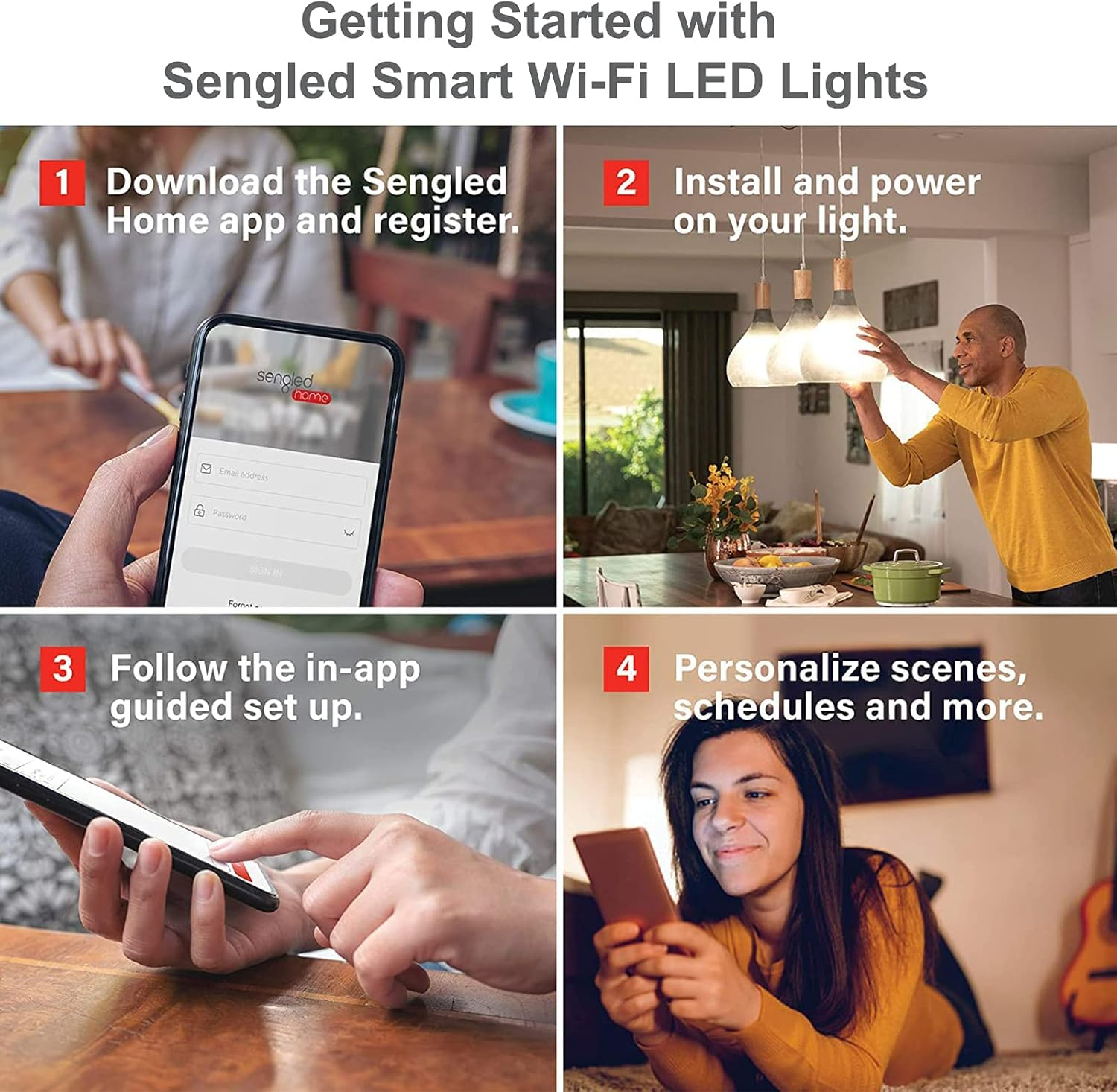
Image: Visual guide showing the four main steps for getting started with Sengled Smart Wi-Fi LED Lights: downloading the app, installing the bulb, following in-app setup, and personalizing scenes.
Video: Official guide on how to set up Sengled Element Smart Bulbs with Alexa. This process is similar for Google Assistant integration.
Operating Instructions
Voice Control
Once connected to Google Assistant, you can use voice commands to control your lights. Ensure your Google Assistant device is linked to your Sengled Home account.
- "Hey Google, turn on [Light Name]."
- "Hey Google, dim [Light Name] to 50%."
- "Hey Google, change [Light Name] to blue."
- "Hey Google, set [Light Name] to warm white."
- "Hey Google, turn off all lights."

Image: Demonstrates voice control for setting custom routines and moods, such as a 'date night' scene.
Video: Shows how to adjust Sengled Smart Wi-Fi bulbs using voice commands via Alexa, a similar process applies to Google Assistant.
Sengled Home App Control
The Sengled Home App provides comprehensive control over your smart bulbs.
- On/Off and Dimming: Tap the light icon to turn on/off, and use the slider to adjust brightness.
- Color Selection: Access the color wheel to choose from 16 million colors or adjust white temperature from warm (2000K) to cool (6500K).
- Scenes: Create and activate custom scenes for different moods or activities (e.g., "Movie Night," "Party").
- Schedules: Set daily or weekly schedules for your lights to turn on/off, change color, or dim automatically.
- Group Control: Group multiple bulbs together to control them simultaneously with a single command.

Image: Illustrates custom scenes and 16 million colors controllable via the Sengled Home App, ideal for events like parties.

Image: Demonstrates the group control feature, allowing users to manage multiple bulbs across different rooms or areas of their home.

Image: Illustrates the 'Wake Up and Sleep Mode' feature, showing how light schedules can gently wake you up or help you fall asleep.
Maintenance
- Cleaning: Ensure the bulb is off and cool before cleaning. Wipe with a soft, dry cloth. Do not use liquid cleaners or abrasive materials.
- Firmware Updates: Regularly check the Sengled Home App for available firmware updates to ensure optimal performance and security.
- Environmental Conditions: Use the bulb in dry, indoor environments within its specified operating temperature range. Avoid exposure to water or extreme temperatures.
Troubleshooting
Bulb Not Connecting to Wi-Fi
- Check Wi-Fi Band: Ensure your router is broadcasting a 2.4GHz Wi-Fi network. Sengled Smart Wi-Fi bulbs do not support 5GHz networks.
- Router Proximity: Move the bulb closer to your Wi-Fi router during the initial setup process.
- Restart Router: Power cycle your Wi-Fi router by unplugging it for 30 seconds and then plugging it back in.
- Reset Bulb: Turn the light switch on and off five times slowly (about 1 second per turn). The bulb should flash three times, indicating a successful reset. Then attempt pairing again.
- App Permissions: Ensure the Sengled Home App has necessary permissions (e.g., location services) enabled on your smartphone.
Voice Control Not Working
- Account Linking: Verify that your Sengled Home account is correctly linked to your Google Assistant account in the Google Home app.
- Device Naming: Ensure the light names in the Sengled Home App and Google Home app are consistent and easy for the voice assistant to understand.
- Internet Connection: Confirm that both your smart bulb and voice assistant device have a stable internet connection.
- Voice Commands: Use clear and precise voice commands. Refer to the operating instructions for examples.
Specifications
| Feature | Detail |
|---|---|
| Brand | Sengled |
| Model Number | W21-N13 |
| Light Type | LED |
| Bulb Shape Size | A19 |
| Bulb Base | E26 |
| Wattage | 9 Watts |
| Incandescent Equivalent | 60 Watts |
| White Brightness | 800 Lumens |
| Color Temperature | 2000K to 6500K (Tunable White) |
| Light Color | Multicolor, Tunable White |
| Color Rendering Index (CRI) | 90 |
| Voltage | 120 Volts (100 to 120 Volts and 60 Hertz) |
| Connectivity Technology | Wi-Fi (2.4GHz only) |
| Controller Type | Google Assistant, SmartThings (via Wi-Fi) |
| Indoor/Outdoor Usage | Indoor |
| Light Source Operating Life | 25,000 Hours |
| Item Dimensions (W x H) | 2.3"W x 4.2"H |
| Item Weight | 0.21 Kilograms |
| Material Type | Synthetic Polymer (PMMA) |
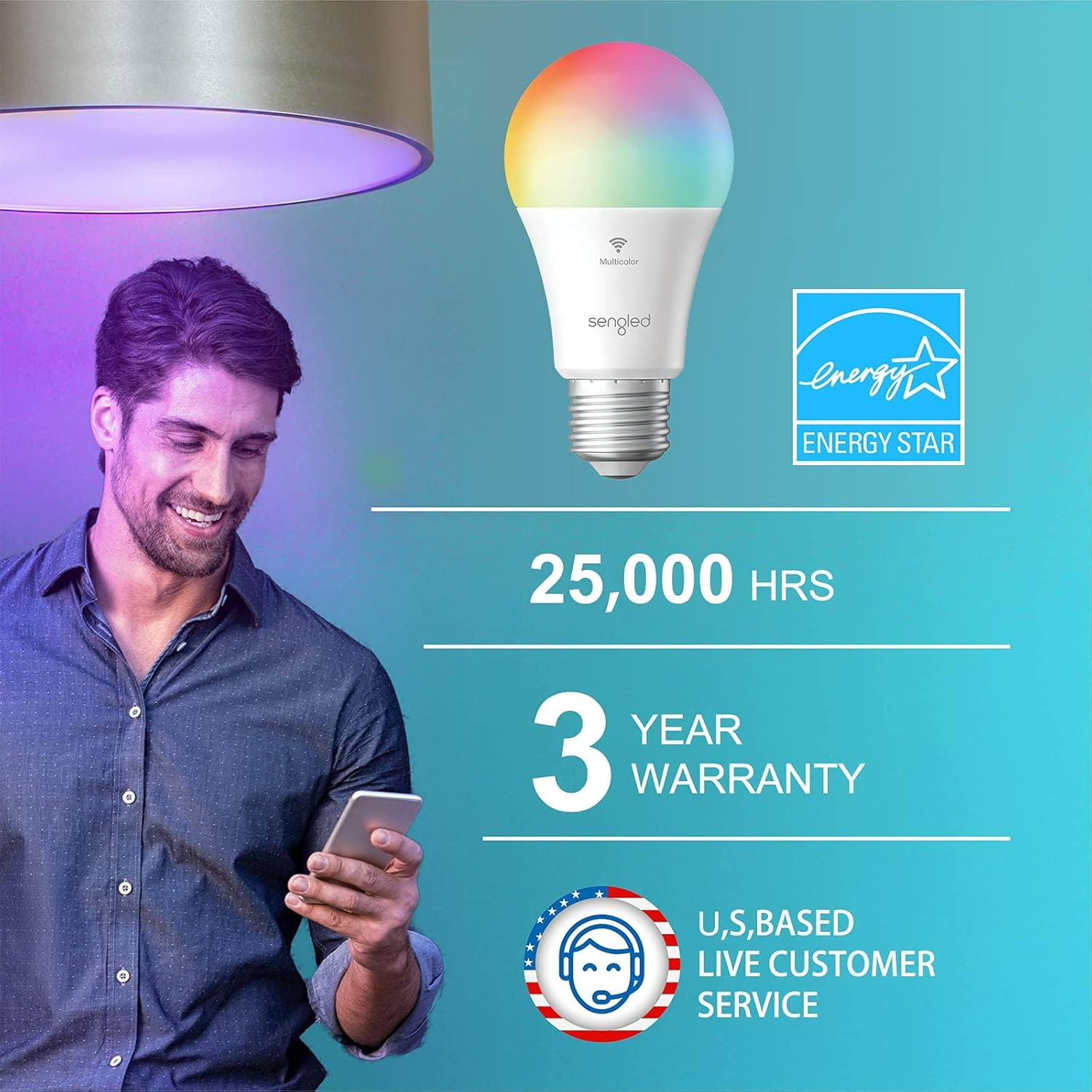
Image: Highlights key product specifications including 25,000 hours lifespan, 3-year warranty, and Energy Star certification.
Warranty and Support
Warranty Information
The Sengled Smart Wi-Fi A19 Multicolor LED Light Bulb comes with a 3-year manufacturer's warranty. This warranty covers defects in materials and workmanship under normal use. Please retain your proof of purchase for warranty claims.
Customer Support
For technical assistance, troubleshooting, or warranty inquiries, please contact Sengled Customer Support. You can find contact information on the official Sengled website or within the Sengled Home App.
Online resources, including FAQs and additional guides, are also available on the Sengled support page.


