
1. Introduction
This manual provides instructions for the proper installation and use of your Radtel USB Programming Cable. This cable is designed to connect your Radtel RT-480, RT-67, or RT-68P handheld two-way radio to a computer for programming channel frequencies, settings, and other parameters using compatible software. Please read this manual thoroughly before use to ensure optimal performance and avoid potential issues.
2. Package Contents
Verify that all items are present in your package:
- 1 x Radtel USB Programming Cable
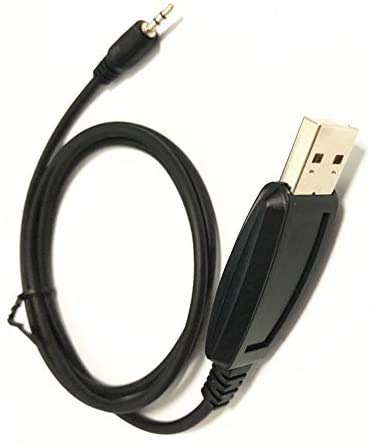
Figure 1: Radtel USB Programming Cable. This image shows the entire black cable, featuring a standard USB Type-A connector on one end and a 3.5mm audio jack on the other, designed for connecting to compatible Radtel two-way radios.
3. System Requirements
To use this programming cable, ensure your system meets the following requirements:
- Operating System: Windows 10 (or compatible versions of Windows).
- Available USB Port: A standard USB Type-A port.
- Programming Software: Manufacturer-provided programming software for your specific Radtel radio model (e.g., RT-480, RT-67, RT-68P). This software is typically available for download from the Radtel official website or provided on a CD with the radio.
- Internet Access: May be required for driver downloads or software updates.
4. Setup
4.1 Driver Installation
The programming cable requires a USB driver to function correctly. In most cases, Windows 10 will automatically install the necessary driver when the cable is first connected. If automatic installation fails, follow these steps:
- Do NOT connect the cable to your computer yet.
- Obtain the correct USB driver. This is usually found on the Radtel official website under the support or download section for your radio model, or on a CD included with your radio.
- Run the driver installation executable file. Follow the on-screen prompts to complete the installation.
- Restart your computer if prompted.
- Connect the USB Type-A end of the programming cable to an available USB port on your computer.
- Windows should now recognize the device and assign a COM port. You can verify this in Device Manager (Control Panel > Device Manager > Ports (COM & LPT)). Note the assigned COM port number, as you will need it for the programming software.
4.2 Programming Software Installation
Install the programming software specific to your Radtel radio model (e.g., RT-480, RT-67, RT-68P). This software is essential for configuring your radio.
- Download the appropriate programming software from the Radtel official website or use the provided installation media.
- Run the software installation executable.
- Follow the on-screen instructions to complete the installation.
- Launch the programming software after installation.
Note: Generic programming software like CHIRP may not be compatible with all Radtel radio models. Always use the manufacturer's recommended software for best results.
5. Operating Instructions
Follow these steps to program your Radtel radio using the USB programming cable:
- Prepare the Radio: Ensure your Radtel radio is turned OFF.
- Connect the Cable to Radio: Insert the 3.5mm audio jack end of the programming cable into the programming port of your Radtel radio. This port is typically located on the side of the radio, often covered by a rubber flap. Ensure a secure connection.
- Connect the Cable to Computer: Connect the USB Type-A end of the programming cable to an available USB port on your computer.
- Turn On Radio: Turn ON your Radtel radio.
- Launch Programming Software: Open the Radtel programming software on your computer.
- Select COM Port: In the programming software, navigate to the "Settings," "Options," or "Communications" menu. Select the correct COM port that was assigned to the USB programming cable (as noted in Device Manager during driver installation).
- Read from Radio: Before making any changes, it is highly recommended to read the current configuration from your radio. Look for an option like "Read from Radio," "Download," or "Get Data." This creates a backup of your radio's existing settings.
- Modify Settings: Make the desired changes to frequencies, channels, tones, and other radio settings within the software interface.
- Write to Radio: Once you have finished modifying the settings, save your changes in the software and then use the "Write to Radio," "Upload," or "Send Data" function to transfer the new configuration to your radio.
- Verify: After writing, turn your radio OFF and then ON again to apply the new settings. Verify that the changes have been successfully implemented.
- Disconnect: Safely disconnect the cable from both the radio and the computer.
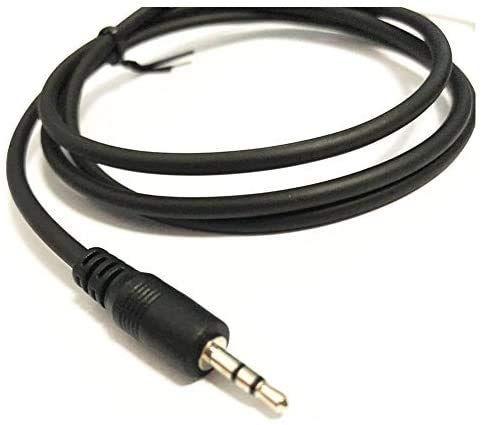
Figure 2: Close-up of the 3.5mm audio jack connector. This image highlights the 3.5mm jack, which connects to the programming port on your Radtel two-way radio.
Important: Always ensure the radio is powered on and the cable is securely connected during the read/write process to prevent data corruption.
6. Maintenance
Proper care will extend the life of your programming cable:
- Storage: Store the cable in a cool, dry place away from direct sunlight and extreme temperatures.
- Cleaning: Use a soft, dry cloth to clean the cable and connectors. Do not use liquid cleaners or solvents.
- Handling: Avoid bending or kinking the cable sharply. Always grasp the connector ends when plugging or unplugging, not the cable itself.
- Protection: Keep the connectors free from dust and debris.
7. Troubleshooting
If you encounter issues, refer to the following common problems and solutions:
| Problem | Possible Cause | Solution |
|---|---|---|
| Cable not recognized by computer. | Missing or incorrect driver. Faulty USB port. |
|
| Programming software cannot find the radio or COM port. | Incorrect COM port selected. Radio not powered on or connected. Driver issue. |
|
| Error during read/write operation. | Loose connection. Radio powered off during process. Incompatible software. |
|
8. Specifications
- Brand: Radtel
- Connector Type (Computer): USB Type-A
- Connector Type (Radio): 3.5mm Audio Jack (compatible with Radtel RT-480, RT-67, RT-68P)
- Cable Type: USB
- Color: Black
- Special Feature: Tangle Free
- Compatible Operating Systems: Windows 10 (and potentially earlier versions with appropriate drivers)
- Item Weight: Approximately 0.634 ounces (18 grams)
- Package Dimensions: Approximately 5.12 x 3.62 x 0.47 inches
9. Warranty and Support
Radtel products are manufactured to high-quality standards. For warranty information, technical support, or service inquiries, please refer to the documentation included with your original radio purchase or visit the official Radtel website. Please have your product model and purchase date available when contacting support.
Official Website: www.radtel.com (Note: This is a placeholder URL. Please refer to the actual Radtel website for support.)