1. Introduction
The Samsung 870 EVO 4TB 2.5 Inch SATA III Internal SSD (Solid State Drive) is designed to provide enhanced performance, reliability, and compatibility for various computing needs. This manual provides essential information for the proper installation, operation, and maintenance of your SSD.

Figure 1: Samsung 870 EVO 4TB 2.5 Inch SATA III Internal SSD
2. Product Features
- Indisputable Performance: Maximizes the SATA interface limit with sequential speeds up to 560/530 MB/s.
- Enhanced Reliability: Built upon Samsung's pioneering technology, offering up to 2,400 TBW (Terabytes Written) under a 5-year limited warranty.
- Broad Compatibility: Tested for major host systems and applications, including chipsets, motherboards, NAS, and video recording devices.
- Advanced Software: Compatible with Samsung Magician 7.1 software for drive management, monitoring, and performance enhancement.
Figure 2: Overview of Samsung 870 EVO capabilities
3. Setup and Installation
The 870 EVO SSD is designed for easy installation into standard 2.5-inch SATA form factor bays in desktop PCs or laptops.
3.1 Physical Installation
- Ensure your computer is powered off and disconnected from the power source.
- Open your computer case or laptop to access the drive bays.
- Locate an available 2.5-inch drive bay. If replacing an existing drive, carefully remove the old drive.
- Slide the Samsung 870 EVO SSD into the drive bay. Secure it with screws if necessary, using the mounting points on the drive.
- Connect the SATA data cable from your motherboard to the SSD.
- Connect the SATA power cable from your power supply unit (PSU) to the SSD.
- Close your computer case or laptop.

Figure 3: Hands installing a Samsung SSD into a desktop computer case.
3.2 Software Setup (Data Migration)
If you are replacing an existing drive and wish to transfer your operating system and data, use Samsung Data Migration software.
- Download the latest version of Samsung Data Migration software from the official Samsung website.
- Follow the on-screen instructions to clone your existing drive's contents to the new 870 EVO SSD.
- Once migration is complete, you can set the 870 EVO as your primary boot drive in your system's BIOS/UEFI settings.

Figure 4: Visual representation of the data migration process for SSD upgrade.
4. Operating the SSD
Once installed, your Samsung 870 EVO SSD will function as a high-speed storage device. Its performance is optimized for everyday computing tasks, including booting the operating system, launching applications, and handling large files.
4.1 Performance
The 870 EVO maximizes the SATA interface limit to 560/530 MB/s sequential read/write speeds. It utilizes Intelligent TurboWrite technology to accelerate write speeds and maintain long-term high performance with a larger variable buffer.

Figure 5: Performance metrics of the 870 EVO SSD.
4.2 Compatibility
The 870 EVO has undergone extensive compatibility testing with various host systems and applications, ensuring seamless integration with chipsets, motherboards, Network Attached Storage (NAS) devices, and video recording equipment.

Figure 6: The 870 EVO SSD connected to various compatible devices.
5. Maintenance
To ensure optimal performance and longevity of your Samsung 870 EVO SSD, regular maintenance is recommended.
5.1 Samsung Magician Software
Samsung Magician software is a powerful tool for managing your SSD. It allows you to:
- Monitor drive health and status.
- Keep the firmware up to date.
- Optimize performance through various settings.
- Securely erase data.
Download the latest version of Samsung Magician from the official Samsung website to utilize these features.

Figure 7: Interface of Samsung Magician software for drive management.
5.2 General Best Practices
- Avoid traditional disk defragmentation, as it is unnecessary for SSDs and can reduce their lifespan.
- Ensure TRIM is enabled in your operating system for optimal performance and wear leveling.
- Maintain sufficient free space on the drive (typically 10-15%) to allow for efficient wear leveling and performance.
6. Troubleshooting
If you encounter issues with your Samsung 870 EVO SSD, consider the following troubleshooting steps:
- Drive Not Detected: Check all SATA data and power cable connections. Ensure the drive is properly seated in its bay. Verify that the SATA port is enabled in your system's BIOS/UEFI settings.
- Slow Performance: Ensure your operating system has the latest drivers. Check if TRIM is enabled. Use Samsung Magician to check drive health and optimize settings. Ensure your SATA port is operating at SATA III (6Gb/s) speeds.
- Operating System Issues: If you performed a data migration, ensure the 870 EVO is set as the primary boot device. If issues persist, consider reinstalling the operating system on the SSD.
- Firmware Update Issues: If a firmware update fails, ensure your system is stable and try again. Refer to Samsung's support resources for specific error codes.
For further assistance, please refer to the Samsung Support website or contact their customer service.
7. Specifications
| Feature | Detail |
|---|---|
| Digital Storage Capacity | 4 TB |
| Hard Disk Interface | Serial ATA (SATA III 6Gb/s) |
| Connectivity Technology | SATA |
| Brand | Samsung |
| Special Feature | Auto Garbage Collection Algorithm, MLC V-NAND Technology, Up to 530 MB/s Sequential Write Speed, Up to 560 MB/s Sequential Read Speed |
| Hard Disk Form Factor | 2.5 Inches |
| Compatible Devices | Laptop, Mac, PC |
| Installation Type | Internal Hard Drive |
| Color | Black |
| Item Dimensions LxWxH | 3.94 x 2.76 x 0.27 inches |
| Item Weight | 3.04 ounces |
| Model Number | MZ-77E4T0B/AM |

Figure 8: Physical dimensions of the Samsung 870 EVO SSD.
8. Warranty Information
The Samsung 870 EVO SSD comes with a 5-year limited warranty or up to 2,400 TBW (Terabytes Written), whichever comes first. For detailed warranty terms and conditions, please refer to the warranty statement included in the product packaging or visit the official Samsung website.
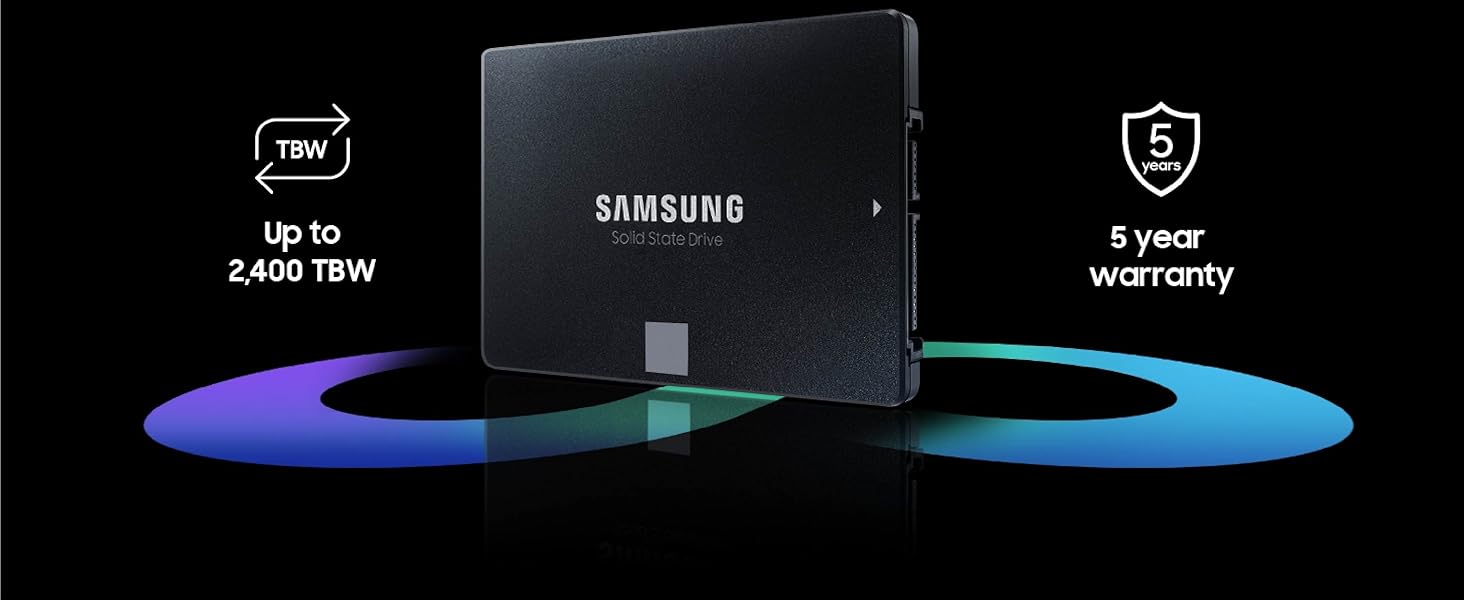
Figure 9: Reliability and warranty details for the 870 EVO SSD.
9. Support
For technical support, product registration, driver downloads, and additional resources, please visit the official Samsung Support website:
You can also find helpful information and community forums on the Samsung website.


