
Introduction
This universal remote control is designed for seamless compatibility with all Samsung TV models, including LCD, Smart, 3D LED, and HDTVs. It serves as a perfect replacement for damaged or old remote controls, covering all functions of the original. Its user-friendly design and backlit buttons enhance convenience, especially in low-light conditions.
Setup
Battery Installation
The remote requires two AAA batteries (not supplied). To install, locate the battery compartment on the back of the remote. Slide the battery cover downwards to open. Insert the batteries, ensuring correct polarity (+ and - ends match the indicators inside the compartment). Close the cover by sliding it back into place until it clicks securely.

Image: Rear view of the remote control with the battery cover removed, illustrating the battery insertion process.
Initial Connection
No programming or complex setup is required. Once the batteries are correctly installed, the remote control is ready to use with your Samsung TV immediately.
Operating Instructions
Remote Layout and Key Functions
Familiarize yourself with the buttons on your remote control. Key functions include:
- Power Button: Located at the top left, turns the TV on or off.
- Source Button: Switches between different input sources (HDMI, AV, etc.).
- Number Pad (0-9): For direct channel selection.
- Volume (+/-) and Mute: Adjusts volume and mutes sound.
- Channel (CH +/-): Changes TV channels.
- Navigation Arrows (Up, Down, Left, Right) and Enter: Used for menu navigation and selection.
- Smart Hub Button: Accesses your Samsung Smart Hub for apps and streaming services.
- Netflix/Amazon Buttons: Direct access to popular streaming platforms.
- Return/Exit: Navigates back or exits menus/apps.
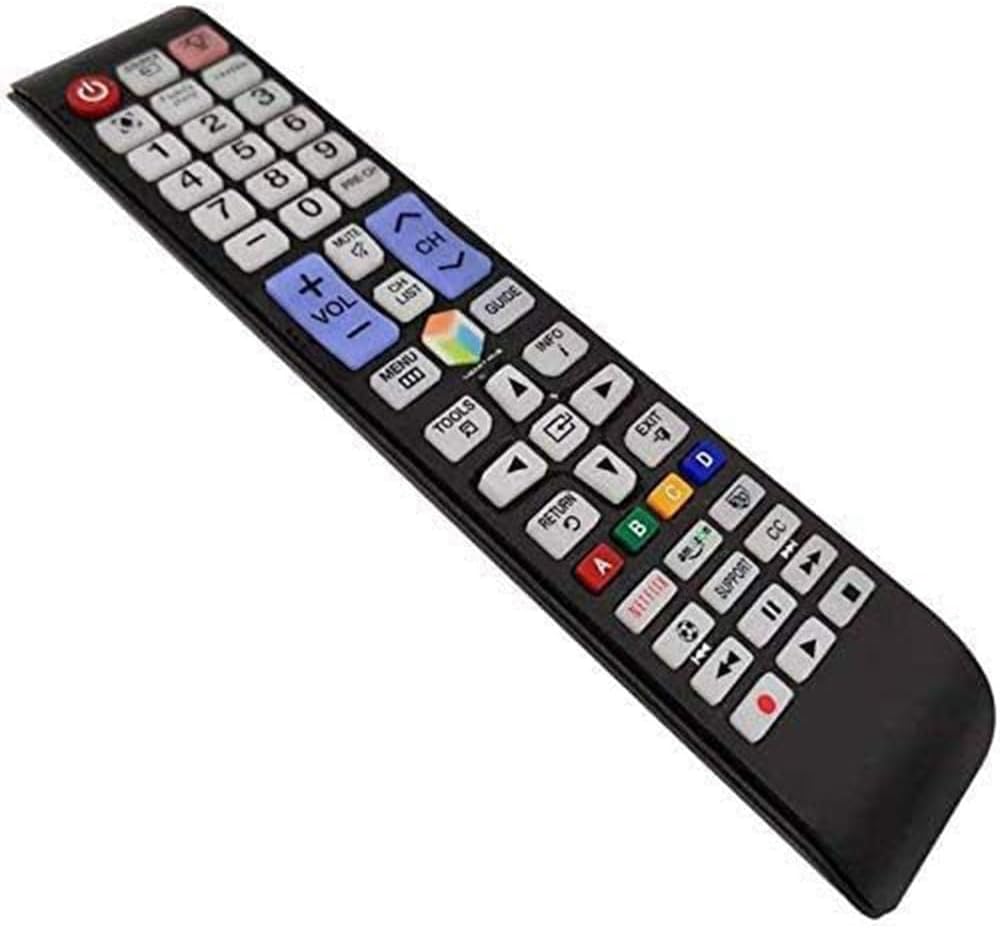
Image: Detailed view of the remote control's button layout.
Backlight Feature
The remote features a backlight function for improved visibility in dark environments. Press the light bulb button (located near the top right) to illuminate the buttons. The backlight will automatically turn off after a short period of inactivity to conserve battery life.

Image: The remote control demonstrating its backlit button feature.
Smart TV and App Navigation
For Samsung Smart TVs, use the navigation arrows and the central 'Enter' button to browse through menus, select applications, and control playback within streaming services. The dedicated Netflix and Amazon buttons provide quick access to these platforms.

Image: The remote control being used to navigate a Samsung Smart TV interface.
Maintenance
Cleaning
To clean the remote control, wipe it gently with a soft, dry cloth. Do not use liquid cleaners or abrasive materials, as they may damage the surface or internal components.
Battery Replacement
Replace batteries when the remote's response becomes sluggish or the backlight dims significantly. Always replace both batteries at the same time with new AAA batteries to ensure optimal performance.
Troubleshooting
| Issue | Possible Cause | Solution |
|---|---|---|
| Remote not responding | Dead or incorrectly inserted batteries | Replace batteries, ensuring correct polarity. |
| Buttons not working | Obstruction between remote and TV sensor | Ensure a clear line of sight to the TV's IR sensor. |
| Backlight not working | Low battery power | Replace batteries. |
Specifications
| Feature | Detail |
|---|---|
| Product Dimensions | 1.97 x 1.18 x 1.57 inches |
| Item Weight | 1.06 ounces |
| Batteries Required | 2 AAA batteries |
| Special Feature | Backlit buttons |
| Color | Blue |
| Compatible Devices | All Samsung TV / LCD / Smart TV / 3D LED / HDTVs |
Warranty and Support
If you encounter any quality problems or require assistance with your SMATAR Universal Remote Control, please feel free to contact us. We are committed to providing a satisfactory solution and ensuring your complete satisfaction with our product.


