
M-Audio M-Track Duo
M-Audio M-Track Duo User Manual
Model: M-Track Duo
Brand: M-Audio
1. Introduction
The M-Audio M-Track Duo is a compact and versatile USB audio interface designed for high-quality audio recording, streaming, and podcasting. It provides 48 kHz audio resolution, making it suitable for various audio production needs on both Mac and PC systems. Featuring two combo Crystal Preamps with phantom power, it supports a wide range of microphones and instruments, ensuring clear and pristine sound capture. Its portable design and USB power make it an ideal solution for musicians, podcasters, and content creators on the go.
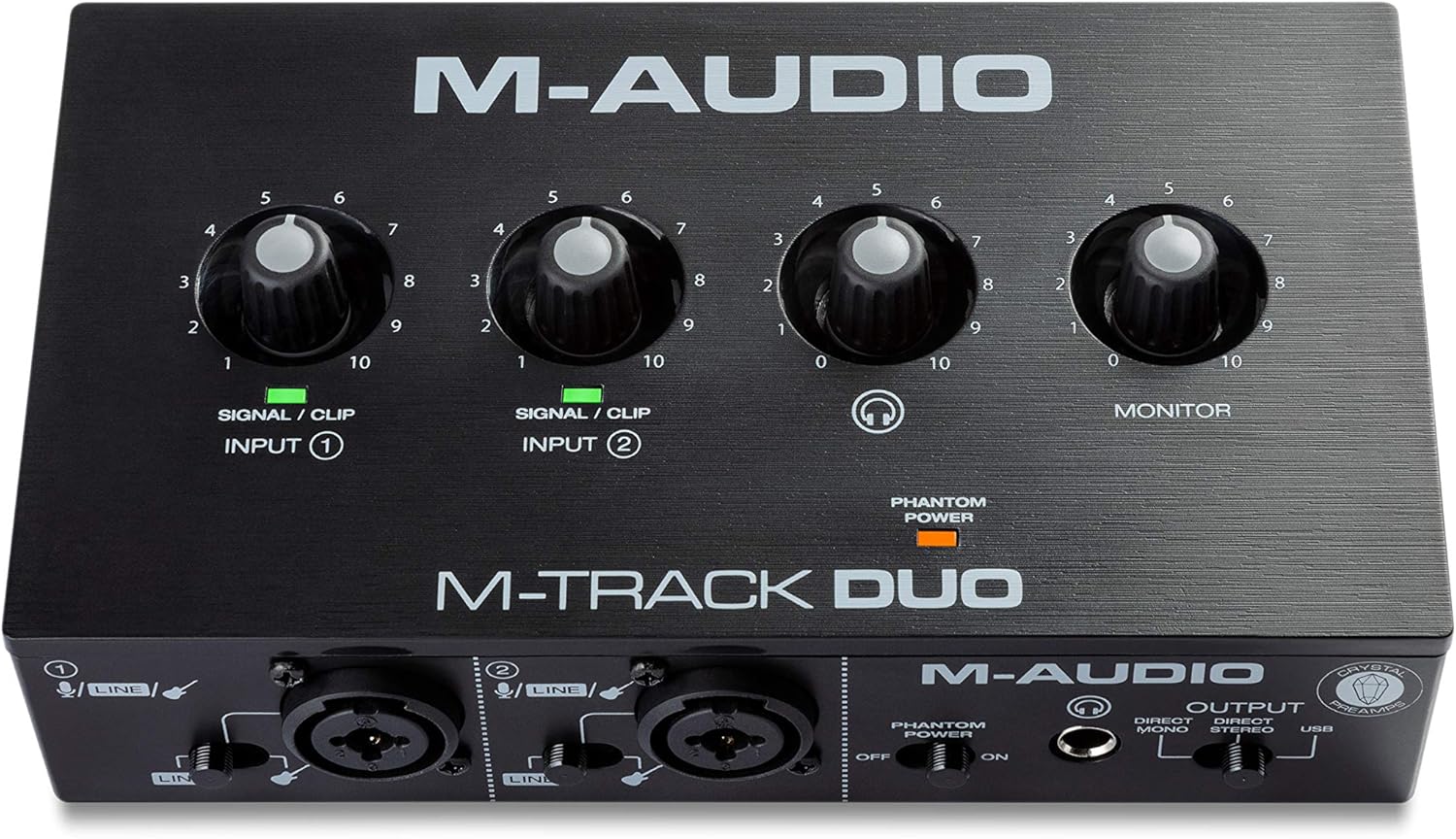
Figure 1: Top view of the M-Audio M-Track Duo showing input controls and monitoring knobs.
2. What's in the Box
Upon unboxing your M-Track Duo, please ensure all the following items are present:
- M-Track Duo Audio Interface
- USB B to USB A Cable
- Software Download Cards
- User Guide (English)
- Safety and Warranty Manual
3. Setup Guide
Follow these steps to set up your M-Track Duo for optimal performance:
- Software Installation: Before connecting the M-Track Duo, visit the M-Audio website to download the latest drivers and included software. The M-Track Duo comes with a comprehensive software package, including MPC Beats, virtual instruments, and FX plugins.
- Connect to Computer: Use the provided USB B to USB A cable to connect the M-Track Duo to an available USB port on your Mac or PC. The device is USB-powered and does not require an external power adapter.
- Connect Microphones/Instruments:
- For microphones, connect your XLR cables to the Combo XLR/TRS inputs (Input 1 and Input 2). If using condenser microphones that require power, activate the Phantom Power switch.
- For instruments (e.g., guitar, bass) or line-level devices (e.g., digital pianos, drum machines), connect them to the Combo XLR/TRS inputs. Ensure the Line/Instrument switch for each input is set correctly (Line for line-level, Instrument for instruments).
- Connect Headphones/Speakers:
- Connect your headphones to the 1/4" headphone output on the front panel.
- Connect your studio monitors to the Main Outputs (L/R) on the rear panel using 1/4" TRS cables.
- System Configuration: Select the M-Track Duo as your audio input and output device in your computer's sound settings and your Digital Audio Workstation (DAW).

Figure 2: Rear view of the M-Audio M-Track Duo with USB and Main Outputs.

Figure 3: M-Audio M-Track Duo connected to a laptop with USB and main output cables.
Setup Video
Video 1: An introductory overview of the M-Track Solo and Duo audio interfaces, highlighting their key features and connectivity options.
4. Operating Instructions
The M-Track Duo is designed for intuitive operation, allowing you to focus on your creative process. Here's how to use its main features:
- Input Level Adjustment: Use the Signal/Clip Input knobs (1 and 2) on the top panel to adjust the input gain for your connected microphones or instruments. The LED indicators will light up green for a healthy signal and red if the signal is clipping (too loud). Adjust the gain to ensure the LED rarely turns red.
- Phantom Power: If using condenser microphones, ensure the Phantom Power switch is set to ON. This provides the necessary 48V power for these microphones.
- Direct Monitoring: The M-Track Duo features zero-latency monitoring. Use the USB/Direct switch in the Output section to blend between the direct input signal and the playback from your computer. Set to Direct for real-time monitoring of your inputs without delay, or USB to hear only the audio from your computer.
- Headphone Monitoring: Adjust the headphone volume using the dedicated headphone knob. This allows for independent monitoring levels.
- Main Output Control: The Monitor knob controls the overall output volume to your studio monitors.
- Software Suite: Utilize the included software (MPC Beats, virtual instruments, and FX plugins) to record, mix, and produce your audio. Refer to the individual software manuals for detailed instructions on their use.

Figure 4: User engaged in podcasting using the M-Audio M-Track Duo and a laptop.

Figure 5: User performing with a guitar and microphone, both connected to the M-Audio M-Track Duo.

Figure 6: Close-up of hands adjusting the input and monitor knobs on the M-Audio M-Track Duo.

Figure 7: A laptop screen displaying music production software, indicating the included software suite for the M-Track Duo.
5. Maintenance
To ensure the longevity and optimal performance of your M-Track Duo, follow these simple maintenance guidelines:
- Cleaning: Use a soft, dry cloth to clean the exterior of the device. Avoid using abrasive cleaners, solvents, or harsh chemicals, as these can damage the finish and internal components.
- Storage: When not in use, store the M-Track Duo in a cool, dry place away from direct sunlight, extreme temperatures, and excessive humidity.
- Handling: Handle the device with care. Avoid dropping it or subjecting it to strong impacts, which can cause internal damage.
- Connectivity: Always ensure cables are properly connected and disconnected. Avoid pulling on cables, which can damage the ports.
6. Troubleshooting
If you encounter issues with your M-Track Duo, try the following troubleshooting steps:
- No Sound/Distorted Audio:
- Check all cable connections (USB, microphones, instruments, speakers, headphones).
- Ensure the M-Track Duo is selected as the input/output device in your computer's sound settings and your DAW.
- Adjust the Input Level and Monitor knobs to appropriate levels. Avoid clipping (red LED).
- Verify that the Line/Instrument switches are correctly set for your connected devices.
- If using condenser microphones, ensure Phantom Power is activated.
- Device Not Recognized:
- Ensure the USB cable is securely connected to both the M-Track Duo and your computer.
- Try a different USB port on your computer.
- Restart your computer.
- Reinstall the latest drivers from the M-Audio website.
- Latency Issues:
- Ensure the USB/Direct switch is set to Direct for zero-latency monitoring of your inputs.
- In your DAW, reduce the buffer size (latency setting) if possible. Note that very low buffer sizes may cause audio dropouts.
7. Specifications
| Feature | Detail |
|---|---|
| Item Weight | 12.7 ounces |
| Product Dimensions | 4.34 x 7.5 x 2.13 inches |
| Country of Origin | China |
| ASIN | B08Q1V77NR |
| Item model number | M-Track Duo |
| Compatible Devices | Personal Computer |
| Hardware Interface | USB |
| Supported Software | Any Digital Audio Workstation compatible with Windows / Mac OS |
| Size | 48kHz / 2 XLR in |
| Operating System | Mac; PC |
| Voltage | 240 |
| Brand | M-Audio |
| Connectivity Technology | USB |
| Number of Channels | 2 |
8. Warranty and Support
M-Audio is committed to providing high-quality products and support. For detailed warranty information, please refer to the
Ask a question about this manual
Ask about setup, troubleshooting, compatibility, parts, safety, or missing instructions. Manuals+ will review the question and use this page’s manual context to help answer it.