
MageGee B08PYQXW4J
MageGee Mechanical Gaming Keyboard User Manual
Model: B08PYQXW4J
Brand: MageGee
1. Introduction
This manual provides comprehensive instructions for the MageGee Mechanical Gaming Keyboard (Model B08PYQXW4J). Designed for an optimal gaming and typing experience, this 104-key USB wired keyboard features blue mechanical switches, blue backlighting, and an ergonomic design. Please read this manual thoroughly to ensure proper setup, operation, and maintenance of your keyboard.
2. Package Contents
- MageGee Mechanical Gaming Keyboard (Black & Gray - Blue Switch)
- USB Cable (attached)
- Extra 16 Red Keycaps (for Black & Gray / Gray & Black keyboards)
3. Setup
Your MageGee Mechanical Gaming Keyboard is designed for simple plug-and-play functionality.
Unpacking: Carefully remove the keyboard from its packaging. Ensure all listed package contents are present.
Connection: Connect the USB-A cable from the keyboard to an available USB port on your computer (PC, laptop, desktop). No additional drivers are required for basic functionality.

Image: The MageGee Mechanical Gaming Keyboard (Black & Gray) with blue backlighting, shown connected to a computer setup with a monitor and mouse.
Placement: Place the keyboard on a stable, flat surface. The keyboard features adjustable stands on the underside to customize the typing angle for ergonomic comfort.

Image: A side view of the keyboard highlighting its adjustable stands, which can be flipped out to raise the back of the keyboard for a more comfortable typing angle.
4. Operating Instructions
4.1 Basic Operation
The keyboard functions immediately upon connection. Its 104 mechanical keys provide a responsive and tactile typing experience with a crisp click sound, thanks to the blue switches.

Image: A close-up view of the keyboard's keys, with one keycap removed to reveal the blue mechanical switch underneath, emphasizing its tactile nature.
4.2 Backlight Control
The keyboard features a single blue backlighting with multiple customization options:
- 20 Different Backlit Modes: Cycle through various lighting effects.
- 5 Backlight Brightness Levels: Adjust the intensity of the backlight.
- 5 Backlit Speed Settings: Control the speed of dynamic lighting effects.
- The backlight can be easily turned off if desired.

Image: The keyboard illuminated with blue backlighting, showcasing different lighting patterns and effects available.
4.3 Multimedia Shortcut Keys
The keyboard includes 12 multimedia combination keys (FN + F1-F12) for quick access to common functions:
| Key Combination | Function |
|---|---|
| FN + F1 | Player |
| FN + F2 | Volume - |
| FN + F3 | Volume + |
| FN + F4 | Mute |
| FN + F5 | Stop |
| FN + F6 | Previous Song |
| FN + F7 | Play/Pause |
| FN + F8 | Next Song |
| FN + F9 | |
| FN + F10 | Homepage |
| FN + F11 | My Computer |
| FN + F12 | Calculator |
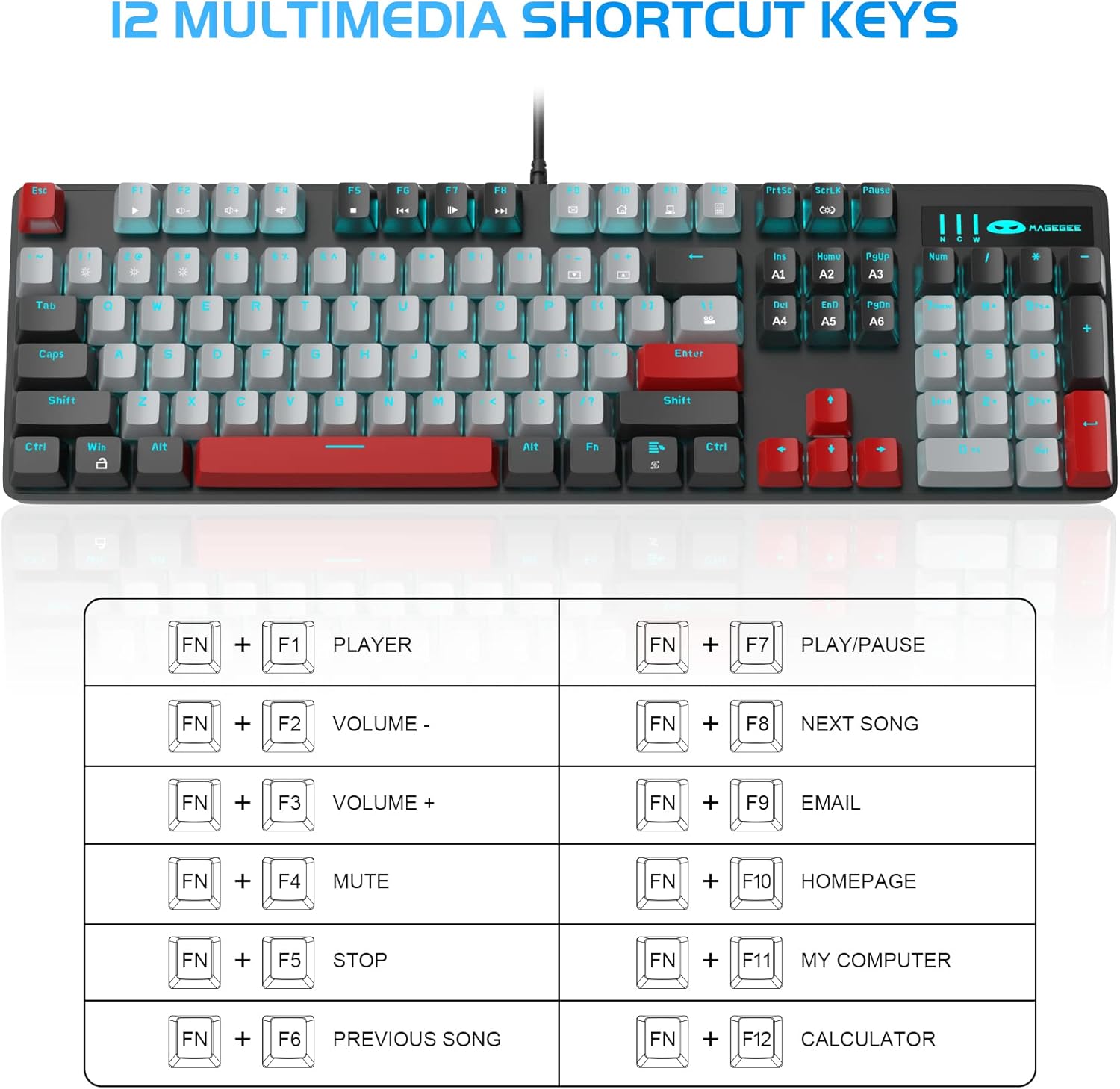
Image: A visual guide illustrating the 12 multimedia shortcut key combinations using the FN key and F1-F12 keys.
4.4 Anti-Ghosting
The keyboard features full N-key rollover, meaning all 104 mechanical keys are conflict-free. This allows for simultaneous key presses to be registered accurately, which is crucial for fast-paced gaming and efficient typing.

Image: A close-up of the keyboard's central keys, visually representing the anti-ghosting capability where multiple key presses are registered simultaneously.
4.5 Ergonomic Design
The keyboard is ergonomically designed with stepped keycaps that fit the fingers better, aiming to reduce fatigue during extended use. Its premium metal panel construction ensures stability and durability.

Image: A perspective view of the keyboard illustrating the ergonomic curve and stepped profile of the keycaps, designed for comfortable typing.
5. Maintenance
To ensure the longevity and optimal performance of your MageGee Mechanical Gaming Keyboard, follow these maintenance guidelines:
- Cleaning: Regularly clean the keyboard with a soft, dry cloth. For dust and debris between keys, use compressed air. For stubborn grime, a slightly damp cloth (not wet) can be used, ensuring no liquid enters the keyboard.
- Keycap Removal: If you need to clean under the keycaps or replace them (e.g., with the included red keycaps), use a keycap puller to gently remove them. Avoid excessive force to prevent damage to the switches.
- Storage: When not in use for extended periods, store the keyboard in a clean, dry environment away from direct sunlight and extreme temperatures.
- Cable Care: Avoid bending or twisting the USB cable sharply to prevent internal damage.
6. Troubleshooting
If you encounter issues with your keyboard, please refer to the following common solutions:
| Problem | Possible Solution |
|---|---|
| Keyboard not responding / Keys not working |
|
| Backlight not working or flickering |
|
| Keys feel sticky or unresponsive |
|
7. Specifications
| Feature | Detail |
|---|---|
| Product Dimensions | 16.2 x 6.79 x 1.93 inches |
| Item Weight | 2.49 pounds |
| Manufacturer | MageGee |
| ASIN | B08PYQXW4J |
| Country of Origin | China |
| Brand | MageGee |
| Compatible Devices | PC |
| Connectivity Technology | USB-A |
| Keyboard Description | Gaming |
| Recommended Uses For Product | Gaming |
| Special Feature | Lighting, Multimedia Keyboard |
| Color | Black & Gray - Blue Switch |
| Number of Keys | 104 |
| Keyboard backlighting color support | Single Color (Blue) |
| Style | Modern |

Image: The keyboard shown with its approximate length (17.1 inches) and width (5.1 inches) indicated by measurement lines.
8. Product Overview Video
Watch this official product video for a visual overview of the MageGee MK-Storm Mechanical Gaming Keyboard's features and design.
Video: An official product video showcasing the MageGee MK-Storm Mechanical Gaming Keyboard, highlighting its design, blue mechanical switches, and various features.
9. Warranty and Support
MageGee is committed to providing quality computer peripherals. For any product-related inquiries, technical support, or warranty claims, please contact MageGee Direct, the seller of this product.
Additional protection plans may be available for purchase:
- 3-Year Protection Plan
- 4-Year Protection Plan
- Complete Protect (monthly plan covering eligible purchases)
Please refer to your purchase documentation for specific warranty terms and contact information.
Related documentsB08PYQXW4J


Ask a question about this manual
Ask about setup, troubleshooting, compatibility, parts, safety, or missing instructions. Manuals+ will review the question and use this page’s manual context to help answer it.