
Introduction
This manual provides essential information for the proper setup, operation, and maintenance of your Roland AE-30 Aerophone Pro. Please read this manual thoroughly before using the instrument to ensure optimal performance and longevity.
The Roland AE-30 Aerophone Pro is a professional digital wind instrument designed to offer an expressive and playable experience for wind instrument players. It features a refined design, premium components, and advanced sound engines, providing a vast sonic palette.

Figure 1: Top-down view of the Roland AE-30 Aerophone Pro. This image highlights the sleek design and key layout of the instrument.
What's in the Box
Upon opening your Roland AE-30 Aerophone Pro package, please verify that all the following items are included:
- Roland AE-30 Aerophone Pro Instrument
- Soft Case
- Mouthpiece Cover
- Moisture Absorption Band
- Water Basin
- Thumb Hook Cover (2 types)
- USB Cable (Type C - Type A)
- AC Adaptor
- Owner's Manual (this document)

Figure 2: Illustration of the items included in the Roland AE-30 Aerophone Pro package. Ensure all components are present before proceeding with setup.
Setup
1. Powering the Instrument
The AE-30 can be powered using the included AC adaptor or six AA batteries (not included).
- AC Adaptor: Connect the AC adaptor to the DC IN jack on the instrument and then to a standard power outlet.
- Batteries: Open the battery compartment, insert six AA batteries, ensuring correct polarity. NiMH rechargeable batteries are recommended for extended play time (approximately six hours).
2. Attaching the Mouthpiece and Moisture Band
- Gently attach the mouthpiece to the instrument.
- Place the moisture absorption band around the mouthpiece to manage condensation during play.
- Secure the mouthpiece cover when not in use to protect it.
3. Connecting Headphones or External Amplifier
For optimal sound quality and private practice, connect headphones to the 3.5mm stereo analog headphone jack. For performance or amplified sound, connect the 1/4" stereo analog output jack to an amplifier or mixer.

Figure 3: Rear view of the Aerophone Pro, illustrating the location of power input, USB, MIDI, and audio output jacks for connectivity.
Operating Instructions
1. Basic Playback
Turn on the instrument using the power button. The OLED display will illuminate, showing the current scene (preset) and other settings.
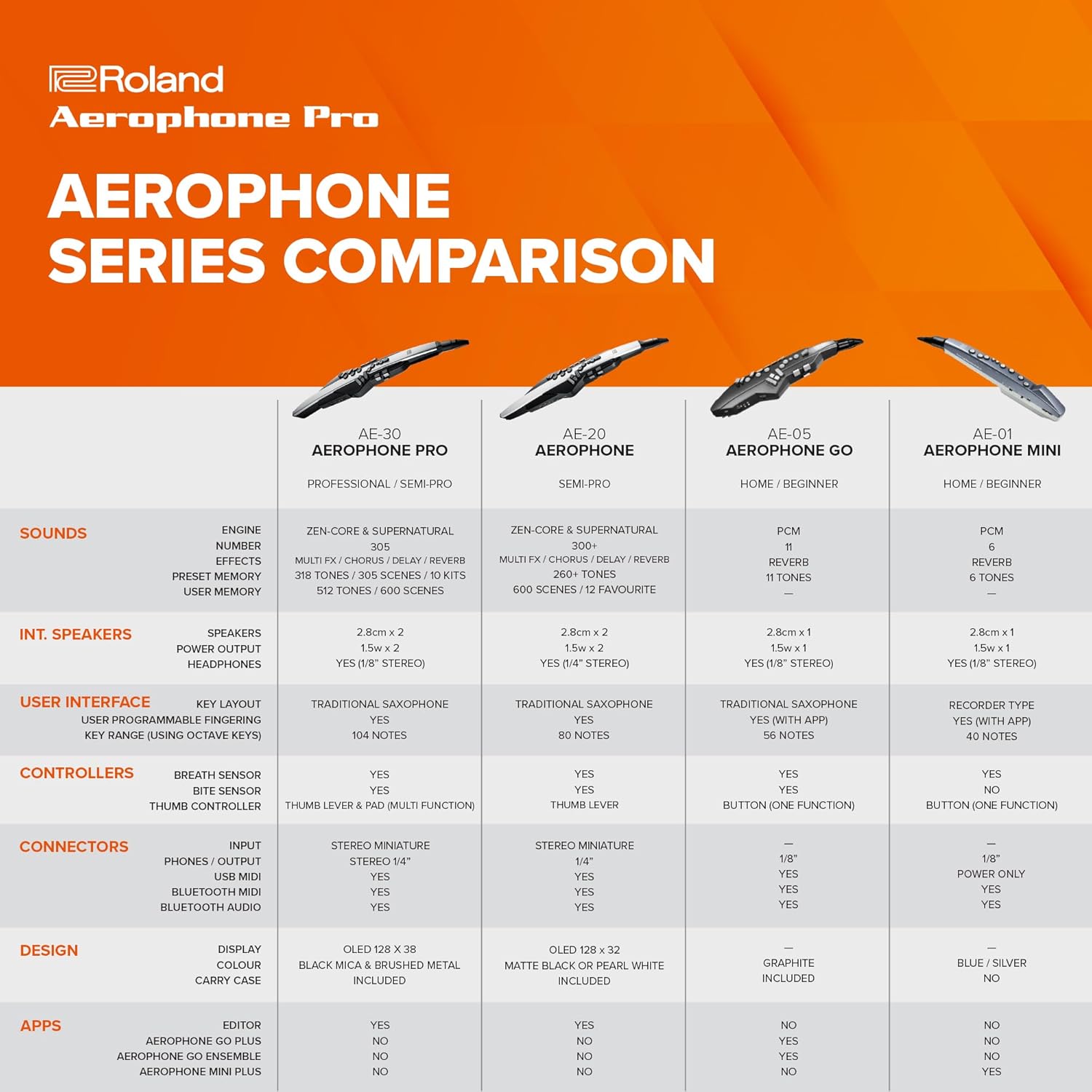
Figure 4: Close-up of the OLED display and control knobs on the Aerophone Pro. This shows how to navigate scenes and settings.
The AE-30 features traditional saxophone fingering, along with recorder, flute, clarinet, and trumpet modes. You can select your preferred fingering mode through the instrument's menu or the Aerophone Editor app.
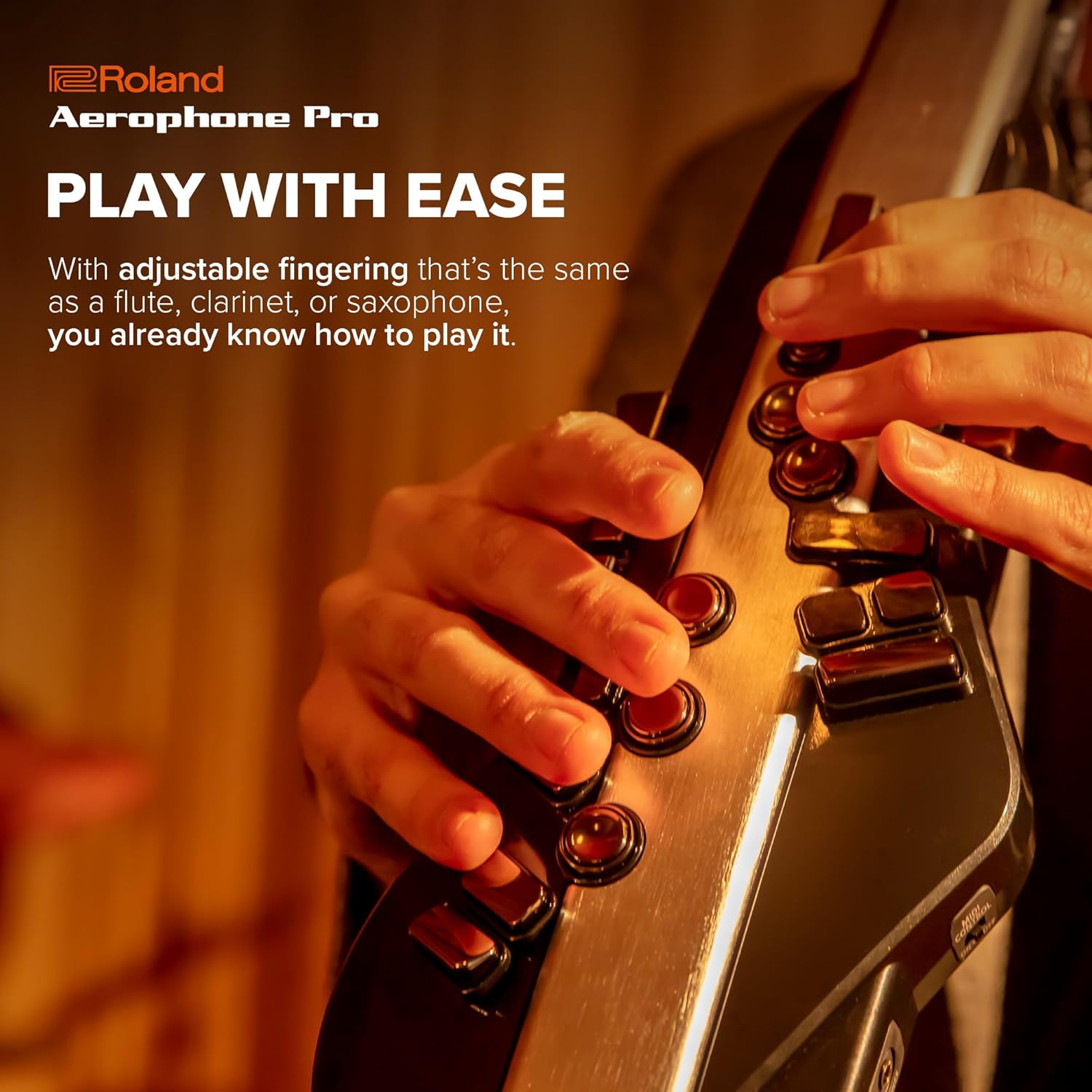
Figure 5: A user's hands demonstrating the fingering on the Roland AE-30 Aerophone Pro. The key layout is designed for familiarity with traditional wind instruments.
2. Sound Selection (Scenes)
The instrument organizes sounds into "scenes," which are complete presets including tones and effects. There are over 100 built-in scenes, with categories such as woodwinds, strings, brass, and synthesizers.
- Use the Scene Category knob to browse different sound categories.
- Use the Scene Select knob to choose a specific scene within the category.
3. Expressive Controls
The AE-30 offers various controls for expressive playing:
- Breath Sensor: Responds to breath pressure for dynamic control.
- Bite Sensor: Allows for pitch bending and vibrato by biting the mouthpiece.
- Octave Keys: Dedicated keys for shifting octaves up or down.
- Pitch Bend Rocker Switch: Provides additional pitch bending control.
- Thumb Pad: Customizable function, often used for effects or drone control.
- Effect Toggle Buttons: Two buttons with scene-dependent functions for adding effects.
4. Connectivity
The AE-30 supports multiple connectivity options:
- Bluetooth: Connects to the Aerophone Editor app for sound management and customization. Also supports Bluetooth MIDI for controlling DAWs. The instrument can function as a Bluetooth speaker to play along with music from another device.
- USB-C Port: Supports MIDI (in/out) and digital audio (in/out) for connection to computers and DAWs.
- Traditional MIDI Ports (DIN): For connecting to external MIDI devices.

Figure 6: The Aerophone Pro Editor app interface on a smartphone, demonstrating sound management and customization capabilities via Bluetooth.
Maintenance
Proper maintenance ensures the longevity and optimal performance of your Aerophone Pro.
1. Cleaning
- Exterior: Wipe the instrument's body with a soft, dry cloth. Avoid abrasive cleaners or solvents.
- Mouthpiece: Regularly clean the mouthpiece with a mild soap and water solution. Ensure it is completely dry before reattaching.
- Water Basin: Empty and clean the water basin after each use to prevent moisture buildup and potential damage to internal components.
2. Storage
- Always store the instrument in its soft case when not in use to protect it from dust and physical damage.
- Store with the mouthpiece facing upwards to prevent any residual moisture from draining onto the keys.
- Avoid storing in extreme temperatures or high humidity.
3. Battery Care
If using batteries, remove them if the instrument will not be used for an extended period to prevent leakage.
Troubleshooting
This section addresses common issues you might encounter with your Roland AE-30 Aerophone Pro.
| Problem | Possible Cause | Solution |
|---|---|---|
| No sound from instrument. |
|
|
| Keys make clicking noises. | Normal operation for the key mechanism. | This is a characteristic of the instrument's design and not a malfunction. |
| Bluetooth connection issues. |
|
|
| Distortion at beginning of soft breath. | Sensitivity settings may be too high for very soft playing. | Adjust breath and bite sensor sensitivity settings in the instrument's menu or via the Aerophone Editor app. |
Specifications
| Feature | Detail |
|---|---|
| Model Number | AE-30 |
| Dimensions (L x W x H) | 27-1/16 x 5-1/4 x 3-5/16 inches (687 x 133 x 84 mm) |
| Weight | 2 lb 9 oz (1.14 kg) |
| Body Material | Brass (internal components), Plastic (exterior) |
| Color | Grey, Black |
| Connector Types | USB (Type C), MIDI (DIN), Bluetooth |
| Instrument Key | A |
| Battery Type | AA (Alkaline or NiMH recommended) |
| Sounds | Over 300 acoustic and electronic sounds |
| Display | OLED |

Figure 7: A detailed comparison table outlining features across the Roland Aerophone series, including the AE-30 Pro.

Figure 8: Diagram illustrating the dimensions and weight of the Roland AE-30 Aerophone Pro for reference.
Warranty and Support
For warranty information and technical support, please refer to the official Roland website or contact your local Roland distributor. Keep your proof of purchase for warranty claims.
Online resources and FAQs may also be available on the Roland Store on Amazon or the official Roland website.