1. Introduction
This manual provides essential information for the proper installation, configuration, operation, and maintenance of your HP Aruba AP-567 US Outdoor Wireless Access Point. Please read this manual thoroughly before attempting to install or operate the device to ensure optimal performance and safety.
The HP Aruba AP-567 is designed for outdoor environments, providing robust and reliable wireless connectivity. It supports the latest Wi-Fi standards to deliver high-speed and secure network access.
2. Safety Information
Warning: Failure to follow these safety instructions can result in fire, electric shock, or other injury or damage.
- Install the device in accordance with all local and national electrical codes.
- Ensure proper grounding for outdoor installations.
- Do not open the device enclosure. Refer all servicing to qualified personnel.
- Use only power supplies and accessories approved by HP Aruba.
- Avoid installing during lightning storms.
- Ensure all cables are properly sealed and protected from environmental elements.
3. Package Contents
Verify that your package contains the following items:
- HP Aruba AP-567 US Outdoor Wireless Access Point
- Mounting Bracket Kit
- Documentation (Quick Start Guide, Safety and Regulatory Information)
- Note: Power over Ethernet (PoE) injector or power adapter may be sold separately.
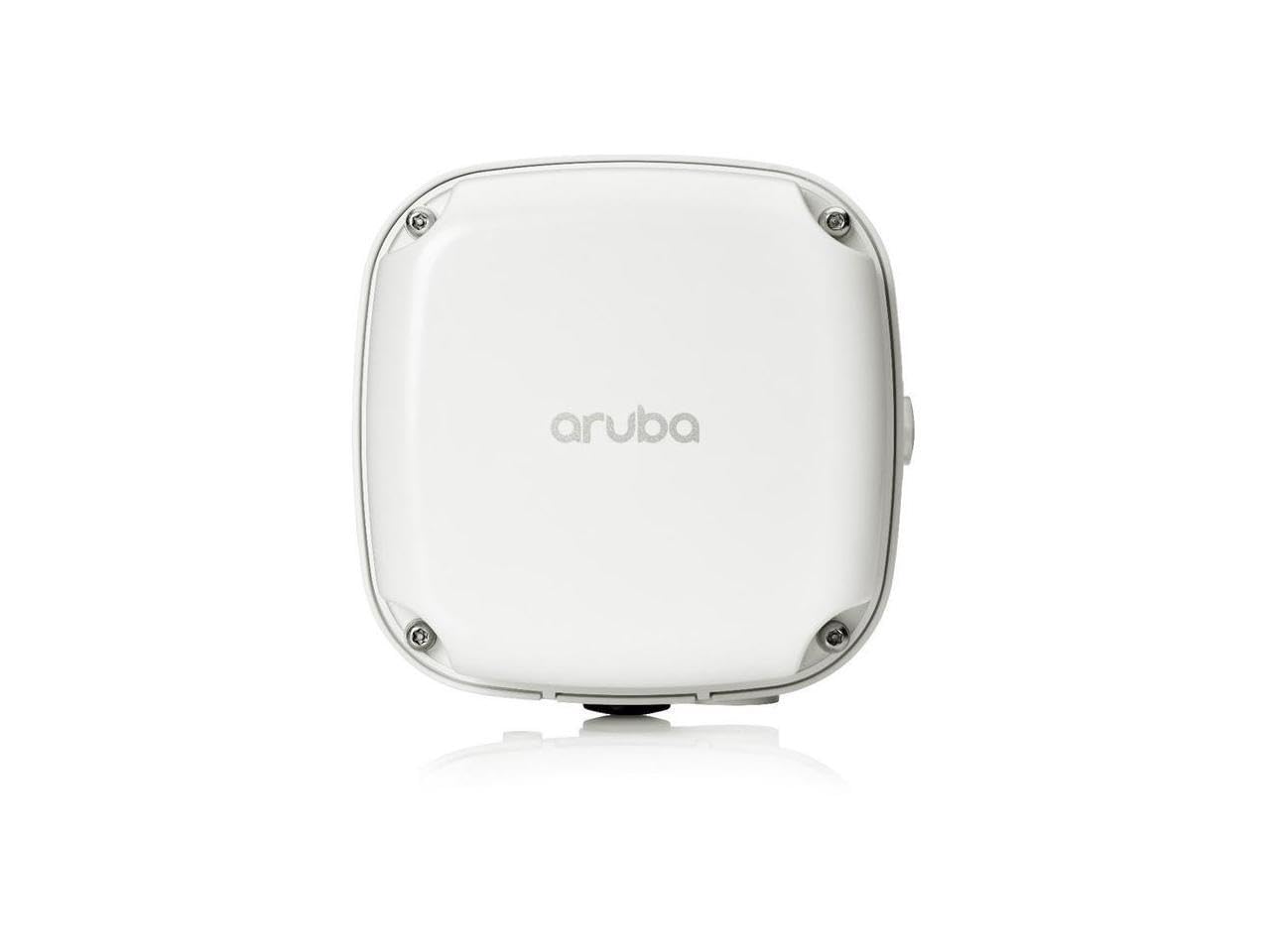
Image 1: HP Aruba AP-567 US Outdoor Wireless Access Point. This image shows the front view of the access point, typically a rectangular or square enclosure with antenna ports, designed for outdoor mounting.
4. Setup
4.1 Physical Installation
- Site Survey: Perform a site survey to determine the optimal location for the access point, considering coverage, interference, and line of sight.
- Mounting: Use the provided mounting bracket kit to securely attach the AP to a pole or wall. Ensure the mounting is stable and can withstand environmental conditions.
- Antenna Connection: If external antennas are used, connect them to the appropriate ports on the AP. Ensure connections are tight and weatherproofed.
- Cabling: Connect an Ethernet cable from your network (e.g., a PoE switch or PoE injector) to the AP's Ethernet port. Use outdoor-rated, shielded Ethernet cables. Ensure all cable glands are properly sealed to prevent water ingress.
4.2 Powering On
The AP-567 is powered via Power over Ethernet (PoE). Once the Ethernet cable is connected to a PoE-enabled switch or a PoE injector, the device will power on automatically. Observe the LED indicators for power and operational status.
4.3 Initial Configuration
Access the AP's web-based management interface or use Aruba Central for initial configuration. Refer to the Aruba documentation for detailed instructions on network integration and initial setup steps, including setting up SSIDs, security protocols, and network parameters.
5. Operating Instructions
5.1 Basic Operation
- Network Connectivity: Once configured, the AP will broadcast the specified Wi-Fi networks (SSIDs). Client devices can connect to these networks using the configured security keys.
- LED Indicators: Monitor the LED indicators on the device to confirm operational status. Typically, a solid green LED indicates normal operation, while blinking patterns may indicate activity or specific states. Consult the full product documentation for a detailed LED status guide.
5.2 Advanced Features
The HP Aruba AP-567 supports various advanced features such as VLAN tagging, Quality of Service (QoS), mesh networking, and advanced security protocols. These features are configured through the web management interface or Aruba Central. Refer to the comprehensive Aruba OS documentation for detailed configuration guides on these advanced functionalities.
6. Maintenance
6.1 Cleaning
Periodically inspect the exterior of the access point for dirt, dust, or debris. Clean with a soft, dry cloth. Do not use liquid cleaners or aerosols directly on the device.
6.2 Firmware Updates
Regularly check the HP Aruba support website for firmware updates. Keeping the firmware up-to-date ensures optimal performance, security, and access to new features. Follow the instructions provided with the firmware update package carefully.
6.3 Environmental Considerations
Ensure the device remains within its specified operating temperature and humidity ranges. Regularly inspect cable glands and seals for any signs of wear or damage to maintain weatherproofing.
7. Troubleshooting
| Problem | Possible Cause | Solution |
|---|---|---|
| Device not powering on | No PoE power; faulty Ethernet cable; faulty PoE injector/switch | Verify PoE source is active. Check Ethernet cable connection. Test with a known good PoE source or cable. |
| No Wi-Fi signal | AP not configured; incorrect SSID/password; antenna issues; radio disabled | Access the management interface to verify configuration. Check antenna connections. Ensure radios are enabled. |
| Slow network speed | Interference; poor signal strength; network congestion; outdated firmware | Check for sources of interference. Optimize AP placement. Update firmware. Review network traffic. |
| Cannot access management interface | Incorrect IP address; network connectivity issue; firewall blocking | Verify the AP's IP address. Ensure your device is on the same network segment. Temporarily disable client firewall. |
7.1 Factory Reset
If troubleshooting steps do not resolve the issue, a factory reset may be necessary. This will revert all settings to their default values. Refer to the full product documentation for the specific procedure to perform a factory reset on the AP-567.
8. Specifications
- Model Number: R4W49A
- Product Dimensions: 10 x 9.75 x 6.9 inches
- Item Weight: 3.8 pounds
- Manufacturer: HP
- ASIN: B08PVYNCQB
- Date First Available: November 24, 2020
- Connectivity: Wireless Access Point (11AX)
- Environment: Outdoor rated
9. Warranty Information
This HP Aruba product is covered by a manufacturer's warranty. For detailed information regarding warranty terms, conditions, and registration, please refer to the warranty card included with your product or visit the official HP Aruba support website. Keep your proof of purchase for warranty claims.
10. Support
For technical assistance, product documentation, firmware downloads, and frequently asked questions, please visit the official HP Aruba support portal. You can also contact HP Aruba customer support directly for further assistance.
- Online Support: www.arubanetworks.com/support/
- Contact Information: Refer to the support website for regional contact numbers and email options.