
1. Introduction
The Yanzeo R12 is a versatile handheld terminal designed for efficient data collection. It integrates barcode recognition, RFID radio frequency identification technology, and supports both 1D and 2D barcodes, as well as 915MHz UHF tags. This device utilizes Bluetooth for communication, offering low power consumption and extended standby times. This manual provides essential information for setting up, operating, maintaining, and troubleshooting your R12 device.
2. Product Overview
The R12 handheld terminal is engineered for portability and ease of use. It features a robust design suitable for various environments and includes a built-in mobile phone holder for enhanced usability, allowing you to combine your smartphone with the scanner for a complete mobile data solution.

Figure 2.1: Front view of the Yanzeo R12 PDA UHF RFID Reader. This image shows the device's scanning window and ergonomic grip.

Figure 2.2: Back view of the Yanzeo R12 PDA UHF RFID Reader. This image highlights the rear casing and design.
Key Features:
- Long Standby Time: Equipped with a 3500mAh large-capacity battery, providing up to 8 hours of normal operation and an ultra-long standby time of up to 1 year.
- Extended Communication Range: Offers stable Bluetooth communication up to 10 meters. For wireless 2.4G outdoor communication, the range extends up to 150 meters.
- Integrated Mobile Phone Holder: Features a built-in holder to securely attach your smartphone, enhancing convenience and operational efficiency.
- Direct Charging: The device can be directly charged using a standard mobile phone charging plug.
- Broad Compatibility: Compatible with Windows, iOS, Android, and other devices that support Bluetooth communication.
3. Setup
3.1 Battery Installation and Charging
The R12 comes with a pre-installed lithium polymer battery. Before initial use, ensure the device is fully charged.
- Locate the charging port, typically at the bottom of the handle.
- Connect a compatible mobile phone charging plug to the device.
- Allow approximately 8 hours for a full charge. The indicator lights will show charging status.

Figure 3.1: Bottom view of the device, illustrating the charging port location.
3.2 Attaching a Smartphone
The R12 features an adjustable holder to secure your smartphone, transforming it into a complete data collection unit.
- Gently extend the adjustable clamps of the phone holder.
- Carefully place your smartphone into the holder, ensuring it is securely gripped by the clamps.
- Adjust the holder to ensure the phone is stable and does not obstruct the scanner's operation or your view of the screen.

Figure 3.2: Side view of the R12 with a smartphone attached, demonstrating the phone holder in use.
3.3 Bluetooth Pairing
To transmit data, the R12 must be paired with a compatible device (smartphone, tablet, or computer) via Bluetooth.
- Ensure the R12 is powered on. The Bluetooth indicator light (often blue) will blink, indicating it is in pairing mode.
- On your receiving device (e.g., smartphone), navigate to the Bluetooth settings.
- Search for available devices. The R12 should appear in the list (e.g., 'Yanzeo R12' or similar).
- Select the R12 to initiate pairing. Follow any on-screen prompts to complete the connection.
- Once successfully paired, the Bluetooth indicator light on the R12 will become solid.

Figure 3.3: Indicator lights on the R12, showing the Bluetooth status light.
4. Operating Instructions
4.1 Scanning Barcodes and RFID Tags
The R12 can scan 1D/2D barcodes and 915MHz UHF RFID tags.
- Ensure the device is powered on and successfully paired with your receiving device.
- Point the scanning window of the R12 towards the barcode or RFID tag.
- Press the trigger button located on the handle to activate the scanner.
- A successful scan is typically indicated by an audible beep and/or a visual confirmation light.
- The scanned data (e.g., EPC number for UHF tags) will be directly uploaded to the receiving device via Bluetooth, appearing in any active text input field or compatible application.

Figure 4.1: User holding the R12 with a smartphone, demonstrating the scanning posture.

Figure 4.2: Close-up of the trigger button, used to initiate scanning.
4.2 Data Transmission
The R12 transmits scanned data directly to your paired device via Bluetooth. This functions similarly to a Bluetooth keyboard, where scanned data is input directly into the active application or text field on the receiving device.
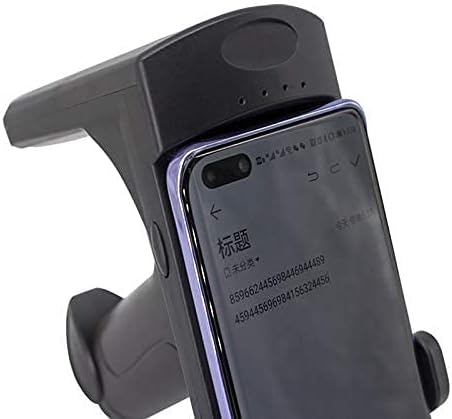
Figure 4.3: The R12 with a smartphone displaying scanned data, illustrating successful data transmission.
5. Maintenance
5.1 Cleaning
To ensure optimal performance and longevity, keep the R12 clean.
- Use a soft, dry, lint-free cloth to wipe the exterior of the device.
- For stubborn dirt, slightly dampen the cloth with water or a mild, non-abrasive cleaning solution.
- Do not use harsh chemicals, solvents, or abrasive materials, as these can damage the device.
- Ensure no liquid enters the scanning window or charging port.
5.2 Battery Care
Proper battery care extends the life of your device.
- Avoid fully discharging the battery frequently.
- Store the device in a cool, dry place when not in use for extended periods.
- If storing for a long time, charge the battery to approximately 50% to prevent deep discharge.
6. Troubleshooting
6.1 Device Not Powering On
- Check Battery: Ensure the battery is charged. Connect the device to a charger and wait a few minutes before attempting to power on again.
- Charging Cable/Adapter: Verify that the charging cable and adapter are functional. Try a different cable or adapter if available.
6.2 Bluetooth Pairing Issues
- Ensure Device is On: Confirm the R12 is powered on and its Bluetooth indicator light is blinking.
- Receiving Device Bluetooth: Make sure Bluetooth is enabled on your smartphone, tablet, or computer.
- Forget Device: If previously paired, try 'forgetting' or 'unpairing' the R12 from your receiving device's Bluetooth settings, then attempt to pair again.
- Proximity: Ensure the R12 and the receiving device are within the 10-meter Bluetooth range.
- Interference: Move away from other wireless devices that might cause interference.
6.3 Scanning Problems
- Target Alignment: Ensure the scanner is properly aimed at the barcode or RFID tag.
- Distance: Adjust the distance between the scanner and the target.
- Damage: Check if the barcode or tag is damaged or obscured.
- Software Compatibility: While the R12 acts as a Bluetooth input device, specific software applications may be required for advanced data management or integration. Ensure your application is configured to receive input from a Bluetooth scanner.
7. Specifications
| Feature | Detail |
|---|---|
| Brand | Yanzeo |
| Model Number | R12 |
| Compatible Devices | Smartphone, Tablet |
| Power Source | Battery Powered |
| Connectivity Technology | Bluetooth |
| Battery Type | 1 Lithium Polymer battery (included) |
| Bluetooth Communication Range | Up to 10 meters |
| Wireless 2.4G Outdoor Communication Range | Up to 150 meters |
| ASIN | B08PVDJQ1N |
8. Warranty and Support
For warranty information, technical support, or service inquiries, please contact Yanzeo customer support directly. Refer to the product packaging or the official Yanzeo website for contact details. Please have your model number (R12) and ASIN (B08PVDJQ1N) available when contacting support.
