
1. Introduction
The Fortinet FortiAP 231F is a high-performance 2x2 MU-MIMO Access Point designed for robust wireless connectivity. This indoor access point features a tri-radio configuration, including dual-band Wi-Fi and Bluetooth Low Energy (BLE)/ZigBee capabilities, making it suitable for a wide range of deployment scenarios from campus environments to branch offices.
It integrates seamlessly with FortiGate security appliances or the FortiAP Cloud for centralized management, offering a unified approach to wired and wireless security. The device is engineered to protect your network from the latest security threats through advanced features like integrated Firewall, IPS, Application Control, and Web Filtering.

Figure 1.1: Front view of the Fortinet FortiAP 231F Access Point, showing the Fortinet logo and status indicators.
2. Key Features
- Centralized Management: Managed centrally by the integrated WLAN controller of any FortiGate security appliance or through the FortiAP Cloud provisioning and management portal.
- Advanced Security Protection: Offers integrated Firewall, Intrusion Prevention System (IPS), Application Control, and Web Filtering to safeguard the wireless LAN from modern security threats.
- Unified Management Console: Simplifies operations and ensures consistent, effective policy enforcement and compliance across your network.
- Wireless Threat Protection: Designed to protect the network from advanced wireless threats and assist in satisfying PCI DSS compliance requirements.
- Tri-Radio Hardware: Equipped with 3 radios (Wi-Fi + 1 BLE) and 3 dual-band internal Wi-Fi antennas plus 1 BLE/ZigBee antenna.
- High Client Capacity: Supports up to 512 clients per radio (Radio1 and Radio2).
- Dual-Band Operation: Operates across multiple frequency bands including 2.400–2.4835 GHz, 5.150–5.250 GHz, 5.250–5.350 GHz, 5.470–5.725 GHz, and 5.725–5.850 GHz.
- SSID Types: Supports Local-Bridge, Tunnel, and Mesh SSID types.

Figure 2.1: Angled view of the FortiAP 231F highlighting key features such as 802.11AX Wi-Fi 6, 2x2 MU-MIMO, OFDMA, and Enhanced Target Wake Time.
3. Technical Specifications
| Attribute | Value |
|---|---|
| Model Number | FAP-231F |
| Hardware Type | Indoor AP |
| Product Dimensions | 10 x 10 x 5 inches |
| Item Weight | 1 pounds |
| Number of Radios | 3 + 1 BLE |
| Number of Antennas | 3 Dual band Internal Wi-Fi + 1 BLE/ZigBee |
| Frequency Bands (GHz) | 2.400–2.4835, 5.150–5.250, 5.250–5.350, 5.470–5.725, 5.725–5.850 |
| SSID Types Supported | Local-Bridge, Tunnel, and Mesh |
| Per Radio Client Capacity | Up to 512 clients per radio (Radio1 and Radio2) |
| Connectivity Technology | Bluetooth, Wi-Fi |
| Wireless Communication Standard | Bluetooth |
| Frequency | 2.4 GHz (Dual-Band implied by frequency bands) |
| Recommended Uses | Security |
| Special Feature | WPS |

Figure 3.1: Detailed specifications for the FortiAP 231F, including data rates and antenna configuration.
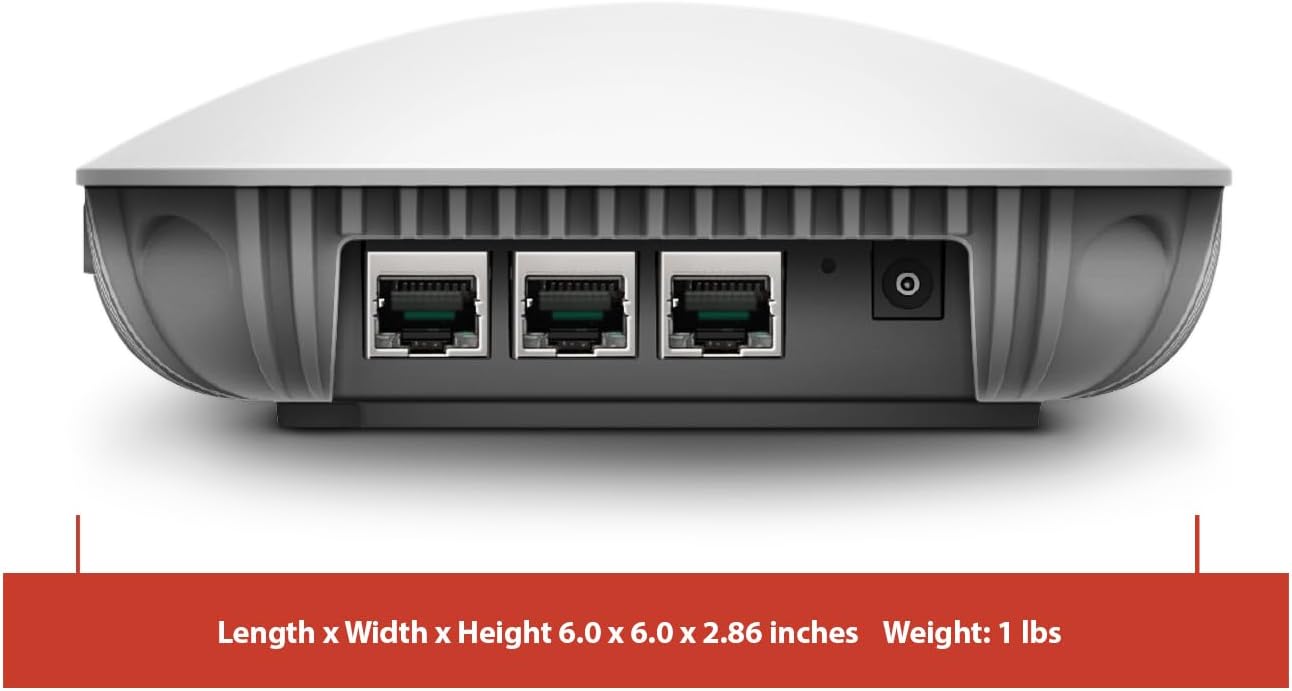
Figure 3.2: Rear view of the FortiAP 231F, showing the three RJ45 ports and the DC power input.
4. Setup and Installation
The FortiAP 231F is designed for indoor deployment, typically mounted on a ceiling or wall. Ensure the chosen location provides optimal wireless coverage and is within reach of necessary network cabling.
4.1. Package Contents
Verify that your package contains the FortiAP 231F unit. Please note that a power adapter (PoE injector or DC power supply) is typically sold separately and is required for operation if Power over Ethernet (PoE) is not available from your network switch.
4.2. Physical Installation
- Mounting: The FortiAP 231F can be mounted on a ceiling grid or a wall. Use the appropriate mounting bracket (usually included) and hardware to secure the device. Refer to the mounting points on the bottom of the unit.
- Power Connection:
- Power over Ethernet (PoE): Connect an Ethernet cable from a PoE-enabled switch or PoE injector to the LAN 1G/PoE port on the back of the FortiAP. This port provides both data and power.
- DC Power: If PoE is not used, connect a compatible 12V DC power adapter (sold separately) to the DC power input port on the back of the unit.
- Network Connection: Connect an Ethernet cable from your network infrastructure to any of the available LAN ports on the FortiAP. The LAN 1G/PoE port is recommended for primary connection.
- Console Port (Optional): For initial configuration or troubleshooting, a console cable can be connected to the console port on the bottom of the unit.

Figure 4.1: Bottom view of the FortiAP 231F, showing the console port, reset button, and mounting points.
4.3. Initial Configuration
Once powered on and connected to the network, the FortiAP 231F can be provisioned and managed. This typically involves:
- FortiGate Integration: If using a FortiGate security appliance, the FortiAP will automatically discover and register with the FortiGate's integrated WLAN controller. Configuration is then performed via the FortiGate's management interface.
- FortiAP Cloud: Alternatively, the FortiAP can be provisioned and managed through the FortiAP Cloud portal. This requires registering the device with your FortiAP Cloud account.
- Local Management: For standalone deployments, the FortiAP can be accessed directly via its web-based management interface after assigning an IP address.
Refer to the Fortinet documentation specific to your FortiGate OS version or FortiAP Cloud for detailed configuration steps, including SSID setup, security policies, and network integration.
5. Operating the FortiAP 231F
After successful setup and configuration, the FortiAP 231F will broadcast wireless networks (SSIDs) as defined in your management system (FortiGate or FortiAP Cloud). Clients can then connect to these networks.
5.1. Status Indicators
The FortiAP 231F features LED indicators on its front panel to provide visual status information:
- Power LED: Indicates power status.
- Wi-Fi LEDs (2.4 GHz and 5 GHz): Indicate wireless activity on respective bands.
- LAN LED: Indicates Ethernet port activity.
- BLE/ZigBee LED: Indicates Bluetooth Low Energy or ZigBee activity.
Consult the Fortinet documentation for a detailed explanation of LED states (e.g., solid, blinking, color variations) and their corresponding meanings.
5.2. Wireless Network Management
All wireless network settings, including SSIDs, security protocols (WPA2/WPA3), VLAN tagging, client isolation, and bandwidth management, are controlled from your central FortiGate or FortiAP Cloud interface. Regular monitoring of client connections and network performance is recommended.
6. Maintenance
To ensure optimal performance and longevity of your FortiAP 231F, regular maintenance is advised:
- Firmware Updates: Periodically check for and apply the latest firmware updates from Fortinet. Firmware updates often include performance enhancements, security patches, and new features.
- Physical Cleaning: Keep the device clean and free from dust accumulation, especially around ventilation areas. Use a soft, dry cloth for cleaning.
- Environmental Conditions: Ensure the operating environment remains within specified temperature and humidity ranges to prevent damage.
- Configuration Backup: Regularly back up your FortiAP configuration settings from your FortiGate or FortiAP Cloud management system.
7. Troubleshooting
This section provides basic troubleshooting steps for common issues. For more complex problems, refer to the comprehensive Fortinet documentation or contact Fortinet support.
7.1. No Power / LEDs Off
- Verify the Ethernet cable is securely connected to the PoE port and the PoE source (switch or injector) is active.
- If using a DC adapter, ensure it is correctly plugged into the FortiAP and a working power outlet.
- Test the power source with another device if possible.
7.2. No Wireless Connectivity
- Check the Wi-Fi LEDs on the FortiAP. If they are off, ensure wireless radios are enabled in the configuration.
- Verify that the FortiAP is properly registered and configured in your FortiGate or FortiAP Cloud management system.
- Ensure the correct SSID is being broadcast and clients are using the correct password/security settings.
- Check for IP address conflicts on the network.
7.3. Slow Performance / Intermittent Connectivity
- Check for sources of interference (e.g., other wireless devices, microwaves, cordless phones).
- Ensure the FortiAP is placed in an optimal location, away from obstructions.
- Verify channel utilization and adjust Wi-Fi channels if necessary to avoid congestion.
- Check the network uplink speed and ensure there are no bottlenecks.
- Consider reducing the number of clients per access point if capacity limits are being reached.
7.4. Resetting the Device
If issues persist, a factory reset may be necessary. Locate the reset button on the bottom of the unit (often recessed, requiring a paperclip). Press and hold the button for approximately 10 seconds while the device is powered on. This will restore the FortiAP to its default factory settings, requiring re-provisioning.
8. Warranty and Support
Specific warranty details for the Fortinet FortiAP 231F are typically provided with the product packaging or available on the official Fortinet website. It is recommended to register your product upon purchase to ensure access to full warranty benefits and technical support.
For technical assistance, documentation, and software downloads, please visit the official Fortinet support portal. Ensure you have your product serial number readily available when contacting support.
Online Resources:
- Fortinet Support: https://support.fortinet.com
- Fortinet Documentation: https://docs.fortinet.com