
WAVLINK WL-UMD501
Contents
WAVLINK WL-UMD501 12-in-1 USB-C Triple Display Docking Station User Manual
Model: WL-UMD501
Introduction
Thank you for choosing the WAVLINK WL-UMD501 12-in-1 USB-C Triple Display Docking Station. This device expands the connectivity of your USB-C enabled laptop or device, offering multiple display outputs, high-speed data transfer, network connectivity, and power delivery. Please read this manual carefully to ensure proper setup and operation.

Image: The WAVLINK WL-UMD501 docking station, showcasing its compact design and the array of ports it offers, including HDMI, VGA, USB, Ethernet, and card readers, with various devices connected.
Key Features
- 12-in-1 Connectivity: Integrates 2x 4K HDMI, 1x 2K VGA, 1x 1000M RJ45 Ethernet, 1x Type-C PD 3.0 charging port, 2x USB 3.0, 2x USB 2.0, 1x 3.5mm Audio Jack, and SD/TF card readers.
- Triple Display Output: Supports single and dual HDMI displays up to 4K, or triple displays up to 2K (resolutions vary based on host device's DP version and operating system).
- Power Delivery 3.0: Provides up to 89W pass-through charging to your laptop from a 100W power adapter (11W reserved for hub operation).
- High-Speed Data Transfer: USB 3.0 ports offer data transfer speeds up to 5Gbps.
- Gigabit Ethernet: Ensures stable and fast wired network connection at 1000Mbps.
- Universal Card Reader: Built-in SD and TF slots for simultaneous reading of memory cards.
- Audio Connectivity: 3.5mm audio jack for headphones or speakers.
Package Contents
- WAVLINK WL-UMD501 12-in-1 USB-C Triple Display Docking Station
- User Manual

Image: The WAVLINK WL-UMD501 docking station alongside its retail box and a quick start guide.
Specifications
| Feature | Detail |
|---|---|
| Model Number | WL-UMD501 |
| Dimensions | 7.32 x 4.37 x 0.75 inches (approx. 18.6 x 11.1 x 1.9 cm) |
| Weight | 5.6 ounces (approx. 158.7 grams) |
| Input | USB-C (Host connection) |
| Output Ports |
|
| Material | Premium Aluminum Shell |
| Special Features | Plug and Play, Damage-Resistant Cable, Gold-plated connectors |
| Compatible Devices | USB-C devices with full function (data transfer, USB-C Power Delivery & Video Alternate Mode). Examples include MacBook Pro (2016-2020), iMac/iMac Pro, Google Chromebook Pixel, Huawei MateBook, Dell XPS, Surface Book 2/Go/Laptop 3/Pro 7, HP Spectre/Elitebook/Envy, Lenovo Yoga/Thinkpad/Flex/Legion, Samsung S8/S9/Note 8/Note 9, Huawei new version phones. |

Image: A detailed diagram illustrating the 12 ports of the docking station, including RJ45, VGA, HDMI 1, HDMI 2, PD Charging, USB 2.0, USB 3.0, SD Card Reader, Micro SD Card Reader, and 3.5mm Audio & Mic jack, along with their specifications.
Setup Instructions
- Connect to Host Device: Plug the USB-C cable from the docking station into a full-function USB-C port on your laptop or compatible device. Ensure your device's USB-C port supports data transfer, Power Delivery, and Video Alternate Mode (Alt Mode).
- Connect Power Adapter (Optional but Recommended): For optimal performance and to charge your laptop, connect your laptop's USB-C power adapter (up to 100W) to the PD 3.0 port on the docking station.
- Connect External Displays:
- For HDMI displays, connect HDMI cables from your monitors to the HDMI 1 and/or HDMI 2 ports on the docking station.
- For VGA displays, connect a VGA cable from your monitor to the VGA port on the docking station.
- Refer to the "Multiple Display Configuration" section for resolution details and operating system specific behaviors.
- Connect Peripherals:
- USB Devices: Connect USB flash drives, external hard drives, keyboards, mice, or other USB peripherals to the USB 3.0 or USB 2.0 ports.
- Ethernet: Connect an Ethernet cable from your router or modem to the RJ45 port for a wired network connection.
- SD/TF Cards: Insert SD or TF memory cards into the respective slots for data access.
- Audio: Connect headphones or speakers to the 3.5mm audio jack.
The WAVLINK WL-UMD501 is designed for plug-and-play operation, meaning no additional drivers are typically required for basic functionality on most compatible operating systems.

Image: A laptop connected to the WAVLINK docking station, illustrating the simple plug-and-play setup for various USB-C devices.
Operating Instructions
Multiple Display Configuration
The docking station supports various display configurations depending on your host device's operating system and DisplayPort (DP) version.
- Windows OS: Supports Multi-Stream Transport (MST), allowing for extended desktop across multiple external monitors. Some GPUs may only support displaying on 3 monitors simultaneously (including the laptop screen).
- Mac OS: Does NOT support MST. External monitors will display the same content (mirror mode) or extend the desktop to a single external monitor, with other external monitors mirroring that one.
Resolution Capabilities:
- Single Display:
- HDMI 1: Up to 4K@60Hz (with DP1.4 source) or 4K@30Hz (with DP1.2 source).
- HDMI 2: Up to 4K@30Hz.
- VGA: Up to 1080P@60Hz.
- Dual Display:
- With DP1.4 source: 2x 2560x1440@60Hz (dual HDMI) OR 1x 3840x2160@30Hz + 1x 1920x1080@60Hz (dual HDMI) OR 2x 1920x1080@60Hz (HDMI+VGA).
- With DP1.2 source: 2x 1920x1080@60Hz.
- Triple Display:
- With DP1.4 source: 3x 1920x1080@60Hz.
- With DP1.2 source: 2x 1920x1080@60Hz + 1x Lower than 1920x1080.
Note: Please check the DP version of the Type-C port on your host device as it will affect the resolution of connected monitors.
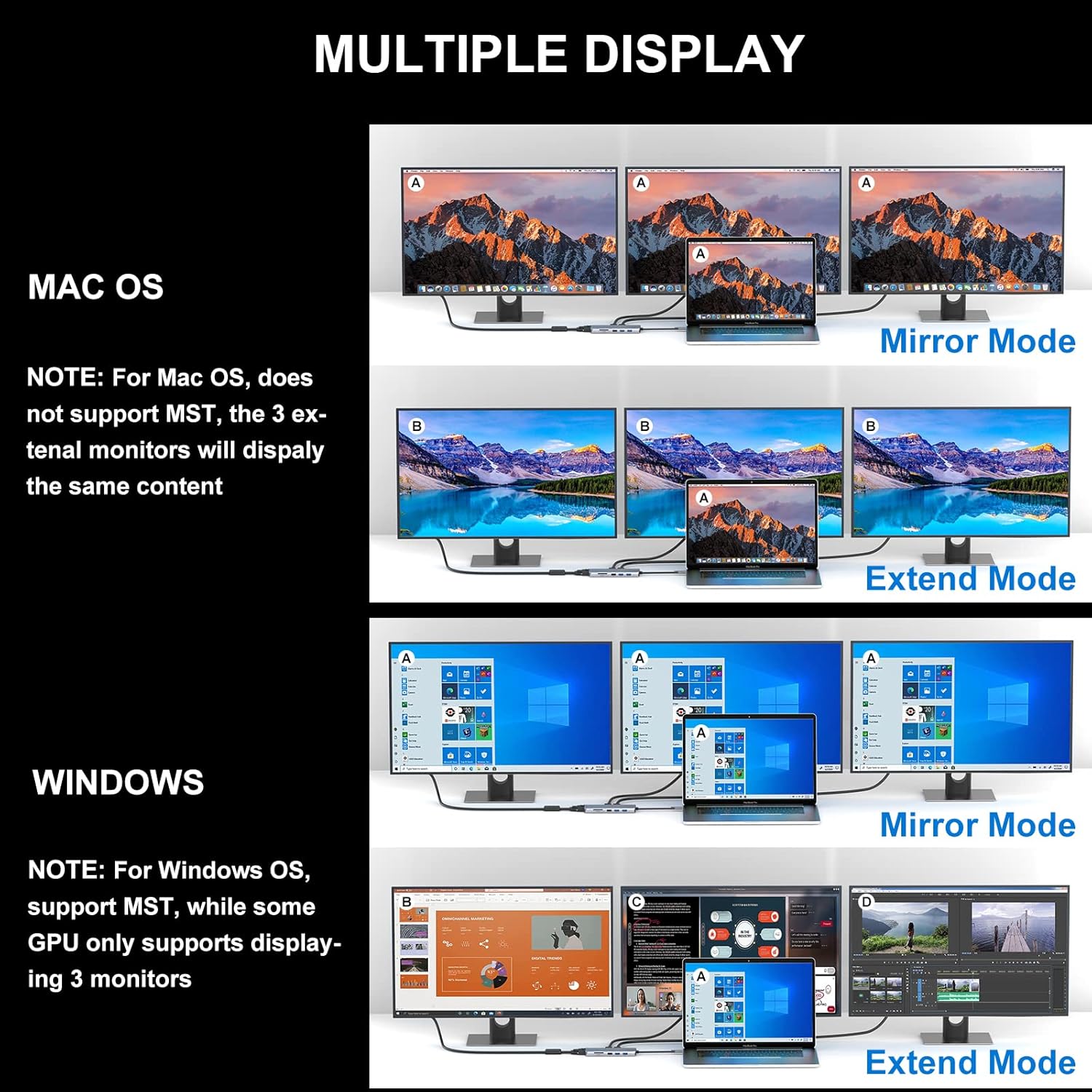
Image: Visual representation of display configurations, showing how Mac OS typically mirrors external displays while Windows OS supports extended desktop modes across multiple monitors.

Image: A table outlining the maximum resolutions achievable for single, dual, and triple monitor setups, distinguishing between DP1.2 and DP1.4 source capabilities.
Power Delivery
Connect your laptop's USB-C power adapter to the PD 3.0 port on the docking station. The hub supports up to 100W input and provides up to 89W output to charge your laptop, ensuring continuous power while using other peripherals.

Image: The docking station facilitating power delivery from a 100W input adapter to a laptop, showing 89W output for charging.
Data Transfer
- USB 3.0 Ports: Use these ports for high-speed data transfer devices like external SSDs or flash drives, achieving speeds up to 5Gbps.
- USB 2.0 Ports: Ideal for connecting wireless mouse and keyboard receivers, printers, or other standard USB peripherals.
- SD/TF Card Readers: Insert your memory cards to quickly access photos and files. Both slots can be used simultaneously, with speeds up to 104MB/s.

Image: The docking station connected to a laptop, demonstrating the use of USB 3.0 ports for hard drives and U-disks, and USB 2.0 ports for mouse, keyboard, and printer.
Network Connectivity
The Gigabit Ethernet port provides a stable and fast wired internet connection, supporting speeds of 10/100/1000Mbps. This is beneficial for environments where Wi-Fi is unreliable or slower.

Image: A close-up view of the RJ45 Ethernet port on the docking station, highlighting its 1000/100/10Mbps capability for stable network connection.
Maintenance and Care
- Keep the docking station away from water, fire, and corrosive liquids.
- Avoid dropping or subjecting the device to strong impacts.
- Clean the device with a soft, dry cloth. Do not use harsh chemicals or abrasive materials.
- Ensure proper ventilation around the device to prevent overheating, especially during prolonged use with multiple connected peripherals and displays.
- Store the device in a cool, dry place when not in use.

Image: Details of the docking station's construction, including a damage-resistant cable, gold-plated connector for stable signal, and a premium aluminum shell designed for durability and heat dissipation.
Troubleshooting
- No Display Output:
- Ensure your host device's USB-C port supports Video Alternate Mode (Alt Mode). Not all USB-C ports support video output.
- Check all cable connections (USB-C to host, HDMI/VGA to monitors).
- Verify the input source on your monitor is set correctly.
- For Mac OS users, remember that MST is not supported. External monitors will mirror the primary display or each other. If you expect extended displays, this is a limitation of Mac OS with this type of hub.
- Try connecting a single monitor first to isolate the issue.
- Reduce the resolution or refresh rate of the external displays, especially if using multiple monitors or an older host device.
- Ensure your host device's graphics drivers are up to date.
- No Power Delivery/Charging:
- Ensure your USB-C power adapter is connected to the PD 3.0 port on the docking station.
- Verify your laptop's USB-C port supports Power Delivery.
- Check if the power adapter itself is functioning correctly.
- The PD charging port is for charging only; it does not support data transmission.
- USB Devices Not Recognized:
- Ensure the docking station is securely connected to your host device.
- Try connecting the USB device directly to your host device to confirm it works independently.
- If using a high-power USB device (e.g., external hard drive), ensure the docking station is connected to a power adapter.
- Try a different USB port on the docking station.
- Ethernet Connection Issues:
- Check the Ethernet cable connection to both the docking station and your router/modem.
- Verify that your network settings on the host device are configured for a wired connection.
- Ensure your router/modem is functioning correctly.
- Overheating:
- It is normal for the aluminum casing to feel warm during operation, especially under heavy load.
- Ensure the docking station has adequate airflow and is not covered.
- Disconnect any unused peripherals to reduce load.
Warranty and Support
WAVLINK provides a 1-Year Worry-free Warranty for this product. Registered members may receive an additional 6 months of warranty coverage. We also offer life-long friendly customer service and technical support.
For technical assistance or warranty claims, please contact WAVLINK support:
- Phone: +1 8889730883 (UTC -5) Mon - Fri 9AM - 6PM
- Email: Contact@wavlink.com
Please visit the official WAVLINK website for the latest drivers, FAQs, and product information.
Documents and downloads
Ask a question about this manual
Ask about setup, troubleshooting, compatibility, parts, safety, or missing instructions. Manuals+ will review the question and use this page’s manual context to help answer it.