1. Introduction
This manual provides essential information for setting up, operating, maintaining, and troubleshooting your Lenovo ThinkCentre M710q Tiny mini PC. The ThinkCentre M710q Tiny is a compact and powerful desktop computer designed for efficiency and reliability, suitable for various computing tasks. This unit is a renewed product, ensuring quality and performance.

Image: Microsoft Authorized Refurbisher logo, indicating the product has been professionally restored.
2. What's in the Box
Carefully unpack your ThinkCentre M710q Tiny and ensure all components are present:
- Lenovo ThinkCentre M710q Tiny Unit
- AC Power Adapter
- USB Keyboard
- USB Mouse
- (Note: Additional accessories such as speakers may vary with renewed products.)

Image: Included USB keyboard and mouse, essential for basic computer operation.
3. Physical Features and Ports
Familiarize yourself with the various ports and features on your ThinkCentre M710q Tiny for proper connectivity.
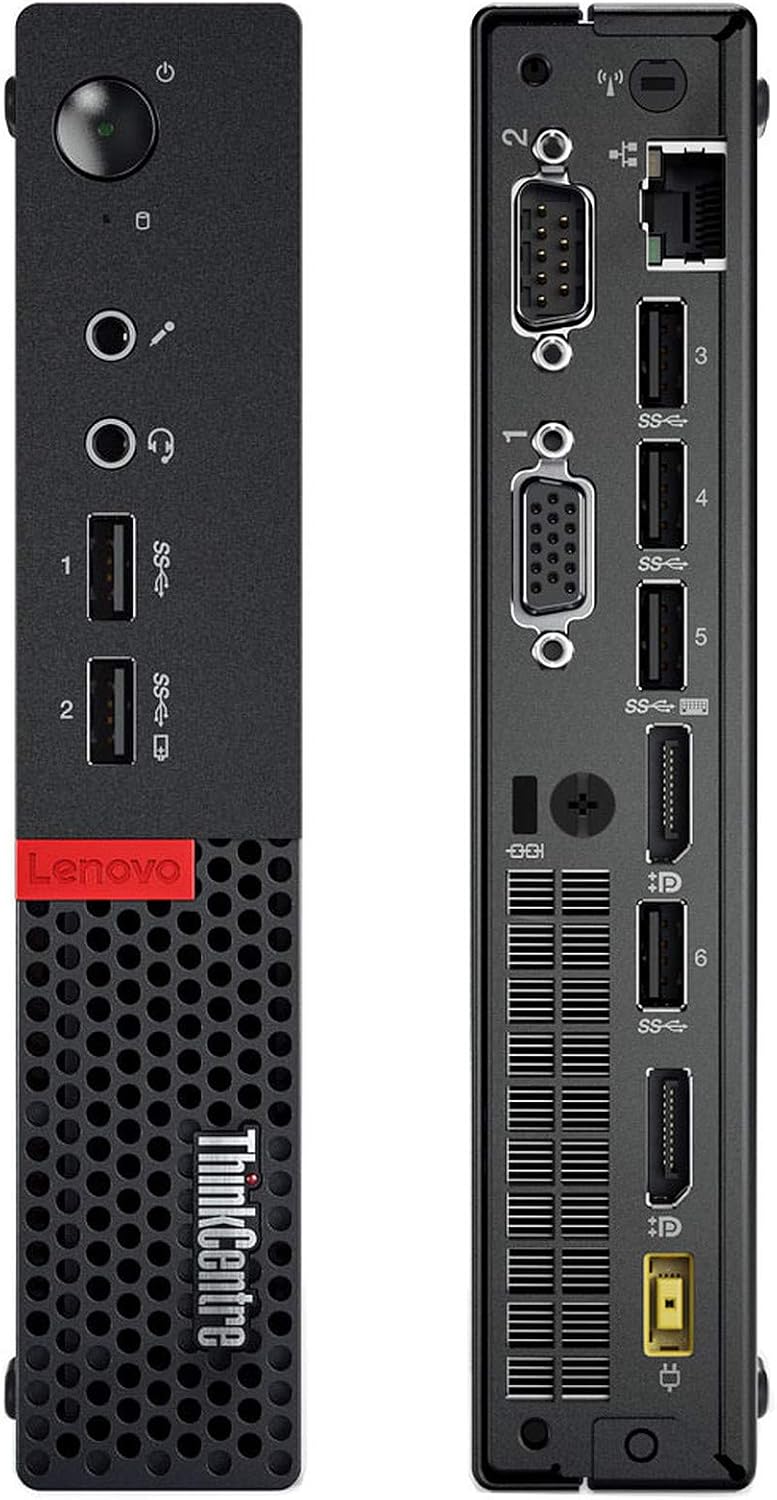
Image: Front and rear views of the Lenovo ThinkCentre M710q Tiny, highlighting all available ports.
Front Panel
- Power Button: To turn the device on or off.
- USB 3.0 Ports (x2): For connecting high-speed USB devices.
- Headphone Jack: For audio output to headphones or external speakers.
- Microphone Jack: For audio input from a microphone.
Rear Panel
- USB 3.0 Ports (x4): Additional ports for USB devices.
- DisplayPort (x2): For connecting digital displays.
- VGA Port (x2): For connecting analog displays.
- Ethernet Port: For wired network connection.
- Power Connector: For connecting the AC power adapter.
4. Setup Instructions
Follow these steps to set up your ThinkCentre M710q Tiny:
- Connect Peripherals:
- Connect your monitor(s) to the DisplayPort or VGA ports on the rear panel.
- Plug the USB keyboard and mouse into any available USB ports (front or rear).
- Connect any other desired peripherals such as external drives or speakers.
- Connect to Network:
- For a wired connection, plug an Ethernet cable into the Ethernet port on the rear panel.
- For Wi-Fi, the system is equipped with wireless capabilities. You will configure this during the initial Windows setup or later.
- Connect Power:
- Connect the AC power adapter to the power connector on the rear of the unit.
- Plug the power adapter into a wall outlet or surge protector.
- Initial Boot-Up:
- Press the power button on the front panel.
- The system will boot into Windows 10 Pro. Follow any on-screen prompts to complete the initial setup, including language, region, and user account creation.
5. Operating Instructions
Once set up, your ThinkCentre M710q Tiny is ready for use:
- Power On/Off: Press the power button to turn the computer on. To shut down, click the Start button in Windows, then select Power > Shut down.
- Windows 10 Pro: Explore the Windows 10 Pro operating system. You can customize settings, install applications, and manage files.
- Network Connectivity: If using Wi-Fi, click the network icon in the taskbar to connect to your preferred wireless network. For wired connections, ensure the Ethernet cable is securely plugged in.
- Software Installation: Install any necessary software or applications required for your work or personal use.
- USB Devices: Connect USB storage devices, printers, or other peripherals to the available USB ports.
6. Maintenance
Regular maintenance helps ensure the longevity and optimal performance of your mini PC:
- Cleaning: Keep the exterior of the unit clean with a soft, dry cloth. Ensure that the ventilation grilles are free from dust and obstructions to prevent overheating. Do not use liquid cleaners directly on the unit.
- Software Updates: Regularly check for and install Windows updates and driver updates to ensure system stability and security.
- Data Backup: Periodically back up your important files and data to an external drive or cloud storage to prevent data loss.
- Antivirus Protection: Ensure your system has up-to-date antivirus software to protect against malware and viruses.
7. Troubleshooting
If you encounter issues with your ThinkCentre M710q Tiny, try these common troubleshooting steps:
- No Power:
- Verify that the AC power adapter is securely connected to both the PC and a working power outlet.
- Check if the power outlet is functional by plugging in another device.
- No Display:
- Ensure the monitor is powered on and the video cable (DisplayPort or VGA) is securely connected to both the PC and the monitor.
- Try connecting the monitor to a different video port on the PC or using a different cable if available.
- Test the monitor with another device to confirm it is working.
- Slow Performance:
- Close unnecessary applications running in the background.
- Check disk space and free up storage if it is nearly full.
- Run a full system scan with your antivirus software.
- Peripheral Not Working:
- Ensure the peripheral (keyboard, mouse, etc.) is properly connected to a USB port.
- Try connecting the peripheral to a different USB port.
- Restart the computer.
- Contact Support: If these steps do not resolve the issue, please contact the seller (TekRefurbs) for further assistance.
8. Specifications
Key technical specifications for the Lenovo ThinkCentre M710q Tiny:
| Feature | Specification |
|---|---|
| Processor | Intel Core i5-6500T (2.5 GHz, up to 3.6 GHz Turbo Boost) |
| RAM | 16 GB DDR4-2400MHz |
| Storage | 256 GB SSD |
| Graphics | Intel HD Graphics 630 |
| Operating System | Windows 10 Pro 64-bit |
| Connectivity | WiFi, Ethernet |
| Ports | USB 3.0, DisplayPort, VGA, Headphone, Microphone |
| Item Weight | Approximately 5 pounds |
| Color | Black |
9. Warranty and Support
As a renewed product, your Lenovo ThinkCentre M710q Tiny is backed by a return policy:
- Return Policy: This product is eligible for a 90-day refund or replacement policy. Please refer to your purchase documentation for specific terms and conditions.
- Technical Support: For any technical issues, questions, or support needs, please contact the seller, TekRefurbs, directly. They are best equipped to provide assistance for your renewed product.
- Microsoft Authorized Refurbisher: This product has been processed by a Microsoft Authorized Refurbisher, ensuring it meets high standards for quality and includes a genuine Windows 10 Pro license.