
1. Introduction
Thank you for choosing the MARVO KG934 RGB Mechanical Gaming Keyboard. This manual provides detailed instructions for setting up, operating, maintaining, and troubleshooting your new keyboard. The KG934 features durable blue mechanical switches, customizable RGB backlighting, and a compact tenkeyless (TKL) design for an enhanced gaming and typing experience.

Image: Top-down view of the MARVO KG934 RGB Mechanical Gaming Keyboard, showcasing its compact layout and illuminated keys.
2. Setup
- Unpacking: Carefully remove the keyboard from its packaging.
- Connection: Connect the USB 2.0 cable from the keyboard to an available USB port on your computer.
- Driver Installation: The keyboard is plug-and-play. Your operating system (Windows 7 or newer) will automatically detect and install the necessary drivers. No additional software installation is typically required for basic functionality.
- Placement: Position the keyboard comfortably on your desk. The frameless and TKL design allows for more desk space.
3. Operating Instructions
3.1 Basic Functions
The MARVO KG934 functions as a standard QWERTY keyboard. All keys are active upon connection. The N-key rollover anti-ghosting feature ensures that every keystroke is registered accurately, even when multiple keys are pressed simultaneously, which is beneficial for fast-paced gaming.
3.2 Function Key Combinations (Fn Key)
The Fn key (Function key) allows access to secondary functions printed on certain keys. Press and hold the Fn key, then press the desired function key.
- Fn + F1-F4: Media Player controls (e.g., Play/Pause, Stop, Previous Track, Next Track).
- Fn + F5-F8: Volume controls (e.g., Mute, Volume Down, Volume Up).
- Fn + F9-F12: Additional media or system functions (specific functions may vary slightly based on OS).
- Fn + Win Key: Locks/unlocks the Windows key to prevent accidental presses during gaming.
- Fn + Arrow Keys: Adjusts lighting effects (e.g., brightness, speed, direction).
- Fn + INS/HOME/PGUP/DEL/END/PGDN: Cycles through various preset RGB lighting modes.
- Fn + PRTSC/SCRLK/PAUSE: Activates specific lighting effects or modes.
- Fn + 1-5: Activates custom lighting profiles (if programmable via software, refer to MARVO website for software availability).

Image: Angled view of the MARVO KG934 keyboard, highlighting the key layout and design.
4. Lighting Modes
The KG934 features individual RGB backlighting with multiple selectable lighting schemes. You can customize the visual experience directly from the keyboard.
- Changing Modes: Use Fn + INS/HOME/PGUP/DEL/END/PGDN to cycle through various pre-programmed lighting effects.
- Adjusting Brightness: Use Fn + Up Arrow to increase brightness and Fn + Down Arrow to decrease brightness.
- Adjusting Speed/Direction: Use Fn + Left Arrow and Fn + Right Arrow to adjust the speed or direction of dynamic lighting effects.

Image: Side view of the MARVO KG934, illustrating the raised key design and the vibrant RGB lighting along the keyboard's edge.
5. Maintenance
Proper maintenance ensures the longevity and performance of your keyboard.
- Cleaning: Use a soft, dry cloth to wipe the surface of the keyboard. For dust between keys, use compressed air. For stubborn dirt, a slightly damp cloth with mild soap can be used, ensuring no liquid enters the keyboard.
- Keycap Removal: If necessary, keycaps can be carefully removed for deeper cleaning using a keycap puller (not included). Be gentle to avoid damaging the switches.
- Avoid Liquids: Do not spill liquids on the keyboard. If a spill occurs, immediately disconnect the keyboard and allow it to dry completely before reconnecting.
- Storage: Store the keyboard in a cool, dry place away from direct sunlight and extreme temperatures.

Image: The MARVO KG934 keyboard with several keycaps removed, showing the underlying mechanical switches, useful for cleaning or switch inspection.
6. Troubleshooting
- Keyboard Not Responding:
- Ensure the USB cable is securely connected to both the keyboard and the computer.
- Try connecting the keyboard to a different USB port.
- Test the keyboard on another computer to rule out a computer-specific issue.
- Lights Not Working or Incorrect:
- Check if the brightness is turned down (use Fn + Up Arrow).
- Cycle through different lighting modes using Fn + INS/HOME/PGUP/DEL/END/PGDN.
- Ensure no software is overriding the keyboard's lighting settings.
- Keys Not Registering:
- Clean around the affected key to ensure no debris is obstructing the switch.
- If a specific key consistently fails, it might indicate a faulty switch.
7. Specifications
| Brand | MARVO |
| Model | KG934 |
| Switch Type | Blue Mechanical Switches (Tactile with audible click) |
| Switch Rating | Over 50 million keystrokes |
| Key Route | 3.8 ± 0.3 mm |
| Interface | USB 2.0 |
| Cable Length | 1.5 meters |
| OS Support | Windows 7 or newer |
| Design | Frameless and TKL Compact Design, Raised Key Design |
| Backlight | Individual RGB Backlight with Multiple Selectable Lighting Schemes |
| Anti-Ghosting | N-key Rollover |
| Number of Buttons | 89 |
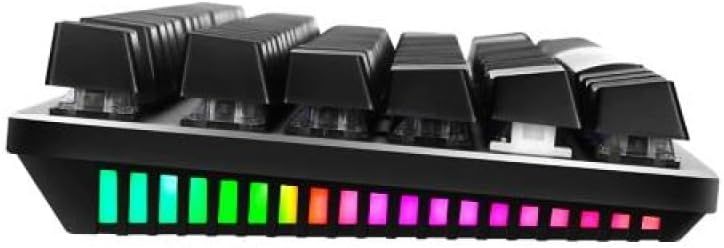
Image: A close-up view of the mechanical switches on the MARVO KG934 keyboard, illustrating their construction.
8. Warranty and Support
The MARVO KG934 RGB Mechanical Gaming Keyboard comes with a manufacturer's warranty of 1 year from the date of purchase. This warranty covers manufacturing defects under normal use.
For technical support, warranty claims, or further assistance, please contact your retailer or visit the official MARVO website for contact information and support resources. Please retain your proof of purchase for warranty validation.
