Introduction
This manual provides detailed instructions for the setup, operation, and maintenance of your Mars Gaming MSC2 USB 7.1 External Soundcard. Please read this manual thoroughly before using the device to ensure optimal performance and longevity.
Product Overview
The Mars Gaming MSC2 is an external USB sound card designed to enhance your audio experience with 7.1 digital surround sound. It features universal compatibility across multiple platforms and a multi-functional control box for easy management of audio settings.
Key Features:
- 7.1 Digital Sound: Experience immersive 360° 3D sound, optimizing audio for gaming, music, and other stereo sources. The advanced digital amplifier enhances headphone performance.
- Universal Multifunctional Compatibility: Compatible with PC, PS5, PS4, Nintendo Switch, and Mac. Supports stereo headphones with a 3.5mm jack, including configurations for 1 combined audio+microphone port or 2 separate PC audio + microphone ports.
- Built-in USB Power Port: An integrated USB port allows for powering headphone lighting systems or charging other USB-powered devices.
- Multifunctional Control Box: Features plug & play technology with five buttons for controlling 7.1 system activation/deactivation, volume adjustment, microphone mute, and headphone lighting on/off.

Image: The Mars Gaming MSC2 External Soundcard, showing its compact design and integrated USB cable.
Setup Instructions
- Connect to Host Device: Plug the USB-A connector of the MSC2 sound card into an available USB port on your PC, PS5, PS4, Nintendo Switch, or Mac. The device is plug-and-play and should be recognized automatically by most operating systems.
- Connect Headphones:
- For headphones with a single 3.5mm TRRS jack (combined audio and microphone), plug it into the headphone port on the MSC2.
- For headphones with separate 3.5mm TRS jacks for audio and microphone (common for PC headsets), use the appropriate splitter (if not integrated into the headset cable) and connect them to the respective ports on the MSC2.
- Optional: Power USB Devices: If your headphones have USB-powered lighting or you wish to charge a small USB device, connect it to the integrated USB power port on the MSC2.
- Software Installation (PC/Mac): For full customization and advanced settings, download and install the dedicated software from the official Mars Gaming website. This step is optional for basic functionality but recommended for optimizing your audio experience.
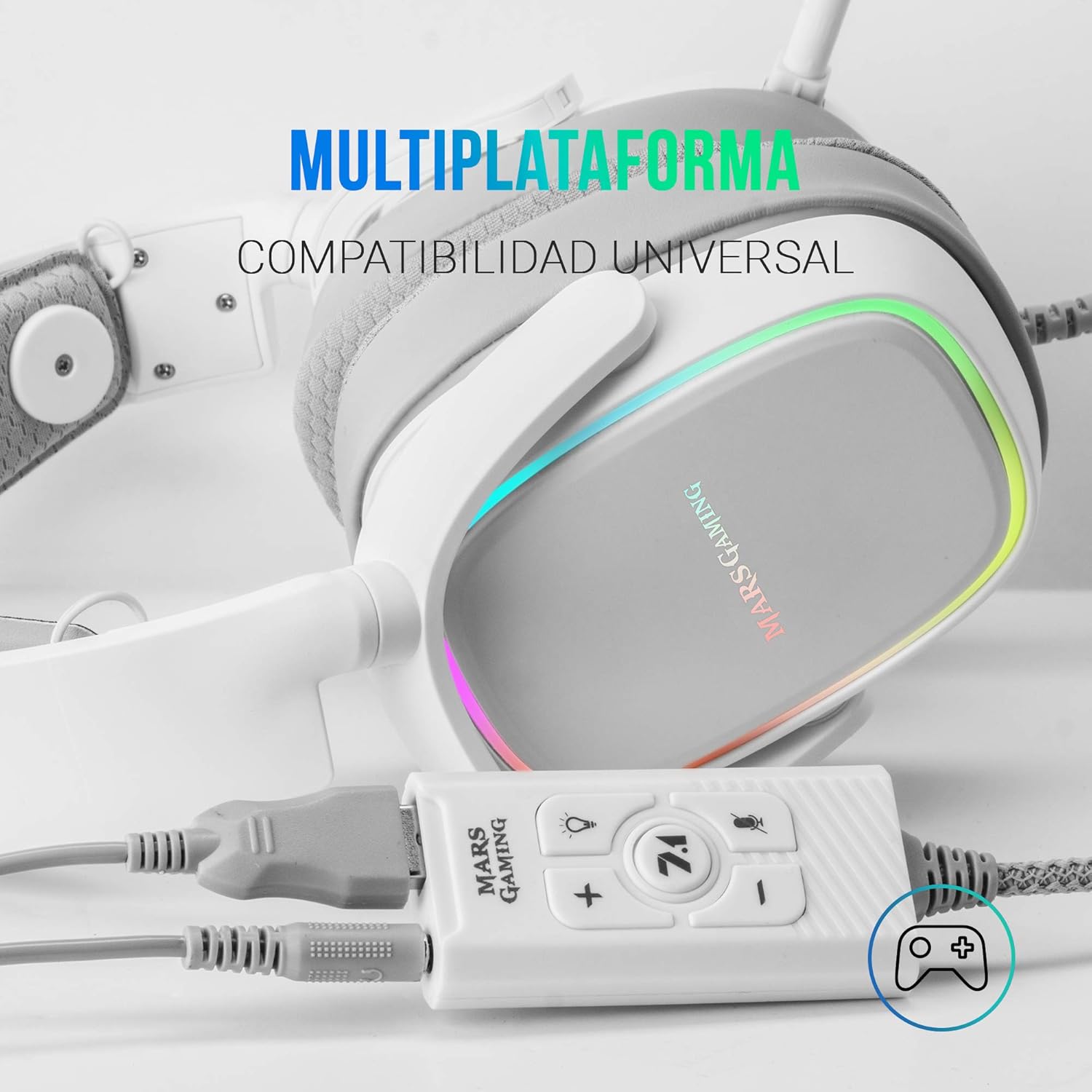
Image: The Mars Gaming MSC2 External Soundcard connected to a gaming headset and illustrating its multi-platform compatibility.
Operating Instructions
The MSC2 features a multi-functional control box for easy access to key audio settings.

Image: A close-up view of the MSC2's control box, highlighting the various buttons for audio management.
- 7.1 Button: Press this button to toggle the 7.1 virtual surround sound on or off. An indicator light may confirm its active status.
- Volume Up (+) Button: Press to increase the audio output volume.
- Volume Down (-) Button: Press to decrease the audio output volume.
- Microphone Mute Button: Press to mute or unmute your connected microphone. An indicator light typically shows when the microphone is muted.
- Lighting Button (Lightbulb Icon): Press to turn the lighting of your connected USB-powered headphones on or off, if applicable.
Compatibility
The Mars Gaming MSC2 External Soundcard is designed for broad compatibility with various gaming and computing platforms:
- PC (Windows)
- Mac (macOS)
- PlayStation 5 (PS5)
- PlayStation 4 (PS4)
- Nintendo Switch
Ensure your operating system is up-to-date for optimal performance and driver recognition.
Maintenance
To ensure the longevity and proper functioning of your Mars Gaming MSC2 sound card, follow these maintenance guidelines:
- Cleaning: Use a soft, dry cloth to clean the exterior of the device. Avoid using liquid cleaners, solvents, or abrasive materials, as these can damage the surface or internal components.
- Storage: Store the sound card in a cool, dry place away from direct sunlight and extreme temperatures.
- Handling: Avoid dropping the device or subjecting it to strong impacts. Do not pull on the cable excessively when disconnecting.
- Connectivity: Ensure USB and audio jacks are inserted gently and fully to prevent damage to the ports.
Troubleshooting
If you encounter issues with your Mars Gaming MSC2, refer to the following common solutions:
- No Sound Output:
- Ensure the MSC2 is securely plugged into a USB port on your device.
- Verify that your headphones are correctly connected to the MSC2.
- Check the volume levels on both the MSC2 control box and your operating system/console settings.
- Confirm that the 7.1 button is not causing an issue; try toggling it.
- On PC/Mac, ensure the MSC2 is selected as the default audio output device in your sound settings.
- Microphone Not Working:
- Check if the microphone mute button on the MSC2 is active.
- Ensure your microphone is properly connected to the MSC2.
- On PC/Mac/console, verify that the MSC2 microphone input is selected as the default recording device and that its volume is not muted or set too low.
- Poor Sound Quality / Static:
- Try connecting the MSC2 to a different USB port on your device.
- Ensure all cables are securely connected and not damaged.
- If using PC/Mac, update the sound card drivers or software from the Mars Gaming website.
- Test with a different pair of headphones to rule out headphone issues.
- 7.1 Surround Sound Not Activating:
- Press the 7.1 button on the control box to activate it.
- Ensure the content you are playing supports 7.1 surround sound.
- For PC/Mac, ensure the Mars Gaming software is installed and configured correctly for 7.1 output.
Specifications
| Feature | Detail |
|---|---|
| Model | MSC2W |
| Audio Output Mode | Stereo |
| Surround Sound Channel Configuration | 7.1 (Virtual) |
| Hardware Interface | USB |
| Compatible Devices | PlayStation 5, PlayStation 4, Personal Computer, Macintosh, Nintendo Switch |
| Signal-to-Noise Ratio (SNR) | 92 dB |
| Maximum Sample Rate | 48 KHz |
| Product Dimensions | 6.8 x 6.8 x 3.1 cm |
| Weight | 83 g |
Warranty and Support
Mars Gaming products are designed for reliability and performance. For warranty information, technical support, or to download the latest software and drivers, please visit the official Mars Gaming website or contact their customer service department. Keep your purchase receipt as proof of purchase for warranty claims.
Note: Specific warranty terms may vary by region. Refer to the official Mars Gaming website for detailed information.


