
Product Overview
The E-YOOSO Z88 is an 81-key compact mechanical gaming keyboard designed for efficiency and performance. It features Outemu brown switches, customizable rainbow LED backlighting, and N-key rollover for an enhanced typing and gaming experience. Its durable construction and ergonomic design ensure comfort and longevity.
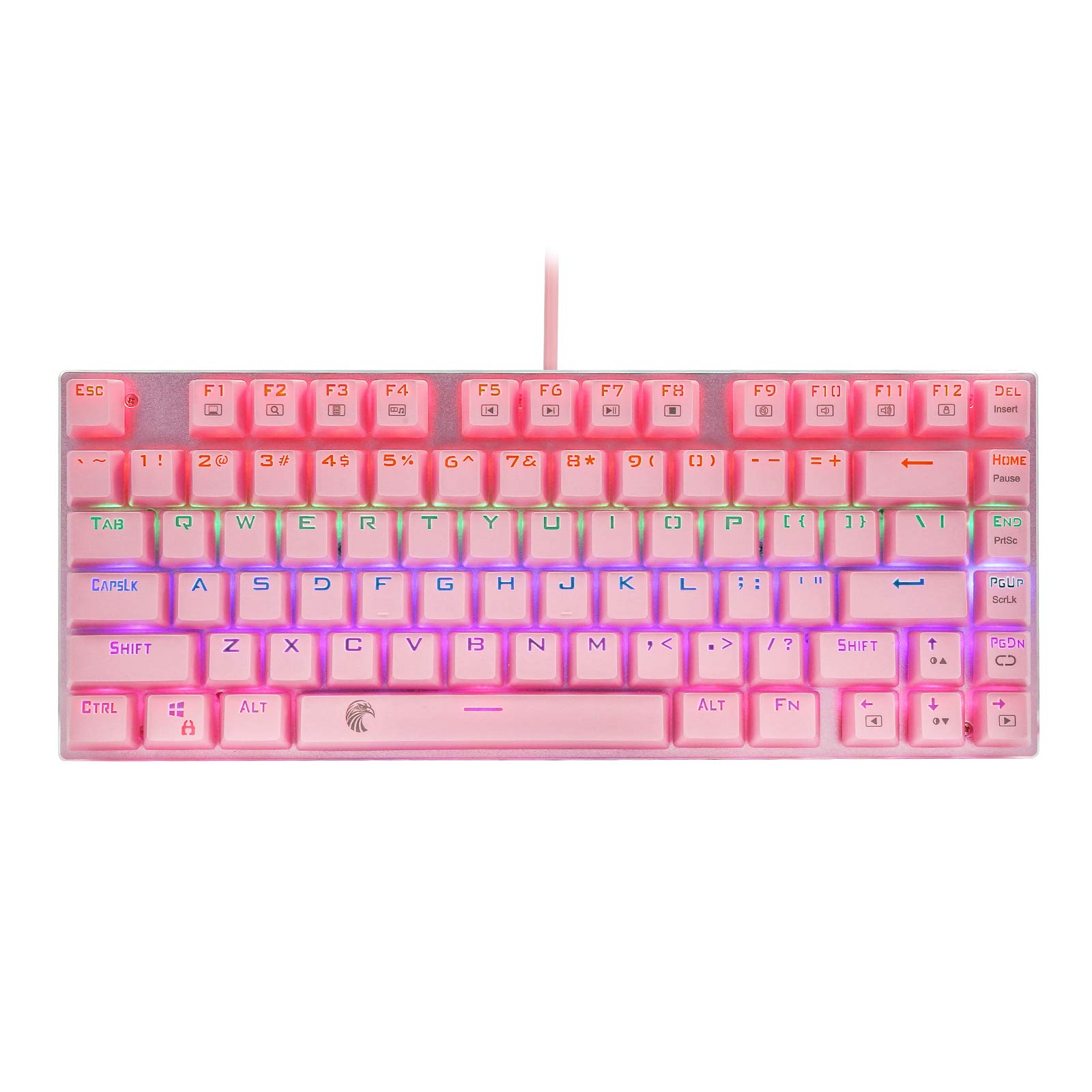
Figure 1: E-YOOSO Z88 Compact Gaming Keyboard, highlighting its small and portable 81-key layout and detachable Type-C data cable.
Package Contents
- E-YOOSO Z88 Mechanical Keyboard x 1
- USB Cable (detachable, 1.8m) x 1
- Keycap Puller x 1
- User Manual x 1
Setup Instructions
- Unpack the Keyboard: Carefully remove the keyboard and its accessories from the packaging.
- Connect the USB Cable: Insert the detachable USB cable into the Type-C port on the keyboard and the other end into an available USB port on your computer.
- Plug and Play: The keyboard is plug-and-play. No additional drivers are required for basic functionality. Your operating system should automatically detect and install the necessary drivers.
- Position the Keyboard: Place the keyboard on a stable, flat surface. Adjust the kickstands on the back of the keyboard for your preferred typing angle, if available.
Operating Instructions
Key Features
- Outemu Brown Switches: These mechanical switches provide a tactile bump and audible click feedback, offering a responsive and satisfying typing experience. They are designed for durability with a lifespan of over 50 million keystrokes.
- 81-Key Anti-Ghosting: Each key is independently controlled, ensuring that multiple simultaneous key presses are registered accurately without conflicts, which is crucial for gaming.
- Compact Design: The 81-key layout saves desk space while retaining essential functionality.

Figure 2: Close-up view of the E-YOOSO Z88 keyboard's Outemu Brown mechanical switches, known for their tactile feedback and durability.

Figure 3: Illustration of the E-YOOSO Z88 keyboard's full anti-ghosting capability, ensuring all 81 keys register correctly during rapid input.

Figure 4: The compact 81-key layout of the E-YOOSO Z88, demonstrating its space-saving design and ergonomic keycap profile.
Backlight Control
The keyboard features a rainbow LED backlight with multiple modes and adjustable settings.
- Change Backlight Mode: Press FN + PGDN to cycle through 9 different backlight modes.
- Adjust Brightness: Use FN + ↑ (Up Arrow) to increase brightness and FN + ↓ (Down Arrow) to decrease brightness.
- Adjust Breathing Speed: Use FN + ← (Left Arrow) to decrease breathing speed and FN + → (Right Arrow) to increase breathing speed.

Figure 5: The E-YOOSO Z88 keyboard displaying its vibrant multi-mode rainbow LED backlighting.
Function Shortcut Keys (FN Combinations)
The keyboard utilizes the FN key to access various multimedia and system functions. Press and hold the FN key, then press the desired function key.
| Combination | Function |
|---|---|
| FN + F1 | My Computer / Desktop |
| FN + F2 | Web Browser |
| FN + F3 | |
| FN + F4 | Media Player |
| FN + F5 | Previous Track |
| FN + F6 | Next Track |
| FN + F7 | Play/Pause |
| FN + F8 | Stop |
| FN + F9 | Mute |
| FN + F10 | Volume Down |
| FN + F11 | Volume Up |
| FN + F12 | Calculator |
| FN + Win | Lock/Unlock Windows Key (prevents accidental presses during gaming) |
Maintenance
- Cleaning Keycaps: Use the included keycap puller to carefully remove keycaps. Clean them with a soft, damp cloth and mild soap if necessary. Ensure they are completely dry before reattaching.
- Cleaning the Keyboard Base: Use compressed air to remove dust and debris from between the switches. Wipe the surface with a soft, dry cloth.
- Spill Resistance: The keyboard features a splash-proof design. In case of accidental spills, immediately disconnect the keyboard from your computer, wipe off any liquid, and allow it to dry completely before reconnecting.
- Cable Management: The detachable USB cable can be replaced if damaged. Ensure the cable is not kinked or strained during use.
Troubleshooting
| Problem | Possible Cause | Solution |
|---|---|---|
| Keyboard not responding | Loose USB connection, faulty USB port, driver issue. |
|
| Backlight not working or stuck | Backlight turned off, brightness set to minimum, software glitch. |
|
| Keys not registering or ghosting | Dust/debris under keycap, switch malfunction, software conflict. |
|
| FN shortcut keys not working | Incorrect key combination, software conflict. |
|
If you encounter any quality or usage issues not covered here, please contact customer support.
Specifications
| Feature | Detail |
|---|---|
| Brand | E-YOOSO (Gishine) |
| Model Name | Z88 |
| Number of Keys | 81 |
| Switch Type | Outemu Brown Mechanical Switches (Tactile) |
| Key Durability | Up to 50 million clicks |
| Backlight | Rainbow LED (9 modes, adjustable brightness/speed) |
| Anti-Ghosting | N-Key Rollover |
| Connectivity | USB (Detachable 1.8m cable) |
| Material | ABS, Metal Base |
| Features | Ergonomic design, splash-proof, hot-swappable switches (Outemu 3-pin) |
| Compatibility | Windows 10/8/7/XP, Windows VISTA, Mac OS X |
| Weight | 0.7 kg |
| UPC | 723509313821 |
| ASIN | B08PCVMHCS |
Warranty and Support
This product comes with a standard manufacturer's warranty. For specific warranty terms and duration, please refer to the documentation included with your purchase or contact the seller directly.
Customer Support: If you experience any quality issues or require assistance with the product, please contact the seller via the messaging system on the platform where you made your purchase. Provide your order number and a detailed description of the issue for prompt support.
For general inquiries or further information, you may also visit the product page.