
1. Introduction
This manual provides detailed instructions for the installation, operation, and maintenance of your energeeks Defender EG-CIPEXT001 Outdoor Motorized WiFi IP Camera. Please read this manual thoroughly before using the product to ensure proper functionality and safety. Keep this manual for future reference.
2. Product Overview
2.1 Key Features
- 1080p Full HD Resolution: Provides clear and detailed video surveillance.
- Motorized Pan/Tilt: Allows remote adjustment of the camera's viewing angle.
- Outdoor Durability: Designed for outdoor use.
- Motion Detection: Alerts you to detected movement.
- Night Vision: Infrared LEDs enable monitoring in low-light conditions.
- Two-Way Audio: Built-in microphone and speaker for communication.
- Autotracking: Automatically follows detected moving objects.
- WiFi Connectivity: Connects to your home network wirelessly (2.4 GHz).
- Smart Home Compatibility: Works with Google Home and Amazon Alexa.
2.2 Package Contents
The package should contain the following items:
- energeeks Defender EG-CIPEXT001 IP Camera
- Power Adapter
- Mounting Screws and Wall Plugs
- User Manual (this document)
2.3 Camera Components

Image 2.3.1: Front view of the energeeks Defender EG-CIPEXT001 IP Camera. This image shows the main camera body, lens, and antenna.
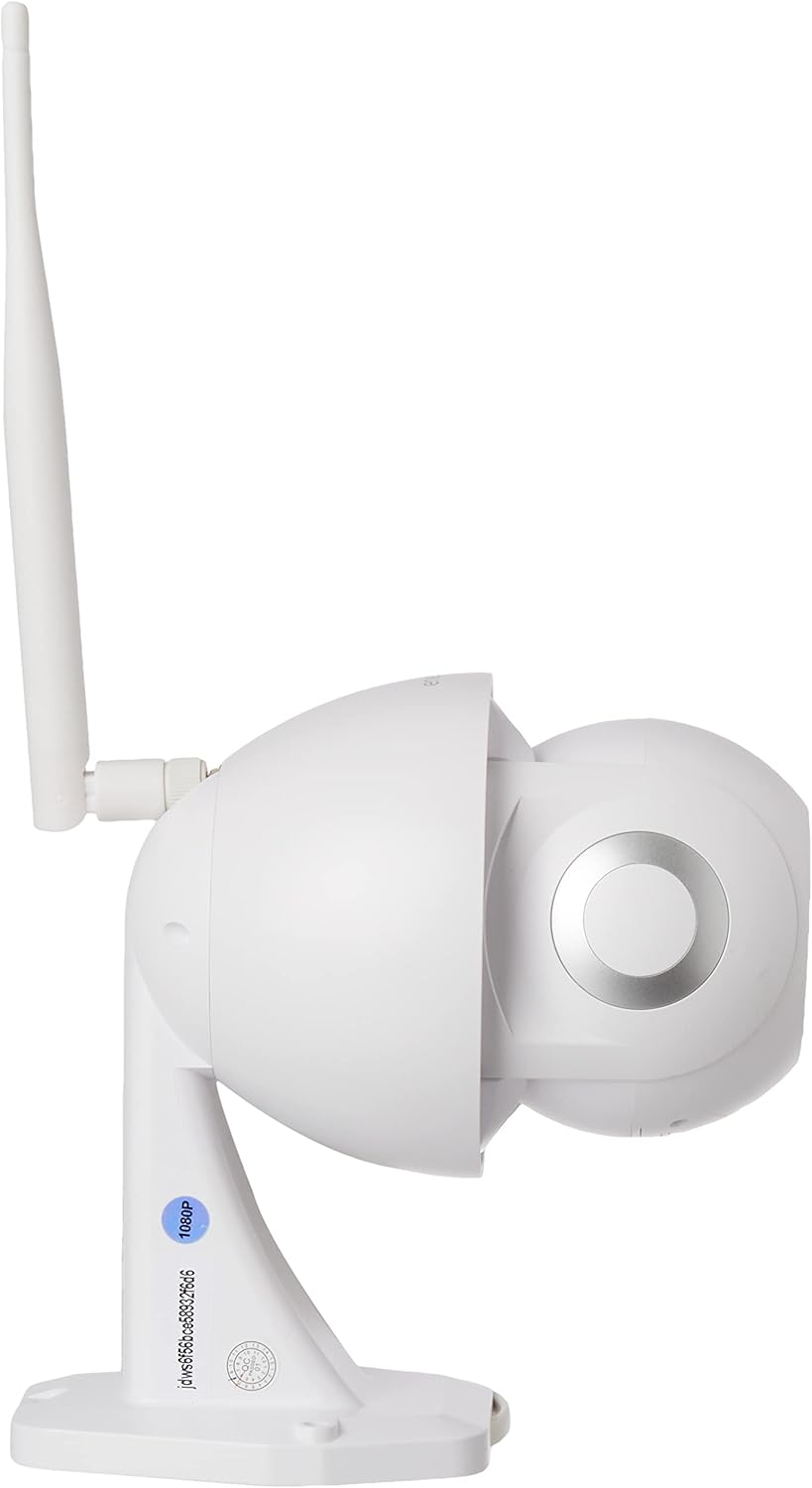
Image 2.3.2: Side view of the energeeks Defender EG-CIPEXT001 IP Camera, highlighting the adjustable antenna and mounting base.
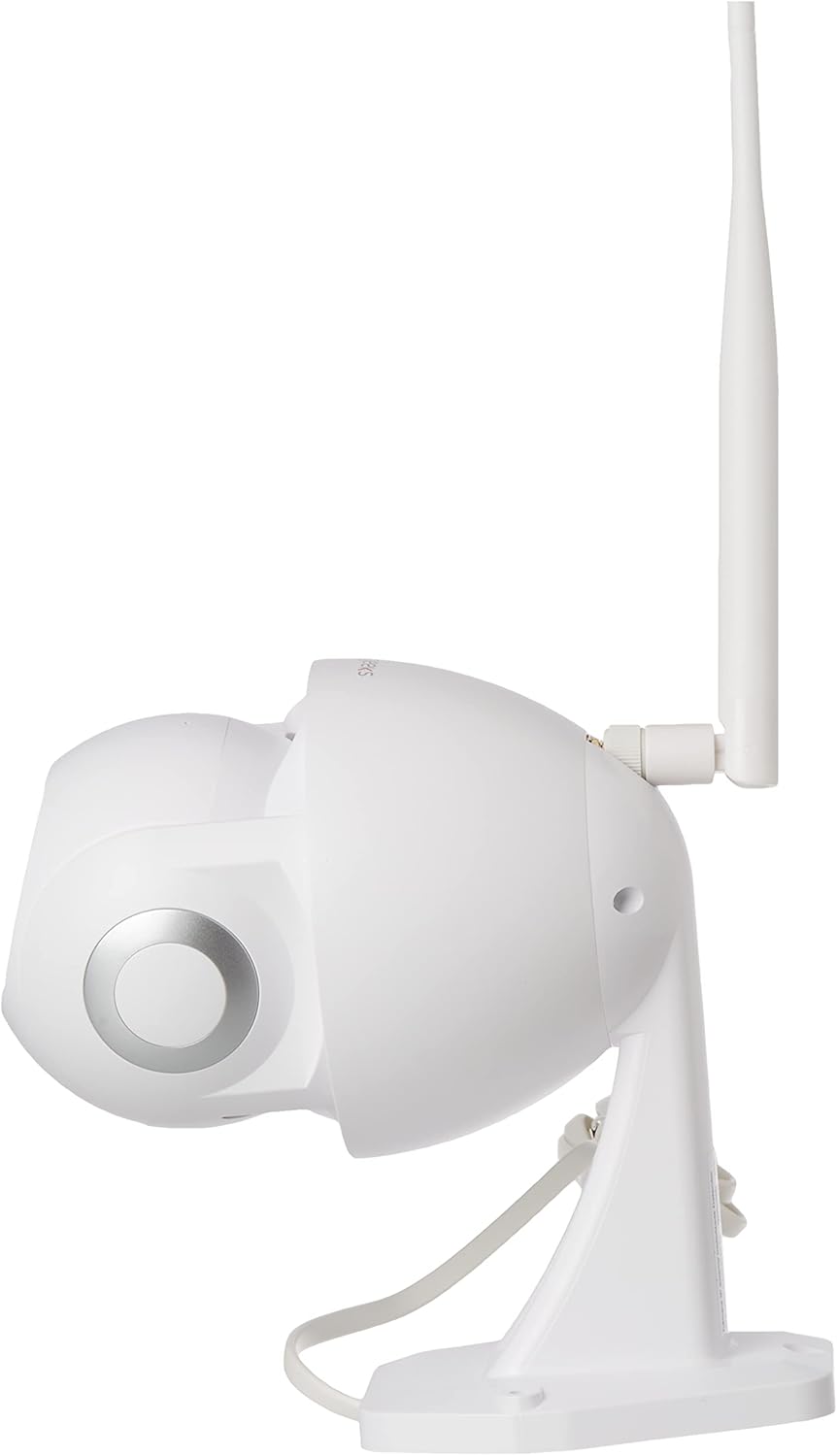
Image 2.3.3: Alternate side view of the energeeks Defender EG-CIPEXT001 IP Camera, showing the other side of the camera body.

Image 2.3.4: Bottom-front view of the energeeks Defender EG-CIPEXT001 IP Camera, showing the camera lens and infrared sensors.
3. Setup
3.1 Physical Installation
- Choose a Location: Select an outdoor location that provides the desired viewing angle and is within range of your WiFi network. Ensure the camera is protected from direct heavy rain if possible, though it is designed for outdoor use.
- Mounting:
- Use the included mounting template (if provided) to mark drill holes on the wall or ceiling.
- Drill pilot holes and insert the wall plugs.
- Secure the camera's mounting base using the provided screws.
- Power Connection: Connect the power adapter to the camera and plug it into a suitable outdoor power outlet. Ensure the power connection is protected from moisture.
3.2 App Installation and Pairing
- Download the App: Search for the "energeeks" app in your smartphone's app store (Google Play Store for Android or Apple App Store for iOS).
- Register/Log In: Open the app and follow the on-screen instructions to create an account or log in if you already have one.
- Add Device:
- Tap the "+" icon or "Add Device" option in the app.
- Select "Security Camera" or the specific model (EG-CIPEXT001) if listed.
- Follow the in-app prompts to power on the camera and reset it if necessary (usually by pressing a reset button until an indicator light flashes).
- Network Connection:
- Select your 2.4 GHz WiFi network and enter the password. Note: This camera supports 2.4 GHz WiFi only.
- The app will generate a QR code. Position your phone's screen in front of the camera lens (approx. 15-20 cm away) until you hear a confirmation sound from the camera.
- Once connected, the camera will appear in your app's device list.
4. Operating Instructions
4.1 Live View
Open the energeeks app and select your camera from the device list to access the live video feed. You can view real-time footage from your camera.
4.2 Pan and Tilt Control
On the live view screen, use the directional controls (usually an on-screen joystick or arrows) to remotely adjust the camera's horizontal (pan) and vertical (tilt) viewing angles.
4.3 Motion Detection and Autotracking
 To enable motion detection, navigate to the camera settings in the app. Activate the motion detection feature and adjust sensitivity levels as needed. When motion is detected, the camera can send push notifications to your phone and begin recording. If autotracking is enabled, the camera will automatically follow the detected moving object within its range.
4.4 Two-Way Audio
 On the live view screen, tap the microphone icon to speak through the camera's speaker. Tap the speaker icon to listen to audio from the camera's microphone. This allows for real-time communication with visitors or deterrence of intruders.
4.5 Night Vision
 The camera automatically switches to infrared night vision mode in low-light conditions, providing clear black and white video footage. This feature ensures continuous surveillance 24/7.
4.6 Storage Options
The camera supports local storage via a microSD card (not included) and may offer cloud storage options through the energeeks app (subscription may be required). Insert a microSD card into the designated slot (refer to camera diagram for location) for continuous or event-based recording.
4.7 Smart Home Integration
The energeeks Defender camera is compatible with Google Home and Amazon Alexa. Follow the instructions within the energeeks app or your smart home assistant app to link your camera and enable voice control or integration into smart home routines.
5. Maintenance
5.1 Cleaning
Regularly clean the camera lens and housing with a soft, damp cloth to remove dust and dirt. Do not use harsh chemicals or abrasive cleaners, as these can damage the camera's finish or lens coating.
5.2 Firmware Updates
Check the energeeks app periodically for available firmware updates. Keeping your camera's firmware up-to-date ensures optimal performance, security, and access to new features. Follow the in-app instructions for firmware updates.
6. Troubleshooting
| Problem | Possible Cause | Solution |
|---|---|---|
| Camera not powering on | No power supply; faulty adapter | Check power connection and outlet. Ensure the power adapter is working correctly. |
| Unable to connect to WiFi | Incorrect WiFi password; 5GHz WiFi network; camera too far from router | Verify WiFi password. Ensure you are connecting to a 2.4 GHz network. Move the camera closer to the router or use a WiFi extender. Reset the camera and try pairing again. |
| Poor video quality | Weak WiFi signal; dirty lens | Improve WiFi signal strength. Clean the camera lens. |
| Motion detection not working | Feature disabled; incorrect sensitivity settings | Enable motion detection in the app settings. Adjust sensitivity levels. Ensure the camera's view is not obstructed. |
| Two-way audio not functioning | Microphone/speaker muted; app permissions | Check if microphone/speaker is muted in the app. Ensure the app has microphone permissions on your smartphone. |
7. Specifications
| Feature | Detail |
|---|---|
| Model Number | EG-CIPEXT001 |
| Video Resolution | 1080p Full HD |
| Connectivity | Wireless (2.4 GHz WiFi), Wired (Ethernet, if available) |
| Special Features | Motion Sensor, Night Vision, Two-Way Audio, Autotracking, Motorized Pan/Tilt |
| Usage Environment | Outdoor |
| Compatible Devices | Smartphone (via energeeks app) |
| Smart Home Integration | Google Home, Amazon Alexa |
| Power Source | External Power Adapter (Wired) |
| Wattage | 6 watts |
| Dimensions (L x W x H) | 17.5 x 9.5 x 17.5 cm |
| Weight | 770 g |
| Included Components | Camera, Power Adapter |
8. Warranty and Support
For warranty information, technical support, or service inquiries, please refer to the official energeeks website or contact their customer support directly. Details can typically be found on the product packaging or the manufacturer's website.
Manufacturer: ENERGEEKS


