
1. Introduction
This manual provides instructions for the safe and efficient use of your Epson EcoTank L3110 All-in-One Ink Tank Printer. The L3110 is designed for printing, scanning, and copying functions, utilizing an integrated ink tank system for high-volume printing.
Please read this manual thoroughly before operating the printer and keep it for future reference.

Image 1.1: Front view of the Epson EcoTank L3110 printer.
2. Safety Information
Observe the following safety precautions to ensure safe operation and prevent damage to the printer or injury to yourself.
- Always place the printer on a flat, stable surface.
- Do not block or cover the ventilation slots.
- Use only the power cord supplied with the printer.
- Keep ink bottles out of reach of children. Do not ingest ink.
- Avoid touching the print head or internal components during operation.
- Disconnect the power cord from the electrical outlet before cleaning or moving the printer.
3. What's in the Box
Verify that all items are present in the packaging:
- Epson EcoTank L3110 All-in-One Printer
- Power Cable
- USB Cable
- Set of Ink Bottles (Black, Cyan, Magenta, Yellow)
- Setup Guide
- CD-ROM for printer software

Image 3.1: Epson EcoTank L3110 printer with an accompanying ink bottle.
4. Setup
4.1 Unpacking the Printer
- Remove the printer from its box.
- Remove all protective tapes and packing materials from the exterior and interior of the printer.
- Open the scanner unit and remove any protective materials inside. Close the scanner unit.
4.2 Connecting the Power
- Connect the power cord to the printer's power input.
- Plug the other end of the power cord into a wall outlet.
- Press the power button to turn on the printer.
4.3 Filling the Ink Tanks
The Epson EcoTank L3110 uses an integrated ink tank system. Follow these steps carefully to fill the ink tanks:
- Open the ink tank unit cover on the right side of the printer.
- Open the cap for the black ink tank (marked BK).
- Uncap the black ink bottle (Epson 005 series).
- Insert the ink bottle into the filling port. The ink will automatically start to fill the tank. Do not squeeze the bottle.
- Once the tank is full, the ink flow will stop automatically. Remove the ink bottle and recap it.
- Close the black ink tank cap.
- Repeat steps 2-6 for the Cyan (C), Magenta (M), and Yellow (Y) ink tanks, ensuring to use the correct color ink bottle for each tank.
- Close the ink tank unit cover.

Image 4.3.1: Epson EcoTank L3110 with ink bottles positioned for filling.
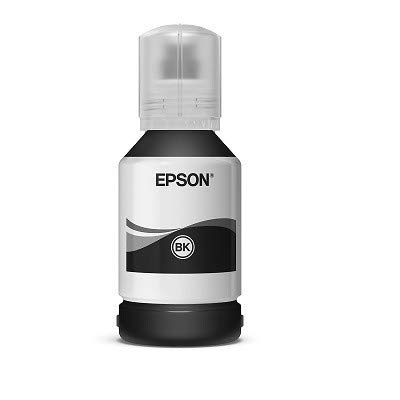
Image 4.3.2: Close-up view of an Epson ink bottle.
4.4 Initializing Ink Charging
After filling the ink tanks, you must initialize the ink charging process. This primes the print head with ink.
- Press and hold the Stop button for 5 seconds until the power light and ink light start flashing.
- The ink charging process will begin and may take approximately 10-12 minutes. Do not turn off the printer or perform any other operations during this time.
- Once complete, the power light will stop flashing and remain on.
4.5 Installing Software
- Insert the provided CD-ROM into your computer's CD/DVD drive. If your computer does not have a CD/DVD drive, download the drivers and software from the official Epson support website: Epson Support.
- Follow the on-screen instructions to install the printer drivers and utility software.
4.6 Connecting to a Computer
The Epson L3110 connects via USB.
- Ensure the printer is turned on and the software is installed.
- Connect one end of the USB cable to the printer's USB port.
- Connect the other end of the USB cable to an available USB port on your computer.
- Your computer should automatically detect the printer.
5. Operating the Printer
5.1 Loading Paper
- Open the paper support and pull out the extension.
- Slide the edge guides to their outermost positions.
- Load paper into the sheet feeder with the printable side facing up.
- Slide the edge guides against the sides of the paper.
- Pull out the output tray and raise the stopper.
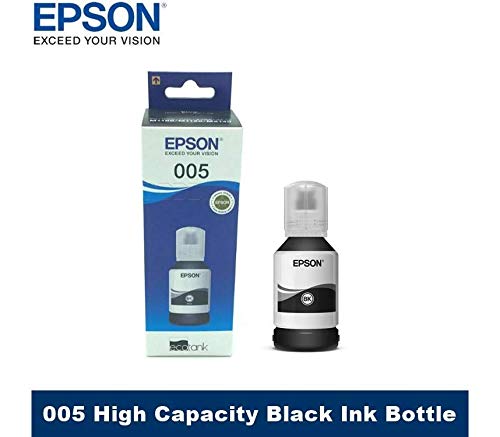
Image 5.1.1: Paper loaded into the input tray of the Epson L3110 printer.
5.2 Printing Documents
- Open the document or image you wish to print on your computer.
- Select Print from the application's menu (e.g., File > Print).
- Ensure the Epson L3110 is selected as your printer.
- Adjust print settings such as paper size, type, and quality as needed.
- Click Print.
5.3 Scanning Documents
The L3110 features a flatbed scanner.
- Lift the scanner lid.
- Place the document or photo face down on the scanner glass, aligning it with the corner mark.
- Close the scanner lid gently.
- On your computer, open the Epson Scan software or a compatible scanning application.
- Select your scanning preferences (e.g., document type, resolution, destination folder).
- Click Scan.

Image 5.3.1: Epson EcoTank L3110 with the scanner lid open, showing the flatbed glass.
5.4 Copying Documents
- Place the original document face down on the scanner glass.
- Close the scanner lid.
- Press the Color button for a color copy or the Black & White button for a monochrome copy.
- To make multiple copies, press the respective copy button multiple times for the desired number of copies (up to 20).
6. Maintenance
6.1 Checking Ink Levels
Visually inspect the ink tanks on the right side of the printer. The transparent tanks allow you to monitor ink levels directly. Refill ink when levels approach the lower line.
6.2 Refilling Ink Tanks
Refer to Section 4.3 "Filling the Ink Tanks" for detailed instructions on refilling ink. Use only genuine Epson ink bottles to ensure optimal performance and prevent damage.
6.3 Performing a Nozzle Check
If print quality declines (e.g., missing lines, incorrect colors), perform a nozzle check to identify clogged nozzles.
- Ensure paper is loaded in the printer.
- From your computer, open the Epson printer utility software.
- Select Nozzle Check and follow the on-screen instructions.
- Examine the printed pattern. If there are gaps or missing segments, proceed to print head cleaning.
6.4 Cleaning the Print Head
If the nozzle check pattern indicates clogged nozzles, perform a print head cleaning.
- From the Epson printer utility software, select Head Cleaning.
- Follow the on-screen instructions. This process uses ink, so perform it only when necessary.
- After cleaning, perform another nozzle check to verify improvement. You may need to perform head cleaning multiple times.
6.5 Cleaning the Scanner Glass
Dust or smudges on the scanner glass can affect scan quality.
- Turn off the printer and unplug the power cord.
- Lift the scanner lid.
- Wipe the scanner glass and the white document mat beneath the lid with a soft, lint-free cloth dampened with a mild glass cleaner. Do not spray cleaner directly onto the glass.
- Allow the surface to dry completely before closing the lid and reconnecting power.
7. Troubleshooting
This section addresses common issues you might encounter with your Epson L3110 printer.
7.1 Printer Not Responding
- Ensure the printer is powered on and the power cable is securely connected.
- Check the USB cable connection between the printer and the computer.
- Verify that the correct printer is selected in your computer's print dialog.
- Restart both the printer and your computer.
7.2 Poor Print Quality
- Check ink levels and refill any low tanks (refer to Section 6.1 and 6.2).
- Perform a nozzle check and print head cleaning (refer to Section 6.3 and 6.4).
- Ensure you are using appropriate paper for your print settings.
- Verify that the print quality settings in your printer driver are set correctly.
7.3 Paper Jams
- Turn off the printer and unplug the power cord.
- Carefully remove any jammed paper from the input tray, output tray, or inside the printer. Pull paper slowly to avoid tearing.
- Ensure paper is loaded correctly and not creased or curled.
- Reconnect power and turn on the printer.
7.4 Scanner Not Working
- Ensure the printer is connected and powered on.
- Verify that the scanner drivers are correctly installed.
- Restart your computer and the printer.
- Clean the scanner glass if smudges are present (refer to Section 6.5).
For further assistance, visit the official Epson support website or contact customer service.
8. Specifications
| Feature | Detail |
|---|---|
| Printer Type | Ink Tank |
| Functionality | All-in-One (Print, Scan, Copy) |
| Connectivity | USB |
| Print Speed (Black & White) | Up to 33 ppm |
| Print Speed (Colour) | Up to 15 ppm |
| Maximum Print Resolution | 5760 x 5760 DPI |
| Scanner Type | Flatbed |
| Duplex Printing | Manual |
| Ink Colour | Black, Cyan, Magenta, Yellow |
| Model Number | L3110 |
| Country of Origin | Indonesia |
9. Warranty and Support
Epson provides a limited warranty for this product. Please refer to the warranty card included with your printer for specific terms and conditions, including warranty period and coverage details.
For technical support, driver downloads, FAQs, and service center locations, please visit the official Epson support website:
When contacting support, please have your printer model (L3110) and serial number ready.


