
1. Introduction
This manual provides essential information for the installation, operation, and maintenance of your MekedeTech Android 12 10.25-inch Car Stereo GPS Navigation System. This unit is designed to enhance your driving experience with advanced features and seamless integration into compatible Lexus vehicles.
Key Features:
- Android 12 Operating System with 8-core processor, 4GB RAM, and 64GB internal storage.
- 10.25-inch 1920x720 Blue-ray Touch Screen for clear visuals and responsive interaction.
- Built-in GPS Navigation with North America map support.
- Integrated Wireless CarPlay and Android Auto for smartphone connectivity.
- Bluetooth and Wi-Fi connectivity for hands-free calls, music streaming, and internet access via hotspot.
- Retains original vehicle functions including factory backup camera, steering wheel controls, and OEM mouse control.
- Supports split-screen functionality for multitasking.
2. Setup
2.1 Pre-Installation Checks
- Vehicle Compatibility: This Android head unit is compatible with Lexus IS (3rd generation, 2013+) and Lexus RC (2014+) models equipped with a small 7-inch OEM display and Rotary Knob control.
- Factory Audio: The Android unit requires audio from the factory CD player. Ensure your factory CD player is fully functional before installation.
- Mark Levinson System: Compatible with vehicles both with and without the Mark Levinson audio system.
- 360 Panorama Camera: An additional camera adapter box is required if your car has an original 360 panorama backup camera.
- OEM Display Size: If your OEM screen is 10.3 inches, please contact the seller for an extra LVDS cable adapter to ensure proper functionality.
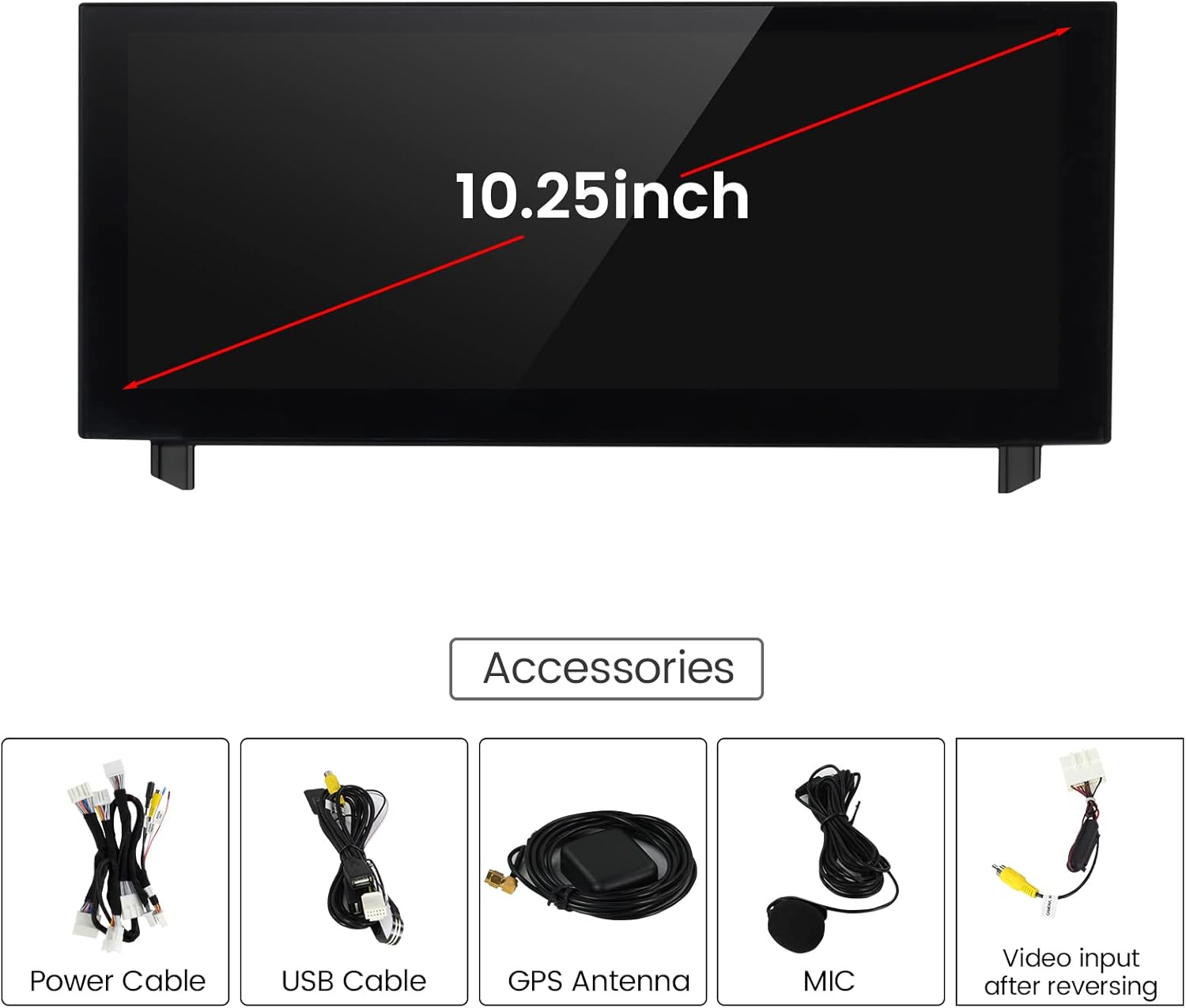
2.2 Unboxing & Components
Verify that all components are present in the package:
- MekedeTech Android Head Unit (10.25-inch display)
- Power Cable
- USB Cables (2)
- GPS Antenna
- Microphone (MIC)
- Video Input Cable for Reversing Camera
- Canbus Harness (Red Box for non-Bose system)
- RCA Cable Harness
- Steering Wheel Control Sub-Harness
2.3 Installation Steps
The installation process involves disassembling parts of your vehicle's dashboard to replace the factory stereo with the new Android unit. It is recommended to consult the detailed installation videos provided by the seller for visual guidance.
- Remove Factory Stereo Bezel: Carefully use a pry tool to remove the surrounding bezel of the factory stereo. Disconnect any attached wiring.
- Remove Factory CD Player: Unscrew and remove the factory CD player. Disconnect its wiring.
- Install Steering Wheel Control Sub-Harness: Access the wiring underneath the steering wheel column. Cut any zip ties and connect the provided sub-harness to the factory plug. Route the leads to the stereo area.
- Install Backup Camera Jumper Harness: Open the glove box and remove necessary screws to access the auxiliary plug. Connect the jumper harness for the factory backup camera and route the video cable to the stereo area.
- Connect GPS Module: Attach the GPS module and secure it in a suitable location, typically underneath the dash.
- Connect Antenna Plug: Connect the vehicle's antenna wire to the provided adapter.
- Wire Up the Android Unit: Connect the main power harness (red box for non-Bose systems), RCA jacks, and the camera system harness to the back of the Android unit. Ensure all connections are secure and click into place.
- Test Functionality: Before fully reassembling, connect the battery and power on the system to verify all functions (stereo, navigation, backup camera, steering wheel controls, HVAC) are working correctly.
- Reassemble Dashboard: Carefully reinsert the Android unit, secure it with screws, and snap the bezel back into place.

Installation Videos:
Video 1: Complete installation guide for the MekedeTech Android Head Unit in a non-BOSE system. This video demonstrates the step-by-step process of removing the factory stereo, connecting the new unit, and reassembling the dashboard.
Video 2: Detailed instructions on how to install the steering wheel control wiring for the MekedeTech Android Head Unit. This video covers accessing the steering column and making the necessary connections.
3. Operating Instructions
3.1 Basic Operation
The unit features a responsive touch screen interface. Navigate through the main menu by swiping left or right and tapping on icons. The main menu includes options such as Navi, Bluetooth, Music, Video, Instrument, Settings, Apps, and LEXUS.

3.2 GPS Navigation
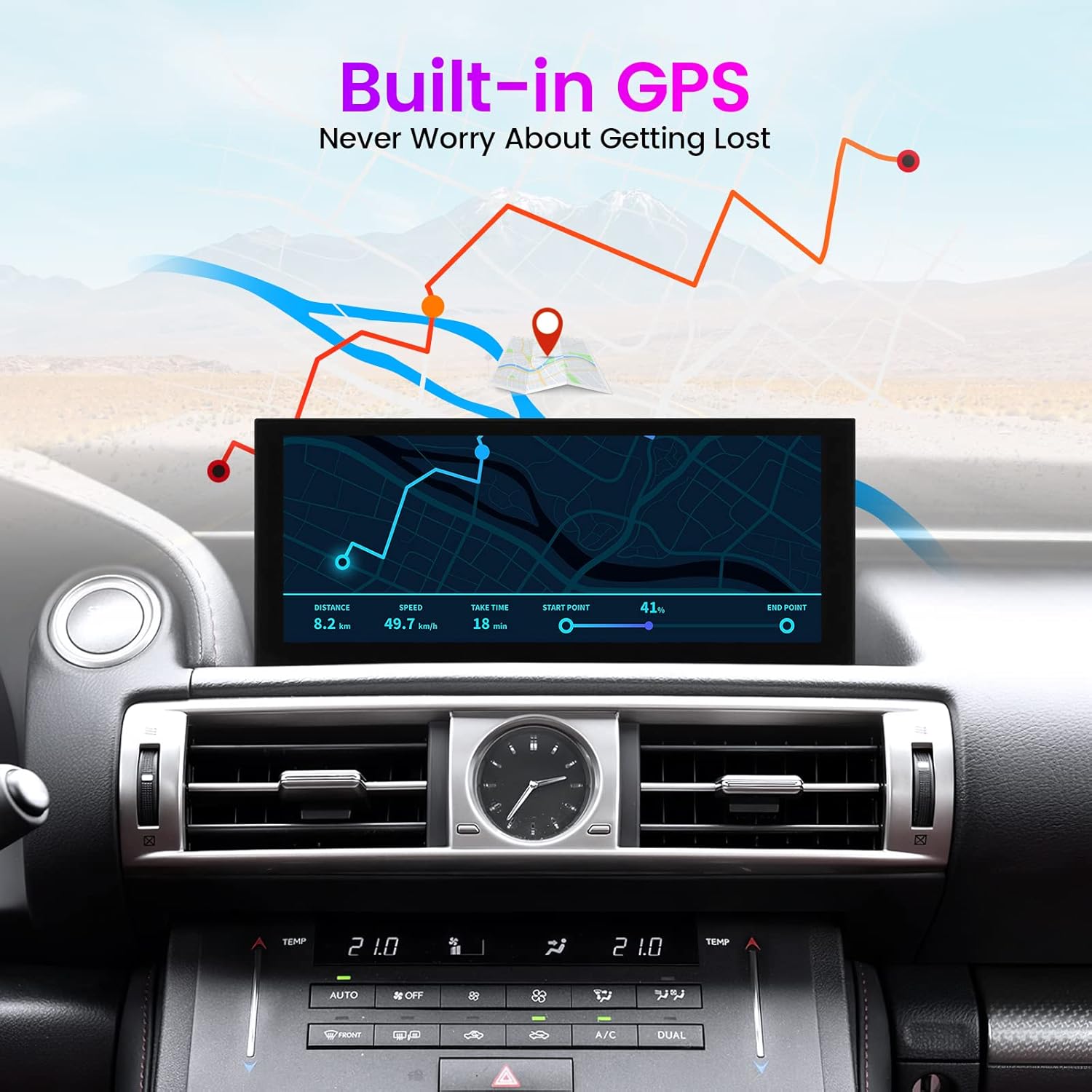
Utilize the built-in GPS for accurate navigation. The system supports various map types, including North America maps. Access navigation through the 'Navi' icon on the main menu.
3.3 Bluetooth Functionality
Connect your smartphone via Bluetooth for hands-free calling and audio streaming. Access Bluetooth settings through the 'Bluetooth' icon to pair devices and manage connections.
3.4 Wireless CarPlay & Android Auto
Seamlessly integrate your iPhone or Android smartphone using the built-in Wireless CarPlay or Android Auto features. This allows you to access compatible phone applications directly on the head unit's display for navigation, music, and communication.

3.5 Media Playback
The unit supports audio and video playback from USB and SD card sources. Enjoy high-quality 1080P video formats. Adjust audio settings using the built-in equalizer (EQ) to customize your sound experience.
3.6 Built-in Wi-Fi
Connect the head unit to your cellphone's hotspot to access the internet. This enables online features such as web browsing, app downloads, and streaming services. Note that a 4G SIM card is not supported directly by the unit.

3.7 Steering Wheel Control
The system retains the functionality of your original steering wheel controls, allowing for convenient operation of audio, calls, and other features without taking your hands off the wheel.
3.8 Original Car Information Display
Access and view original car information directly on the Android screen, integrating essential vehicle data with the new interface.

3.9 Split Screen Functionality
Utilize the split-screen feature to run two applications simultaneously, such as navigation and music playback, enhancing multitasking capabilities while driving.
4. Maintenance
4.1 Cleaning the Screen
To clean the touch screen, gently wipe it with a soft, lint-free cloth. For stubborn smudges, slightly dampen the cloth with water or a screen-safe cleaning solution. Avoid harsh chemicals or abrasive materials that could damage the screen surface.
4.2 Software Updates
Periodically check for software updates to ensure optimal performance and access to the latest features. Updates may be available through the system settings or provided by the manufacturer. Follow the on-screen instructions carefully during any update process.
5. Troubleshooting
Common Issues and Solutions:
- No Sound from Android Unit: Ensure the AUX cable is properly connected and selected as the audio source. Verify that your factory CD player is working, as the Android unit relies on it for audio output.
- CarPlay/Android Auto Connection Issues: Try re-pairing your smartphone with the unit. Check the Zlink application settings and ensure your phone's Wi-Fi and Bluetooth are enabled.
- Steering Wheel Controls Not Working: Confirm that the steering wheel control sub-harness is correctly installed and all connections are secure. Check the system settings for steering wheel control configuration.
- OEM Mouse Control Delay: A slight delay may be experienced when using the OEM mouse to control the Android screen. This is normal behavior.
- Android Screen Not Functioning: The Android unit requires the factory screen to be operational for audio. If the factory screen is not working, the Android unit may not function correctly.
- Poor Audio Quality: Adjust the equalizer (EQ) settings on both the Android unit and your Lexus's factory audio system. Experiment with different presets (e.g., Pop, Rock, Jazz) or custom settings to achieve desired sound.
If you encounter issues not listed here or require further assistance, please refer to the Support section for contact information.
6. Specifications
| Brand | MekedeTech |
| Model Name | MekedeTech |
| Screen Size | 10.25 Inches |
| Resolution | 1920x720 |
| Operating System | Android 12 |
| Processor | 8 Core |
| Memory Storage Capacity | 4GB RAM + 64GB |
| Special Features | Bluetooth, Touchscreen, Wireless CarPlay, GPS |
| Connectivity Technology | Wireless |
| Map Type | North America |
| Audio Output Mode | AUX |
| Mounting Type | Dashboard Mount |
| Human-Interface Input | Buttons, Touchscreen |
| Compatible Devices | Smartphone, iPhone |
| Control Method | Touch |
| Display Type | LCD |
| Touch Screen Type | Capacitive |
| Supported Satellite Navigation System | GPS |
| Connectivity Protocol | Bluetooth, Wi-Fi |
| Item Weight | 1.65 Kilograms |
7. Warranty
The MekedeTech Android 12 10.25-inch Car Stereo GPS Navigation System comes with a 1-Year Warranty from the manufacturer. Please retain your proof of purchase for warranty claims.
8. Support
For any questions, technical assistance, or specific compatibility inquiries, please contact MekedeTech customer support through Amazon messages. They can provide:
- Electronic installation manual and wire diagram.
- Confirmation for specific vehicle models (e.g., 2020 and 2021 Lexus IS/RC, 10-inch OEM display).
- Guidance on troubleshooting and advanced settings.