
1. Product Overview
The Irfora BSD29 10A WiFi Smart Socket is a UK plug designed for intelligent control of your home appliances. It integrates seamlessly with your existing WiFi network, allowing for remote management, voice control, and scheduling through the Smart Life application. This smart socket offers features such as timing functions, electricity usage statistics, and device sharing capabilities.

Image 1.1: Front view of the Irfora BSD29 10A WiFi Smart Socket, showing the UK plug configuration and power button with an illuminated indicator.
Key Features:
- Voice Control: Compatible with Amazon Alexa and Google Assistant for hands-free operation.
- WiFi Connectivity: Utilizes 2.4GHz WiFi (802.11b/g/n) for reliable wireless communication.
- Remote Control: Manage connected devices from anywhere using the Smart Life APP.
- Timing Function: Set schedules to automatically turn appliances on or off.
- Electricity Statistics: Monitor power consumption of connected devices.
- Device Sharing: Share control of the smart socket with family members.

Image 1.2: Diagram illustrating the various functions of the UK Smart Plug, including WiFi connection, voice control, customizable schedules, app control, remote access, timing, energy profiling, and device sharing.
2. Setup Guide
2.1. What's in the Box
- 1 x Irfora BSD29 UK Smart Plug
- 1 x User Manual (English)
2.2. App Download and Installation
The Irfora BSD29 Smart Socket operates with the "Smart Life" application. Ensure your mobile device meets the following requirements:
- iOS: Version 8.0 or above
- Android: Version 4.4 or above
- Search for "Smart Life" in the Apple App Store (for iOS) or Google Play Store (for Android).
- Download and install the application.
- Register a new account or log in if you already have one.
2.3. Device Pairing
- Plug the Irfora BSD29 Smart Socket into a standard UK wall outlet.
- Open the "Smart Life" APP on your mobile device.
- Tap the "+" icon in the top right corner to add a device.
- Select "Electrical Outlet" or "Socket (Wi-Fi)" from the device list.
- Follow the on-screen instructions to connect the smart socket to your 2.4GHz WiFi network. Ensure your phone is connected to the same 2.4GHz WiFi network during pairing.
- Once successfully paired, you can rename the device for easier identification (e.g., "Living Room Lamp").
Note: The smart socket only supports 2.4GHz WiFi networks. 5GHz networks are not supported.
3. Operating Instructions
3.1. Remote Control via Smart Life APP
After successful pairing, you can control your smart socket from anywhere with an internet connection.
- Open the Smart Life APP.
- Tap on the device name (e.g., "Living Room Lamp").
- Use the on/off toggle switch within the app to control the power supply to the connected appliance.

Image 3.1: A person using a smartphone to remotely control home appliances, demonstrating the convenience of the Smart Life APP from any location.
3.2. Voice Control (Amazon Alexa & Google Assistant)
The Irfora BSD29 Smart Socket is compatible with Amazon Alexa and Google Assistant. To enable voice control:
- Ensure your Amazon Alexa or Google Home device is set up and connected to the internet.
- Open the Alexa APP or Google Home APP.
- Enable the "Smart Life" skill/service.
- Link your Smart Life account with your Alexa/Google account.
- Discover devices. Your smart socket should appear.
- You can now use voice commands such as:
- "Alexa, turn on [device name]"
- "Hey Google, turn off [device name]"
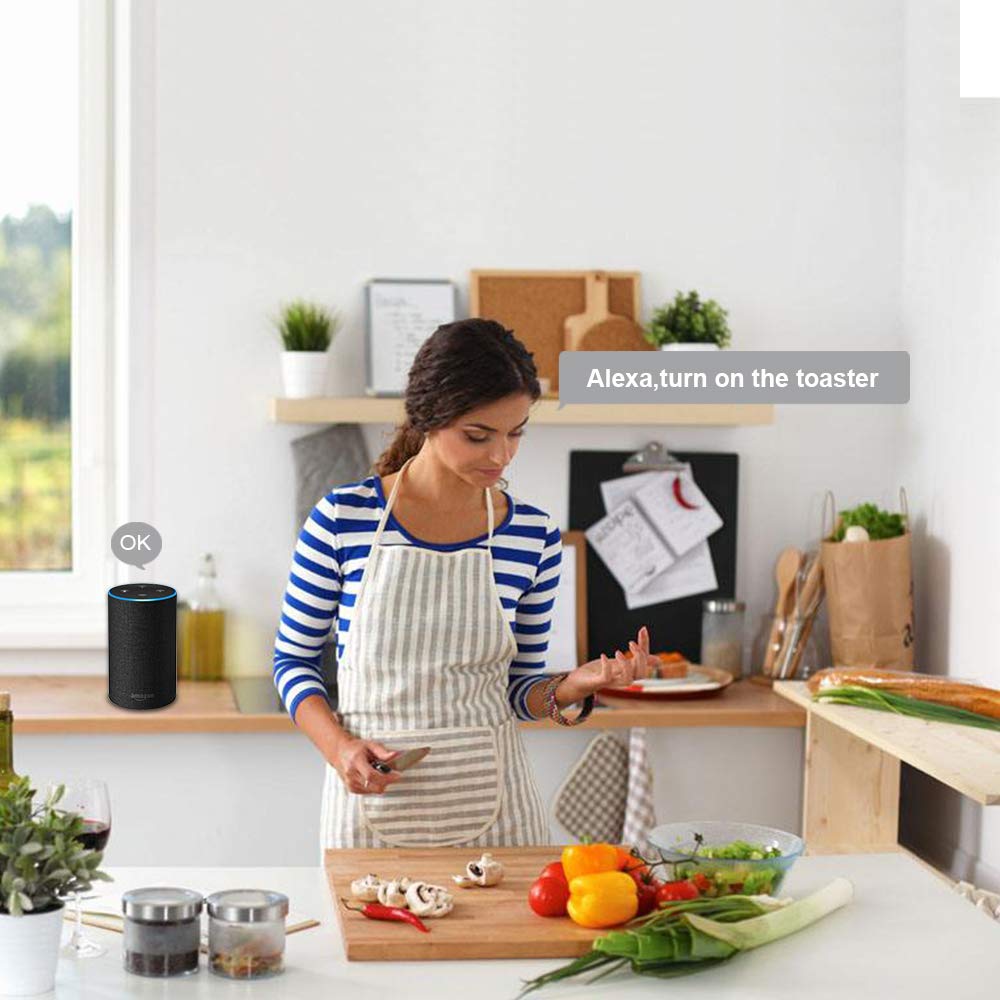
Image 3.2: A person in a kitchen environment interacting with an Amazon Alexa device to control an appliance, demonstrating the voice control feature.
3.3. Timing Function and Schedules
Set custom schedules to automate your appliances.
- In the Smart Life APP, select your smart socket.
- Tap on the "Timer" or "Schedule" option.
- Set desired on/off times for specific days of the week.
- Confirm your settings.

Image 3.3: An illustration of a living room with on-screen overlays showing scheduled times for turning lights on and off, demonstrating the timing function and customizable schedules.
3.4. Electricity Statistics
Monitor the power consumption of devices connected to the smart socket.
- In the Smart Life APP, select your smart socket.
- Look for the "Electricity" or "Power Statistics" section.
- View real-time and historical power usage data.

Image 3.4: A smartphone displaying electricity usage statistics from the Smart Life app, positioned next to a bedside lamp, illustrating how to track energy consumption.
3.5. Device Sharing
Share control of your smart socket with family members or other authorized users.
- In the Smart Life APP, select your smart socket.
- Tap on the "Settings" icon (usually a gear or three dots).
- Look for "Share Device" or "Device Sharing".
- Enter the Smart Life account details (email or phone number) of the person you wish to share with.
- The invited user will receive a notification and can then control the device from their own Smart Life APP.

Image 3.5: Two people looking at smartphones, with one phone displaying the device sharing interface of the Smart Life app, showing how to share control of smart devices with others.
4. Specifications
| Feature | Detail |
|---|---|
| Working Voltage | AC 100~240V |
| Rated Power | 1100W |
| Working Current | Max 10A |
| Material | Fireproofing PC |
| Plug Standard | UK |
| Working Temperature | -20~60℃ |
| Working Humidity | <80% |
| Radio Protocol | 2.4GHz WiFi, 802.11b/g/n |
| WiFi Distance (Indoor) | 30 meters (depends on building materials and structures) |
| WiFi Distance (Outdoor) | 50 meters |
| Phone System Compatibility | Android 4.4+ / iOS 8.0+ |
| Color | White |
| Item Size | φ5.7*5.5cm / φ2.24*2.16in |
| Item Weight | 72g / 2.53oz |

Image 4.1: Technical drawing showing the dimensions of the Irfora BSD29 Smart Socket and icons indicating compatibility with iOS, Android, 2.4GHz WiFi, Amazon Alexa, Google Assistant, IFTTT, and Smart Life.
5. Troubleshooting
- Device not connecting to WiFi:
- Ensure your router is broadcasting a 2.4GHz WiFi signal. The smart socket does not support 5GHz networks.
- Verify your mobile device is connected to the same 2.4GHz WiFi network during the pairing process.
- Check if the WiFi password entered in the Smart Life APP is correct.
- Move the smart socket closer to your WiFi router to improve signal strength.
- Reset the smart socket (refer to the reset procedure in the app or product documentation) and try pairing again.
- Voice control not working:
- Confirm that the "Smart Life" skill/service is enabled and linked correctly in your Alexa or Google Home APP.
- Ensure the device name used in voice commands matches the name set in the Smart Life APP and discovered by Alexa/Google Assistant.
- Check your internet connection for both the smart speaker and the smart socket.
- Remote control not responding:
- Verify that your smart socket has an active internet connection (indicated by the LED status).
- Ensure your mobile device has an active internet connection.
- Close and reopen the Smart Life APP.
- Timing schedules not activating:
- Double-check the set times and days in the Smart Life APP.
- Ensure the smart socket is connected to WiFi and powered on.
6. Maintenance
To ensure optimal performance and longevity of your Irfora BSD29 Smart Socket:
- Cleaning: Disconnect the smart socket from the power outlet before cleaning. Use a soft, dry cloth to wipe the exterior. Do not use liquid cleaners or abrasive materials.
- Environment: Avoid exposing the smart socket to extreme temperatures, high humidity, or direct sunlight. Do not use it in wet environments.
- Overload Protection: Do not exceed the maximum rated power of 1100W or current of 10A to prevent damage to the device and connected appliances.
- Firmware Updates: Periodically check the Smart Life APP for any available firmware updates for the smart socket to ensure you have the latest features and security enhancements.
7. Warranty and Support
This product comes with a standard manufacturer's warranty. Please refer to the warranty card included in the original packaging for specific terms and conditions, including the warranty period and coverage details.
For technical support, troubleshooting assistance, or warranty claims, please contact Irfora customer service through the contact information provided on their official website or in your product documentation.
Online Resources: For the latest FAQs and support articles, please visit the Smart Life APP's help section or the Irfora official support page (if available).