
1. Introduction
The Irfora W30 IR Smart Remote Control is designed to integrate your infrared-controlled home appliances into a smart home system. It allows you to control devices such as air conditioners, televisions, and set-top boxes via a smartphone application over a 2.4GHz WiFi network. Additionally, it supports voice control through popular smart assistants like Amazon Alexa and Google Assistant, providing a convenient and modern way to manage your home entertainment and climate.
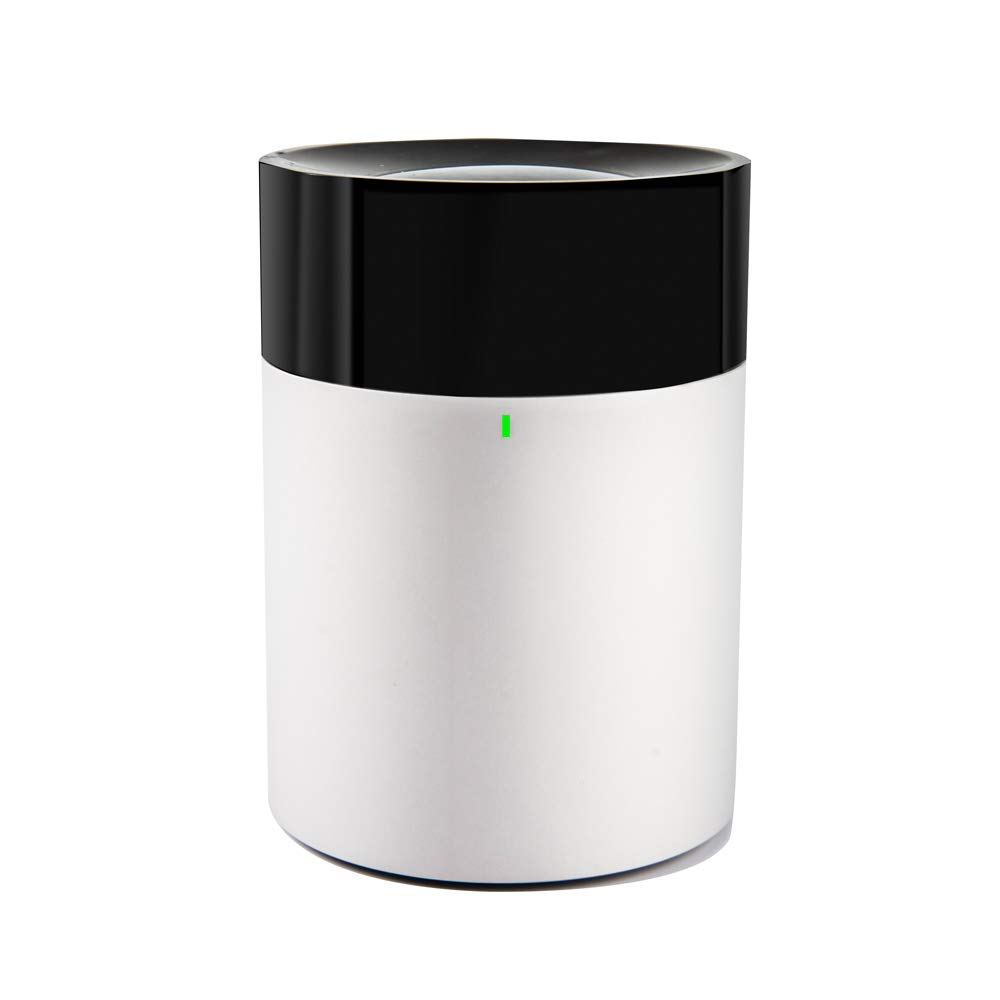
Image 1.1: Front view of the Irfora W30 Smart IR Remote Control, showing its cylindrical white body with a black top and a small green indicator light.
2. Package Contents
Please verify that all items are present in your package:
- 1x Irfora W30 Smart Remote Control
- 1x Charging Cable (Micro USB)
- 1x User Manual
3. Setup
3.1 Powering On the Device
Connect the provided Micro USB charging cable to the W30 device and a suitable DC 5V 1A power adapter (power adapter not included, please purchase separately). The device will power on automatically.
3.2 App Download and Installation
The Irfora W30 operates via a dedicated smartphone application. Ensure your smartphone is connected to a 2.4GHz WiFi network.
- Scan the QR code provided in the physical user manual or search for the designated app in your device's app store (compatible with iOS 8.0 and above, and Android 4.0 and above).
- Download and install the application on your smartphone.
3.3 Device Pairing
Follow these steps to pair your W30 Smart Remote Control with the application:
- Ensure the W30 is powered on and your phone is connected to a 2.4GHz WiFi network.
- Open the installed application on your smartphone.
- Follow the in-app instructions to enter pairing mode and connect the device. This typically involves a 'One Click to Download Cloud Panel' option within the app after the device is detected.

Image 3.1: A three-step visual guide titled "Easy to Pair," showing: 1) Scan QR Code and Download the APP, 2) Power on and Enter Pairing Mode, and 3) One Click to Download Cloud Panel.
4. Operating Instructions
4.1 APP Control
Once paired, you can control your IR appliances directly from the smartphone application. The app allows you to add and manage various devices such as TVs, air conditioners, and set-top boxes. The W30 provides 360° infrared coverage to ensure reliable control within its range.

Image 4.1: Graphic demonstrating the Irfora W30's capability to control various IR devices like TVs, air conditioners, and set-top boxes via a mobile phone app.
4.2 Voice Control
The W30 is compatible with Amazon Alexa and Google Home Assistant. After linking the device with your preferred voice assistant through the app, you can use voice commands to control your appliances. For example, you can say, "Alexa, turn on the TV" or "Hey Google, set the AC to 24 degrees."
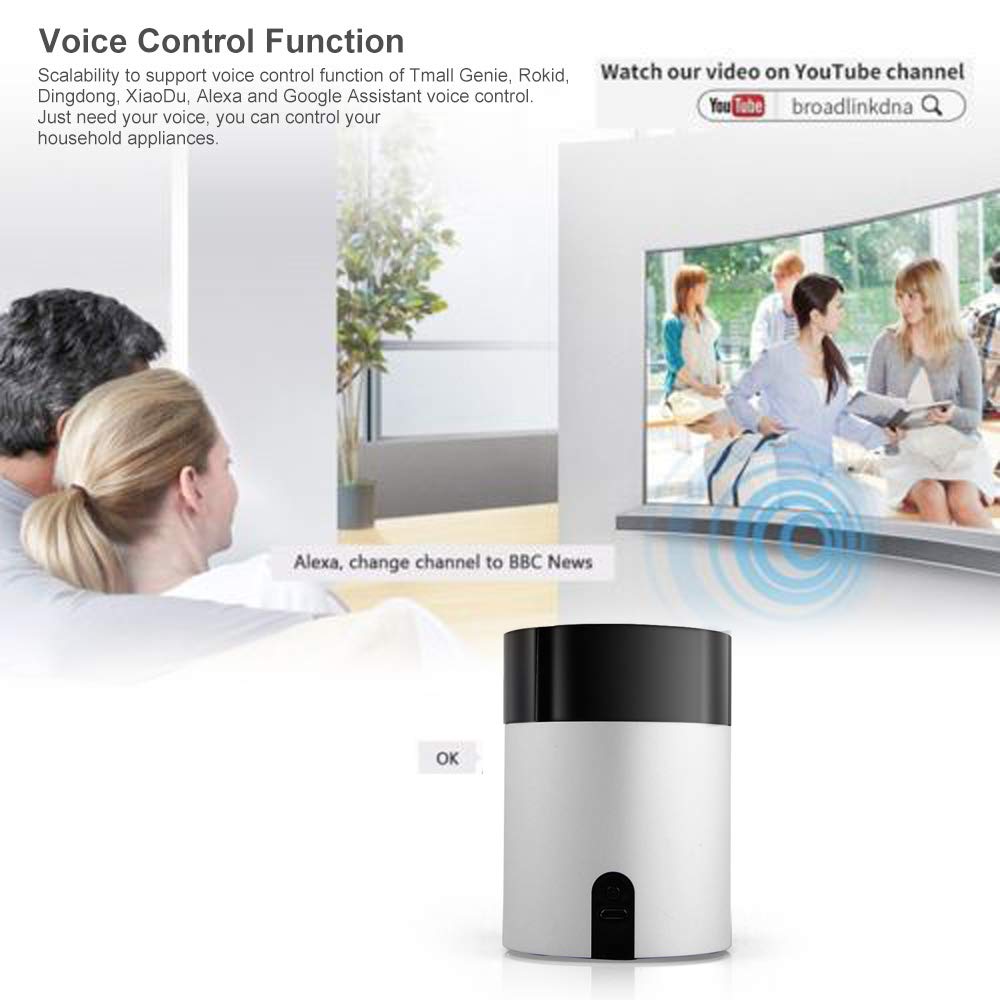
Image 4.2: An image demonstrating the voice control function, with a family watching TV and a speech bubble indicating "Alexa, change channel to BBC News," highlighting compatibility with Alexa and Google Assistant.
4.3 IR Learning Function
The W30 supports IR code learning for devices not pre-programmed in the app's database. This function allows the universal remote control to learn and replicate infrared signals from your existing remote controls (supports 38K rate signals only). Refer to the in-app instructions for detailed steps on how to utilize the IR learning feature.
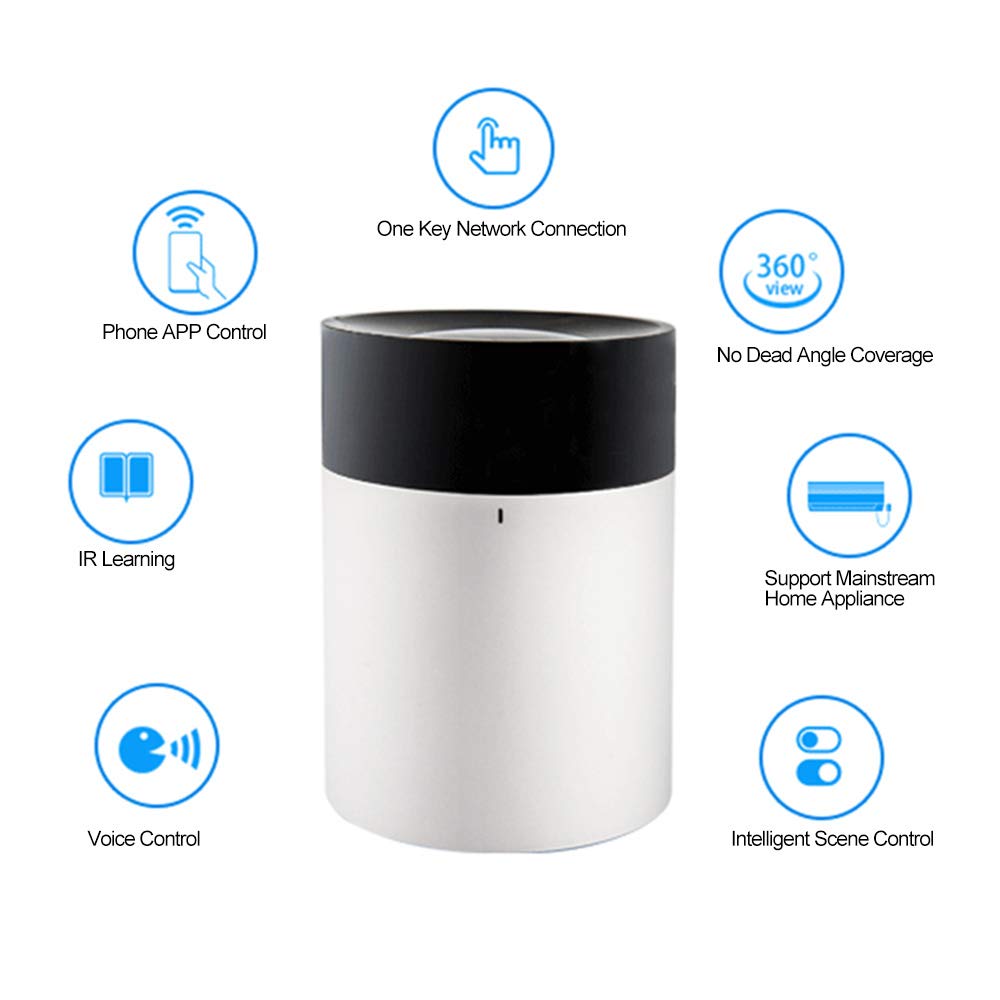
Image 4.3: Diagram illustrating the key features of the Irfora W30: Phone APP Control, One Key Network Connection, 360° No Dead Angle Coverage, Support Mainstream Home Appliance, Intelligent Scene Control, Voice Control, and IR Learning.
5. Specifications
| Model Number | W30 |
| WiFi Network | WiFi 2.4GHz 802.11b/g/n |
| IR Frequency | 38K |
| Working Temperature | 0-50℃ |
| Power Input | DC 5V 1A Micro USB |
| Standby Power Consumption | <0.88W |
| IR Distance | ≤8m (depends on the environment) |
| Color | Black with Silver |
| Item Size | φ6.9 * 9.4cm / φ2.71 * 3.70in |
| Item Weight | 121g / 4.28oz |
| Compatible Devices | Set Top Box, Television |
| Max Number of Supported Devices | 1 (per W30 unit, controls multiple IR devices) |

Image 5.1: Exploded view diagram showing the internal components and materials of the Irfora W30, emphasizing the professional high-light infrared lens material for effective signal gain and high-quality aluminum alloy sandblasting material for seamless design.
6. Troubleshooting
If you encounter issues with your Irfora W30, please consider the following:
- Device Not Powering On: Ensure the Micro USB cable is securely connected and the power adapter (not included) provides DC 5V 1A.
- Connection Issues: Verify that your smartphone and the W30 device are both connected to a 2.4GHz WiFi network. The W30 does not support 5GHz WiFi.
- App Not Detecting Device: Restart the W30 device and your smartphone. Ensure the app has necessary permissions.
- IR Control Not Working: Ensure the W30 is within 8 meters of the target appliance and there are no obstructions. Check if the correct IR code has been selected or learned for the appliance.
- Voice Control Not Responding: Confirm that the W30 is correctly linked to your Alexa or Google Assistant account within the app. Check your internet connection.
7. Safety Information
Please read and follow these safety guidelines:
- Do not expose the device to extreme temperatures, direct sunlight, or moisture.
- Do not attempt to disassemble or repair the device yourself. Refer to qualified service personnel.
- Use only the specified power input (DC 5V 1A Micro USB) to avoid damage.
- Keep the device away from children and pets.
8. Warranty and Support
For warranty information and technical support, please refer to your purchase documentation or contact the manufacturer directly through their official website. Keep your proof of purchase for any warranty claims.