
1. Introduction
This manual provides essential information for the proper setup, operation, and maintenance of your UGREEN 4K Micro HDMI to HDMI Cable. Please read this manual thoroughly before use to ensure optimal performance and longevity of the product.

Image 1.1: The UGREEN 4K Micro HDMI to HDMI Cable, featuring a standard HDMI connector on one end and a Micro HDMI connector on the other, both with gold-plated contacts and housed in aluminum shells, connected by a braided cable.
2. Package Contents
- 1 x UGREEN 4K Micro HDMI to HDMI Cable (6.6FT)
3. Product Features
- High Resolution Support: Supports 4K@60Hz and 2K@165Hz Full HD resolution.
- High Bandwidth: 18Gbps transmission speed.
- Advanced Technologies: Compatible with HDR, 3D Technology, and Audio Return Channel (ARC) for uncompressed multichannel digital audio.
- Durable Construction: Features a nylon braided wire for wear resistance and an aluminum shell for heat dissipation and corrosion resistance.
- Stable Signal: Constructed with 30AWG tinned copper conductors and triple shielding to protect against EMI interference.
- Gold-Plated Connectors: Ensures a longer lifespan and reliable connection.
- Bi-Directional Transmission: Allows audio and video streaming from a Micro HDMI device to an HDMI display, or vice-versa if supported by devices.
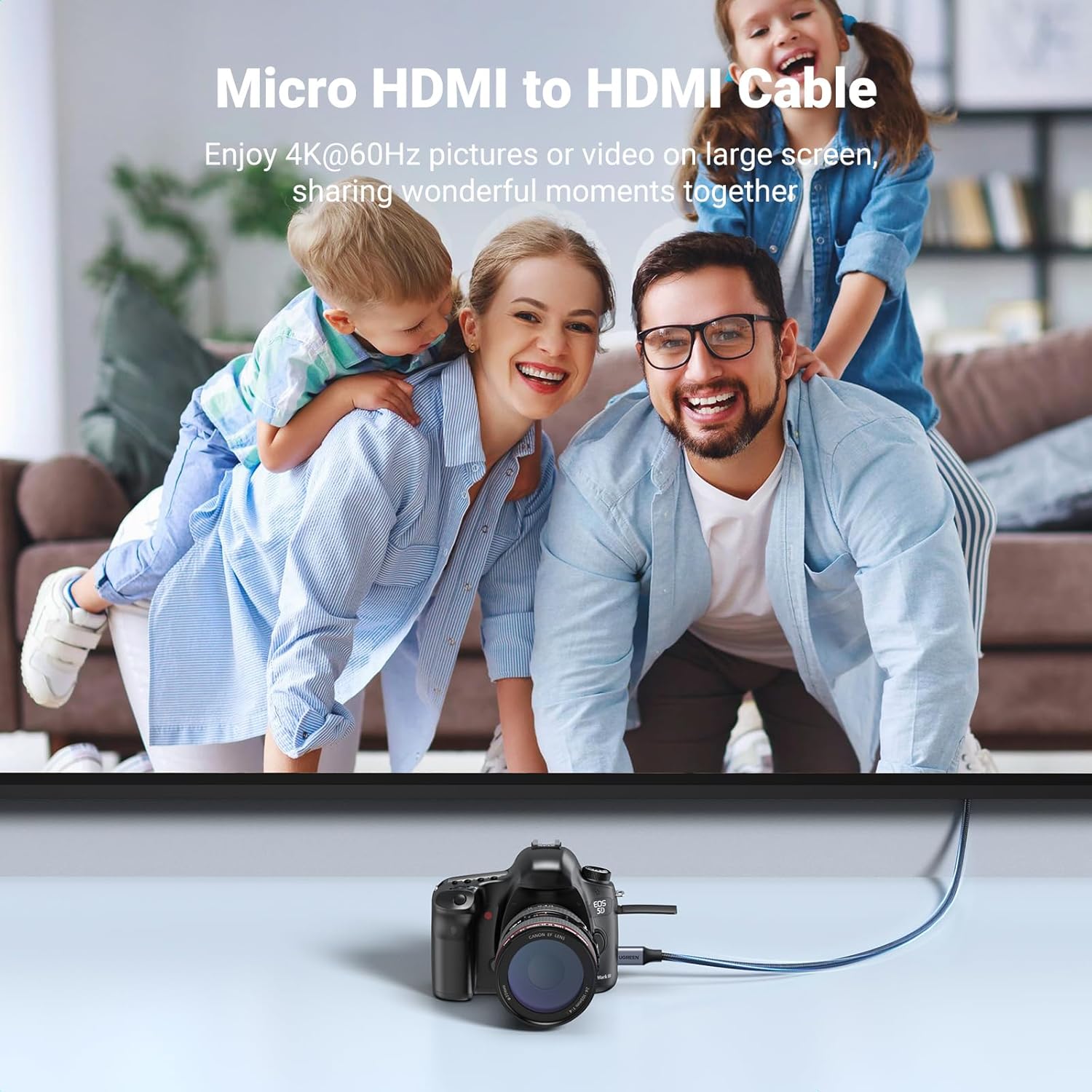
Image 3.1: Visual comparison illustrating the difference in picture quality between 4K@30Hz and 4K@60Hz, highlighting the enhanced clarity and smoothness provided by 4K@60Hz.

Image 3.2: Diagram illustrating the stable and safe transmission features of the cable, including stable signal, safe protection, anti-interference, and flicker avoidance, with an internal view of the connector's components.

Image 3.3: Close-up views detailing the cable's construction, including the durable aluminum case, the flexible and strong braided cable, and the 24K gold-plated connectors designed for optimal conductivity and longevity.
4. Compatibility
This cable is designed for devices with a Micro HDMI port. It is not compatible with Mini HDMI or Micro USB ports. Please verify your device's port type before connecting.
- Compatible Devices: Raspberry Pi 4, Raspberry Pi 500, GoPro Hero 7 Black, Hero 6, Hero 5, Hero 4 Silver, Hero 3 White, Hero 3+, Go Pro Hero 2018, Portable Monitors, Retroid Pocket 3+/3, various cameras (e.g., Nikon b500, EOS M50, A6500, A6000, A6400, A73, A7S), IdeaPad Miix 300 Tablet, Ideatab Miix 700/Miix 2/710/S6000, ThinkPad 10/8/Yoga 2/700/710/710s, ZenBook UX305UA, and video capture cards.

Image 4.1: A visual guide comparing the dimensions of Micro HDMI, Mini HDMI, and Micro USB ports, emphasizing that this cable is specifically designed for Micro HDMI ports.
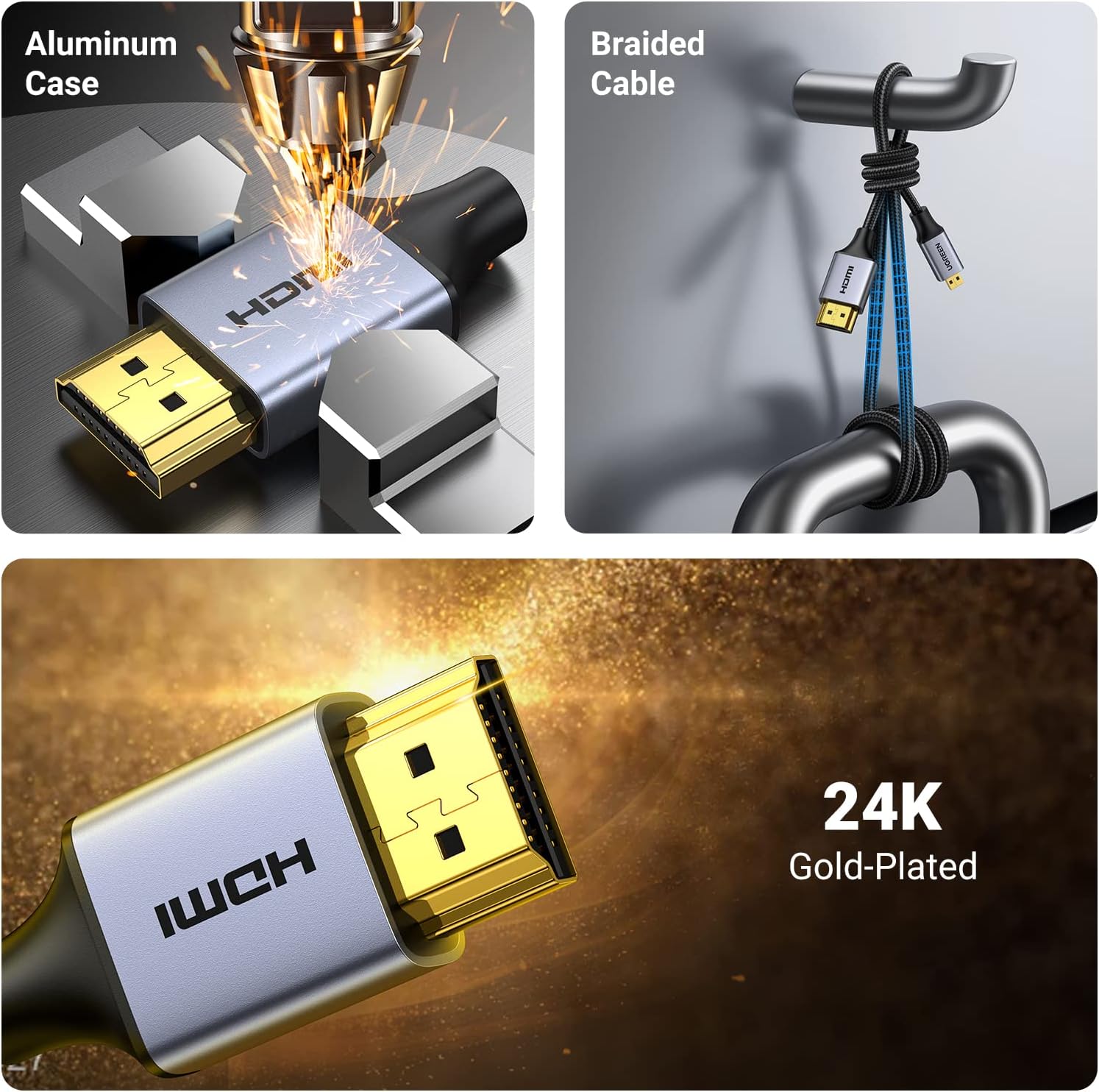
Image 4.2: Diagram illustrating the bi-directional transmission capability of the cable, showing how devices with Micro HDMI ports (e.g., portable monitors, cameras, Raspberry Pi, tablets) can connect to devices with standard HDMI ports (e.g., TVs, monitors, laptops, gaming consoles).
5. Setup
- Identify Ports: Locate the Micro HDMI port on your source device (e.g., camera, Raspberry Pi) and the HDMI port on your display device (e.g., TV, monitor). Ensure they are clean and free of debris.
- Connect Micro HDMI End: Gently insert the Micro HDMI connector of the cable into the Micro HDMI port of your source device. Ensure a firm and secure connection.
- Connect HDMI End: Insert the standard HDMI connector of the cable into an available HDMI port on your display device.
- Power On Devices: Power on both your source device and your display device.
- Select Input: On your display device, use the remote control or on-screen menu to select the correct HDMI input source that corresponds to the port you used.

Image 5.1: An example setup showing a camera connected to a television screen using the UGREEN Micro HDMI to HDMI cable, enabling viewing of camera content on a larger display.

Image 5.2: An example setup showing a Raspberry Pi connected to a television screen using the UGREEN Micro HDMI to HDMI cable, demonstrating its use for single-board computers.
6. Operating
Once the cable is correctly connected and the display input is selected, your source device's audio and video output will be mirrored or extended to the connected display. The cable supports various applications:
- Camera to TV/Monitor: View photos and videos from your camera directly on a larger screen.
- Raspberry Pi to Display: Connect your Raspberry Pi to a monitor or TV for computing tasks or media playback.
- Portable Monitor Connection: Use with portable monitors that feature a Micro HDMI input.
- Gaming: Connect compatible gaming devices to a display for an enhanced gaming experience.
The cable automatically transmits audio and video signals. No additional drivers or software are typically required.

Image 6.1: A person enjoying a dynamic 3D video on a large television screen, demonstrating the cable's capability to deliver immersive 3D content.
7. Maintenance
- Storage: Store the cable in a cool, dry place away from direct sunlight and extreme temperatures. Avoid tightly coiling the cable to prevent internal damage.
- Cleaning: If necessary, gently wipe the cable and connectors with a soft, dry cloth. Do not use liquid cleaners or abrasive materials.
- Handling: Always grasp the connector housing when plugging or unplugging the cable. Avoid pulling on the cable itself, as this can damage the internal wires or connectors.
- Protection: Keep the plastic caps on the connectors when not in use to protect them from dust and damage.
8. Troubleshooting
- No Signal/Black Screen:
- Ensure both ends of the cable are securely connected to their respective ports.
- Verify that your display device is set to the correct HDMI input source.
- Confirm that your source device is powered on and configured to output video.
- Check if the cable is connected to a Micro HDMI port on your source device, not a Mini HDMI or Micro USB port.
- Try connecting the cable to a different HDMI port on your display or a different display altogether to rule out port or display issues.
- Flickering/Intermittent Signal:
- Ensure connections are tight.
- Reduce the distance between devices if possible, though this cable is designed for stable transmission over its length.
- Check for potential electromagnetic interference (EMI) from other electronic devices.
- Test with another Micro HDMI to HDMI cable if available to isolate the issue.
- No Audio:
- Ensure your display device's volume is not muted or set too low.
- Verify that your source device is configured to output audio via HDMI.
- Check your display's audio settings to ensure HDMI audio is enabled.
9. Specifications
| Brand | UGREEN |
| Model Name | 4K Micro HDMI to HDMI Cable |
| Item Model Number | 10600 |
| Cable Type | Micro HDMI to HDMI |
| Connector Type | HDMI, Micro HDMI |
| Connector Gender | Male-to-Male |
| Length | 6.6FT (2 Meters) |
| Data Transfer Rate | 18 Gigabits Per Second |
| Resolution Support | 4K@60Hz, 2K@165Hz |
| Special Features | Braided, High Speed, HDR, 3D, ARC |
| Color | Black |
| Outer Material | Fireproof material |
| Item Weight | 3.52 ounces |
10. Warranty and Support
UGREEN products are designed for reliability and performance. For information regarding warranty coverage, please refer to the official UGREEN website or the warranty card included with your purchase.
For technical support, troubleshooting assistance, or any product-related inquiries, please visit the UGREEN official support page or contact their customer service directly. Contact details can typically be found on the UGREEN website or product packaging.


