
Introduction
This manual provides comprehensive instructions for the Acer EK220Q Abi 21.5-inch Full HD monitor. It covers essential information regarding product setup, operation, maintenance, troubleshooting, and technical specifications. Please read this manual thoroughly before using your monitor to ensure proper installation and optimal performance.

Figure 1: Front view of the Acer EK220Q Abi monitor.
What's in the Box
Verify that all items listed below are present in your product package:
- Acer EK220Q Abi 21.5-inch Full HD Monitor
- Monitor Stand (Base and Neck)
- Power Cord
- HDMI Cable
Setup Instructions
1. Assembling the Stand
- Carefully remove the monitor and stand components from the packaging.
- Attach the stand neck to the monitor panel. Ensure it clicks securely into place.
- Attach the stand base to the stand neck. Tighten any screws if provided, usually located at the bottom of the base.
2. Connecting the Monitor
- Power Connection: Connect the power cord to the monitor's power input and then to a power outlet.
- Video Connection:
- For HDMI: Connect one end of the provided HDMI cable to the HDMI port on your computer and the other end to the HDMI port on the monitor.
- For VGA: Connect a VGA cable (not included) to the VGA port on your computer and the VGA port on the monitor.

Figure 2: Rear view of the monitor displaying available ports (HDMI, VGA, Power).
3. VESA Mounting (Optional)
The monitor is VESA mounting compliant (75 x 75mm). If you wish to mount the monitor on a wall or an alternative stand, remove the original stand and attach your VESA-compatible mounting bracket according to its instructions.
Operating Instructions
Powering On/Off
Press the power button, usually located on the bottom right side of the monitor, to turn the monitor on or off. The power LED will indicate the monitor's status.
On-Screen Display (OSD) Menu
The OSD menu allows you to adjust various monitor settings. Use the buttons located on the bottom right of the monitor to navigate and select options.
- Brightness/Contrast: Adjust the display's brightness and contrast levels.
- Color Settings: Modify color temperature, gamma, and other color-related parameters.
- Input Selection: Manually switch between HDMI and VGA input sources.
- Picture Mode: Select from preset picture modes for different viewing scenarios.
- BlueLightShield™: Activate this feature to reduce blue light emission, which may help reduce eye strain during prolonged use.

Figure 3: BlueLightShield™ feature for reduced eye strain.
Ergonomic Tilt Adjustment
The monitor supports an ergonomic tilt range of -5° to 20°. Gently adjust the monitor panel to your preferred viewing angle.
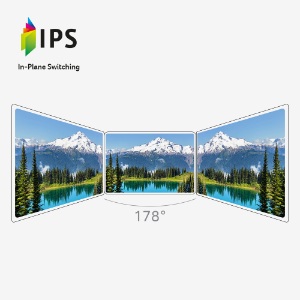
Figure 4: Monitor tilt adjustment capability.
Maintenance
Cleaning the Monitor
- Always power off the monitor and unplug the power cord before cleaning.
- Use a soft, lint-free cloth lightly dampened with water or a mild, non-abrasive screen cleaner.
- Do not spray cleaner directly onto the screen.
- Avoid using benzene, thinner, ammonia-based cleaners, or abrasive materials, as these can damage the screen or casing.
Storage
When storing the monitor for an extended period, ensure it is powered off, unplugged, and stored in a cool, dry place away from direct sunlight and extreme temperatures. It is recommended to use the original packaging for protection.
Troubleshooting
| Problem | Possible Cause | Solution |
|---|---|---|
| No image on screen | Power cable disconnected; Video cable disconnected; Incorrect input source selected. | Check power and video cable connections; Ensure monitor is powered on; Select correct input source via OSD menu. |
| Image is blurry or distorted | Incorrect resolution; Loose video cable. | Set display resolution to 1920 x 1080; Reconnect video cable securely. |
| Screen flickering | Refresh rate issue; Faulty cable; Graphics driver issue. | Ensure refresh rate is set to 75Hz (via HDMI) in display settings; Try a different HDMI cable; Update graphics drivers. |
| Colors appear incorrect | Color settings in OSD; Graphics card settings. | Adjust color settings in the OSD menu; Calibrate colors through your operating system's display settings. |
If the problem persists after attempting these solutions, please contact Acer customer support.
Specifications
| Feature | Detail |
|---|---|
| Model Name | Acer EK220Q Abi |
| Screen Size | 21.5 Inches |
| Panel Type | VA |
| Resolution | Full HD (1920 x 1080) |
| Aspect Ratio | 16:9 |
| Refresh Rate | 75Hz (via HDMI port) |
| Response Time | 5ms (G to G) |
| Connectivity | 1 x HDMI, 1 x VGA |
| Ergonomics | Tilt: -5° to 20° |
| VESA Mount Compatibility | 75 x 75mm |
| Dimensions (LxWxH) | 19.8 x 7.1 x 14.9 inches |
| Weight | 5.3 pounds |
| Color | Black |
Warranty and Support
For warranty information and technical support, please refer to the warranty card included with your product or visit the official Acer support website. You can also find additional resources and contact information at:
Please have your monitor's model number (EK220Q Abi) and serial number ready when contacting support.