
1. Introduction
The KEFAR KR-H8 is a versatile wireless barcode scanner designed for efficient data capture in various environments such as retail stores, supermarkets, and inventory management. This device supports both 1D and 2D barcodes, including QR codes, Data Matrix, and PDF417, offering flexible connectivity via 2.4G wireless technology with a convenient charging cradle. Its robust design and broad compatibility ensure reliable performance across different operating systems.
2. Key Features
- Wireless Connectivity: Utilizes 2.4G wireless technology for reliable data transmission with a dedicated charging cradle.
- Broad Barcode Support: Capable of reading both 1D and 2D barcodes, including QR Code, Data Matrix, PDF417, UPC/EAN, Code128, Code39, and more.
- Multiple Scanning Modes: Supports both manual trigger and continuous automatic scanning modes.
- High Performance: Features excellent decoding capabilities for high-speed and accurate scanning.
- Plug-and-Play: Easy setup without the need for additional drivers.
- Wide Compatibility: Compatible with various operating systems including Windows XP/7/8/10, Mac OS, Linux, Android, and iOS.
- Durable Design: Constructed with military-grade ABS material for earthquake resistance and fall protection.
- Ergonomic Design: Comfortable handheld design for prolonged use.
3. Package Contents
Please verify that all items listed below are included in your package:

Image: Contents of the KEFAR KR-H8 barcode scanner package, showing the scanner, charging base, USB cable, instructions, and 2.4G wireless receiver.
- Packing Box
- Barcode Scanner (KR-H8)
- Instructions Manual
- USB Charging Cable
- 2.4G Wireless Receiver
- Charging Cradle
4. Setup Instructions
4.1 Initial Charging
Before first use, ensure the scanner is fully charged. Place the scanner into the charging cradle. Connect the USB charging cable to the cradle and then to a power source (e.g., computer USB port or USB wall adapter). The LED indicator on the scanner will show charging status.

Image: The KEFAR KR-H8 wireless barcode scanner resting in its charging cradle, with the 2.4G wireless receiver connected to the cradle.
4.2 Connecting to a Host Device
- Insert the 2.4G wireless receiver into an available USB port on your computer, laptop, tablet, or POS system.
- The operating system will typically recognize and install the necessary drivers automatically (plug-and-play).
- The scanner should automatically pair with the receiver. A successful connection is usually indicated by a specific sound or LED status on the scanner.
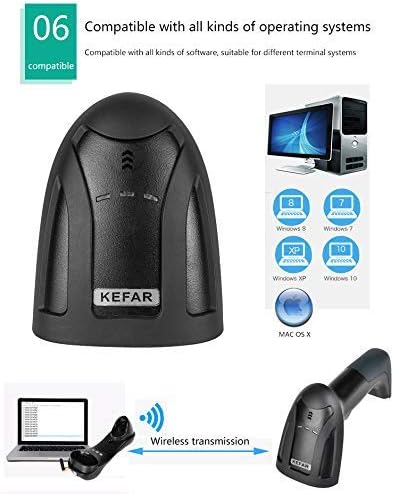
Image: Diagram illustrating the wireless connection between the KEFAR KR-H8 scanner, its charging cradle with a 2.4G receiver, and a laptop, demonstrating plug-and-play compatibility with various operating systems.
5. Operating Instructions
5.1 Scanning Barcodes
To scan a barcode, aim the scanner's light beam at the barcode. Ensure the entire barcode is within the scanning area. Press the trigger button (for manual mode) or position the barcode in front of the scanner (for continuous mode). A successful scan is indicated by a beep and/or an LED flash.

Image: The KEFAR KR-H8 barcode scanner highlighting its ergonomic design and illustrating correct and incorrect scanning angles for optimal performance.
5.2 Supported Barcode Types
The KR-H8 scanner supports a wide range of 1D and 2D barcode symbologies:
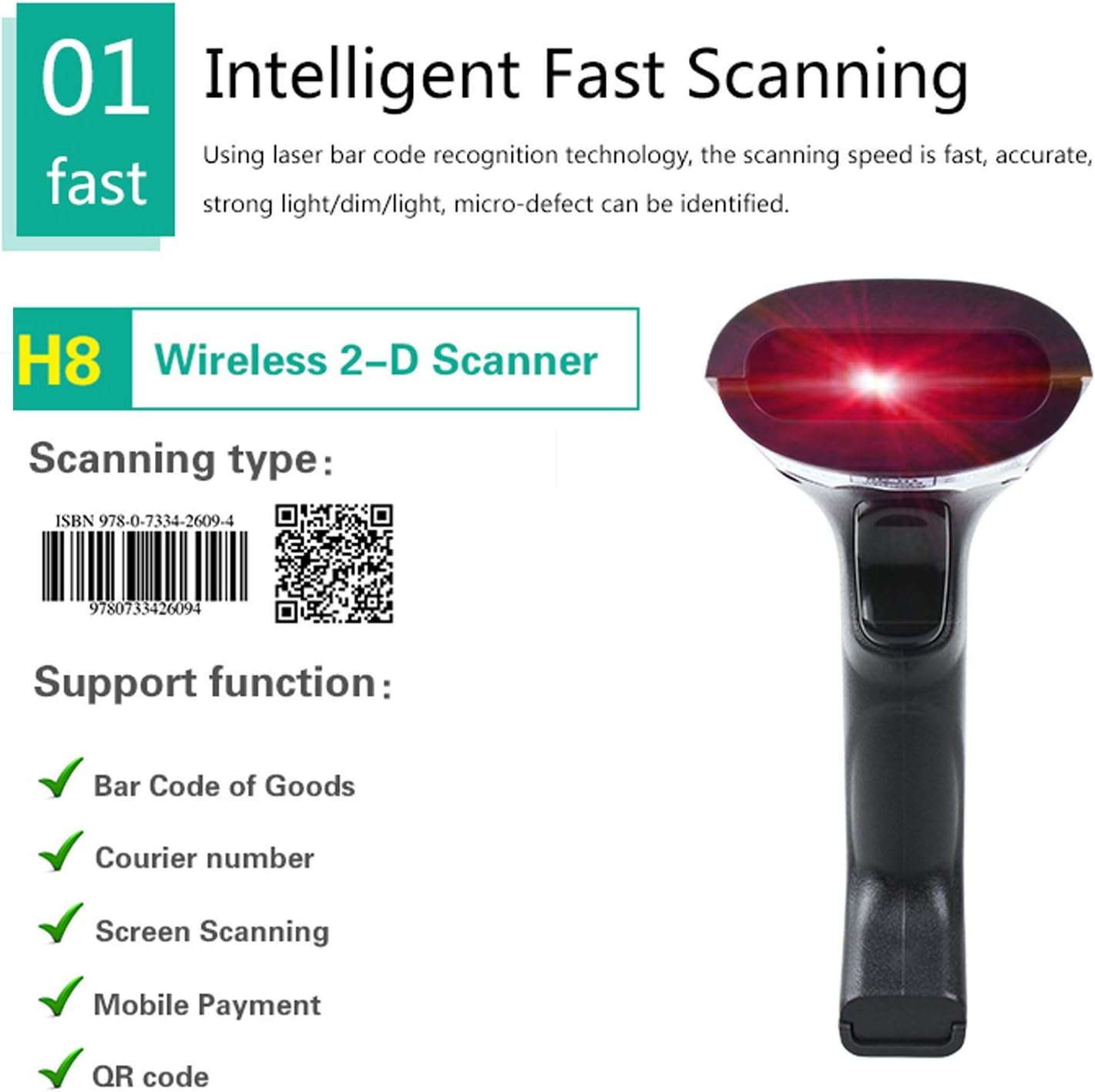
Image: The KEFAR KR-H8 scanner demonstrating its intelligent fast scanning capability, showing examples of 1D (ISBN 9780733426094) and 2D (QR code https://weixin.qq.com/g/AetXx1YeQLQJWZ8m) barcodes it can read, along with supported functions like Bar Code of Goods, Courier number, Screen Scanning, Mobile Payment, and QR code.
- 1D Barcodes: Codabar, Code11, Code39/Code93, UPC/EAN, Code128/EAN128, InterLeaved 2of5, Matrix 2of5, MSI, Standard 2of5, UPC-A, UPC-E, EAN-13, EAV-8, ISBN/ISSN, Industrial 25 Codes, Matrix 25 Codes, 11 Codes, MSL/PIESSEY, UK/PLESSEY, UC-C/EAN128 Codes.
- 2D Barcodes: QR-CODE, DATA MATRIX (ECC200, ECC000, 050, 080, 100, 140), PDF417, Micro PDF417, Micro QR Code, Aztec, MaxiCode, Rectangular Data Matrix, Chinese Sensible Code.
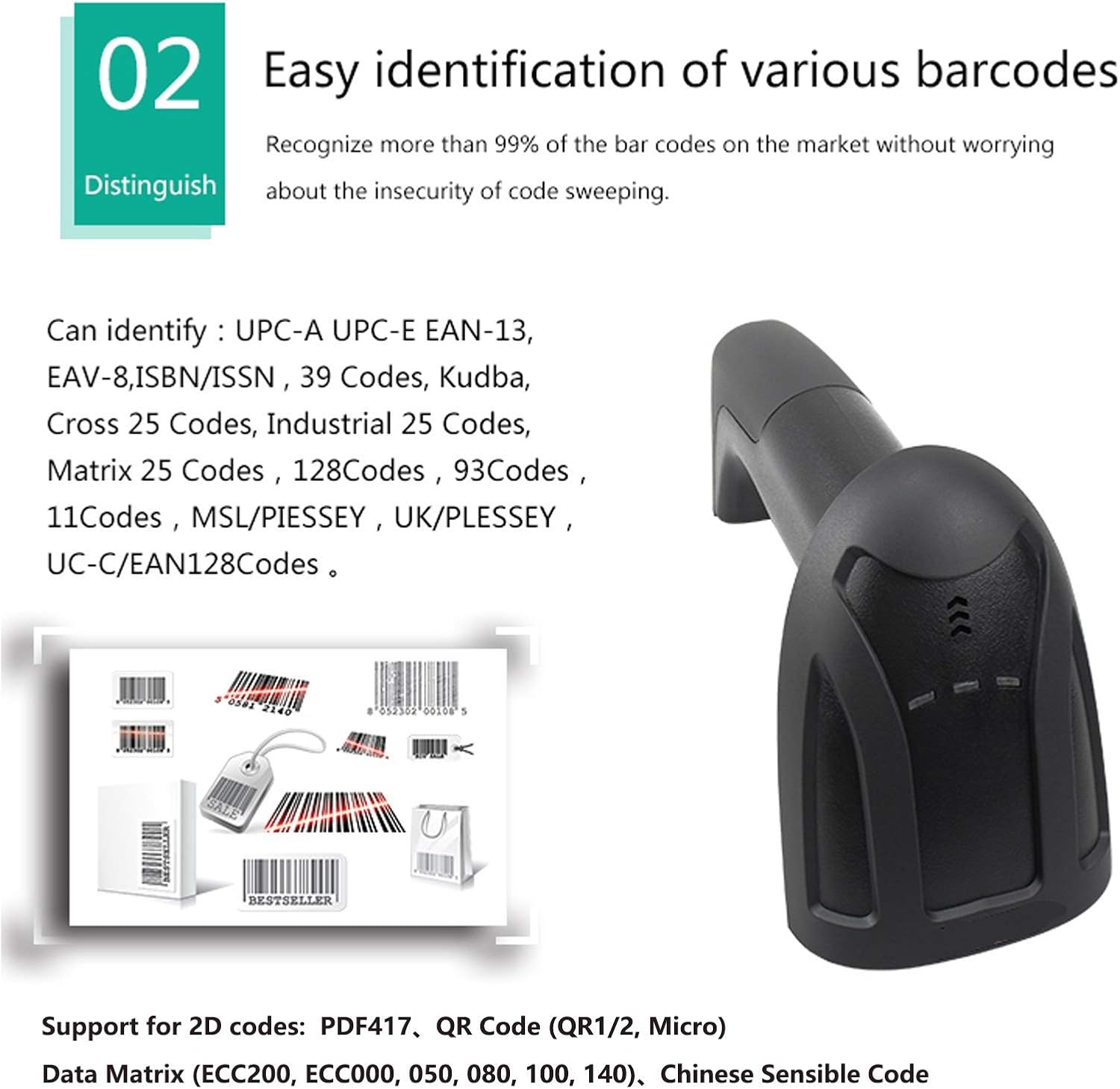
Image: The KEFAR KR-H8 barcode scanner demonstrating its ability to easily identify various barcode types, including common 1D and 2D symbologies, with examples of different barcode formats.
5.3 Scanning Modes
The scanner can be configured for different scanning behaviors:
- Manual Handheld Scan Mode: Press the trigger button to initiate a scan.
- Automatic Scanning Mode: The scanner continuously scans for barcodes without needing to press the trigger. This mode is ideal for hands-free operation.
Refer to the included instructions manual for specific programming barcodes to switch between these modes.

Image: The KEFAR KR-H8 barcode scanner showcasing its high-quality scan lens, humanized design, high-end button, and plug-and-play compatibility with Windows, capable of scanning various 1D and 2D barcodes, including those that are wide, thin, or damaged.
6. Maintenance
- Cleaning: Use a soft, dry cloth to clean the scanner's exterior. For the scanning window, use a lens cleaning cloth to avoid scratches. Do not use abrasive cleaners or solvents.
- Battery Care: Charge the scanner when the low battery indicator (e.g., two beeps) is activated to ensure optimal performance and battery longevity.
- Storage: Store the scanner in a cool, dry place away from direct sunlight and extreme temperatures.
7. Troubleshooting
- Scanner Not Decoding Certain Barcodes: Some specific barcode types may require programming. If the scanner fails to decode certain barcodes, please refer to the programming guide in the full manual or contact customer support for command barcodes to program the device.
- Scanner Beeps Twice and Stops Working: This indicates a low battery. Immediately place the scanner in its charging cradle and connect it to a power source.
- No Connection to Host Device: Ensure the 2.4G wireless receiver is securely plugged into a functional USB port. Verify that the scanner is charged and powered on. Try plugging the receiver into a different USB port or restarting the host device.
- Poor Scanning Performance: Ensure the barcode is clean, undamaged, and well-lit. Adjust the distance and angle between the scanner and the barcode.
8. Specifications
| Feature | Specification |
|---|---|
| Model Number | KR-H8 |
| Decode Capability (1D) | Codabar, Code11, Code39/Code93, UPC/EAN, Code128/EAN128, InterLeaved 2of5, Matrix 2of5, MSI, Standard 2of5 |
| Decode Capability (2D) | QR-CODE, DATA MATRIX, PDF417, Micro PDF417, Micro QR Code, Aztec, MaxiCode, Rectangular Data Matrix |
| Service Life of Button | Up to 8 million times |
| Decode Mode | Trigger or Continuous mode |
| Capacity | 256K (stores approx. 2000pcs Code128) |
| Communication Distance | 30 meters indoor, 50 meters outdoor |
| Scan Accuracy | ≥ 4 mil |
| Environmental Brightness | 265Lux |
| Warning Method | Buzzer and LED indicator |
| Operating Systems | Compatible with MAC OS, Windows XP/7/8/10, Linux, Android, iOS |
| Aseismic Capacity | 2 meters free fall |
| Light Source | 630nm LED light |
| Charging Time | 3 - 4 hours |
| Operation Voltage | DC 3.3 - 4.2V +/-5 percent |
| Operation Temperature | 0 - 60 Deg.C |
| Storage Temperature | -40 - 80 Deg.C |
| Humidity | 5 - 90 percent (non-condensing) |
| Standard | IP54 |
| Charging Cable Length | 1.2 meters |
| UPC | 688529121507 |

Image: The KEFAR KR-H8 barcode scanner highlighting its 'Earthquake Resistant and Fall-proof Military Shell' made from military ABS, designed to withstand external pressure and impacts.
9. Warranty and Support
For technical assistance, warranty claims, or further inquiries regarding your KEFAR KR-H8 Wireless Barcode Scanner, please contact your original retailer or the manufacturer's customer support. Please retain your proof of purchase for warranty validation.