
Introduction
Welcome to the user manual for your new TTfone TT240 mobile phone. This device is designed for simplicity and ease of use, while offering modern features powered by KaiOS. It combines the familiarity of a traditional keypad phone with smart capabilities like internet browsing, social media, and GPS. This manual will guide you through the setup, operation, maintenance, and troubleshooting of your TT240 phone.
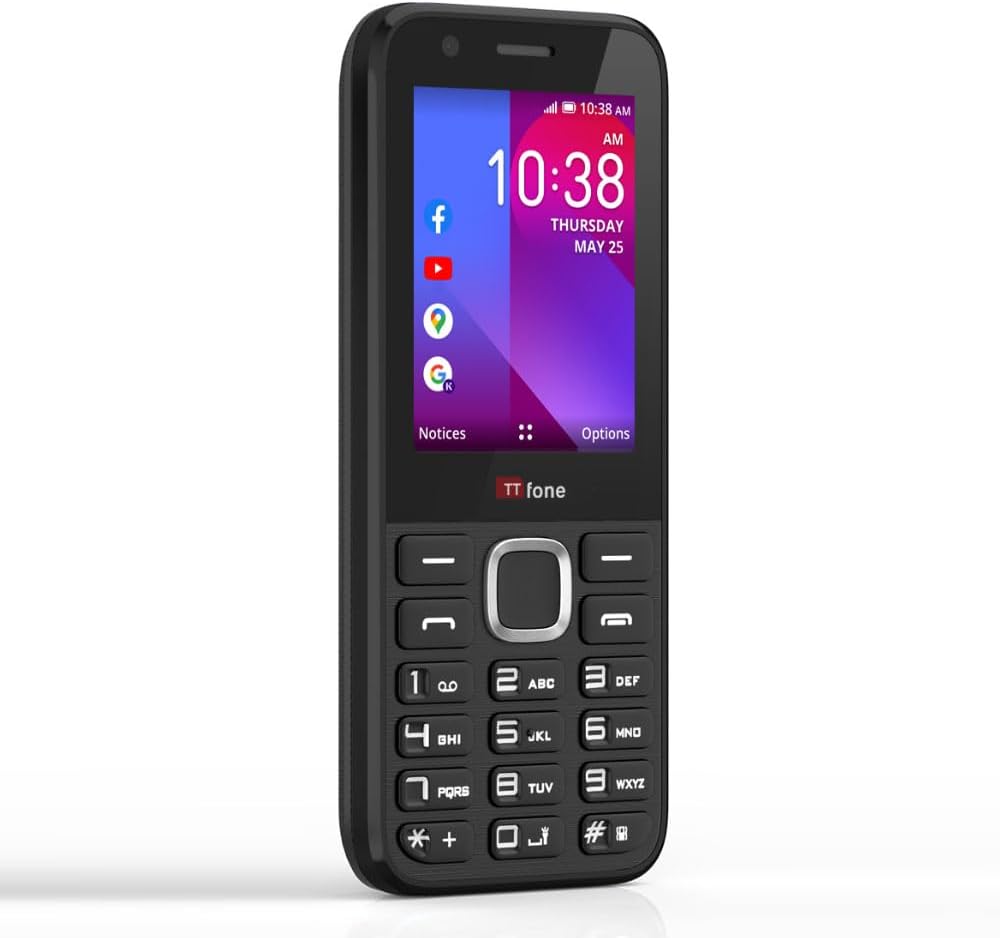
The TTfone TT240, a simple yet smart mobile phone with a clear display and physical keypad.
What's in the Box
Upon unboxing your TTfone TT240, please ensure all the following items are present:
- TTfone TT240 Mobile Phone
- Rechargeable Lithium Ion Battery
- USB Charging Cable
- User Manual (this document)
- Mains Charger Head
Setup
1. Inserting SIM Card and Battery
Before using your phone, you need to insert the SIM card(s) and the battery.
- Carefully remove the back cover of the phone.
- Locate the SIM card slot(s). Insert your SIM card(s) into the designated slot(s) with the gold contacts facing down, ensuring it clicks into place.
- Insert the battery into the battery compartment, aligning the gold contacts on the battery with those in the phone.
- Replace the back cover, pressing gently until it snaps securely into place.

The TTfone TT240, ready for SIM and battery insertion.
2. Initial Power On
To power on your TT240, press and hold the Power/End Call button until the screen illuminates and the TTfone logo appears. Follow any on-screen prompts for initial setup, such as language selection.
3. Charging the Device
For optimal performance, fully charge the battery before first use. Connect the USB cable to the phone's charging port and the other end to the provided mains charger head. Plug the charger into a wall outlet. The battery indicator on the screen will show charging progress.

The TTfone TT240 displaying its charging status.
Operating Instructions
1. Basic Navigation
The TT240 features a traditional keypad for navigation and input:
- Navigation Keys: Use the directional keys (Up, Down, Left, Right) around the central OK button to move through menus and options.
- OK Button: Press the central button to select an item or confirm an action.
- Soft Keys: The two keys directly below the screen (left and right) are context-sensitive. Their function changes depending on what is displayed on the screen above them.
- Call/Answer Key: Press to make a call or answer an incoming call.
- End Call/Power Key: Press to end a call or return to the home screen. Long press to power the phone on/off.
- Numeric Keypad: Used for dialing numbers and text input.
2. Making and Receiving Calls
- To Make a Call: From the home screen, dial the number using the keypad and press the Call/Answer key. To call a contact, navigate to 'Contacts', select the desired contact, and press the Call/Answer key.
- To Receive a Call: When a call comes in, press the Call/Answer key to accept.
- To End a Call: Press the End Call/Power key.
3. Sending and Receiving Messages
To send a text message:
- From the main menu, select 'Messages'.
- Choose 'New Message' or 'Compose'.
- Enter the recipient's number or select from contacts.
- Type your message using the keypad. The phone supports predictive text (ensure English US language setting for best performance).
- Press the 'Send' option (usually the left soft key).
Received messages will appear in your inbox. You will receive a notification on the home screen.
4. Internet and Applications (KaiOS)
The TTfone TT240 runs on KaiOS, providing access to various smart features and applications:
- Wi-Fi & Bluetooth: Connect to Wi-Fi networks for internet access and pair with Bluetooth devices like headphones or car kits.
- GPS: Utilize Google Maps for navigation and location services.
- Pre-installed Apps: Access popular applications such as Facebook, YouTube, Google Maps, Weather, and News directly from your phone.
- App Store: Download additional applications from the KaiStore.
- WhatsApp: Please note that the TT240 does not support WhatsApp.

The TTfone TT240's KaiOS interface with various applications.

Utilize Google Maps for navigation on your TT240.
5. Camera Usage
The TT240 includes a basic camera for capturing photos. To access the camera, navigate to the 'Camera' application from the main menu. Use the navigation keys to frame your shot and the OK button to take a picture. Photos are saved to the phone's internal memory or an inserted microSD card (if applicable).
Maintenance
1. Cleaning Your Device
To keep your TT240 in good condition, regularly clean it with a soft, dry, lint-free cloth. Avoid using harsh chemicals, cleaning solvents, or strong detergents, as these can damage the phone's surface or internal components.
2. Battery Care
To maximize battery life and ensure safe operation:
- Use only the original TTfone charger and cable.
- Avoid exposing the battery to extreme temperatures.
- Do not puncture, disassemble, or modify the battery.
- If the battery appears damaged or swollen, discontinue use immediately and dispose of it properly.
3. Software Updates
Periodically check for software updates to ensure your phone has the latest features and security enhancements. You can usually find this option in the 'Settings' menu under 'Device' or 'About Phone'. Connect to Wi-Fi before downloading updates to avoid mobile data charges.
Troubleshooting
If you encounter issues with your TTfone TT240, refer to the following common problems and solutions:
| Problem | Possible Solution |
|---|---|
| Phone does not power on | Ensure the battery is correctly inserted and charged. Try charging the phone for at least 30 minutes. |
| No network signal | Check if the SIM card is properly inserted. Ensure you are in an area with network coverage. Restart the phone. Note: Does not work on Three (3), ID, and Smarty networks. |
| Cannot make/receive calls | Verify network signal. Check if call barring or flight mode is enabled. Ensure your SIM card is active. |
| Cannot connect to Wi-Fi | Ensure Wi-Fi is enabled on the phone. Check if the Wi-Fi password is correct. Restart your Wi-Fi router. |
| Screen is scratched easily | The screen is plastic and prone to scratches. Consider using a screen protector for added durability. |
| Buttons are unresponsive or sticky | Ensure the phone is clean and free of debris around the buttons. A soft reset (power off/on) may resolve temporary issues. |
Specifications
Below are the technical specifications for the TTfone TT240 mobile phone:
| Feature | Detail |
|---|---|
| Model Name | TT240 |
| Operating System | KaiOS |
| Screen Size | 2 Inches (Visible screen diagonal: 6 cm) |
| Resolution | 240*320 |
| RAM Memory Installed Size | 512 MB |
| Memory Storage Capacity | 4 GB |
| Cellular Technology | 2G |
| Wireless Carrier | Unlocked for All Carriers (except Three (3), ID, and Smarty networks) |
| Batteries | 1 Lithium Ion batteries required (included) |
| Product Dimensions | 1.2 x 2.3 x 12.3 cm; 99 g |
| Manufacturer | TTfone |
| Country of Origin | China |
Warranty and Support
Your TTfone TT240 mobile phone comes with a standard manufacturer's warranty. For specific details regarding the warranty period and coverage, please refer to the warranty card included with your product or visit the official TTfone website. For technical support, troubleshooting assistance, or any other inquiries, please contact TTfone customer service through their official channels.


