1. Introduction
This manual provides detailed instructions for the QZT Q61 Ultra-Thin Mini Voice Recorder. Please read this manual carefully before using the device to ensure proper operation and to maximize its features. Keep this manual for future reference.

Image 1.1: The QZT Q61 Mini Voice Recorder, showcasing its compact size, 30-hour continuous recording, 569-hour storage, voice-activated recording, 384Kbps recording quality, 4mm thickness, and 9.7g weight. It is compatible with Android, Windows, and Mac systems.
2. Product Overview
2.1 Key Features
- Ultra-Compact Design: Measuring 5cm x 3cm x 0.5cm and weighing only 9.7g, this recorder is designed for maximum portability.
- Dual Recording Modes: Supports continuous recording and voice-activated recording (VOR).
- Long Battery Life: Up to 30 hours of continuous recording on a single 1-hour charge.
- Large Storage Capacity: 8GB internal memory, capable of storing up to 569 hours of audio.
- High-Quality Audio: Features an omnidirectional microphone and DSP noise-canceling technology for clear sound. Offers 7 recording quality settings, up to 384kbps.
- 360-Degree Voice Detection: Captures sound from all directions within a 60m range.
- Multi-Platform Compatibility: Plug & Play support for Android, Windows, and Mac devices.
- OTG Support: Allows direct connection to Android smartphones for file management without a PC.
- Durable Construction: Made with military-grade super-hard aluminum for shock resistance.
- Discreet Operation: No recording start sound and the recording indicator lamp can be turned off.
2.2 Device Components
The QZT Q61 recorder features a minimalist design with essential controls and ports.

Image 2.1: Front and side views of the QZT Q61 recorder. The side view clearly shows the ON/OFF switch, which also functions as the recording start/stop button. The device measures 4cm in height, 3cm in width, and 0.4cm in thickness.
- ON/OFF/Recording Switch: Located on the side for easy one-touch operation.
- USB Micro-B Port: For charging and data transfer.
- Indicator Light: Provides status feedback (can be turned off during recording).
- Microphone: Omnidirectional for 360-degree sound capture.
3. Setup
3.1 Initial Charge
Before first use, fully charge the device. Connect the recorder to a USB power source (e.g., computer USB port or USB wall adapter) using the provided USB cable. A full charge takes approximately 1 hour and provides up to 30 hours of recording time.
3.2 Time Synchronization
To ensure accurate timestamps on your recordings, synchronize the device's time with your computer. Connect the recorder to your Windows or Mac computer. The device will appear as a removable disk. Locate and open the 'JNN recording settings tool' or a similar configuration file (often a .txt file) on the device. Adjust the date and time settings within this tool and save the changes.

Image 3.1: Screenshot of the PC application for configuring recording settings, including bit rate, recording sensitivity, and date/time synchronization. This tool allows users to customize the recorder's behavior.
3.3 Activating Voice-Activated Recording (VOR) and Setting Time on PC
This video demonstrates how to enable voice-activated recording and set the device's time using a Windows PC. This is crucial for accurate recording timestamps and efficient memory usage.
Video 3.1: A tutorial demonstrating how to enable Voice-Activated Recording (VOR) and synchronize the time settings on the QZT Q61 recorder using a Windows PC. This ensures recordings are timestamped correctly and the device records only when sound is detected.
4. Operating Instructions
4.1 One-Touch Recording
To start recording, simply slide the ON/OFF switch on the side of the device to the 'ON' position. The device will begin recording immediately. To stop recording and save the file, slide the switch back to the 'OFF' position. The device will save the current recording and power off.
4.2 Voice-Activated Recording (VOR) Mode
The QZT Q61 supports voice-activated recording. When enabled (refer to Section 3.3 for setup), the recorder will automatically start recording when sound is detected and pause when silence occurs, saving memory and reducing unnecessary recordings. You can adjust the voice detection sensitivity across 7 levels to capture even faint sounds.

Image 4.1: The QZT Q61 recorder in hand, illustrating its various smart features including OTG compatibility, adjustable recording sensitivity, 1-hour fast charging, MP3 music playback, time synchronization, automatic WAV format saving, USB memory function, and high-quality sound adjustment.
4.3 Recording Quality Settings
The device offers 7 types of recording quality, up to a maximum of 384kbps. Higher quality settings result in clearer audio but consume more memory. You can adjust this setting via the PC application (refer to Section 3.2). For general conversations and notes, standard quality is sufficient.
4.4 File Management and Transfer
Recorded files are automatically saved with a filename indicating the date and time, simplifying organization. The device functions as a USB memory stick, allowing you to transfer audio, music, and other data files to and from your computer.
4.4.1 Connecting to PC (Windows/Mac)
Connect the recorder to your computer using the USB cable. The device will be recognized as a removable storage drive. You can then access, copy, or delete your recording files (WAV format) directly from the drive.
4.4.2 Connecting to Android Smartphone (OTG)
The QZT Q61 supports OTG (On-The-Go) functionality for Android devices. Using an OTG adapter (often included), you can connect the recorder directly to your Android smartphone. This allows you to play back, delete, and manage recording files directly on your phone without needing a computer. Note: OTG functionality is not supported for iOS devices.
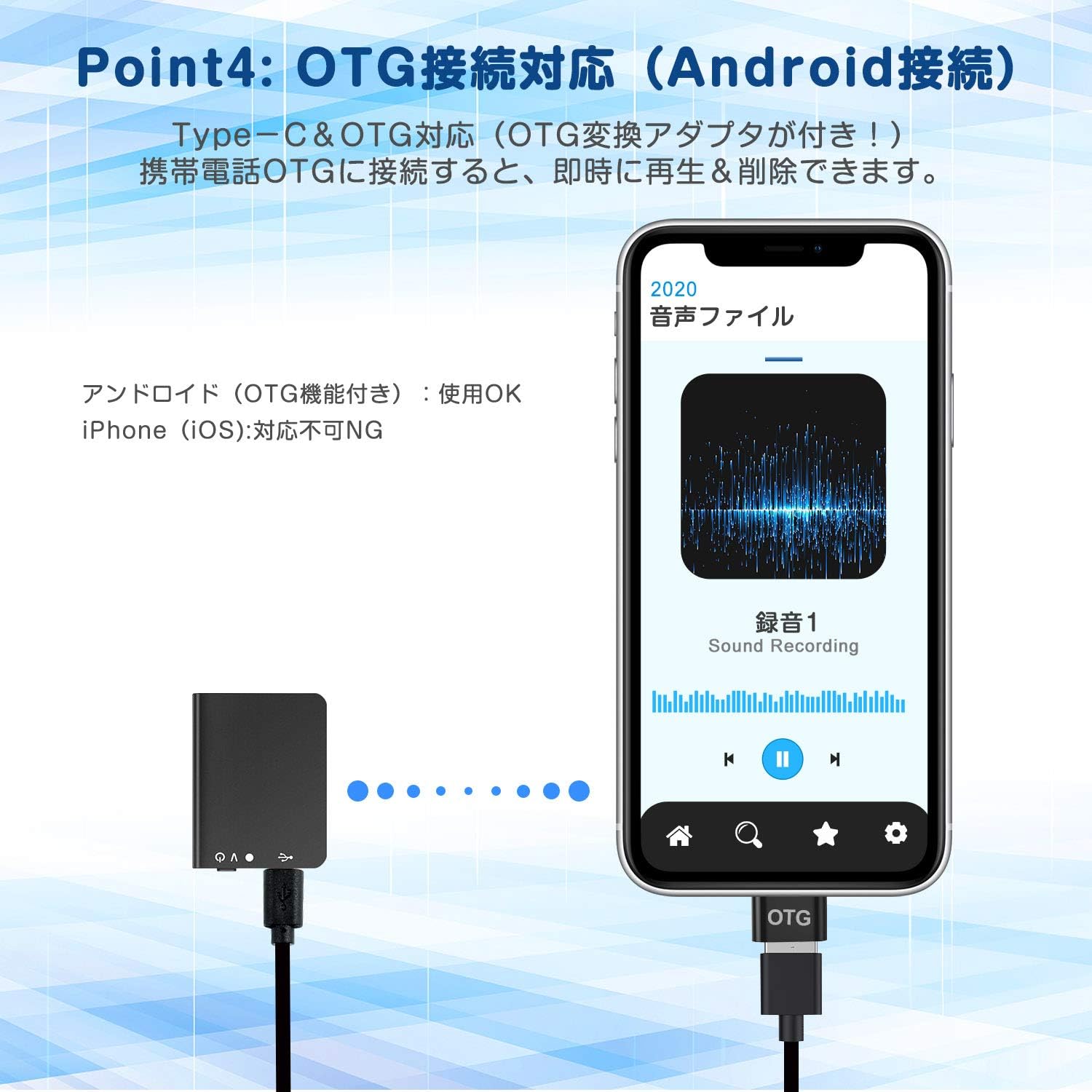
Image 4.2: The QZT Q61 recorder connected to an Android smartphone using an OTG adapter. This setup enables direct file transfer and management on the smartphone, bypassing the need for a computer.
4.4.3 Transferring Files to Smartphone/PC
This video demonstrates the process of transferring recorded files from the QZT Q61 to either a smartphone or a PC. This is essential for backing up and managing your audio recordings.
Video 4.1: A demonstration video showing how to transfer recorded audio files from the QZT Q61 voice recorder to a smartphone or a personal computer. This process is crucial for accessing and managing your recordings.
5. Maintenance
5.1 General Care
- Keep the device clean and dry. Avoid exposure to extreme temperatures, direct sunlight, or dusty environments.
- Use a soft, dry cloth to clean the exterior. Do not use liquid cleaners or solvents.
- Avoid dropping the device or subjecting it to strong impacts, despite its durable construction.
5.2 Battery Care
- Charge the device regularly, even if not in frequent use, to maintain battery health.
- Avoid completely draining the battery frequently.
- If storing the device for an extended period, charge it to about 50% capacity.
6. Troubleshooting
If you encounter issues with your QZT Q61 voice recorder, please refer to the following common solutions:
| Problem | Possible Cause | Solution |
|---|---|---|
| Device does not turn on or record. | Low battery; switch not in ON position. | Charge the device fully. Ensure the side switch is firmly in the 'ON' position. |
| No sound recorded in VOR mode. | VOR sensitivity too low; ambient sound too quiet. | Adjust VOR sensitivity to a higher level using the PC application. Ensure the environment has sufficient sound for activation. |
| Cannot connect to PC/Smartphone. | Faulty USB cable/OTG adapter; incorrect connection. | Try a different USB cable or OTG adapter. Ensure the connection is secure. For smartphones, verify OTG compatibility (Android only). |
| Recording quality is poor. | Low recording quality setting; high ambient noise. | Increase recording quality setting via the PC application. Reduce background noise in the recording environment. |
| Indicator light remains on during recording. | Indicator light setting is enabled. | Use the PC application to disable the recording indicator light for discreet operation. |
If the problem persists after trying these solutions, please contact customer support for further assistance.
7. Specifications
| Feature | Specification |
|---|---|
| Model Number | Q61 |
| Dimensions (L x W x H) | 40 x 30 x 4 mm (approx. 1.57 x 1.18 x 0.16 inches) |
| Weight | 9 grams (approx. 0.32 ounces) |
| Internal Storage | 8 GB (up to 569 hours recording) |
| Continuous Recording Time | Up to 30 hours |
| Charging Time | Approx. 1 hour |
| Recording Format | WAV |
| Max Recording Quality | 384 kbps (7 selectable levels) |
| Microphone Type | Built-in Omnidirectional |
| Noise Reduction | DSP Noise Cancelling Technology |
| Connectivity | USB Micro-B, OTG (for Android) |
| Compatible OS | Android, Windows, Mac |
| Battery Type | 1 Lithium Ion battery (included) |
| Housing Material | Military-grade super-hard aluminum |
8. Warranty and Support
8.1 One-Year Warranty
The QZT Q61 Mini Voice Recorder comes with a one-year warranty from the date of purchase. In the event of a malfunction or defect during this period, we offer a free exchange or refund. This warranty covers manufacturing defects and issues arising from normal use.
8.2 Customer Support
If you encounter any problems or have questions regarding the operation, maintenance, or troubleshooting of your device, please do not hesitate to contact our customer support team. We are committed to providing prompt and helpful assistance.
Please refer to your purchase documentation or the seller's contact information for details on how to reach customer support.


