
DROP Drop MT3 Black-on-White
DROP MT3 Black-on-White Keycap Set User Manual
Model: Drop MT3 Black-on-White
1. Introduction
This manual provides comprehensive instructions for the installation, operation, maintenance, and troubleshooting of your DROP MT3 Black-on-White Keycap Set. Designed for mechanical keyboards, these keycaps feature the unique MT3 profile and doubleshot legends for durability and a distinct typing experience.
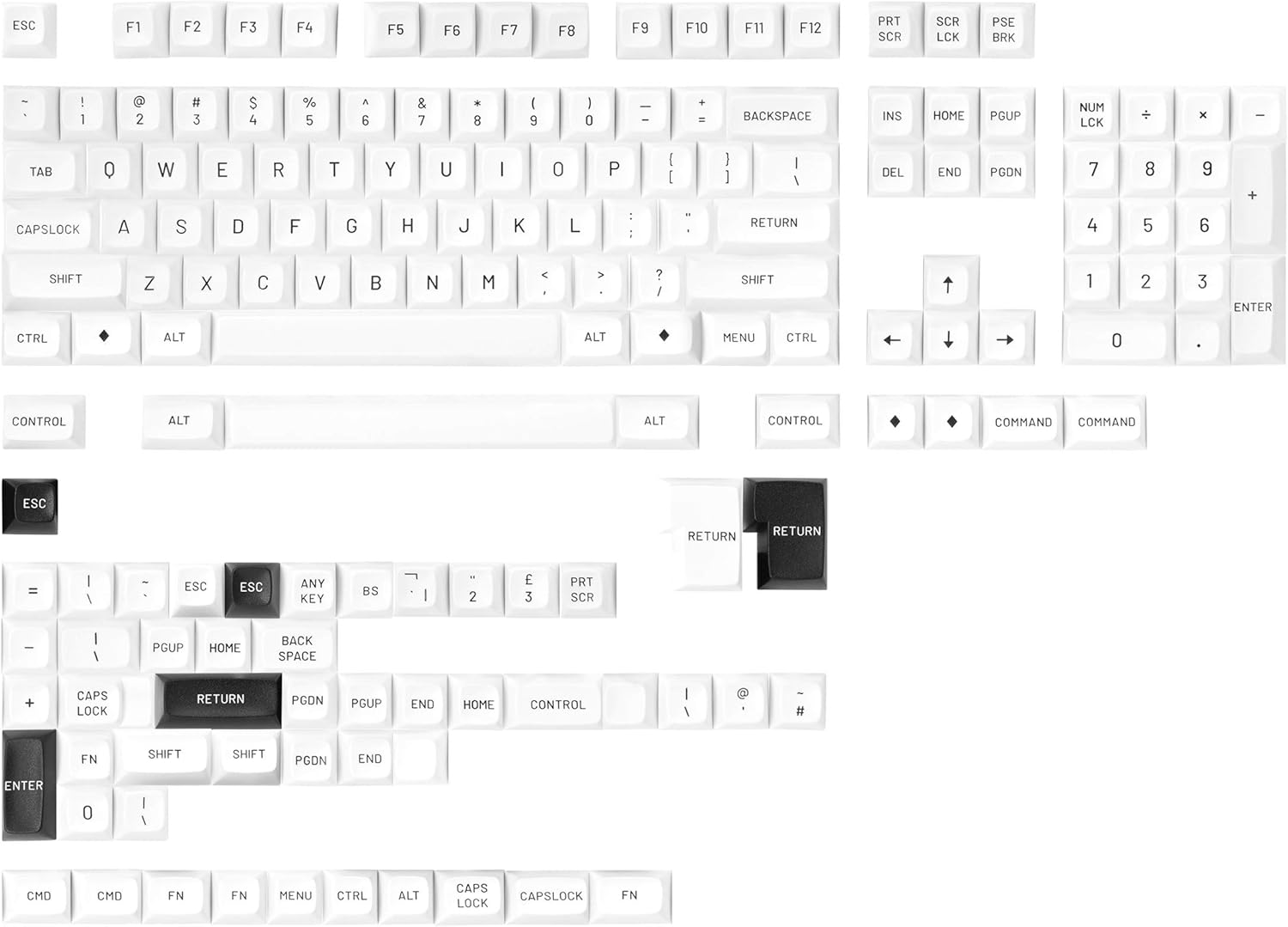
Image 1.1: The DROP MT3 Black-on-White Keycap Set installed on a mechanical keyboard, showcasing its crisp white caps and high-profile design.
2. Setup and Installation
The DROP MT3 Black-on-White Keycap Set is designed for easy installation on mechanical keyboards with MX-compatible switches. Ensure your keyboard is powered off before beginning installation.
2.1 Package Contents
- DROP MT3 Black-on-White Keycap Set (Base Kit)

Image 2.1: A complete overview of the keycaps included in the Base Kit, arranged by their typical keyboard positions.
2.2 Installation Steps
- Prepare Your Keyboard: Disconnect your keyboard from the computer to prevent accidental inputs during installation.
- Remove Existing Keycaps (if applicable): Use a keycap puller (not included) to carefully remove your current keycaps. Grip the keycap firmly and pull straight up to avoid damaging the switch stem.
- Identify Keycap Positions: The MT3 profile features sculpted rows, meaning each row has a specific height and angle. Refer to the layout diagram (Image 2.1) to correctly identify the keycaps for each row (R0, R1, R2, R3, R4).
- Install New Keycaps: Align the cross-shaped stem of the MT3 keycap with the stem of the mechanical switch. Press down firmly and evenly until the keycap is seated securely. Ensure the keycap is level and does not wobble.
- Stabilized Keys: For larger keys such as the Spacebar, Shift, Enter, and Backspace, ensure both the main switch stem and the stabilizer stems are properly aligned before pressing down.
- Verify Installation: Once all keycaps are installed, gently press each key to confirm it is securely attached and functions correctly.

Image 2.2: A view of the mechanical switches on a keyboard with some keycaps removed, illustrating the MX-compatible stems.
3. Operating Your Keycap Set
The DROP MT3 Black-on-White Keycap Set offers a distinct typing experience due to its unique MT3 profile, inspired by vintage IBM beamspring terminals.
3.1 MT3 Profile Characteristics
- Hi-Profile Design: The keycaps are taller than standard profiles, providing a substantial feel.
- Sculpted Rows: Each row is uniquely angled and contoured, designed to ergonomically cradle your fingertips and reduce finger travel.
- Scooped Tops: The tops of the keycaps feature a deep scoop, enhancing typing accuracy and comfort.

Image 3.1: A side view demonstrating the varying heights and angles of the MT3 keycap profile across different rows.
3.2 Doubleshot Legends
The legends (characters) on these keycaps are created using a doubleshot molding process. This means two separate plastic injections are used to form the keycap and its legend, ensuring the legends are permanently molded into the keycap and will not fade or wear off over time, unlike printed legends.
4. Maintenance and Care
Proper care will extend the lifespan and maintain the aesthetic of your MT3 Black-on-White Keycap Set.
4.1 Cleaning Instructions
- Regular Cleaning: Use a soft brush or compressed air to remove dust and debris from between the keycaps.
- Deep Cleaning: For more thorough cleaning, carefully remove the keycaps from the keyboard. Wash them gently with mild soap and lukewarm water. Avoid harsh chemicals or abrasive materials, as these can damage the ABS plastic.
- Drying: Ensure keycaps are completely dry before re-installing them on your keyboard to prevent damage to the switches.
4.2 Storage
If storing keycaps, keep them in a cool, dry place away from direct sunlight to prevent discoloration or warping of the ABS plastic.
5. Troubleshooting
This section addresses common issues you might encounter with your keycap set.
| Problem | Possible Cause | Solution |
|---|---|---|
| Keycap feels loose or wobbly | Keycap not fully seated; switch stem tolerance variation. |
|
| Keycap does not fit on switch | Incorrect keycap orientation; switch stem misalignment; incompatible switch type. |
|
| Legends appear faded or worn | Not applicable for doubleshot legends. | The doubleshot legends on this keycap set are designed to be permanent and should not fade or wear off. If you observe this, please contact support. |
6. Specifications
- Brand: DROP
- Model: MT3 Black-on-White
- Profile: MT3 Hi-Profile
- Material: ABS (Acrylonitrile Butadiene Styrene)
- Legends: Doubleshot
- Compatibility: MX compatible switches (Cherry MX and clones)
- Kit Coverage: Fullsize, Tenkeyless, Winkeyless, 60%, 65%, and 75% Mechanical keyboards (Base Kit)
- Color: Black-on-White
- Number of Keys: 161 (Base Kit)
- Item Weight: Approximately 1.3 pounds (for the set)
- Package Dimensions: Approximately 11.97 x 6.3 x 2.28 inches
7. Warranty Information
DROP products are covered by a limited warranty against defects in materials and workmanship. For specific warranty terms and conditions, please refer to the official DROP website or contact their customer support. This warranty typically covers manufacturing defects but does not cover damage resulting from misuse, abuse, unauthorized modification, or normal wear and tear.
8. Customer Support
For further assistance, technical support, or inquiries regarding your DROP MT3 Black-on-White Keycap Set, please visit the official DROP support page or contact their customer service team:
- DROP Official Website: drop.com
- Support Page: Refer to the support section on the official website for FAQs, troubleshooting guides, and contact options.
Please have your product model number (Drop MT3 Black-on-White) and purchase details ready when contacting support.
Related documentsDrop MT3 Black-on-White


Ask a question about this manual
Ask about setup, troubleshooting, compatibility, parts, safety, or missing instructions. Manuals+ will review the question and use this page’s manual context to help answer it.