
UeeVii CPE028
Contents
UeeVii Point to Point Wireless Bridge User Manual
Model: CPE028
1. Product Overview
The UeeVii Point to Point Wireless Bridge is designed to extend network signals wirelessly over long distances, providing a stable and reliable connection for various applications such as connecting remote buildings, barns, garages, or extending surveillance camera networks. This 5.8Ghz outdoor CPE features a 14dBi high-gain directional antenna and supports up to 100Mbps network speed over a transmission distance of up to 3KM.

Image: Two UeeVii wireless bridge units, illustrating their point-to-point connection capability.
Key Features:
- 5.8Ghz Wireless Technology: Ensures stable and less interfered wireless transmission.
- 100Mbps Network Speed: Provides sufficient bandwidth for most network extension needs.
- 3KM Long Range Transmission: Capable of extending network signals up to 3 kilometers.
- 14dBi High Gain Directional Antenna: Enhances signal strength and directionality for long-distance links.
- IP65 Outdoor Rated: Designed for outdoor installation, resistant to various weather conditions.
- PoE Adapter Included: Simplifies power and data transmission over a single Ethernet cable.

Image: Two UeeVii wireless bridges highlighting 100Mbps bandwidth and 5.8Ghz frequency.

Image: UeeVii wireless bridges demonstrating a 3KM wireless transmission distance over a city landscape.

Image: An UeeVii wireless bridge mounted outdoors in a snowy environment, emphasizing its IP65 waterproof rating.
2. Setup and Installation
The UeeVii wireless bridges are designed for easy pairing and setup, often requiring minimal configuration for basic point-to-point links.
2.1 Package Contents
Before starting, ensure all components are present:
- 2 x UeeVii Wireless Bridge Units
- 2 x PoE Adapters
- 2 x Ethernet Cables
- Mounting Accessories (e.g., metal straps)
- Quick Start Guide
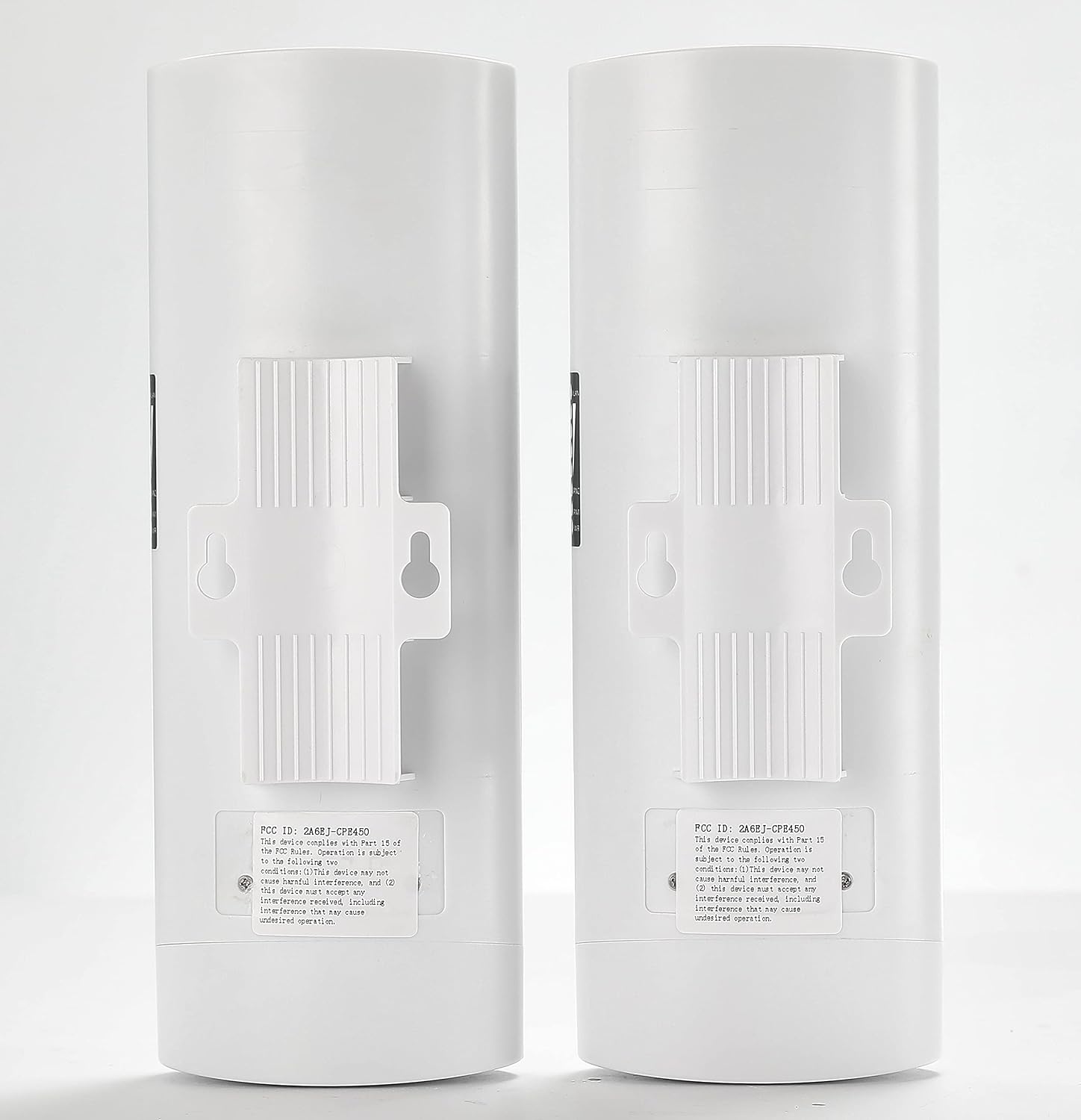
Image: The complete contents of the UeeVii wireless bridge package, including the two bridge units, PoE adapters, Ethernet cables, and mounting hardware.
2.2 Master and Slave Configuration
The two bridge units operate in a Master-Slave configuration. One unit acts as the Master (transmitter) and the other as the Slave (receiver). The units come pre-paired for convenience.

Image: Diagram illustrating the Master and Slave bridge configuration, with a switch to designate each unit's role.
2.3 Physical Connection
- Connect PoE Adapter: Connect one end of an Ethernet cable to the LAN port of the wireless bridge unit and the other end to the 'PoE' port on the PoE adapter.
- Connect to Network/Device: Connect another Ethernet cable from the 'LAN' port on the PoE adapter to your network device (e.g., router, switch, computer, NVR).
- Power On: Plug the PoE adapter into a power outlet. The unit will power on.

Image: A close-up view of the UeeVii bridge's LAN and PoE ports, demonstrating how to connect it to the PoE adapter.

Image: A detailed view showing the correct connection of Ethernet cables to the LAN and PoE ports of the bridge unit and the PoE adapter.
2.4 Indicator Lights and Digital Display
Monitor the LED indicators and the digital display on the side of the unit for status information:
- PWR: Power indicator.
- LAN1/LAN2: LAN port activity indicators.
- WLAN: Wireless activity indicator.
- Digital Display: Shows the pairing status or channel number (0-F).

Image: A close-up of the UeeVii bridge's side panel, showing the LED indicators for WLAN, LAN, and Power, along with the digital display for status or channel information.
3. Operating Modes and Applications
The UeeVii wireless bridge can be utilized in various scenarios to extend network connectivity.
3.1 Point-to-Point Network Extension
This is the most common application, extending your existing network from one building to another.
- Connect the Master unit to your main router/network.
- Connect the Slave unit to a router or device in the remote location.
- Ensure clear line-of-sight between the two units for optimal performance.

Image: A network diagram illustrating how to set up a point-to-point connection to extend internet access from one building to a second building using the UeeVii wireless bridges.

Image: A simplified diagram showing the internet connection flowing through a router, then to the Master bridge, and finally to the Slave bridge and its connected devices.
3.2 Extended Camera Monitoring Range
The bridges are ideal for extending the reach of IP cameras for surveillance systems.
- Point-to-Point: Connect the Master unit to your NVR/DVR network and the Slave unit to a remote IP camera or a switch connected to multiple cameras.
- Point-to-Multipoint: A single Master unit can connect to multiple Slave units, each linked to cameras in different remote locations.

Image: A diagram illustrating how to extend the range of a camera monitoring system using a point-to-point wireless bridge setup.

Image: A comprehensive diagram showing both point-to-point and point-to-multipoint configurations for extending camera monitoring range using UeeVii wireless bridges.
3.3 Various Application Scenarios
The UeeVii wireless bridge offers a cost-effective solution for network extension in diverse environments, avoiding the need for extensive trenching and wiring.

Image: UeeVii wireless bridges depicted in a neighborhood setting, illustrating their use for extending network coverage to barns, garages, or shops.

Image: A collage showcasing various practical applications for the UeeVii wireless bridges, including shipsides, garages, barns, warehouses, shops, and farms.
4. Maintenance
Proper maintenance ensures the longevity and optimal performance of your UeeVii wireless bridges.
- Regular Inspection: Periodically check the physical condition of the units, mounting hardware, and cables for any signs of wear, damage, or corrosion.
- Clear Line of Sight: Ensure that there are no new obstructions (e.g., growing trees, new buildings) blocking the line of sight between the two units.
- Cleanliness: Gently clean the exterior of the units to remove dirt, dust, or debris that might accumulate, especially around the antenna area. Use a soft, damp cloth.
- Environmental Protection: While IP65 rated, prolonged exposure to extreme direct sunlight can affect plastic components over time. If possible, install in a shaded area or consider a protective enclosure without obstructing the signal.
- Firmware Updates: Check the manufacturer's website for any available firmware updates. Updates can improve performance, add features, or fix bugs.
5. Troubleshooting
If you encounter issues with your UeeVii wireless bridge, refer to the following common troubleshooting steps:
| Problem | Possible Cause | Solution |
|---|---|---|
| No Power / Unit Not Turning On | PoE adapter not connected or faulty; power outlet issue. | Ensure PoE adapter is securely connected to both the unit and a working power outlet. Check the power indicator on the PoE adapter. |
| No Network Connection / Poor Signal | No clear line-of-sight; units not properly aimed; incorrect Master/Slave setup; interference. | Verify clear line-of-sight between units. Adjust aiming for optimal signal strength (monitor WLAN LED or digital display). Confirm one unit is Master and the other is Slave. Check for strong interference sources (e.g., other 5.8Ghz devices). |
| Slow Network Speed | Poor signal quality; network congestion; cable issues. | Improve signal alignment. Reduce network traffic if possible. Test Ethernet cables for damage. |
| Cannot Access Web Interface (if applicable) | Incorrect IP address; network configuration issues. | Refer to the quick start guide for default IP addresses and login credentials. Ensure your computer's IP address is in the same subnet as the bridge for initial configuration. |
| Units Not Pairing | Master/Slave switch incorrectly set; units too far apart for initial pairing. | Ensure one unit is set to 'A' (Master) and the other to 'B' (Slave). For initial pairing, bring units closer together if experiencing difficulty. |
For more detailed troubleshooting or advanced configurations, please refer to the official UeeVii support resources or the comprehensive user manual PDF available online.
Additional resource: UeeVii Wireless Bridge User Manual (PDF)
6. Specifications
Detailed technical specifications for the UeeVii Point to Point Wireless Bridge (Model CPE028).
| Feature | Specification |
|---|---|
| Model Number | CPE028 |
| Wireless Frequency | 5.8 GHz |
| Maximum Network Speed | 100 Mbps |
| Transmission Distance | Up to 3 KM (optimal conditions) |
| Antenna Gain | 14 dBi Directional |
| Waterproof Rating | IP65 |
| Power Supply | PoE Adapter (included) |
| Ports | 2 x RJ45 (LAN/PoE) |
| Product Dimensions | 1 x 1 x 1 inches (approximate) |
| Item Weight | 2.16 pounds |
| Color | Off-white |
| First Available Date | November 25, 2020 |
7. Warranty and Support
For warranty information, technical support, or further assistance, please contact UeeVii customer service or visit the official UeeVii website. Keep your purchase receipt for warranty claims.
Online Resources:
- UeeVii Official Store: Visit the UeeVii Store on Amazon
- User Manual (PDF): Download PDF Manual
Documents and downloads
Ask a question about this manual
Ask about setup, troubleshooting, compatibility, parts, safety, or missing instructions. Manuals+ will review the question and use this page’s manual context to help answer it.