1. Introduction and Overview
This manual provides comprehensive instructions for the installation, operation, and maintenance of your ASUS TUF Gaming AMD Radeon RX 6800 XT OC Edition Graphics Card. Designed for robust performance and durability, this graphics card incorporates advanced features for an optimal computing experience.
Key features include:
- Axial-tech Fan Design: Enhanced with more fan blades and a new rotation scheme for improved cooling.
- Dual Ball Fan Bearings: Offers up to twice the lifespan of traditional sleeve bearing designs.
- All-Aluminum Shroud and Reinforced Frame: Provides enhanced structural durability.
- MaxContact Heat Spreader: Features a super flat surface for superior thermal transfer.
- Auto-Extreme Technology: An automated manufacturing process ensuring high reliability.
- 16GB GDDR6 Memory: High-speed memory for demanding applications and games.
- PCIe 4.0 Interface: High-bandwidth connectivity for modern systems.

Image 1.1: The ASUS TUF Gaming AMD Radeon RX 6800 XT OC Edition Graphics Card, showcasing its triple-fan design and robust build.
2. What's in the Box
Carefully unpack the contents of your graphics card package. The following items should be included:
- ASUS TUF-RX6800XT-O16G-GAMING Graphics Card
- TUF Certificate of Reliability
- ASUS Ruler
- Collection Card
- Speedsetup Manual (this document)
If any items are missing or damaged, please contact your retailer or ASUS support immediately.
3. Setup and Installation
Before beginning installation, ensure your computer is powered off and unplugged from the wall outlet. It is recommended to wear an anti-static wrist strap to prevent electrostatic discharge (ESD) damage to components.
3.1 System Requirements
- PCI Express-compliant motherboard with one x16 graphics slot.
- Minimum 750W power supply with two 8-pin PCIe power connectors.
- Operating System: Windows 10 (64-bit) or later, Linux (64-bit).
- Minimum 8GB system memory (16GB recommended).
3.2 Hardware Installation
- Open your computer case.
- Locate an available PCI Express x16 slot on your motherboard.
- Remove any expansion slot covers that obstruct the installation.
- Carefully align the graphics card with the PCIe slot and press it firmly until it is securely seated. Ensure the retention clip on the PCIe slot locks into place.
- Secure the graphics card to the chassis with the appropriate screws.
- Connect two 8-pin PCIe power connectors from your power supply to the corresponding ports on the graphics card.
- Close your computer case.

Image 3.1: Rear view of the graphics card showing the display output ports, including one HDMI 2.1 and three DisplayPort 1.4a connectors.
3.3 Driver Installation
- Connect your monitor to one of the graphics card's display outputs (HDMI or DisplayPort).
- Power on your computer.
- Once the operating system loads, download the latest drivers from the official ASUS support website (www.asus.com/support/) or AMD's official website (www.amd.com/support/).
- Follow the on-screen instructions to complete the driver installation. A system restart may be required.
4. Operating Instructions
After successful installation, your graphics card is ready for use. Ensure your display cables are securely connected to the card's output ports.
4.1 Connecting Displays
The ASUS TUF Gaming RX 6800 XT features one HDMI 2.1 port and three DisplayPort 1.4a ports. Connect your monitor(s) using compatible cables. For optimal performance, especially with high refresh rates or resolutions, use certified cables.
4.2 Software Utilities (GPU Tweak II)
ASUS GPU Tweak II is a utility that allows you to monitor and fine-tune your graphics card's performance. You can adjust clock speeds, voltage, fan performance, and more. Download GPU Tweak II from the ASUS support website.
4.3 Cooling System
The card features an Axial-tech fan design with three fans and a 2.9-slot heatsink for efficient heat dissipation. The dual ball fan bearings contribute to the longevity of the cooling system.
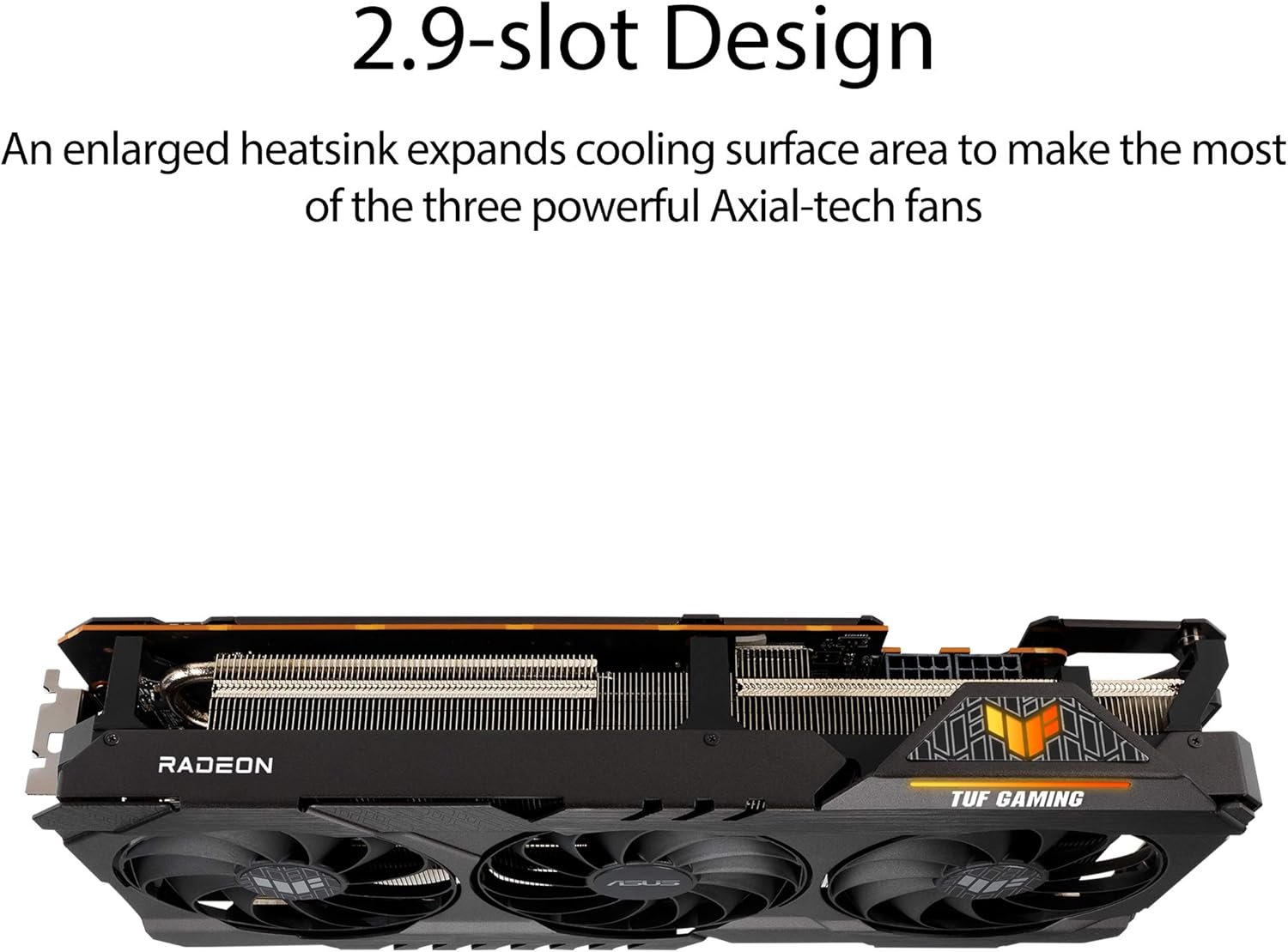
Image 4.1: Close-up of the Axial-tech fan design, highlighting the enhanced fan blades for improved airflow.

Image 4.2: Side view illustrating the 2.9-slot heatsink design, which maximizes cooling surface area.

Image 4.3: Detail showing the location of the dual ball fan bearings, which provide increased durability.
5. Maintenance
Proper maintenance ensures the longevity and optimal performance of your graphics card.
5.1 Cleaning
- Regularly clean dust from the fans and heatsink using compressed air. Ensure the computer is powered off and unplugged before cleaning.
- Hold the fan blades gently to prevent them from spinning rapidly during cleaning, which can damage the bearings.
- Avoid using liquid cleaners or abrasive materials.
5.2 Driver Updates
Periodically check the ASUS or AMD websites for updated graphics drivers. Keeping your drivers current can improve performance, stability, and compatibility with new games and applications.
5.3 Thermal Management
Ensure adequate airflow within your computer case. Poor case ventilation can lead to higher operating temperatures for the graphics card, potentially affecting performance and lifespan.

Image 5.1: Internal view of the graphics card's PCB, showing military-grade TUF components designed for durability.
6. Troubleshooting
This section addresses common issues you might encounter with your graphics card.
6.1 No Display Output
- Check Cables: Ensure all display cables (HDMI/DisplayPort) are securely connected to both the graphics card and the monitor.
- Power Connections: Verify that the two 8-pin PCIe power connectors are firmly seated in the graphics card.
- Monitor Input: Confirm your monitor is set to the correct input source.
- Reseat Card: Power off your PC, unplug it, and reseat the graphics card in its PCIe slot.
- Test with another monitor/cable: If possible, test with a different monitor or display cable to rule out external issues.
6.2 Driver Issues
- Reinstall Drivers: If you experience crashes or graphical anomalies, perform a clean installation of the latest graphics drivers. Use a utility like Display Driver Uninstaller (DDU) in Safe Mode to remove old drivers before installing new ones.
- Compatibility: Ensure your operating system is up-to-date and compatible with the latest drivers.
6.3 Overheating
- Monitor Temperatures: Use GPU Tweak II or other monitoring software to check the card's temperature during operation.
- Improve Airflow: Ensure your PC case has adequate ventilation and that case fans are properly configured.
- Clean Dust: Refer to the cleaning instructions in the Maintenance section to remove dust from the heatsink and fans.
For further assistance, please visit the ASUS support website or contact their customer service.
7. Specifications
| Feature | Specification |
|---|---|
| Graphics Coprocessor | AMD Radeon RX 6800 XT |
| Video Memory | 16 GB GDDR6 |
| Memory Speed | 16000 MHz |
| Interface | PCIe 4.0 |
| Max Screen Resolution | 3840x2160 (4K) |
| Video Output Interface | 1 x HDMI 2.1, 3 x DisplayPort 1.4a |
| Item Model Number | TUF-RX6800XT-O16G-GAMING |
| Item Weight | 3.74 pounds (1.7 kg) |
| Product Dimensions (LxWxH) | 12.6 x 5.52 x 2.3 inches (32.0 x 14.0 x 5.8 cm) |
8. Warranty and Support
8.1 Warranty Information
Your ASUS TUF Gaming AMD Radeon RX 6800 XT OC Edition Graphics Card comes with a manufacturer's warranty. Please refer to the warranty card included in your product packaging or visit the official ASUS website for detailed warranty terms and conditions specific to your region. The "TUF Certificate of Reliability" included with your product signifies ASUS's commitment to quality and durability.
8.2 Technical Support
For technical assistance, driver downloads, FAQs, and further product information, please visit the official ASUS support website:
You can also find contact information for ASUS customer service in your region on their support portal.


