
Canon G3260
Canon G3260 All-in-One Wireless Supertank Printer User Manual
Model: PIXMA G3260
1. Introduction
The Canon PIXMA G3260 is a versatile All-in-One Wireless Supertank Printer designed for high-volume, low-cost printing. It integrates printing, copying, and scanning functionalities, making it suitable for home and small office environments. This manual provides essential information for setting up, operating, and maintaining your printer.
Key Features Overview

Figure 1.1: Diagram highlighting key features such as the 2-Line Mono LCD Screen, 100-Sheet Rear Paper Tray, Integrated Ink Tanks (Black and CMY), and Borderless Photo Printing capability.

Figure 1.2: Image illustrating the compact dimensions of the Canon G3260 printer, measuring 17.6 inches (W), 13 inches (D), and 6.6 inches (H).
Product Overview Video
Video 1.1: An official overview of the Canon PIXMA G3260 All-In-One Supertank Wireless Printer, showcasing its features and design.
2. What's in the Box
Upon unpacking your Canon G3260 printer, ensure all the following items are present:
- PIXMA MegaTank G3260 Wireless All-in-One Printer
- Set of Ink Bottles (PGBK, C, M, Y)
- 2 Bonus Black Ink Bottles
- Documentation (Setup Guide, Warranty Information)
- Power Cord
3. Setup Guide
3.1 Unpacking and Placement
- Remove the printer from its packaging and remove all protective tapes and packing materials.
- Place the printer on a stable, flat surface with adequate space around it for ventilation and paper handling.
3.2 Power Connection
- Connect the power cord to the printer's power input.
- Plug the other end of the power cord into a wall outlet.
- Press the power button to turn on the printer.
3.3 Ink Filling
The PIXMA G3260 features an integrated MegaTank system. Follow these steps to fill the ink tanks:
- Open the ink tank cover on the printer.
- Uncap the ink bottle for the corresponding color (Black, Cyan, Magenta, Yellow).
- Align the ink bottle nozzle with the inlet of the correct ink tank and gently insert it. The ink will automatically flow into the tank.
- Once the tank is full, remove the bottle and recap it. Close the ink tank cover.
- Repeat for all colors.
3.4 Initial Software and Network Setup
For wireless printing and full functionality, install the printer drivers and connect to your network.
- Insert the setup CD-ROM (if included) into your computer or visit the Canon support website to download the latest drivers and software for your operating system (Windows, Mac, Chromebook compatible).
- Follow the on-screen instructions to install the software.
- During installation, you will be prompted to connect the printer to your Wi-Fi network. Follow the instructions on the printer's LCD screen and the software.
- Alternatively, use the Canon PRINT Inkjet/SELPHY app for mobile setup.
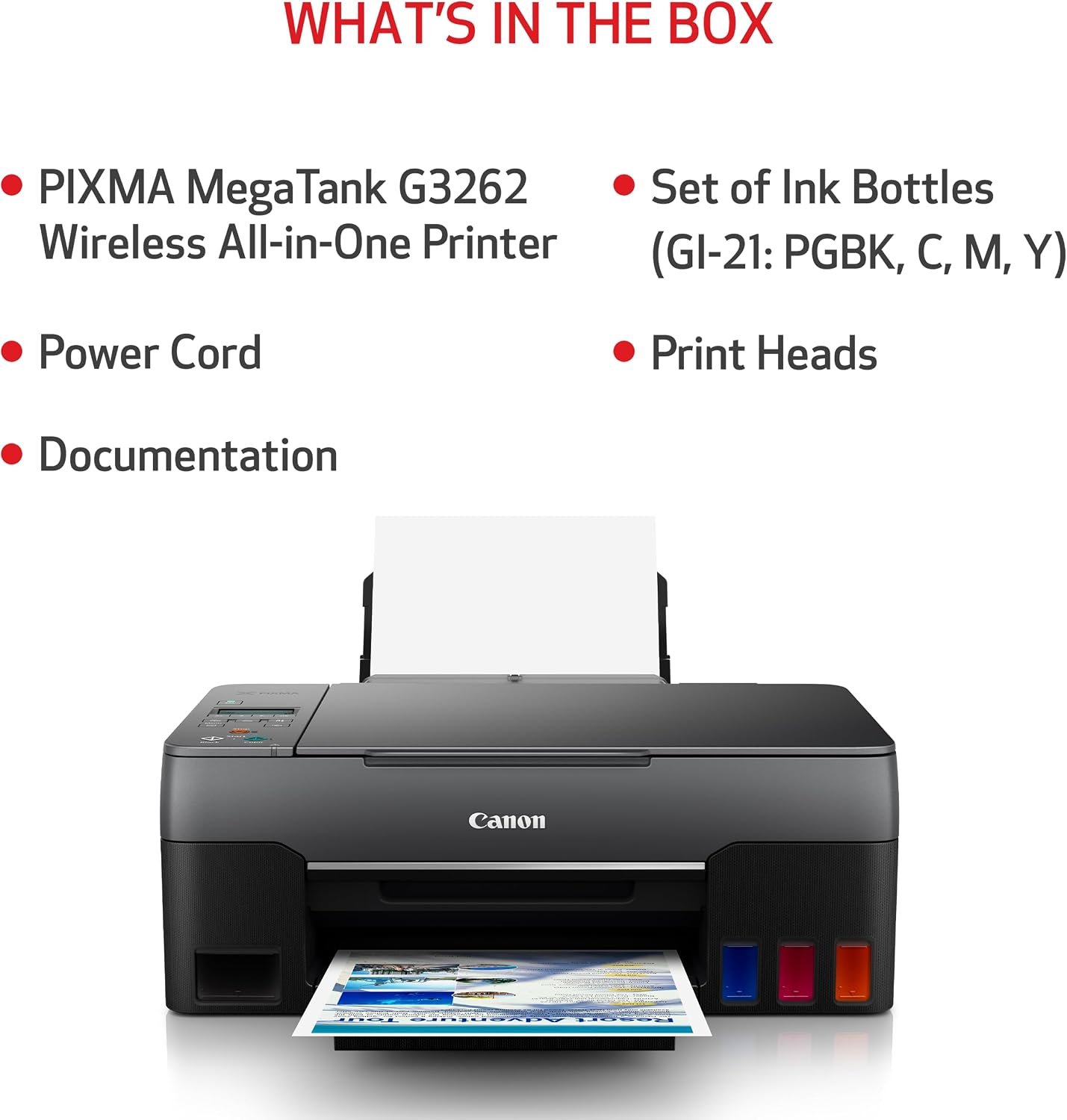
Figure 3.1: Visual guide indicating the ease of Wi-Fi setup for the Canon G3260 printer, compatible with Windows, Mac, and Chromebook systems.
4. Operating Instructions
4.1 Loading Paper
- Open the rear paper tray cover.
- Slide the paper guides to match the width of your paper.
- Load paper with the print side facing up.
- Close the paper tray cover.
4.2 Printing Documents and Photos
- Ensure the printer is powered on and connected to your device (via Wi-Fi or USB).
- Open the document or photo you wish to print on your computer or mobile device.
- Select the print option from your application.
- Choose the Canon G3260 from the list of available printers.
- Adjust print settings such as paper size, media type, print quality, and number of copies.
- Click 'Print'.
4.3 Copying
- Lift the scanner lid and place the document face-down on the scanner glass, aligning it with the guide mark.
- Close the scanner lid.
- On the printer's control panel, select the copy function.
- Adjust settings like number of copies or copy quality if needed.
- Press the 'Start' button (Color or Black) to begin copying.
4.4 Scanning
- Place the document face-down on the scanner glass.
- On your computer, open the scanning software (e.g., Canon IJ Scan Utility) or use your operating system's scanning feature.
- Select the Canon G3260 as your scanner.
- Choose scan settings such as document type, resolution, and destination folder.
- Click 'Scan'.
4.5 Mobile Printing
The Canon G3260 supports mobile printing via the Canon PRINT Inkjet/SELPHY app, Apple AirPrint, and Mopria Print Service.
- Ensure your mobile device is connected to the same Wi-Fi network as your printer.
- Open the item you want to print on your mobile device.
- Use the 'Share' or 'Print' option within the application.
- Select your Canon G3260 printer.
- Adjust print settings and confirm the print job.

Figure 4.1: Illustration of easy wireless printing from a mobile device using the Canon PRINT app, Apple AirPrint, or Mopria Print Service.
5. Maintenance
5.1 Ink Refilling
The MegaTank system is designed for easy and economical ink refilling. Monitor ink levels through the transparent tanks on the front of the printer.
- When an ink tank is low, purchase genuine Canon GI-21 ink bottles.
- Open the ink tank cover and the cap of the specific ink tank to be refilled.
- Carefully insert the corresponding ink bottle into the tank's inlet. The ink will stop flowing automatically when the tank is full.
- Remove the bottle, recap the ink tank, and close the cover.

Figure 5.1: Image highlighting the high page yield of the MegaTank system, capable of printing up to 6,000 black and 7,700 color pages per set of inks.
5.2 Cleaning
- Print Head Cleaning: If print quality declines (e.g., streaks, missing colors), perform a print head cleaning from the printer's maintenance menu or through the printer driver on your computer.
- Roller Cleaning: If paper feeding issues occur, clean the paper feed rollers using the utility in the printer driver.
- Exterior Cleaning: Wipe the exterior of the printer with a soft, damp cloth. Avoid using abrasive cleaners or solvents.
6. Troubleshooting
This section addresses common issues you might encounter with your Canon G3260 printer.
6.1 Printer Not Turning On
- Ensure the power cord is securely connected to both the printer and a working electrical outlet.
- Check if the power outlet is functional by plugging in another device.
6.2 Printer Not Responding / Offline
- Verify the printer is powered on.
- For wireless connections, ensure the printer is connected to your Wi-Fi network and your computer/mobile device is on the same network.
- Restart your printer, computer, and Wi-Fi router.
- Check printer settings on your computer to ensure it's not set to 'Offline' mode.
6.3 Poor Print Quality
- Check ink levels and refill any low tanks.
- Perform a print head cleaning and nozzle check from the printer's maintenance menu.
- Ensure you are using the correct paper type and quality settings for your print job.
6.4 Paper Jams
- Turn off the printer and unplug it.
- Carefully remove any jammed paper from the paper tray, output tray, or inside the printer. Avoid tearing the paper.
- Ensure paper is loaded correctly and not overfilled.
- Restart the printer.
7. Specifications
| Feature | Detail |
|---|---|
| Brand | Canon |
| Model Name | PIXMA G3260 |
| Connectivity Technology | USB, Wi-Fi |
| Printing Technology | Inkjet |
| Functions | Print, Copy, Scan |
| Printer Output | Color, Monochrome |
| Max Print Speed (Monochrome) | 10.8 ipm |
| Max Print Speed (Color) | 6 ipm |
| Max Print Resolution (Color) | 600 x 600 dpi |
| Max Print Resolution (Black) | 1200 dpi |
| Scanner Type | Flatbed |
| Max Copy Speed (Black) | 15 ipm |
| Paper Sizes Supported | 3.5” x 3.5” (Square), 4” x 6”, 5” x 5” (Square), 5” x 7”, 7” x 10”, 8” x 10”, Letter (8.5” x 11”), Legal (8.5” x 14”), U.S. #10 Envelopes, Card Size (91 mm x 55 mm), Custom size (width 2.1–8.5 in, length 3.5–47.2 in) |
| Maximum Sheet Capacity | 400 |
| Item Weight | 14.1 pounds |
| Item Dimensions (D x W x H) | 9.1"D x 9.1"W x 9.1"H |
8. Warranty and Support
8.1 Warranty Information
The Canon G3260 printer comes with a 1-year limited warranty. This warranty covers defects in materials and workmanship under normal use. Please refer to the warranty documentation included in your product box for full terms and conditions.
8.2 Customer Support
For technical assistance, troubleshooting not covered in this manual, or warranty claims, please contact Canon Customer Support:
- Online Support: Visit the official Canon USA support website for drivers, manuals, FAQs, and service information.
- Telephone Support: Refer to your product documentation for the appropriate customer service phone number.
When contacting support, please have your printer's model name (PIXMA G3260) and serial number ready.
Related documentsG3260


Ask a question about this manual
Ask about setup, troubleshooting, compatibility, parts, safety, or missing instructions. Manuals+ will review the question and use this page’s manual context to help answer it.