
1. Introduction
The Thermaltake Pacific PR32-D5 Plus is a high-performance pump and reservoir combination designed for custom liquid cooling systems. It features a powerful D5 pump, a large 400ml reservoir, and integrated RGB lighting with software control, offering both efficient cooling and aesthetic customization for your PC.
2. Product Features
- 360° Rotary Cap: The rotary cap allows for flexible adjustment of G1/4" thread port positions, simplifying tube routing even after mounting.
- Vivid RGB Lighting: Equipped with 12 addressable LEDs, offering 16.8 million color combinations and numerous lighting effects customizable via TT RGB Plus software, and compatible with Alexa and Razer Chroma.
- Versatile Installation Options: Includes a fan-mounting bracket for installation on a fan, providing water cooling advantages even in cases with limited traditional reservoir mounting space.
- Powerful D5 Pump: Features a 5-level speed control, capable of reaching a maximum pump head of 15 feet and a flow rate of 1135 liters per hour.
- Large Capacity Reservoir: A 400ml capacity reservoir, standing 267mm tall, designed to withstand a maximum pressure of 50 PSI.
3. Package Contents
Please ensure all components are present and undamaged before proceeding with installation.
- Thermaltake Pacific PR32-D5 Plus Pump/Reservoir Combo
- G 1/4" Stopper (x1)
- Mounting Bracket (x1)
- Clip (x1)
- USB 2.0 Connector (9 Pin) cable
- 4-Pin Power Connector cable
- Mounting Screws and Accessories
4. Specifications
| Model Number | CL-W280-PL00SW-A |
| Dimensions (L x W x H) | 74.8 x 74.8 x 267 mm (2.94 x 2.94 x 10.51 inches) |
| Capacity | 400 ml |
| Material | AL + POM + PMMA |
| Threads | G 1/4" |
| Max. Air Pressure | 50 PSI |
| Power Input | 37 W / 6.5 W |
| Connector | 4 Pin |
| Interface | USB 2.0 Connectors (9 Pin) |
| System Compatibility | Windows 7 / 8 / 8.1 / 10 |
5. Setup & Installation
5.1 Mounting the Pump/Reservoir
The Pacific PR32-D5 Plus offers flexible mounting options. Use the included bracket to install the unit directly onto a fan or utilize the standard pump/reservoir stand. Ensure the mounting is secure but avoid over-tightening screws to prevent damage to the unit.

Image: Multiple installation options for the pump/reservoir combo.
5.2 Connecting Ports
Utilize the G1/4" thread ports for connecting your liquid cooling loop. The 360° rotary cap allows you to adjust port positions for optimal tube routing. Ensure all fittings are hand-tightened to prevent leaks. The unit includes dedicated ports for filling and draining the coolant.
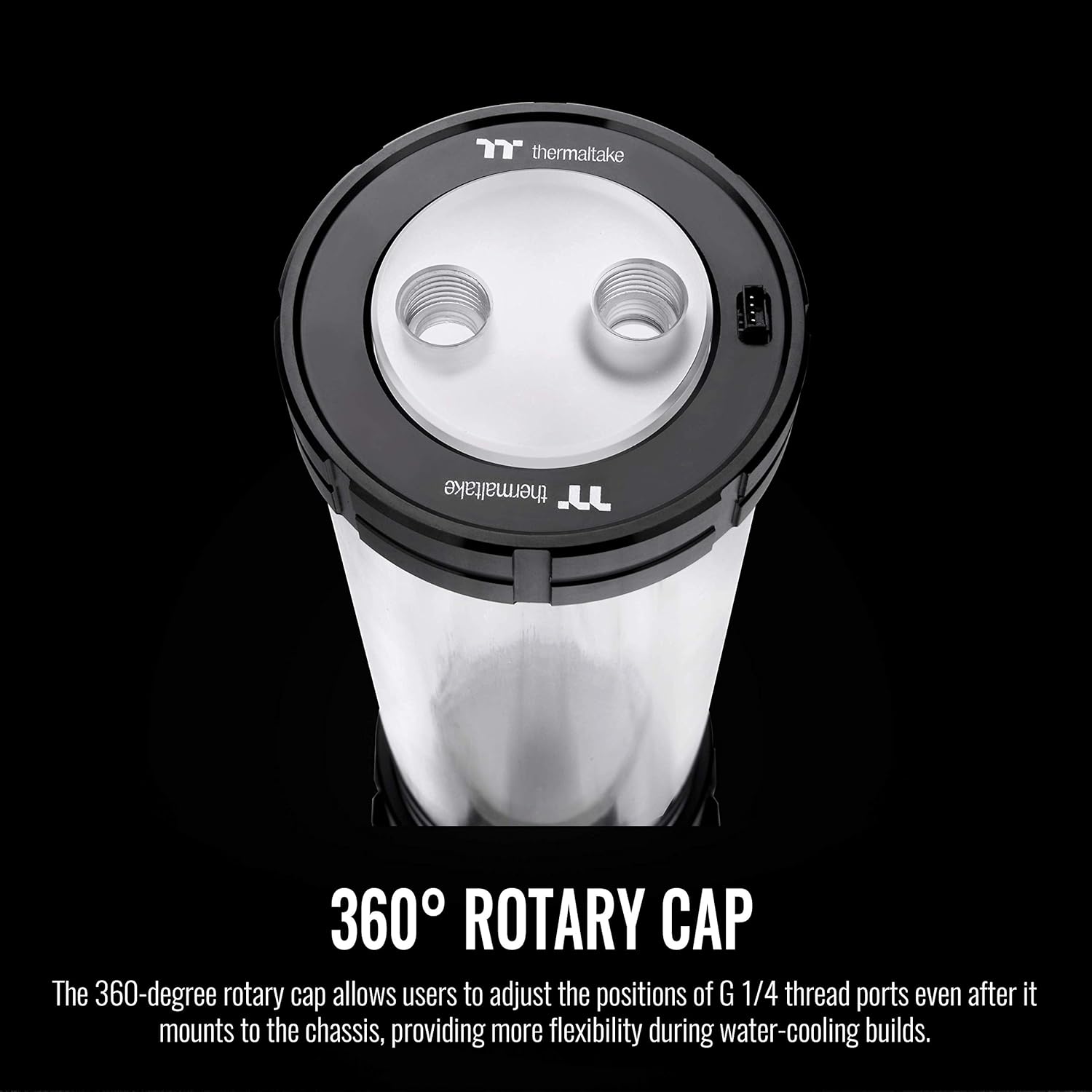
Image: The 360° rotary cap provides flexibility for port positioning.
5.3 Pump Speed Adjustment
The D5 pump features a 5-level speed control. Adjust the pump speed manually to achieve your desired flow rate and noise level. For basic loops, a setting of 2 to 3 is often recommended. Refer to the pump's base for the speed adjustment dial.
Video: Demonstration of a high-flow 12V DC water pump combo, illustrating pump operation and flow. This video is from a seller named Dracaena.
6. Operating Instructions
6.1 Filling the Liquid Cooling Loop
- Ensure all connections are secure and fittings are tightened.
- Use a dedicated fill port to slowly add coolant to the reservoir.
- Power on the pump (without powering on other PC components) to circulate the coolant and remove air bubbles. Refill the reservoir as needed.
- Allow the system to run for several hours to ensure all air is purged and to perform a leak test. Check for any signs of leaks before powering on your PC.
6.2 RGB Lighting Control
Connect the USB 2.0 cable from the pump/reservoir to your motherboard. Download and install the Thermaltake TT RGB Plus software to customize the 12 addressable LEDs. The lighting can be synchronized with Alexa and Razer Chroma for a unified aesthetic experience.

Image: The Pacific PR32-D5 Plus features customizable RGB lighting.
7. Maintenance
- Regularly inspect your liquid cooling loop for any signs of leaks or coolant discoloration.
- It is recommended to change the coolant every 6-12 months to maintain optimal performance and prevent buildup.
- When draining the system, use the dedicated drain port for a clean and efficient process.
8. Troubleshooting
- No Flow/Pump Not Running: Check power connections (4-pin connector) and USB interface. Ensure the pump speed is set correctly.
- Leaks: Double-check all fittings and connections. Ensure O-rings are properly seated and not damaged. Avoid over-tightening.
- RGB Not Working: Verify the USB 2.0 connection to the motherboard. Ensure TT RGB Plus software is installed and updated. Check for conflicts with other RGB software.
- Excessive Air Bubbles: Tilt the PC case gently in different directions to help dislodge trapped air. Allow the pump to run for an extended period during the initial fill.
9. Warranty & Support
For warranty information, technical support, or further assistance, please visit the official Thermaltake website or contact their customer service department. Keep your proof of purchase for warranty claims.


