
1. Package Contents
Please verify that all items are present in your package:
- 1 x DAYBETTER Bluetooth Controller Unit
- 1 x 24-Key IR Remote Control
- 1 x User Manual (this document)
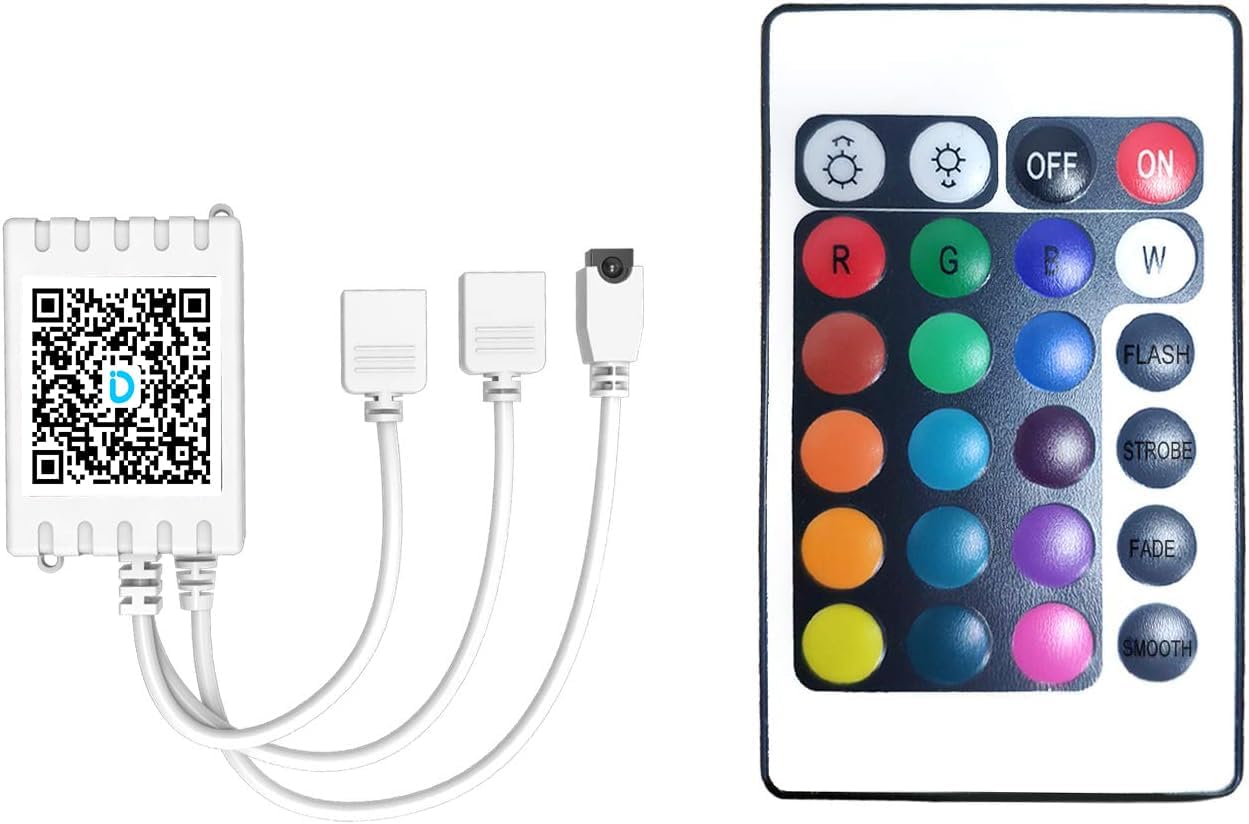
The DAYBETTER Bluetooth controller unit with two 4-pin output ports and the accompanying 24-key infrared remote control.
2. Setup Instructions
2.1 Remote Control Preparation
- Locate the plastic battery isolation tab at the bottom of the 24-key remote control.
- Pull out and remove this tab completely before attempting to use the remote. This activates the remote's battery.

An image demonstrating how to remove the plastic battery isolation tab from the 24-key remote control before first use.
2.2 Connecting the LED Light Strips
- Ensure the power adapter is unplugged from the wall outlet.
- Connect your 4-pin RGB LED light strip(s) to the output port(s) on the DAYBETTER Bluetooth controller unit. Ensure the arrow on the strip connector aligns with the arrow on the controller's port. The controller has two 4-pin ports, allowing connection of one or two light strips.
- Connect the power adapter (not included) to the DC port on the controller unit.
- Plug the power adapter into a suitable 12V DC power outlet.

A detailed view of the 4-pin connectors used to link the LED light strips to the controller, emphasizing the 'Light strip lights connector' label.

The DAYBETTER Bluetooth controller and 24-key remote shown with coiled RGB LED light strips, illustrating the complete system. Scan the QR code on the controller to download the companion app: daybetter.smartthingsapp.com/app/QRcode/
2.3 App Download and Pairing
For enhanced control features, download the DAYBETTER app:
- Scan the QR code located on the Bluetooth controller unit or visit daybetter.smartthingsapp.com/app/QRcode/ to download the official DAYBETTER app.
- Follow the in-app instructions to pair your device with the controller via Bluetooth.
3. Operating Instructions
3.1 Using the 24-Key IR Remote Control
The remote control allows for basic and advanced functions. Ensure you point the remote directly at the IR sensor on the controller box for optimal response.

A diagram labeling each button on the 24-key remote control and describing its function.
- Brightness Adjustment (Up/Down): Buttons 1 and 2 adjust the LED brightness.
- OFF Button: Button 3 turns the LED lights off.
- ON Button: Button 4 turns the LED lights on.
- LED Color Buttons (16 colors): Button 5 provides 16 static color options, including Red, Green, Blue, White, Orange, Pea Green, Dark Blue, Dark Yellow, Cyan, Brown, Yellow, Light Blue, Pink, Straw Yellow, Sky Blue, and Purple.
- Flash Button: Button 6 activates a flashing light effect.
- Strobe Button: Button 7 cycles through LED colors rapidly (every 3 seconds).
- Fade Button: Button 8 smoothly fades out the current LED color and fades into the next color (every 3 seconds).
- Smooth Button: Button 9 smoothly fades out the current LED color and fades into the next color (every 0.5 seconds).

An illustration emphasizing the importance of pointing the IR remote directly at the IR receiver on the controller box for proper operation. Scan the QR code on the controller to download the companion app: daybetter.smartthingsapp.com/app/QRcode/
3.2 Using the DAYBETTER App
The DAYBETTER app provides advanced control options:
- Color Selection: Choose from a wider spectrum of colors than the remote.
- Brightness Adjustment: Fine-tune the brightness levels.
- Dynamic Modes: Access various pre-programmed lighting effects.
- Music Synchronization: Sync lights to music (if supported by the app version).
- Timer Function: Set schedules for turning lights on/off.
- DIY Customization: Create and save your own custom color patterns.

An illustration highlighting key features of the LED strip lights system, including music synchronization, app control, DIY color customization, timer function, dimming capability, and RGB color options.
4. Maintenance
To ensure the longevity and optimal performance of your DAYBETTER controller and remote:
- Keep the controller and remote in a dry environment, away from moisture and extreme temperatures.
- Clean the devices with a soft, dry cloth. Avoid using harsh chemicals or abrasive cleaners.
- If the remote control's range decreases, consider replacing the battery.
5. Troubleshooting
If you encounter issues, refer to the following troubleshooting steps:
| Problem | Possible Cause | Solution |
|---|---|---|
| Lights do not turn on. | Power adapter not connected or faulty. LED strip not connected correctly. | Ensure power adapter is securely plugged in and receiving power. Verify LED strip connectors are aligned 'Arrow to Arrow'. |
| Remote control not responding. | Battery isolation tab not removed. Remote battery low/dead. Remote not pointed at IR sensor. Obstruction between remote and sensor. | Remove the plastic tab. Replace remote battery if necessary. Point the remote directly at the IR sensor on the controller box. Ensure no objects block the signal path. |
| Lights are stuck on one color or flickering. | Loose connection. Controller malfunction. | Check all 4-pin connections for secure fit. Unplug and replug the power adapter to reset the controller. |
| App cannot connect to the controller. | Bluetooth is off on your device. App is outdated or corrupted. | Ensure Bluetooth is enabled on your smartphone/tablet. Try restarting the app or reinstalling it. Ensure the controller is powered on. |
| LED strip adhesion is weak. | Surface not clean or suitable. | Clean the installation surface thoroughly before applying the strip. For long-term or uneven surfaces, consider using additional adhesive clips or tape (not included). |

A diagram illustrating the DC Port, IR Sensor on the controller, and the Sensor Indicator Light on the remote, showing how they interact. Scan the QR code on the controller to download the companion app: daybetter.smartthingsapp.com/app/QRcode/
6. Specifications
| Feature | Detail |
|---|---|
| Model Number | DBL0362CNOV |
| Brand | DAYBETTER |
| Controller Type | Bluetooth, IR Remote Control |
| Output Ports | 2 x 4-Pin |
| Voltage | DC 12 Volts |
| Wattage | 72 watts (Max) |
| Light Source Type | LED (RGB) |
| Special Feature | Dimmable |
| Indoor/Outdoor Usage | Indoor |
| Water Resistance Level | Not Water Resistant |
| Item Weight | 0.07 Kilograms (approx. 2.4 ounces) |
| Package Dimensions | 6.89 x 3.86 x 0.71 inches |
7. Warranty and Support
DAYBETTER products are manufactured to high-quality standards. For warranty information or technical support, please refer to the contact details provided with your purchase documentation or visit the official DAYBETTER website. Keep your purchase receipt as proof of purchase.


