
Introduction
Thank you for choosing the Breo iSeeM Eye Massager. This device is designed to provide a relaxing and relieving eye massage experience with customizable heat, music, and app control features. This manual provides essential information for the safe and effective use of your iSeeM Eye Massager.

The Breo iSeeM Eye Massager in grey, with its control panel visible, alongside a smartphone displaying the Breo app interface for customization.
Product Features
- Customizable Massage and Music: Install the "breo" application to personalize massage settings. Enjoy your own music with adjustable volume, intensity, and heat.
- Adjustable Heat and Reduced Noise: Features quickly adjustable heat from 107.6 to 116.6°F (42 to 47°C) with minimal operational noise for enhanced relaxation.
- User-friendly Design: Constructed from high-quality soft leather for comfortable use and easy cleaning.
- Ergonomic and Portable: Unique design ensures comfortable wear. The device is rechargeable, lightweight, and folds 180° for easy portability. An adjustable strap accommodates various head sizes.
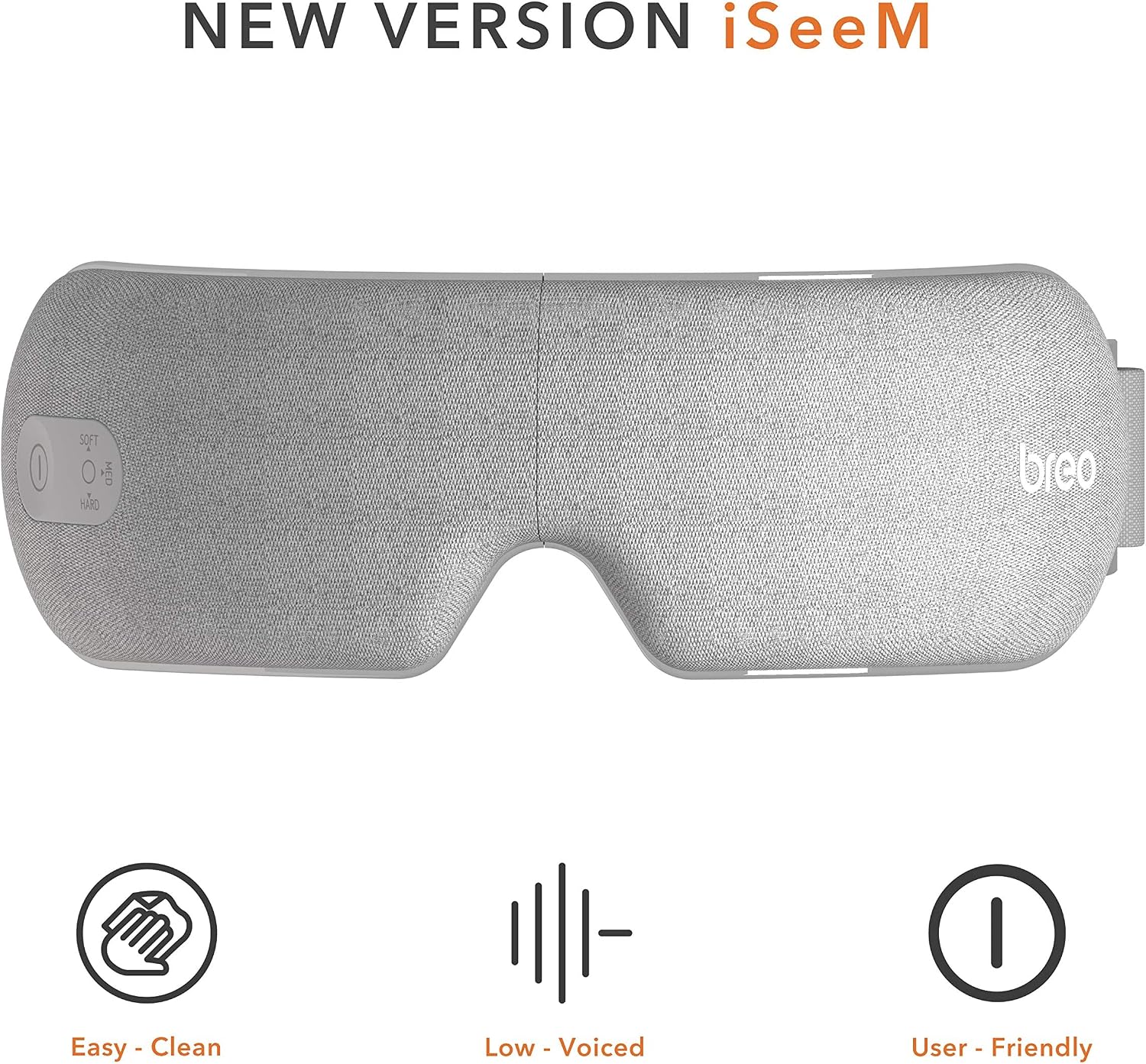
Top view of the Breo iSeeM Eye Massager, emphasizing its easy-to-clean surface, low noise operation, and user-friendly design. The control buttons for 'SOFT', 'MED', and 'HARD' massage modes are visible.

Hands demonstrating the 180-degree foldable design of the Breo iSeeM Eye Massager, with icons for USB charging cable, carrying pouch, and folded state.
Package Contents
Upon opening your Breo iSeeM Eye Massager package, please ensure all the following items are present:
- Breo iSeeM Eye Massager Unit
- USB Charging Cable
- User Manual
- Storage Pouch

Contents of the Breo iSeeM Eye Massager package, including the massager unit, user manual, USB charging cable, and a storage pouch.
Setup
1. Initial Charging
- Before first use, fully charge the Breo iSeeM Eye Massager.
- Connect the provided USB charging cable to the charging port on the massager.
- Plug the other end of the USB cable into a compatible USB power adapter (not included) or a computer USB port.
- The indicator light will show charging status and turn off or change color when fully charged.
2. Adjusting the Strap
- Place the massager over your eyes.
- Adjust the elastic strap to ensure a snug yet comfortable fit around your head. The massager should feel secure without being too tight.

A person wearing the Breo iSeeM Eye Massager, viewed from the side, demonstrating its ergonomic fit.

A person wearing the Breo iSeeM Eye Massager in a relaxed posture, showcasing the comfortable design.
Operating Instructions
Power On/Off
- To power on the device, press and hold the power button located on the massager.
- To power off, press and hold the power button again until the device shuts down.
Basic Mode Selection (On-Device)
The device features physical buttons for basic massage mode selection:
- SOFT: Activates a gentle massage mode.
- MED: Activates a medium intensity massage mode.
- HARD: Activates a strong intensity massage mode.
Press the corresponding button to select your desired mode. For advanced customization, use the Breo application.
App Control and Customization
The Breo iSeeM Eye Massager offers extensive customization through the dedicated "breo" application, available on your device's app store.
1. App Installation
- Search for "breo" in your smartphone's app store (e.g., Apple App Store or Google Play Store).
- Download and install the application.
2. Connecting to the App
- Ensure your Breo iSeeM Eye Massager is powered on and Bluetooth is enabled on your smartphone.
- Open the "breo" app and follow the on-screen instructions to pair your device.
3. Customizing Your Massage
Through the app, you can:
- Select from various preset massage modes.
- Create and save custom massage modes.
- Adjust massage intensity.
- Control heat levels (107.6 to 116.6°F / 42 to 47°C).
- Set massage duration.
- Play your own music through the massager's built-in speakers and adjust volume.

The Breo iSeeM Eye Massager shown with a smartphone displaying the Breo app, illustrating the customizable massage modes, temperature, pressure, and timer settings.

A person relaxing on a couch wearing the Breo iSeeM Eye Massager, with a smartphone next to them displaying a music playlist, indicating the device's ability to play user's own music.
Maintenance
Cleaning
- The Breo iSeeM Eye Massager is made of high-quality soft leather, making it easy to clean.
- Wipe the surface of the massager with a soft, damp cloth.
- Do not use abrasive cleaners, alcohol, or harsh chemicals, as these may damage the material.
- Ensure the device is completely dry before storing or recharging.
Storage
- Store the massager in a cool, dry place, away from direct sunlight and extreme temperatures.
- Utilize the provided storage pouch to protect the device from dust and scratches.
- The 180° foldable design allows for compact storage, making it ideal for travel.
Troubleshooting
If you encounter any issues with your Breo iSeeM Eye Massager, please refer to the following common solutions:
- Device not turning on: Ensure the device is fully charged. Connect it to the charger and wait a few minutes before attempting to power on again.
- No massage or weak massage: Check if the device is properly powered on. If using the app, ensure it is connected and the desired intensity is selected.
- Heat not working: Verify that the heat function is enabled via the app or device controls. Allow a few minutes for the heat to reach the desired temperature.
- App connectivity issues: Ensure Bluetooth is enabled on your smartphone and the massager is within range. Try restarting both the app and the massager.
- Unusual noises: While the device is designed for low noise, if you hear any abnormal sounds, power off the device and contact customer support.
If the problem persists after attempting these solutions, please contact Breo customer support for further assistance.
Specifications
| Attribute | Detail |
|---|---|
| Brand | Breo |
| Model Number | iSeeM |
| Use for | Eyes |
| Power Source | Battery Powered (1 Lithium Ion battery included) |
| Material | Leather |
| Colour | Grey |
| Special Feature | Rechargeable, Foldable |
| Product Benefits | Fatigue Relief, Eye Relief |
| Cordless | Yes |
| Parcel Dimensions | 21.1 x 14.7 x 9.1 cm |
| Item Weight | 683 g |
Warranty and Support
Breo is committed to providing premium qualified products and excellent after-sales service. We offer a full refund within 30 days if you are not satisfied with our products and services.
For any inquiries, technical support, or warranty claims, please contact Breo customer care through the official Breo website or your point of purchase. Please have your product model and purchase details ready when contacting support.
Important Safety Information
Please read all safety warnings and instructions before using the Breo iSeeM Eye Massager to ensure safe operation and prevent injury or damage.
- Do not use this device if you have any eye conditions, recent eye surgery, or severe eye pain. Consult a medical professional before use if you have any concerns.
- Keep out of reach of children.
- Do not use while driving or operating heavy machinery.
- Do not immerse the device in water or other liquids.
- Use only the provided charging cable.
- If you experience any discomfort or adverse reactions, discontinue use immediately.

A collage of four images showing different scenarios where the Breo iSeeM Eye Massager can be used: during entertainment, while gaming, during hard work, and while reading.


