
Introduction
This manual provides detailed instructions for the safe and efficient operation of your KORAD KWR103 Programmable DC Power Supply. Please read this manual thoroughly before using the device to ensure proper functionality and to prevent damage or injury. The KWR103 is a versatile programmable DC power supply offering a wide range of voltage and current outputs, including 60V/15A/300W, designed for various testing and application needs.
Important Safety Information
Always observe the following safety precautions to prevent electric shock, injury, or damage to the device:
- Ensure the power supply is connected to a grounded AC outlet with the correct voltage.
- Do not operate the device in wet or damp conditions.
- Do not open the casing; there are no user-serviceable parts inside. Refer servicing to qualified personnel.
- Verify correct polarity and voltage/current settings before connecting to any load.
- Avoid short-circuiting the output terminals.
- Disconnect power before making or changing connections.
- Ensure adequate ventilation around the unit to prevent overheating.
Product Overview
The KORAD KWR103 is a high-precision programmable DC power supply. Familiarize yourself with its components:
Front Panel

Figure 1: Front panel of the KORAD KWR103, showing the display, control buttons, adjustment knob, and output terminals.
- Display: Digital readouts for voltage (V) and current (A).
- Memory Buttons (M1-M5): For saving and recalling preset voltage and current values.
- Adjust Knob: Rotary encoder for precise adjustment of voltage and current.
- Function Buttons: OVP, OCP, BEEP, ON/OFF, VSET, ISET, V/A PRIORITY for various settings and controls.
- Output Terminals: Positive (+), Negative (-), and Ground (GND) connections. Max 10A output directly from front terminals.
- Power Switch: Main power control for the unit.
Rear Panel

Figure 2: Rear panel of the KORAD KWR103, featuring power input, communication ports, and sense terminals.
- AC Power Input: For connecting the main power cord.
- Fuse Holder: Contains the protective fuse.
- Sense Terminals (SENSE TRIG IN+): For remote sensing to compensate for voltage drop across load wires.
- RS485 Terminals: For RS485 communication.
- USB Port: For computer control and communication.
- RS232 Port: For serial communication.
- LAN Port: For network communication and control.
Included Accessories
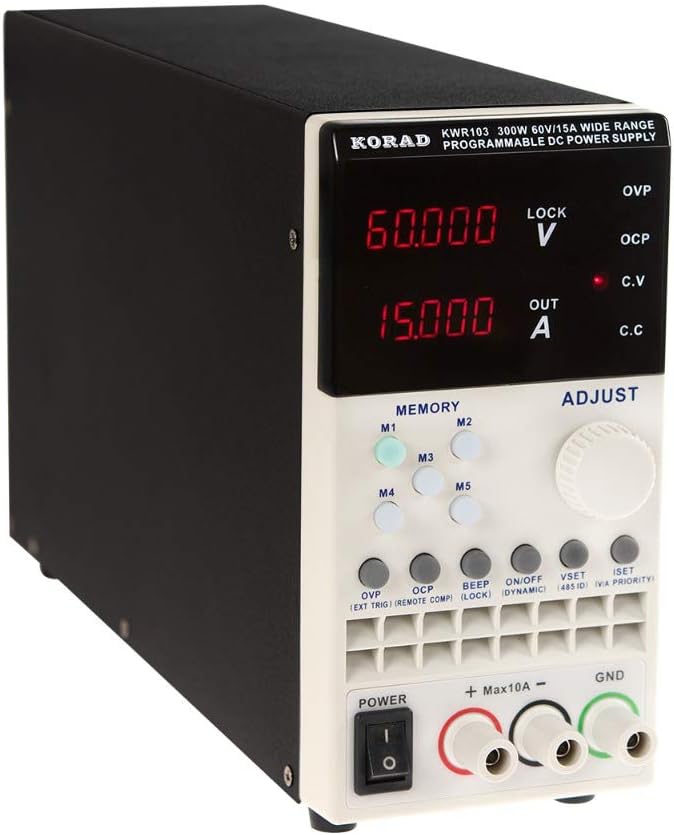
Figure 3: The KORAD KWR103 power supply shown with its standard accessories, including power cord, output cables, USB cable, RS232 cable, and software CD.
Your KWR103 package typically includes:
- KORAD KWR103 Programmable DC Power Supply Unit
- AC Power Cord
- Output Test Leads (Red/Black)
- USB Communication Cable
- RS232 Communication Cable
- Software CD (for PC control)
- User Manual (this document)
Setup
- Unpacking: Carefully remove the power supply and all accessories from the packaging. Inspect for any signs of damage.
- Placement: Place the unit on a stable, level surface with adequate ventilation. Ensure no vents are obstructed.
- Power Connection:
- Ensure the power switch on the front panel is in the OFF position.
- Connect the supplied AC power cord to the AC power input on the rear panel.
- Plug the other end of the AC power cord into a grounded electrical outlet.
- Load Connection:
- Connect the red output test lead to the positive (+) terminal and the black output test lead to the negative (-) terminal on the front panel.
- Connect the other ends of the test leads to your load, ensuring correct polarity. For currents exceeding 10A, use the rear output terminals (if available on your specific model) or thicker gauge wires directly to the internal terminals, following safety guidelines.
- For precise voltage regulation at the load, especially with long cables or high currents, connect the remote sense wires (SENSE TRIG IN+) from the rear panel directly across your load.
- Communication Interface Connection (Optional):
- USB: Connect the USB cable from the rear panel to your computer.
- RS232: Connect the RS232 cable from the rear panel to your computer's serial port or a USB-to-serial adapter.
- LAN: Connect an Ethernet cable from the rear panel to your network router or switch.
- Install the provided software drivers and control application from the included CD or manufacturer's website.
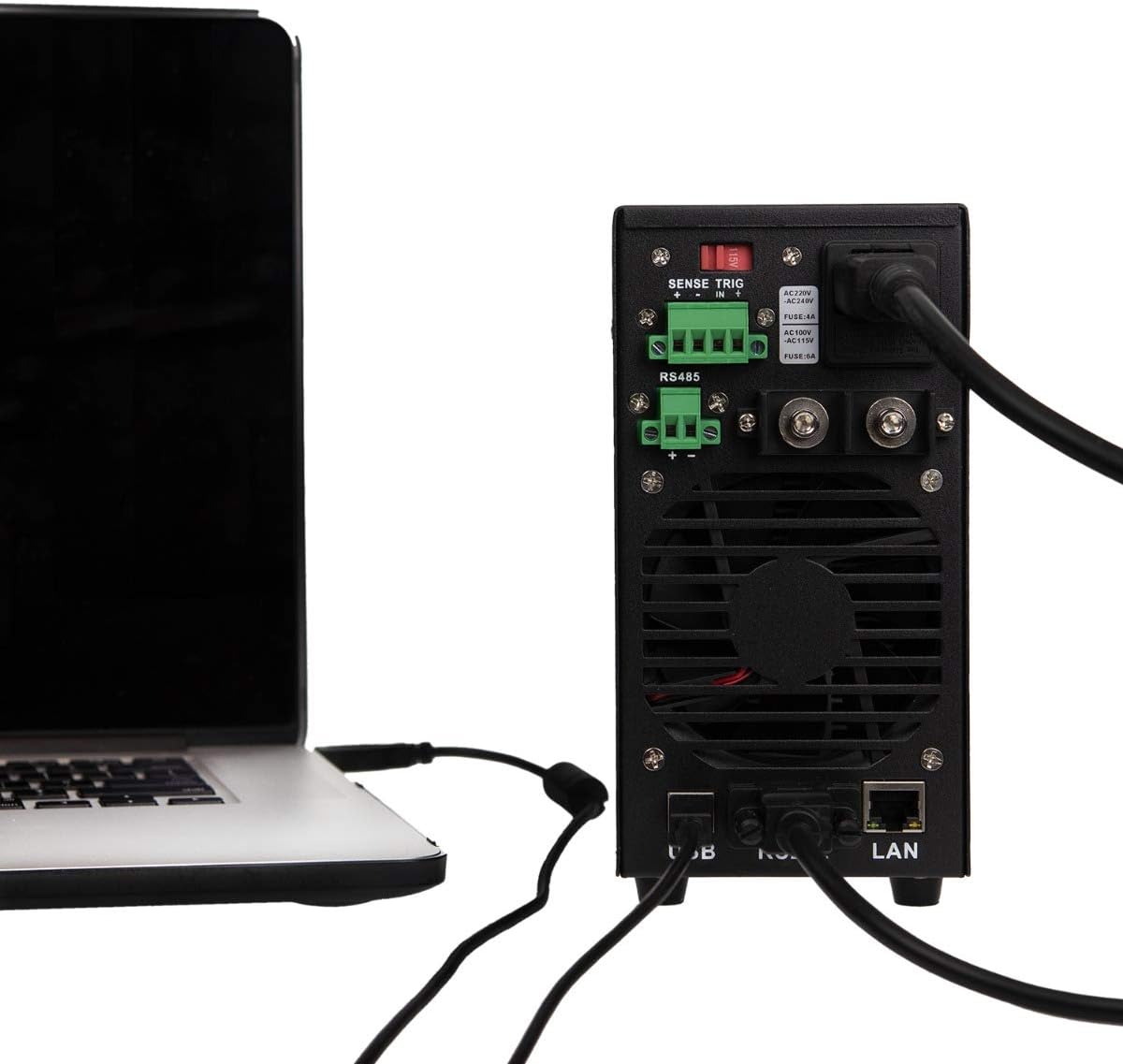
Figure 4: Example of the KORAD KWR103 rear panel connected to a laptop, illustrating USB and LAN connections for remote control.
Operating Instructions
- Power On: Flip the power switch on the front panel to the ON position. The display will illuminate.
- Setting Voltage and Current:
- Press the VSET button to enter voltage setting mode. The voltage display will flash.
- Rotate the Adjust Knob to set the desired voltage. Press the knob to move between digits for fine adjustment.
- Press the ISET button to enter current setting mode. The current display will flash.
- Rotate the Adjust Knob to set the desired current limit. Press the knob to move between digits.
- Press VSET or ISET again to exit setting mode, or wait a few seconds for it to exit automatically.
- Output Control:
- After setting voltage and current, press the ON/OFF button to enable the output. The "OUT" indicator will light up.
- Press ON/OFF again to disable the output.
- Memory Functions (M1-M5):
- Saving Settings: Set the desired voltage and current. Press and hold one of the M1-M5 buttons until a beep sounds, indicating the settings are saved.
- Recalling Settings: Briefly press one of the M1-M5 buttons to recall the saved settings.
- Over Voltage Protection (OVP) and Over Current Protection (OCP):
- Press the OVP button to set the over-voltage protection limit. Use the Adjust Knob.
- Press the OCP button to set the over-current protection limit. Use the Adjust Knob.
- These functions automatically shut down the output if the set limits are exceeded, protecting the load and the power supply.
- Remote Control:
- Once the communication drivers and software are installed, you can control the power supply via USB, RS232, or LAN.
- Refer to the software manual for detailed instructions on using the PC control application.
Maintenance
- Cleaning: Disconnect the power supply from the AC outlet before cleaning. Use a soft, dry cloth to wipe the exterior. Do not use abrasive cleaners or solvents.
- Ventilation: Ensure the ventilation openings are clear of dust and debris. Periodically clean the fan intake/exhaust areas.
- Fuse Replacement: If the unit does not power on, the fuse may need replacement.
- Disconnect the AC power cord.
- Locate the fuse holder on the rear panel.
- Carefully remove the fuse holder and replace the fuse with one of the same type and rating (e.g., FUSE: 4A for AC220V, FUSE: 6A for AC110V).
- Reinsert the fuse holder and reconnect the AC power.
Troubleshooting
| Problem | Possible Cause | Solution |
|---|---|---|
| Unit does not power on. | No AC power; Blown fuse; Power switch off. | Check AC power connection; Replace fuse (see Maintenance); Ensure power switch is ON. |
| No output voltage/current. | Output disabled; OVP/OCP triggered; Incorrect settings; Loose connections. | Press ON/OFF button; Check OVP/OCP settings; Verify voltage/current settings; Secure output connections. |
| Voltage/Current unstable. | Poor load connection; Remote sense not used or incorrectly connected; Overheating. | Check load connections; Use remote sense for critical applications; Ensure adequate ventilation. |
| Remote control not working. | Incorrect cable; Driver not installed; Software configuration error. | Verify correct USB/RS232/LAN cable; Install drivers; Check software settings and communication parameters. |
Specifications
| Parameter | Value |
|---|---|
| Model | KWR103 |
| Output Voltage | 0-60V |
| Output Current | 0-15A |
| Output Power | 300W |
| Voltage Resolution | 1mV |
| Current Resolution | 1mA |
| Interfaces | LAN, USB, RS232, RS485 |
| Protection Functions | OVP (Over Voltage Protection), OCP (Over Current Protection), OTP (Over Temperature Protection) |
| Item Weight | 11.29 pounds (approx. 5.12 kg) |
| Package Dimensions | 16.14 x 11.22 x 7.68 inches (approx. 41 x 28.5 x 19.5 cm) |
| Cooling Method | Air |
Warranty and Support
For warranty information and technical support, please refer to the documentation included with your purchase or contact KORAD customer service. Keep your purchase receipt as proof of purchase for warranty claims.
For the latest drivers, software, and additional support resources, please visit the official KORAD website.


