
1. Introduction
Thank you for choosing the STOGA MK22 60% Mechanical Gaming Keyboard. This compact 61-key keyboard is designed for both gaming and office use, offering a responsive typing experience with mechanical brown switches and dynamic RGB backlighting. This manual provides essential information for setting up, operating, maintaining, and troubleshooting your new keyboard. Please read it carefully before use.
2. Safety Information
- Keep the keyboard away from liquids and excessive moisture to prevent damage.
- Avoid exposing the keyboard to extreme temperatures.
- Do not attempt to disassemble or modify the keyboard. This may void your warranty and cause damage.
- Use only the provided USB-C cable for connection.
- Clean the keyboard with a soft, dry cloth. Avoid harsh chemicals.
3. Package Contents
- STOGA MK22 60% Mechanical Gaming Keyboard
- USB-C Cable
- User Manual (this document)
4. Product Overview
The STOGA MK22 is a compact 60% mechanical keyboard featuring 61 keys with an AZERTY layout. It is equipped with responsive brown mechanical switches and offers full anti-ghosting for a smooth gaming experience. The ergonomic design ensures comfortable use over long periods.
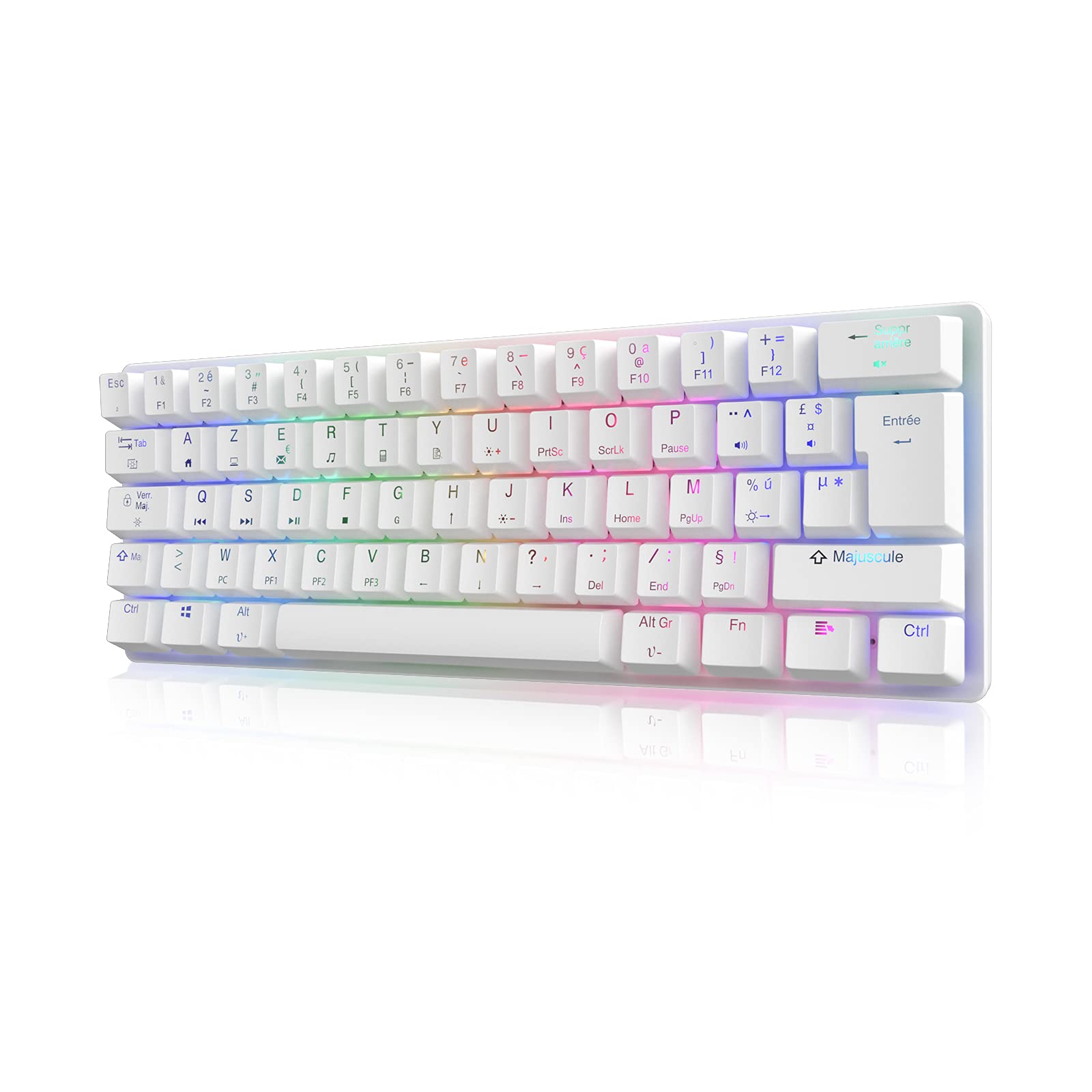
Figure 4.1: STOGA MK22 60% Mechanical Gaming Keyboard
4.1. Compact and Portable Design

Figure 4.2: The compact size of the STOGA MK22 keyboard, easily held in one hand.
The 60% form factor and detachable USB-C cable make the MK22 highly portable and ideal for saving desk space without compromising typing comfort.
4.2. Mechanical Brown Switches

Figure 4.3: Close-up view of the mechanical brown switches on the STOGA MK22 keyboard.
The keyboard features durable mechanical brown switches, offering a tactile bump without an audible click, suitable for both typing and gaming. These switches have a lifespan of up to 50 million keystrokes.
4.3. Ergonomic Design

Figure 4.4: Side profile of the STOGA MK22 keyboard, highlighting its ergonomic design for comfortable use.
The keyboard's ergonomic design provides a comfortable and excellent typing experience, reducing strain during extended use.
5. Setup
The STOGA MK22 keyboard is a plug-and-play device, requiring no additional drivers for most operating systems.
- Connect the USB-C end of the provided cable to the USB-C port on the keyboard.
- Connect the USB-A end of the cable to an available USB port on your computer.
- The keyboard will be automatically recognized by your operating system. You can begin using it immediately.
5.1. Compatibility

Figure 5.1: The STOGA MK22 keyboard demonstrating strong compatibility with various operating systems.
The keyboard is compatible with Windows 7/8/10, Windows XP, and Mac OSX operating systems.
6. Operating Instructions
6.1. Basic Functions
Once connected, the keyboard functions as a standard AZERTY layout keyboard. All 61 keys feature anti-ghosting technology, ensuring every keystroke is registered accurately, even during rapid input.

Figure 6.1: Hands demonstrating typing on the STOGA MK22 keyboard, showcasing its full anti-ghosting capability.
6.2. RGB Lighting Control
The keyboard features dynamic RGB backlighting with various effects and adjustable brightness.

Figure 6.2: The STOGA MK22 keyboard illuminated with vibrant RGB backlighting.
- Change Lighting Mode: Press Fn + = to cycle through 19 different lighting effects.
- Adjust Brightness: The keyboard offers 5 adjustable brightness levels. Use specific key combinations (not explicitly detailed in product info, typically Fn + Up/Down arrow or similar) to adjust.
- Customize Backlighting: Press Fn + G to enter customization mode for the backlighting. Refer to the keyboard's specific keycap legends for detailed customization options.
6.3. Function Key Combinations
Due to its 60% compact design, many functions are accessed via the Fn key in combination with other keys. This allows access to up to 100 functions, including multimedia controls and other system commands. Refer to the keycap legends for specific Fn combinations.
7. Maintenance
- Cleaning: Use a soft, lint-free cloth to wipe the keyboard surface. For deeper cleaning, you may use compressed air to remove dust and debris from between the keycaps. Avoid spraying liquids directly onto the keyboard.
- Storage: When not in use, store the keyboard in a dry, cool place, away from direct sunlight and extreme temperatures.
- Cable Care: Avoid bending or twisting the USB-C cable excessively to prevent internal damage.
8. Troubleshooting
- Keyboard not responding:
- Ensure the USB-C cable is securely connected to both the keyboard and the computer.
- Try connecting the keyboard to a different USB port on your computer.
- Test the keyboard on another computer to rule out system-specific issues.
- RGB lighting not working or inconsistent:
- Ensure the keyboard is properly powered.
- Cycle through lighting modes using Fn + =.
- Adjust brightness settings.
- Specific keys not working:
- Check for any physical obstructions under the keycap.
- Clean the area around the affected key.
9. Specifications
| Manufacturer | STOGA |
| Model Number | MK22 |
| Connectivity Technology | USB-C Wired |
| Keyboard Layout | AZERTY |
| Switch Type | Mechanical (Brown) |
| Number of Keys | 61 |
| Backlight | RGB (19 modes, 5 brightness levels) |
| Anti-Ghosting | All Keys |
| Compatible Operating Systems | Windows 7/8/10, Windows XP, Mac OSX |
| Material | Plastic |
| Included Components | USB Cable |
| Power Source | Electric Cable |
10. Warranty Information
STOGA products are typically covered by a limited warranty against manufacturing defects. Please retain your proof of purchase for warranty claims. For specific warranty terms and duration, refer to the documentation provided with your purchase or contact STOGA customer support.
11. Support
If you encounter any issues or have questions regarding your STOGA MK22 keyboard, please do not hesitate to contact our customer service. Our support team aims to respond within 24 hours.
- Online Support: Visit the official STOGA website for FAQs and support resources.
- Email Support: Refer to your product packaging or the STOGA website for the customer service email address.