
1. Introduction
This manual provides detailed instructions for the setup, operation, and maintenance of your Gvirtue RC3067 Replacement Remote Control. Please read this manual carefully to ensure proper use and to maximize the functionality of your remote control.
2. Compatibility
The Gvirtue RC3067 remote control is designed for use with specific Roku devices. Please verify your device model before use.
2.1 Compatible Devices
- Roku Express
- Roku Premiere
- Roku Ultra
- Roku Box
- Roku Player
- Roku 1, 2, 3, 4
2.2 Non-Compatible Devices
This remote control is NOT compatible with the following devices:
- Roku Stick (including Roku Streaming Stick 4K, Roku Streaming Stick+)
- Built-in Roku TV models (e.g., TCL Roku TV, Hisense Roku TV, Onn Roku TV, Insignia Roku TV, Sharp Roku TV)
- Roku Smart Soundbar / Roku Streambar / Roku Streambar Pro
Important: This remote does NOT feature a pairing button, headphone jack, voice search, or lost finder function. If your original remote requires a pairing button, this replacement will not be suitable.
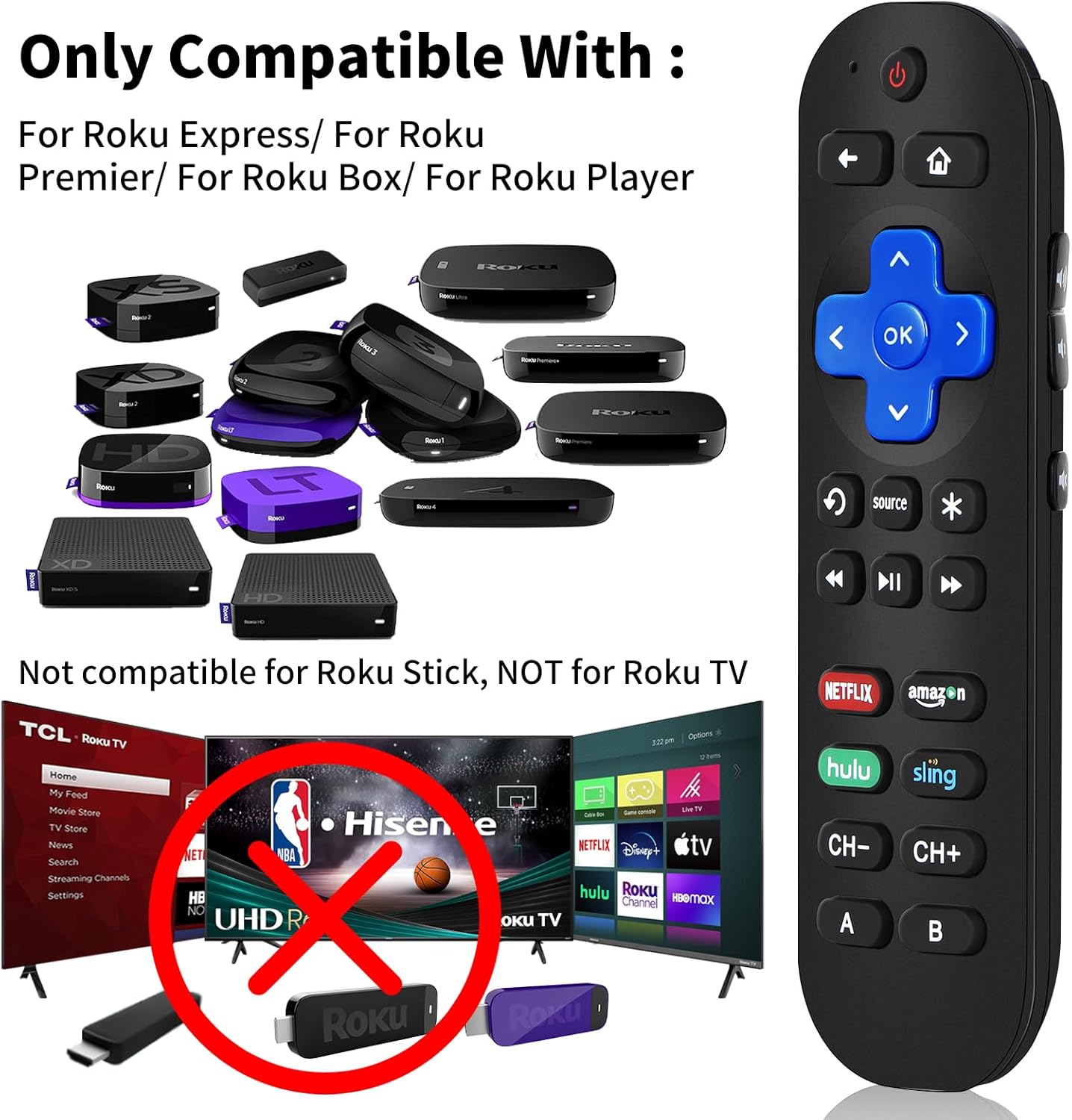
An image illustrating the compatibility of the Gvirtue RC3067 remote control with various Roku Express, Premiere, Box, and Player models. It explicitly states incompatibility with Roku Stick and Roku TV models.
3. Setup
3.1 Battery Installation
- Open the battery compartment cover on the back of the remote control.
- Insert two (2) AAA batteries (not included), ensuring the correct polarity (+/-) as indicated inside the compartment.
- Close the battery compartment cover securely.
3.2 Initial Use (Roku Devices)
For compatible Roku Express, Premiere, Ultra, Box, Player, 1, 2, 3, 4 devices, no programming is required. Once batteries are installed, the remote is ready for immediate use with your Roku device.
3.3 Learning Function Setup (for TV Control)
The Gvirtue RC3067 remote includes 9 learning buttons (Power, Volume Up, Volume Down, Mute, Source, Channel Up, Channel Down, A, B) that can be programmed to control functions from your original TV remote. This feature allows you to consolidate control of your TV and Roku device into one remote.

An image demonstrating the learning function of the Gvirtue RC3067 remote, showing it alongside another remote, indicating that functions can be programmed from an original IR remote.
- Place the Gvirtue RC3067 remote and your original TV remote head-to-head on a flat surface, approximately 1-2 inches apart.
- Press and hold the 'A' and 'B' buttons simultaneously on the Gvirtue remote until the indicator light (usually red) stays solid. This indicates the remote is in learning mode.
- Press the button on the Gvirtue remote that you wish to program (e.g., 'Power'). The indicator light will flash slowly.
- Press and hold the corresponding button on your original TV remote (e.g., 'Power'). The indicator light on the Gvirtue remote will flash rapidly three times and then stay solid, indicating successful learning.
- Repeat steps 3 and 4 for any other buttons you wish to program (Volume Up, Volume Down, Mute, Source, Channel Up, Channel Down, A, B).
- Once all desired buttons are programmed, press the 'A' and 'B' buttons again simultaneously on the Gvirtue remote to exit learning mode. The indicator light will turn off.
Note: The learning function only works with original IR (Infrared) remotes. Some users may experience variability in the programming saving process; multiple attempts for each button may be required for consistent results.
4. Operating Instructions
The Gvirtue RC3067 remote control features a standard layout for intuitive navigation and control of your Roku device and programmed TV functions.

A detailed diagram labeling each button on the Gvirtue RC3067 remote control, including TV Power, Back, Home, Directional Keypad, OK, Volume Control, Mute, Instant Replay, Options, Rewind, Fast Forward, Play/Pause, Channel Shortcuts (Netflix, Amazon, Hulu, Sling), Channel Up/Down, and DIY Learning Keys (A, B).
4.1 Button Functions
- Power (Red Button): Turns your TV on or off (if programmed).
- Back (Left Arrow): Returns to the previous screen or menu.
- Home (House Icon): Navigates to the Roku home screen.
- Directional Keypad (Blue Arrows): Navigates through menus and content.
- OK (Center Button): Selects an item or confirms an action.
- Volume Control (Side Buttons): Adjusts TV volume (if programmed).
- Mute (Asterisk Icon): Mutes TV audio (if programmed).
- Instant Replay (Curved Arrow): Replays the last few seconds of content.
- Source (Source Icon): Changes TV input source (if programmed).
- Options (Asterisk Icon): Accesses additional options within an application.
- Rewind / Fast Forward / Play/Pause: Standard media playback controls.
- Channel Shortcuts (Netflix, Amazon, Hulu, Sling): Direct access buttons to popular streaming services.
- CH- / CH+: Changes TV channels (if programmed).
- A / B (DIY Keys): User-programmable buttons for additional TV functions.
4.2 Using Shortcut Buttons
The dedicated shortcut buttons for Netflix, Amazon, Hulu, and Sling allow for quick access to these streaming applications. Simply press the desired button to launch the corresponding service on your Roku device.
5. Maintenance
5.1 Battery Replacement
When the remote control's performance degrades or it stops responding, it is likely time to replace the batteries. Follow the battery installation steps in Section 3.1 to replace the two AAA batteries.
5.2 Cleaning
To clean the remote control, use a soft, dry cloth. For stubborn dirt, lightly dampen the cloth with water. Avoid using harsh chemicals or abrasive cleaners, as these can damage the remote's surface or internal components.
6. Troubleshooting
- Remote is not responding:
- Ensure batteries are correctly installed and not depleted. Replace with fresh AAA batteries if necessary.
- Check for any obstructions between the remote and your Roku device/TV. The remote requires a clear line of sight.
- Ensure you are within the effective operating range of the remote.
- Buttons require hard pressing or response is slow:
- This remote is designed with tactile buttons. Ensure a firm press is applied.
- If response remains consistently slow, try replacing batteries.
- Learning function is not working or programmed buttons are inconsistent:
- Ensure your original remote is an IR (Infrared) remote.
- Verify the distance and alignment between the two remotes during the learning process (1-2 inches, head-to-head).
- Repeat the learning steps for the problematic buttons. Some functions may require multiple attempts to program successfully.
- Ensure the original remote's batteries are not low during the learning process.
7. Specifications
| Model Number | RC3067 |
| Product Dimensions | 0.01 x 0.01 x 0.01 inches (approximate) |
| Item Weight | 1.76 ounces |
| Batteries Required | 2 x AAA (not included) |
| Connectivity Technology | Infrared (IR) |
8. Warranty and Support
8.1 Warranty Information
This Gvirtue remote control comes with a 180-day warranty from the date of purchase. This warranty covers manufacturing defects under normal use. It does not cover damage caused by misuse, accidents, unauthorized modifications, or normal wear and tear.
8.2 Customer Support
For any questions, concerns, or warranty claims regarding your Gvirtue RC3067 remote control, please contact Gvirtue customer service directly. Refer to your purchase documentation or the seller's contact information for support details.