
1. Introduction
This manual provides comprehensive instructions for the installation, operation, and maintenance of your XTRONS Android Car Overhead Player, model CM158TA. This device is designed to provide in-car entertainment with its 15.6-inch wide IPS touch screen, Android operating system, and various connectivity options. Please read this manual thoroughly before use to ensure proper functionality and safety.
2. Safety Information
Adherence to the following safety guidelines is crucial for safe operation and to prevent damage to the unit or vehicle:
- Ensure professional installation to avoid electrical issues or damage.
- Do not attempt to disassemble or modify the unit. This may void the warranty and pose safety risks.
- Keep the unit away from water, moisture, and extreme temperatures.
- Avoid blocking ventilation openings to prevent overheating.
- Operate the device only when the vehicle is safely parked, especially when using touch screen functions.
- Use only specified power cables and accessories.
3. Package Contents
Verify that all items listed below are included in your package:
- 1 x XTRONS Android Car Overhead Player (CM158TA)
- 1 x Remote Control
- 1 x Power Cable
- 6 x Nuts (for mounting)
- 1 x User Manual (this document)

Image: Contents of the XTRONS CM158TA package, showing the remote control, power cable, mounting nuts, and the user manual.
4. Setup and Installation
Installation of the XTRONS CM158TA requires technical expertise. It is highly recommended to have the unit installed by a qualified professional to ensure correct wiring and secure mounting.
4.1 Mounting the Unit
- Identify a suitable mounting location on the vehicle's roof, ensuring it does not obstruct the driver's view or vehicle safety features.
- Carefully mark the drilling points for the mounting screws.
- Drill pilot holes and secure the mounting bracket (if applicable) or the unit directly using the provided nuts.
- Ensure the unit is firmly attached and stable.
4.2 Wiring Connections
Connect the power cable and other necessary cables (HDMI, AV, USB) according to the wiring diagram provided with the unit. Ensure all connections are secure to prevent intermittent power or signal loss.

Image: Detailed view of the HDMI and USB input ports on the XTRONS CM158TA, essential for connecting external devices.
5. Operating Instructions
5.1 Powering On and Initial Setup
Once installed, power on the unit. The device runs on Android 9.0 Pie OS. Follow the on-screen prompts for initial setup, including language selection and network configuration.
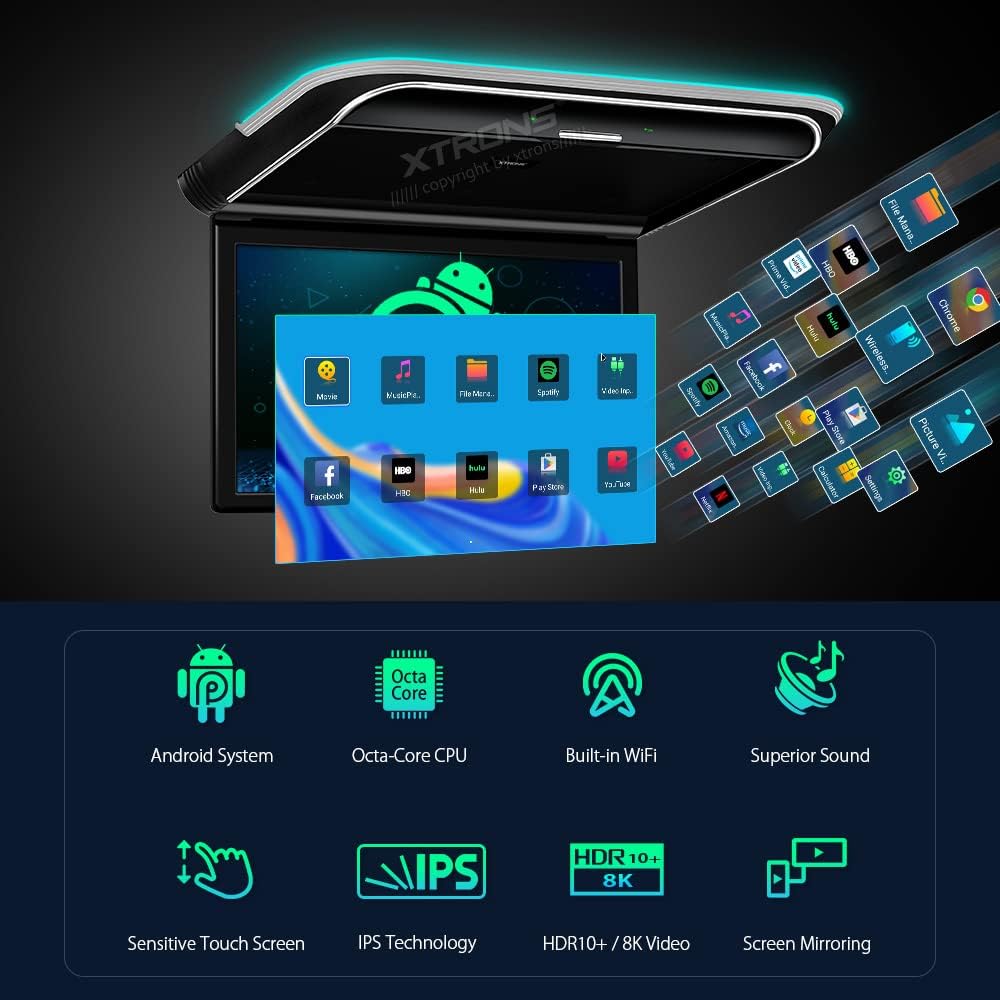
Image: Overview of the XTRONS CM158TA's key features, including its Android system, Octa-Core CPU, built-in WiFi, IPS technology, and support for HDR10+ and 8K video.
5.2 Touch Screen Operation
The 15.6-inch IPS touch screen utilizes G+G technology for sensitive and convenient operation. Tap, swipe, or slide to navigate menus, open applications, and control media playback. The user interface is designed for ease of use.

Image: A hand demonstrating the touch screen functionality of the XTRONS CM158TA, highlighting its interactive capabilities.
5.3 Connectivity Features
- Wi-Fi: The built-in high-quality Wi-Fi module allows for fast data speeds. Connect to a Wi-Fi network or a mobile hotspot to download apps, stream videos (e.g., Netflix, YouTube), and access online content.
- Screen Mirroring: Share content from your mobile phone (iPhone with iOS 9.0+ or Android 8.0+) directly to the monitor without needing to download additional apps.
- HDMI Input: Connect external devices such as game consoles, cameras, or video recorders via HDMI for high-fidelity audio and video transmission.
- USB Input: The USB 2.0 port supports up to 128GB. Insert a USB stick to play music, videos, or view photos.
- AV Input: Use the AV input to connect the monitor with your car head unit.
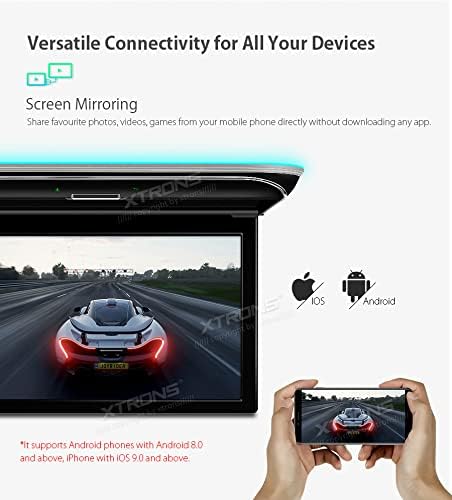
Image: The XTRONS CM158TA displaying content mirrored from a smartphone, illustrating its screen mirroring capability.
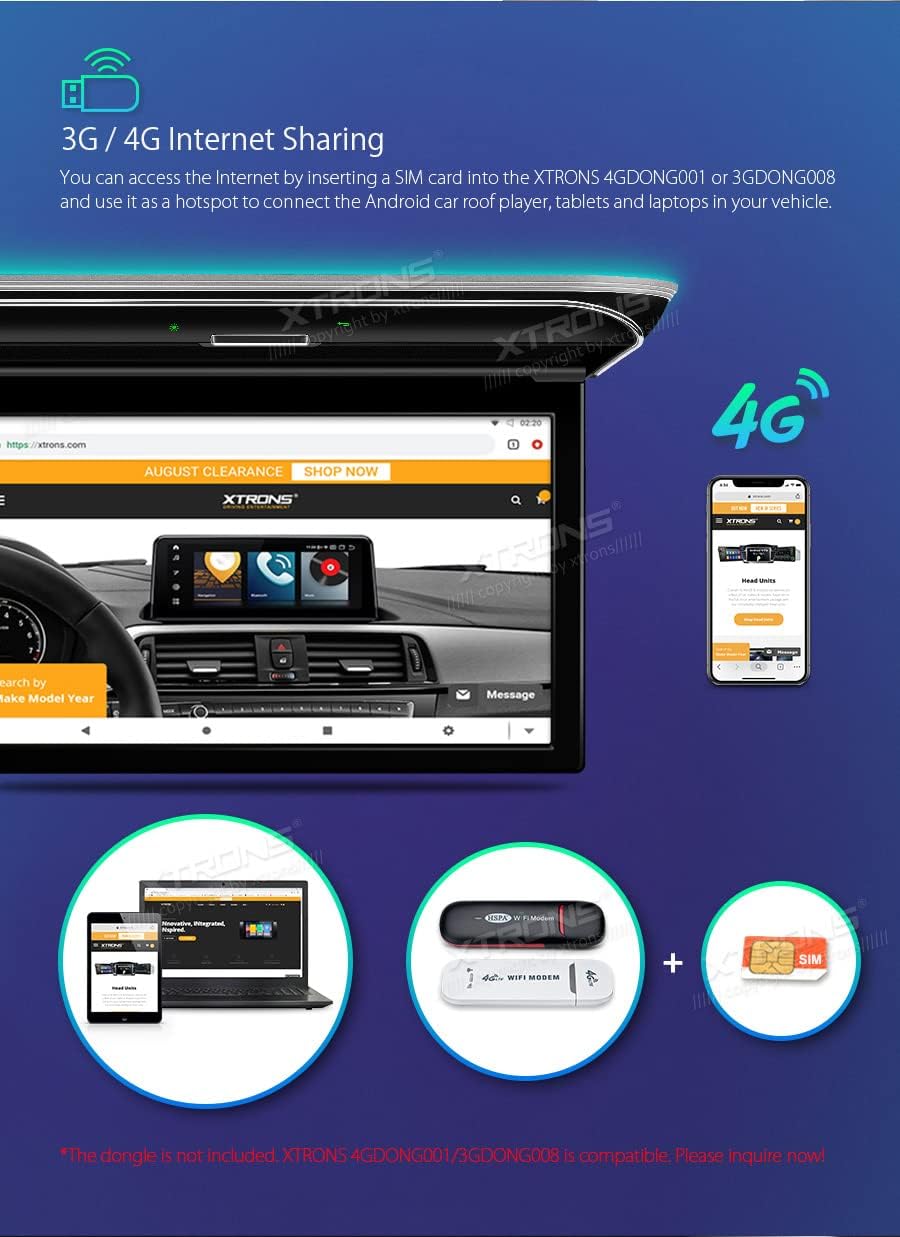
Image: The XTRONS CM158TA connected to the internet via a 3G/4G dongle (optional), demonstrating its internet sharing feature for other devices.
5.4 Audio Output Options
The CM158TA offers multiple ways to output audio:
- Built-in Stereo Speakers: The monitor includes integrated speakers for direct audio playback.
- Bluetooth Headphones: Connect Bluetooth headphones for private listening.
- IR Headphones: Compatible with IR headphones for wireless audio.
- FM Transmitter: Transmit audio to your car's FM radio for playback through the vehicle's sound system.
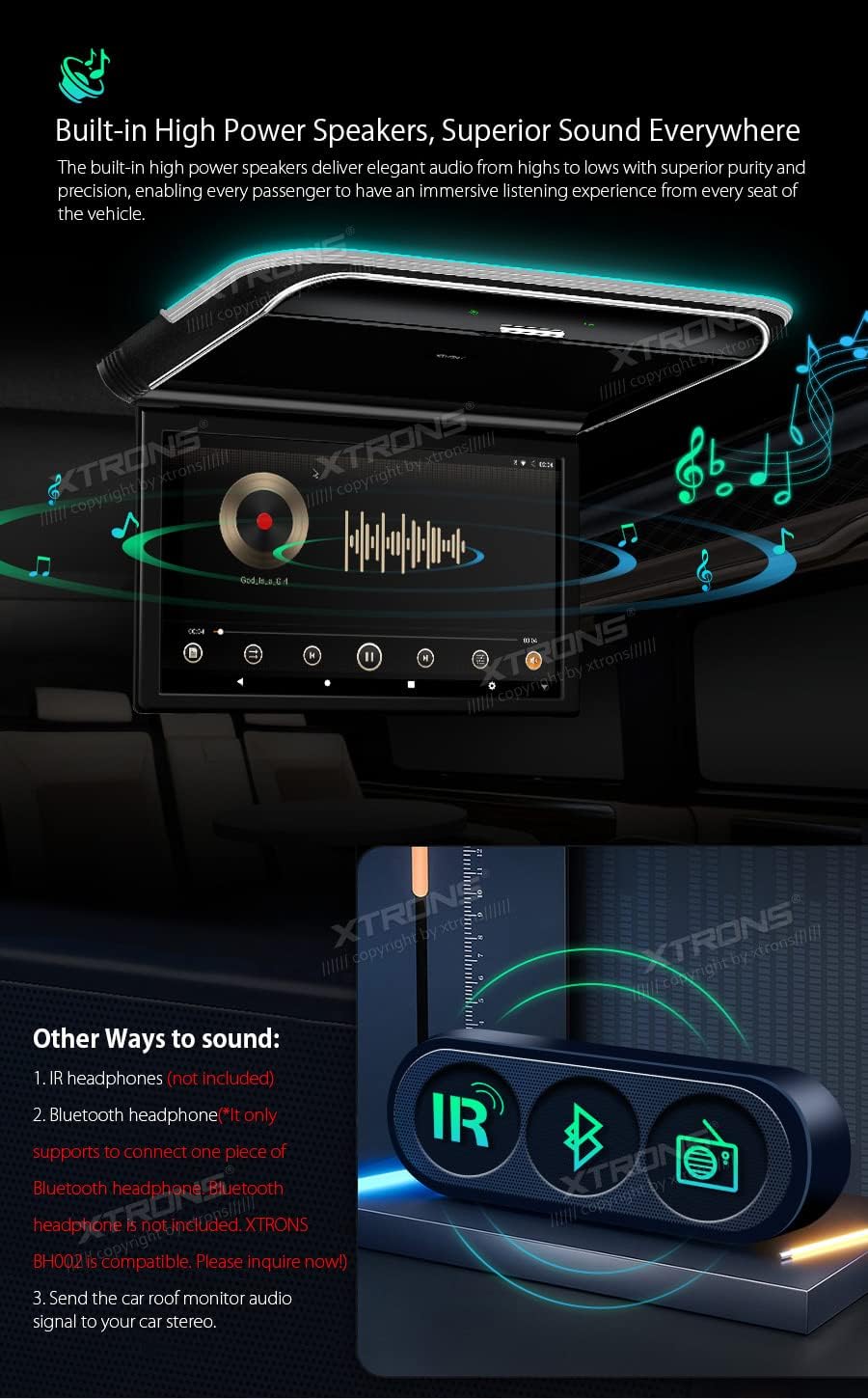
Image: The XTRONS CM158TA showcasing its built-in high-power speakers and illustrating alternative audio output methods like IR headphones and Bluetooth headphones.
5.5 Screen Adjustment
The screen can be rotated up to 170° to achieve an ideal viewing angle, enhancing comfort for passengers.
Video: Demonstrates the 170° rotatable angle of the XTRONS CM158TA screen, allowing for optimal viewing from various positions within the vehicle.
5.6 Virtual Touch Buttons and Aura Lights
The unit features virtual touch buttons that appear only when powered on, contributing to a clean and tidy appearance. Colorful aura lights offer deep visualization and reduce eye fatigue, improving viewer comfort at night.
6. Maintenance
- Cleaning: Use a soft, dry cloth to clean the screen and exterior. Avoid abrasive cleaners or solvents.
- Software Updates: Periodically check for software updates through the system settings to ensure optimal performance and access to new features.
- Storage: If storing the vehicle for an extended period, ensure the unit is powered off and protected from extreme temperatures.
7. Troubleshooting
| Problem | Possible Cause | Solution |
|---|---|---|
| Unit does not power on. | No power supply; loose connection; blown fuse. | Check power cable connection. Verify vehicle's fuse box. Consult a professional installer. |
| No video output. | Incorrect input source selected; loose HDMI/AV cable. | Ensure correct input source is selected in settings. Check all video cable connections. |
| No audio output. | Volume too low; incorrect audio output selected; loose audio cable. | Increase volume. Check audio output settings (built-in speakers, Bluetooth, IR, FM). Verify audio cable connections. |
| Touch screen unresponsive. | Software glitch; screen calibration issue. | Restart the unit. If problem persists, perform a factory reset (refer to settings menu). |
| Wi-Fi connection issues. | Incorrect password; out of range; network interference. | Verify Wi-Fi password. Move closer to the Wi-Fi source. Try connecting to a different network. |
8. Specifications
| Feature | Detail |
|---|---|
| Model Number | CM158TA |
| Screen Size | 15.6 Inches |
| Display Type | IPS LCD Touch Screen |
| Resolution | 1920 x 1080 (Full HD) |
| Operating System | Android 9.0 Pie |
| CPU | Octa-Core 2.0GHz |
| RAM | 2GB |
| ROM | 32GB |
| Video Support | Up to 8K, HDR10+ Technology |
| Connectivity | Wi-Fi, Bluetooth, HDMI, USB 2.0 (Max 128GB), AV Input |
| Audio Output | Built-in Stereo Speakers, Bluetooth Headphones, IR Headphones, FM Transmitter |
| Rotatable Angle | Up to 170° |
| Product Dimensions | 17.13 x 13 x 1.38 inches |
| Item Weight | 9.88 pounds |

Image: A visual comparison of the XTRONS CM158TA's 15.6-inch screen size against a 10.1-inch car roof player and a 9.7-inch iPad, illustrating its larger display.
9. Warranty and Support
XTRONS products are designed for reliability and performance. For warranty information, please refer to the warranty card included with your product or visit the official XTRONS website. For technical support, troubleshooting assistance, or service inquiries, please contact XTRONS customer service through their official channels.
Official XTRONS Store: Visit XTRONS Store on Amazon
UPC: 5055869153492